Touchpoint Management
A touchpoint is one place where you ask customers for feedback. A kiosk by the exit door, a QR code on a receipt, an SMS sent after a service call — each one is a touchpoint.
The Touchpoints screen is the list of all of them. Use it to find a touchpoint, change its question, send a message batch, or add a new one.
Go to Manage → Touchpoints.
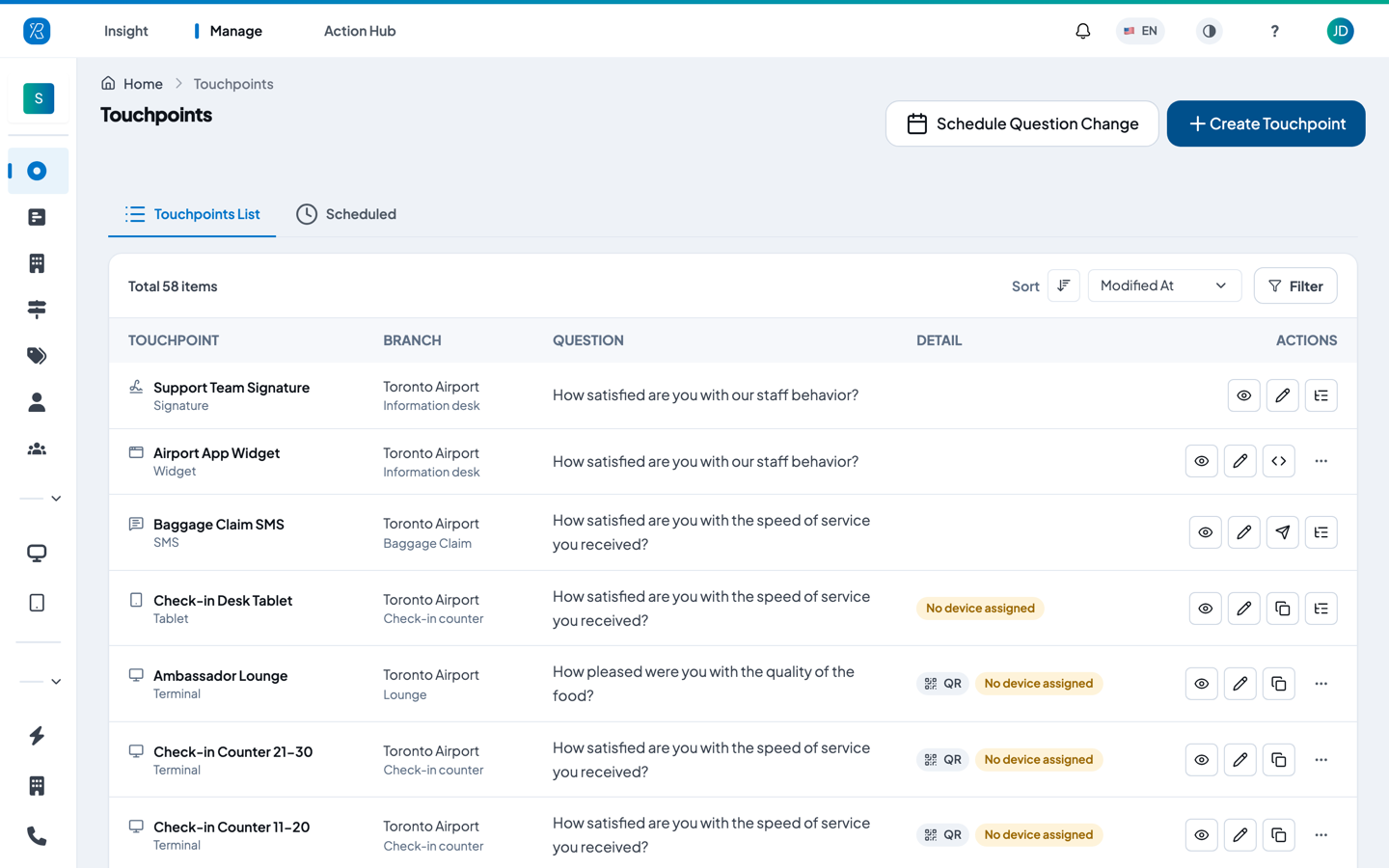
The list mixes every kind of collector you use. In the screenshot above the first rows are a Signature, a Widget, an SMS, a Tablet and several Terminal (kiosk) touchpoints.
The two tabs
- Touchpoints List — every touchpoint you have now. This is the tab you land on.
- Scheduled — question changes that are set to happen on a future date. See Schedule a question change below.
How to read the list
The count at the top left tells you how many touchpoints you have in total.
Each row has four columns:
| Column | What it shows |
|---|---|
| Touchpoint | The name you gave it, with its collector type underneath (SMS, Tablet, IVR, Email, Terminal, QR, Widget, Signature). A Disabled tag appears here when the touchpoint has been switched off. |
| Branch | The branch it belongs to, with the section underneath — for example Toronto Airport / Baggage Claim. |
| Question | The question customers see. A survey touchpoint also shows SURVEY and the survey name. |
| Detail | Small chips for how it is set up. Hover or tap a chip to see the full detail. |
The chips in Detail can include:
- Why categories — the happy, meh and sad faces. Hover to see the follow-up reasons a customer can pick after they answer. See Why Categories.
- ABC and Choices — the three answer options set up on the touchpoint.
- QR — opens the QR code, ready to print or download onto a label.
- Terminal — the kiosk attached to this touchpoint. The chip shows its battery and serial number; open it for the serial number, the battery level and when it was last seen.
- Tablet ID — the tablet attached to this touchpoint. Open it for the tablet's name and its token.
- If no device is attached you see an orange No device assigned warning instead — that touchpoint is collecting nothing.
These are all chips in the Detail column, not row buttons. Why categories and Tablet ID in particular are opened from here, not from the Actions column.
Click a touchpoint's name to open its own page.
Find a touchpoint
Click Filter at the top right of the list.
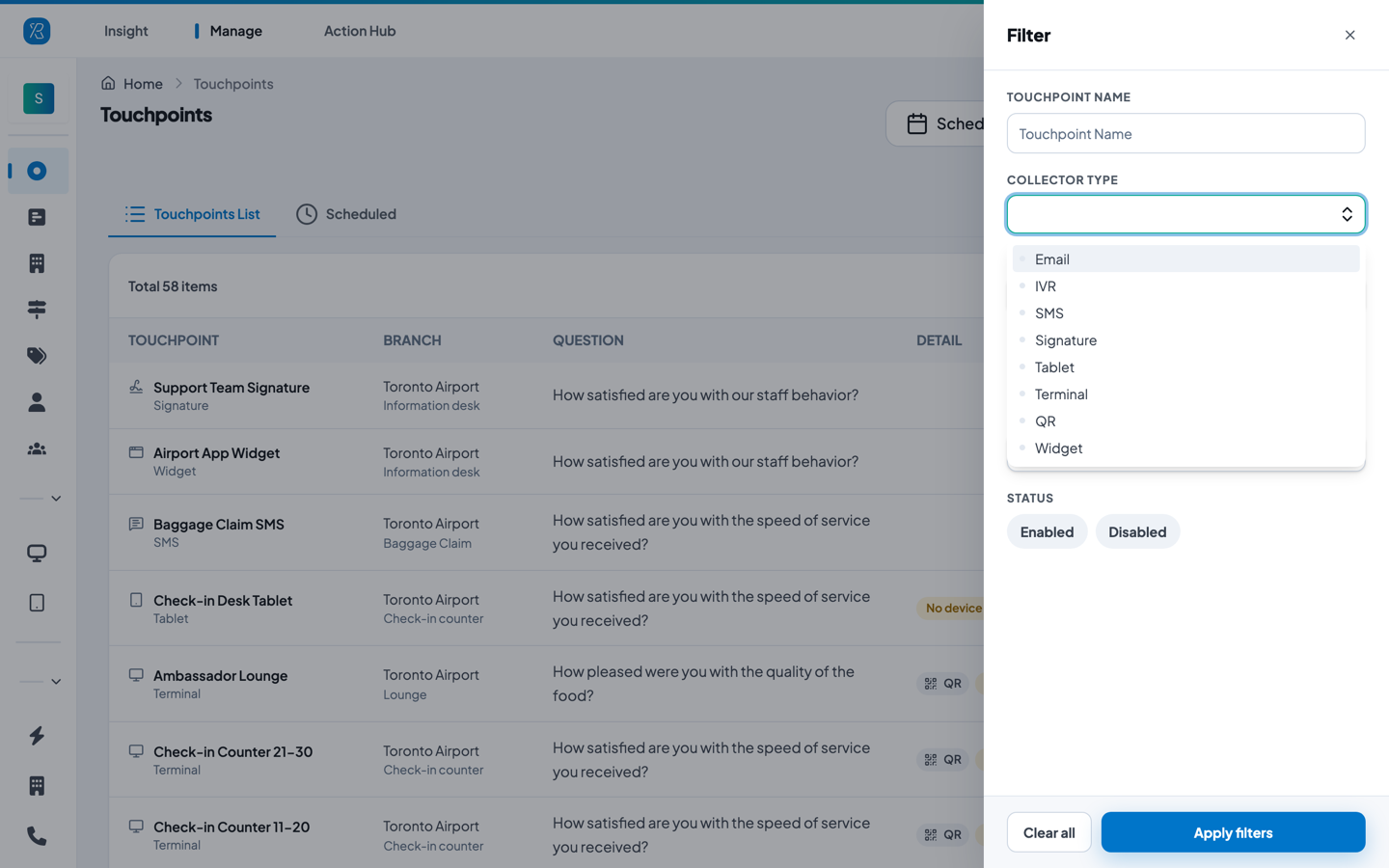
- Fill in any of the fields: Touchpoint Name, Collector Type (Email, IVR, SMS, Signature, Tablet, Terminal, QR, Widget), Question, Branch, Section, Status (Enabled or Disabled).
- Click Apply filters.
- Your choices appear as tags above the list. Click the x on a tag to drop it, or Clear all to start over.
To change the order, use Sort next to the Filter button. You can sort by Modified At or Created At, and use the arrow button beside it to flip between newest first and oldest first.
What each row action does
The buttons at the right of a row change with the collector type. A row shows up to four buttons. If it has more than four, the first three stay on the row and the rest sit behind a more (...) button.
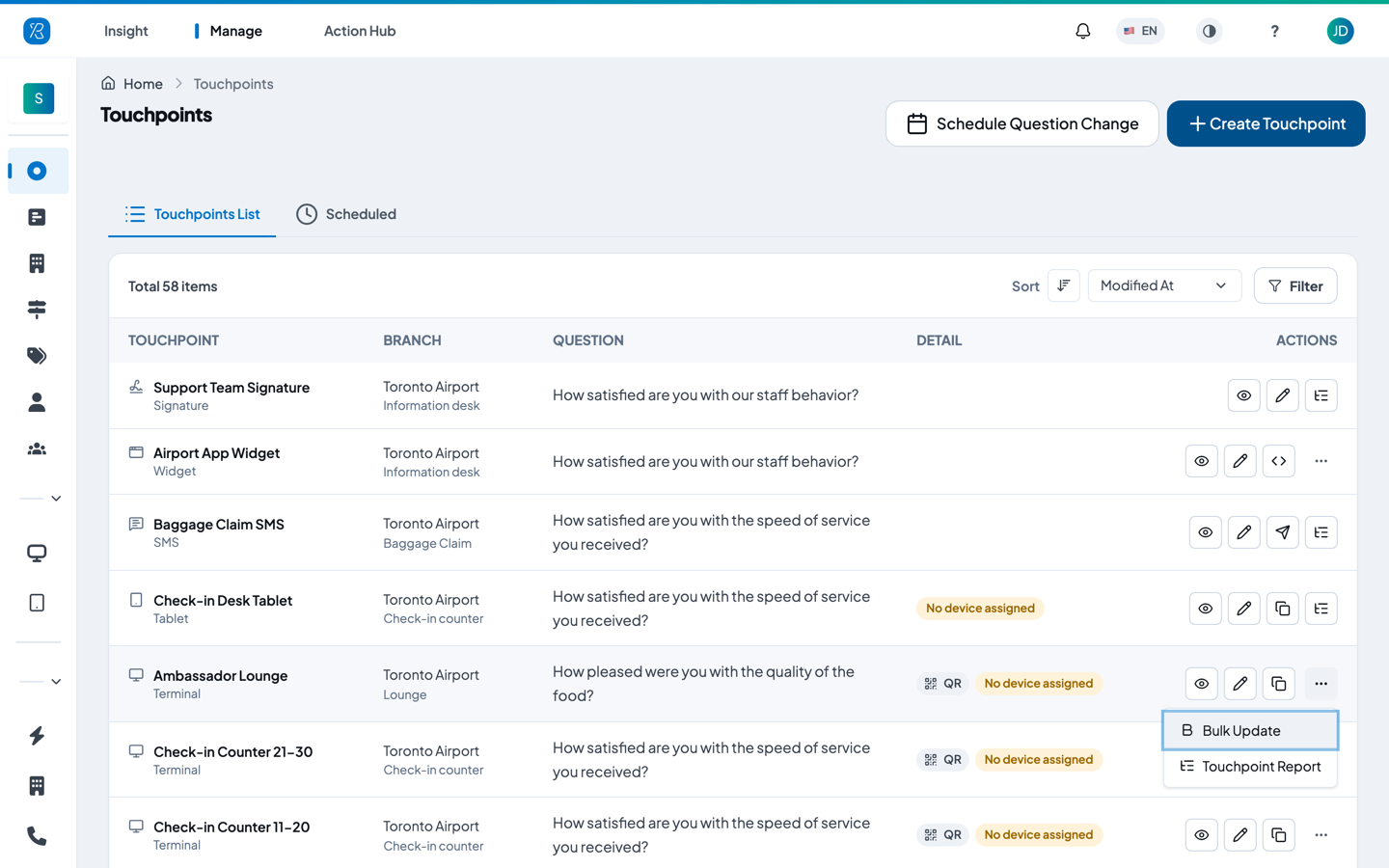
In the screenshot above every row has a different set. The Signature row has three buttons, the Widget row has a Get code button, the SMS row has Send Batch SMS, the Tablet row has Copy, and the Terminal row's more menu holds Bulk Update and Touchpoint Report.
- View — opens the touchpoint's page: its full setup, what the customer sees, its question history, and its responses.
- Edit — opens the same setup wizard you used to create it, so you can change the question, the branch, the follow-ups, and so on.
- Copy — starts a new touchpoint pre-filled with this one's settings. Handy when you are setting up several similar tablets or kiosks.
- Send Batch SMS (SMS touchpoints only) — go to the screen where you send this question out to a list of mobile numbers.
- Send Email (Email touchpoints only) — the same thing, by email.
- Get QR code — opens the QR code and the printable label. On a wide screen you get this from the QR chip in the Detail column instead; the button only appears on narrow screens, where that column is hidden.
- Get code (Widget touchpoints) — the snippet to paste into your website or app.
- Bulk Update (Terminal touchpoints only) — change the question on many kiosks at once.
- Touchpoint Report — jumps to the Insight report for this touchpoint. Every collector type has this one. See Touchpoint Report.
Which actions you see also depends on your permissions. If you cannot edit touchpoints, you still get View.
Create a touchpoint
- Click + Create Touchpoint at the top right.
- Pick the type of collector you want.
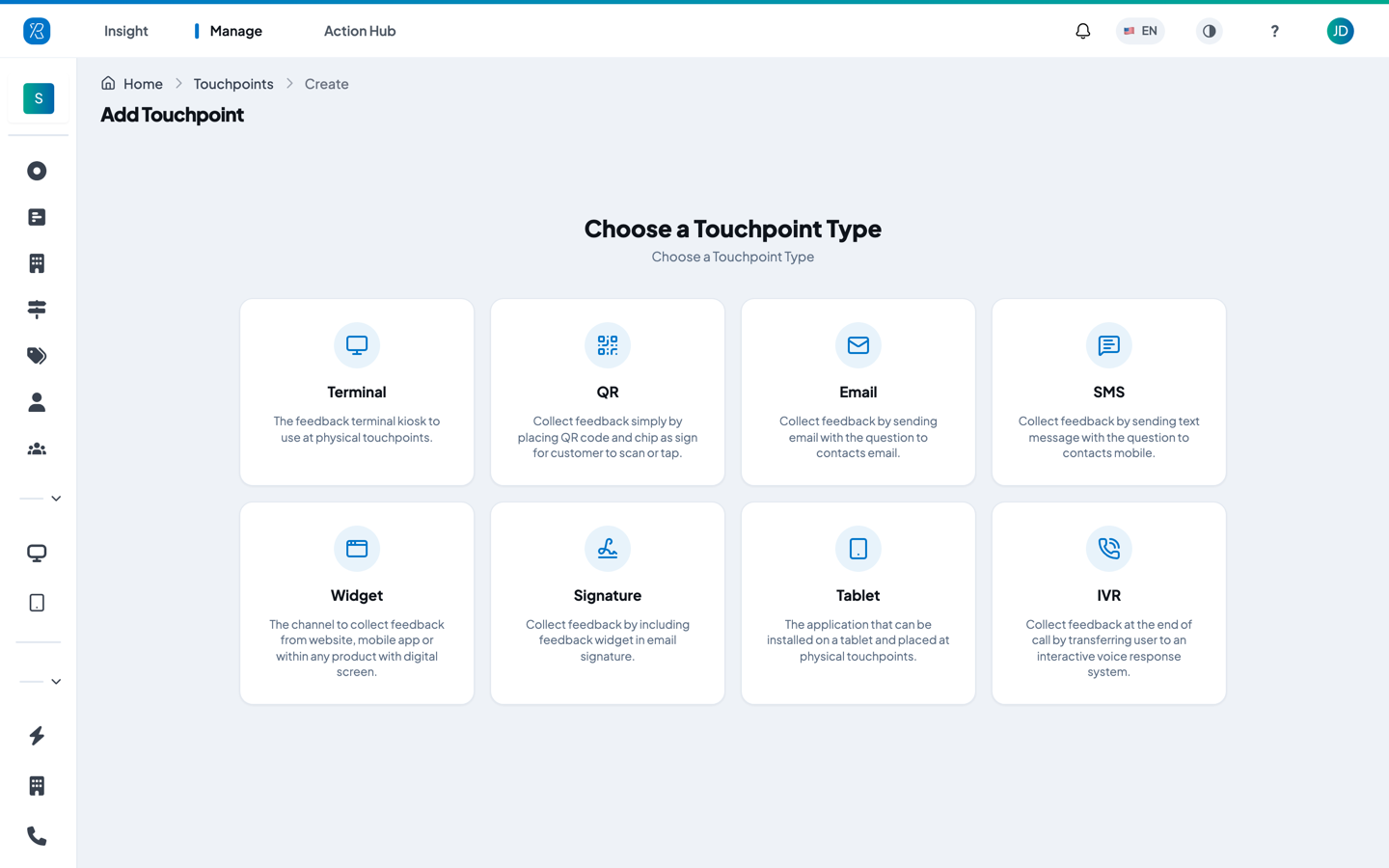
- Follow the steps to name the touchpoint, choose its branch and section, and set its question.
Each collector is set up a bit differently. Pick yours:
- Feedback Kiosk (Terminal)
- QR / Chip / Link
- SMS
- Website / App Widget
- Email Signature
- Tablet
- IVR (after-call)
You need a branch before you can add a touchpoint to it. See Branch Management and What is a Branch, Section & Touchpoint.
Schedule a question change
Use this when you want a kiosk to start asking a different question on a certain date — a seasonal question, or a question for a one-week event. You set it up now and it switches itself on the day.
This only works for Terminal (feedback kiosk) touchpoints.
- Click Schedule Question Change at the top right.
- Search for the kiosk you want and click it.
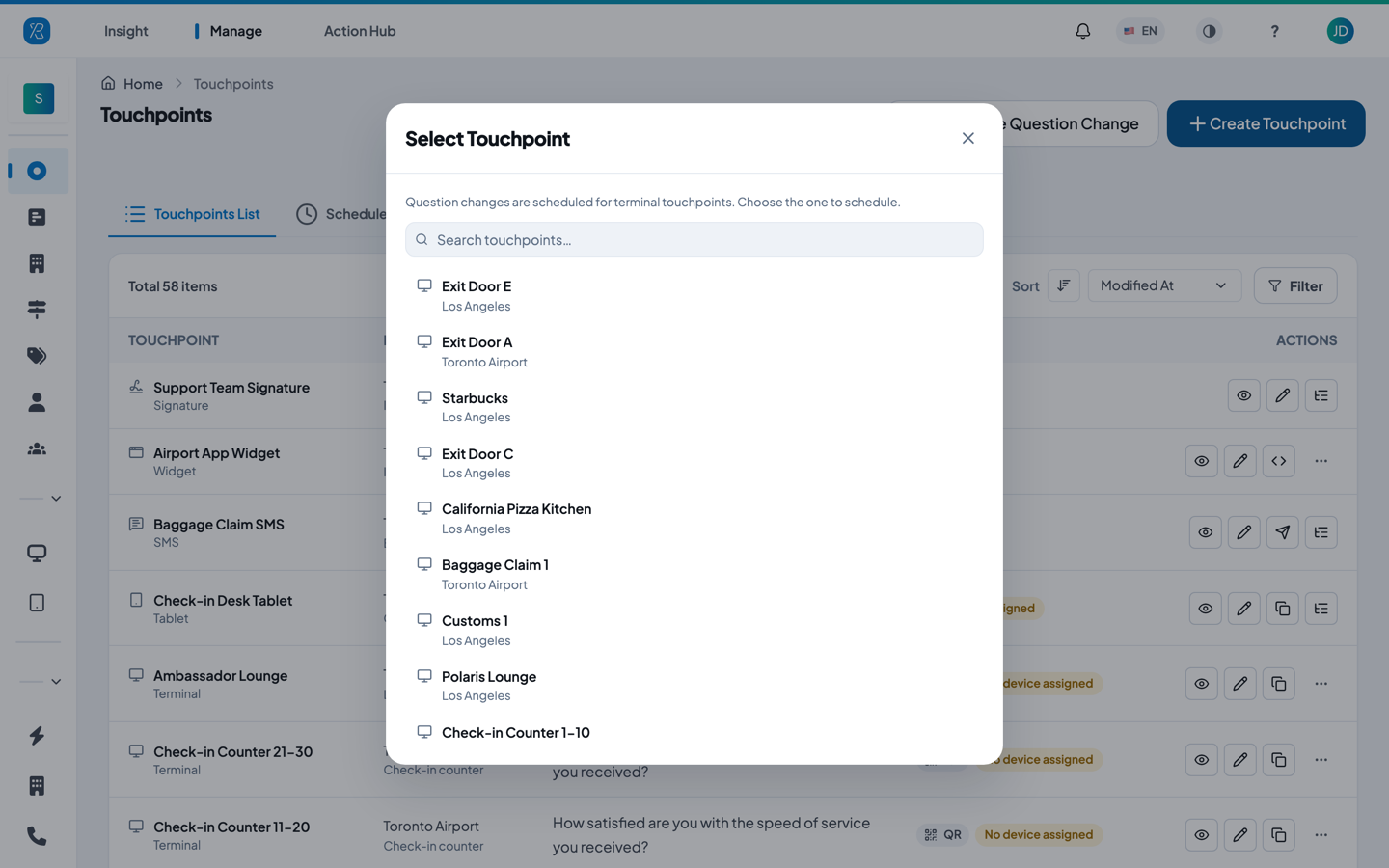
- Choose the new question and the date it should take effect, then save.
The change now appears on the Scheduled tab. Until you schedule something, the tab is empty.
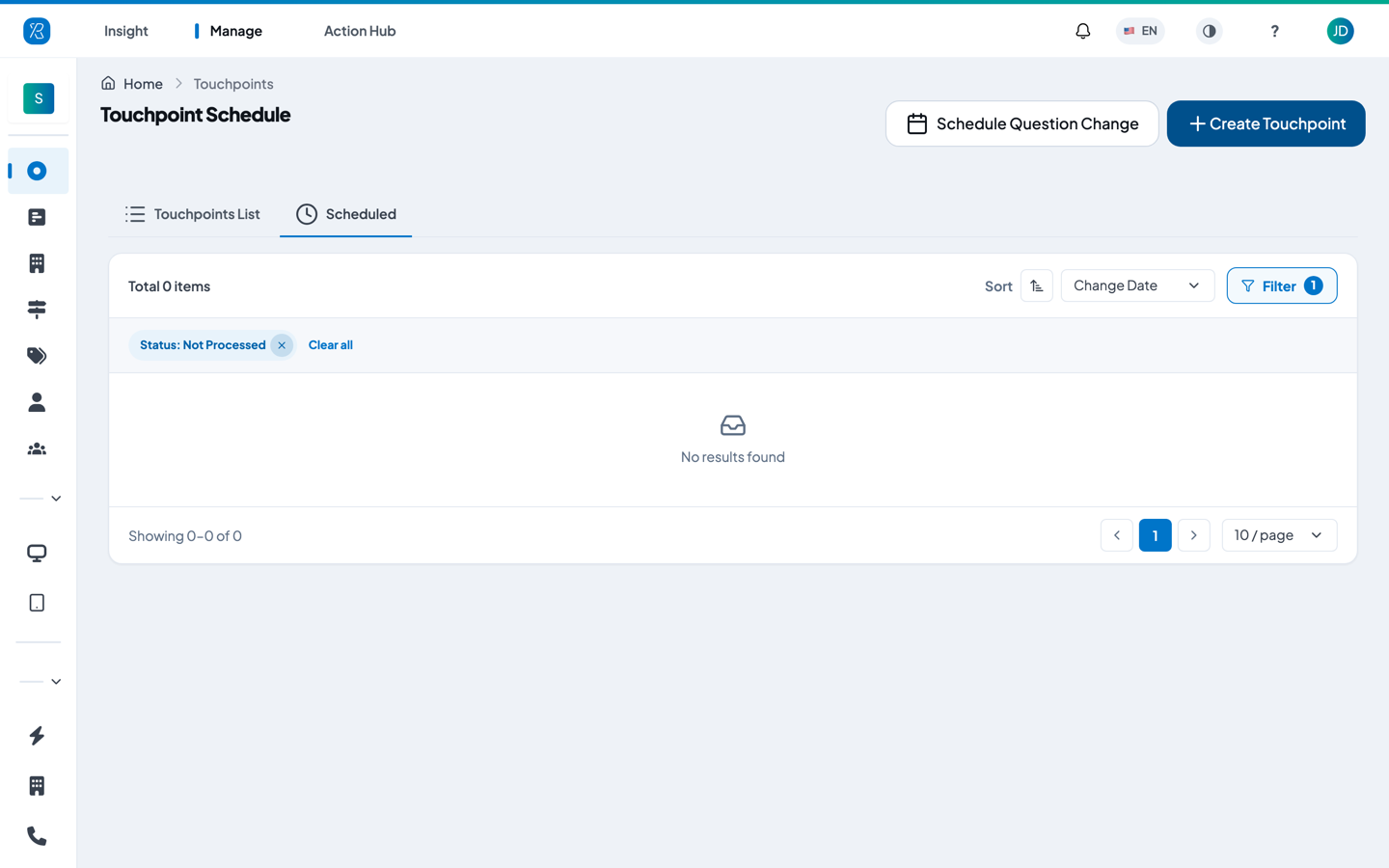
Each scheduled row shows the touchpoint, its branch, the Status (for example Pending), the Change Date, the question that will be used, and when it was created. The row actions let you preview the screen the customer will see, change the date, copy the schedule to another touchpoint, or delete it.
By default the tab only lists changes that have not run yet — that is the Status: Not Processed tag above the list. Remove it, or use Filter, to see ones that have already run.