Create and Manage Workflows
A workflow is an automatic rule: when feedback like this arrives, do this.
For example: when someone leaves a Sad rating with a comment at the Exit touchpoint, email them a thank-you and apology. You set the rule once, and PXP runs it on every matching response from then on.
Each workflow can do one of three things: reply to the customer by email, assign the feedback to one of your team, or mark it resolved. All three happen in the Action Hub — a workflow just does the work for you.
You need admin access to manage workflows. Ask your Press'nXPress admin if you cannot see the screen.
The workflow list
Open Manage in the top menu, then choose Workflow under Settings.
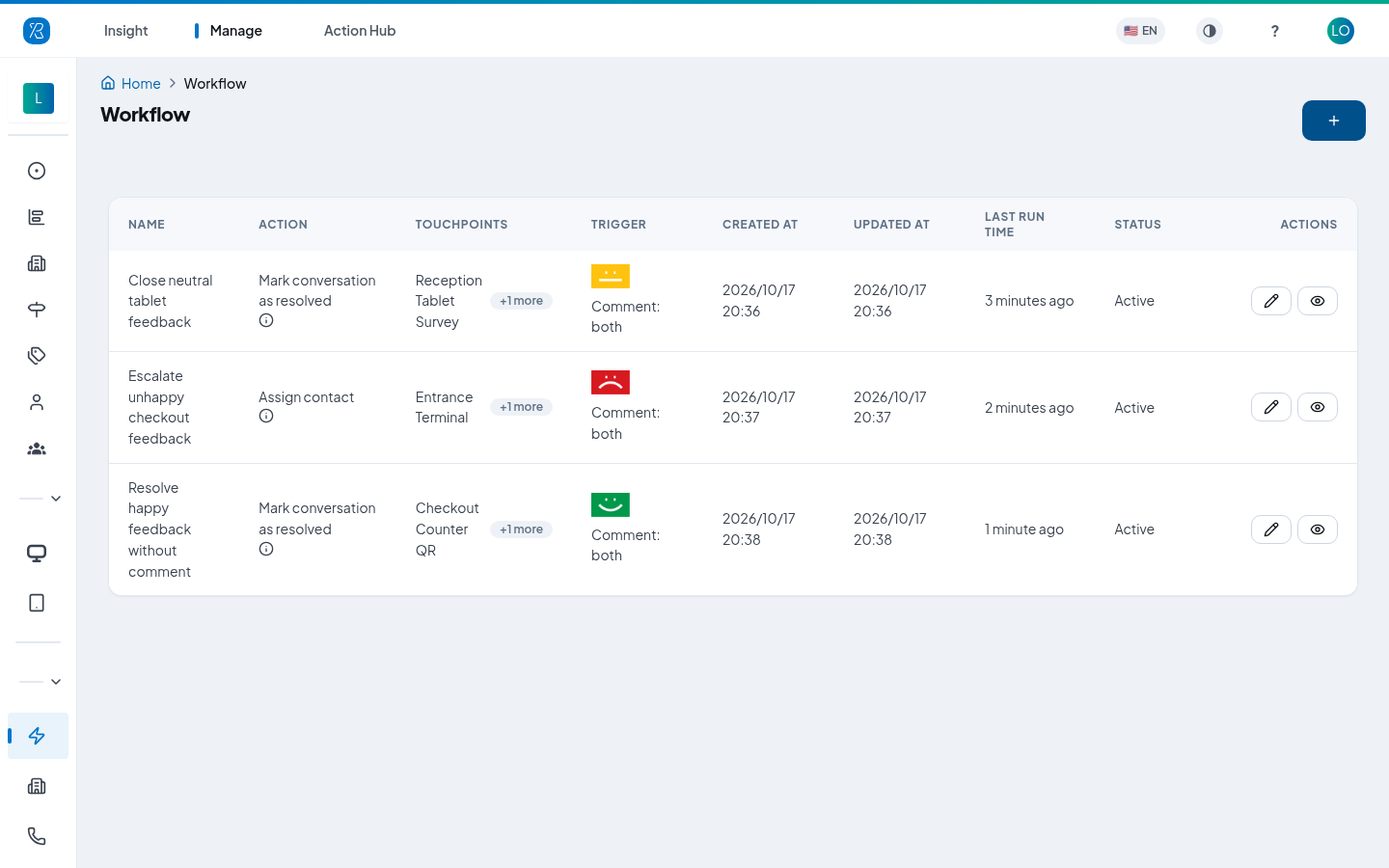
The list shows every rule you have, with:
- Name — the name you gave it.
- Action — what the rule does. Click the small i icon to read the whole rule as a sentence.
- Touchpoints — where the rule applies.
- Trigger — the ratings (happy / meh / sad faces) and whether a comment is needed.
- Created At, Updated At, Last Run Time.
- Status — Active or Disabled.
- Actions — the pencil edits the rule, the eye shows its history.
Click the blue + button at the top right to add a new one.
Create a workflow
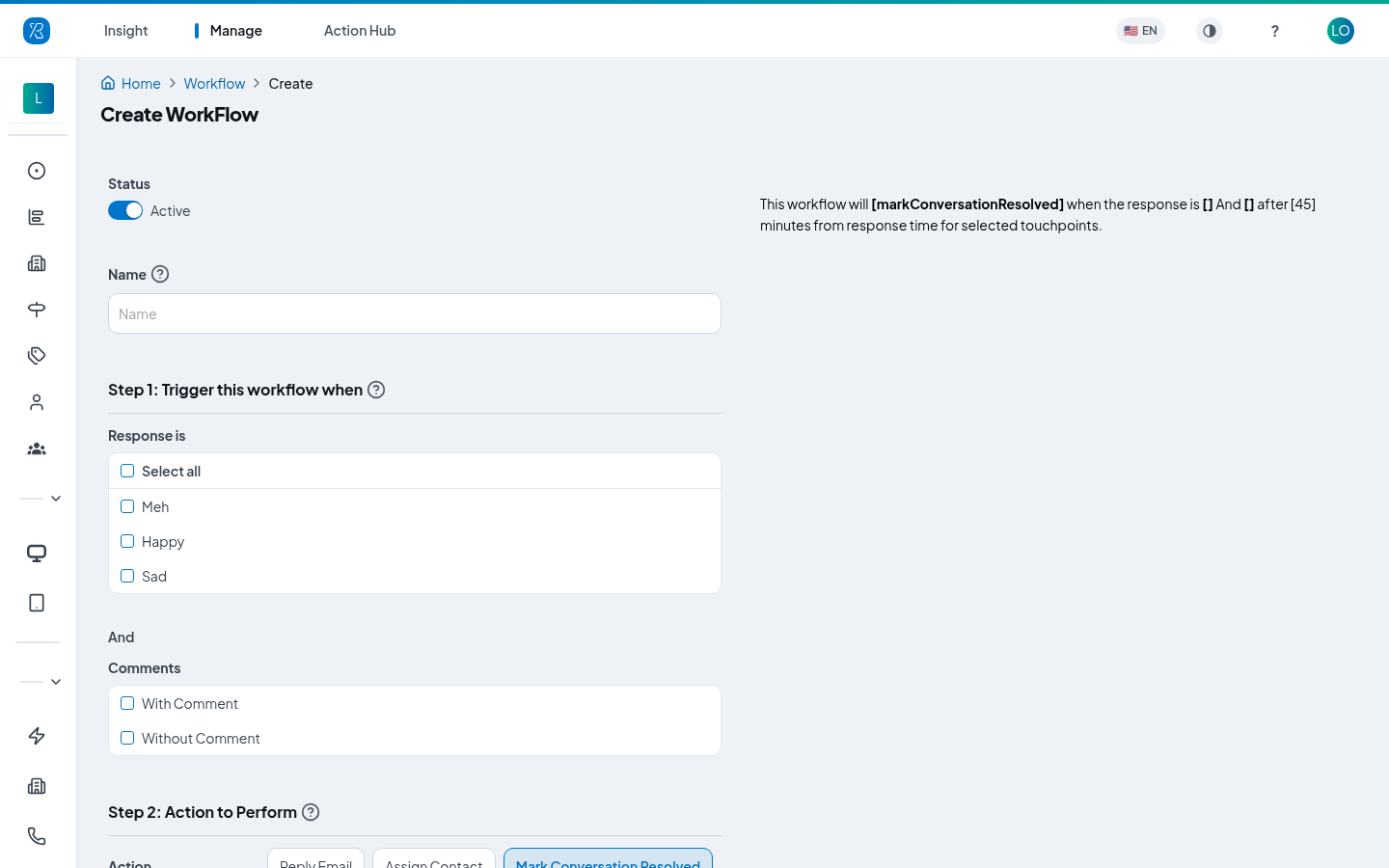
- Click the + button on the Workflow screen.
- Leave Status on Active so the rule starts working as soon as you save it.
- Type a Name. Pick something you will recognise later, like "Sad at Exit — email apology".
- Step 1: Trigger this workflow when — choose what the feedback has to look like.
- Response is — tick Happy, Meh, Sad, or Select all. Pick at least one.
- Comments — tick With Comment, Without Comment, or both. Pick at least one.
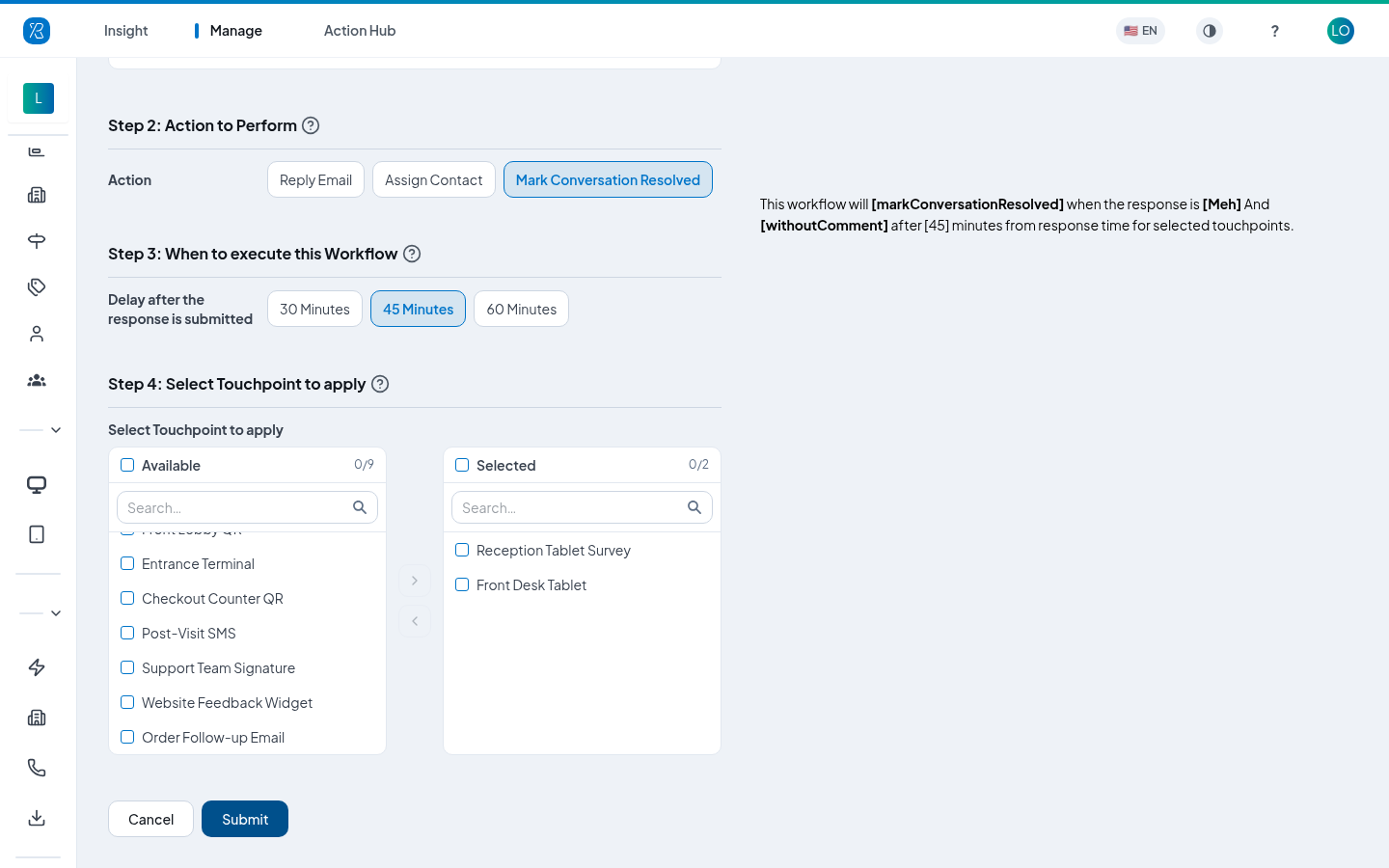
- Step 2: Action to Perform — choose one action:
- Reply Email — sends the customer an email. Then pick an Email Template.
- Assign Contact — hands the feedback to a team member. Then pick the person under Assign contact to.
- Mark Conversation Resolved — closes the conversation with no message.
- Step 3: When to execute this Workflow — choose the delay after the response is submitted: 30, 45 or 60 Minutes. The delay gives the customer time to finish, and gives your team a chance to reply first.
- Step 4: Select Touchpoint to apply — search the Available list, tick the touchpoints you want, and move them to Selected with the arrow. Pick at least one.
- Read the sentence on the right. It spells out your rule in plain words and updates as you edit.
- Click Submit.
A workflow starts running on feedback received after you save it. It does not go back over older feedback.
Edit a workflow
- Go to Manage > Workflow.
- Click the pencil icon on the row you want to change.
- Change any of the fields. The steps are the same as when you created it.
- Click Update.
Turn a workflow off
There is no delete button. To stop a rule, switch it off:
- Go to Manage > Workflow.
- Click the pencil icon on the row.
- Switch Status to Disabled.
- Click Update.
The rule stays in the list, marked Disabled, and stops running. Switch it back to Active any time.
See what a workflow has done
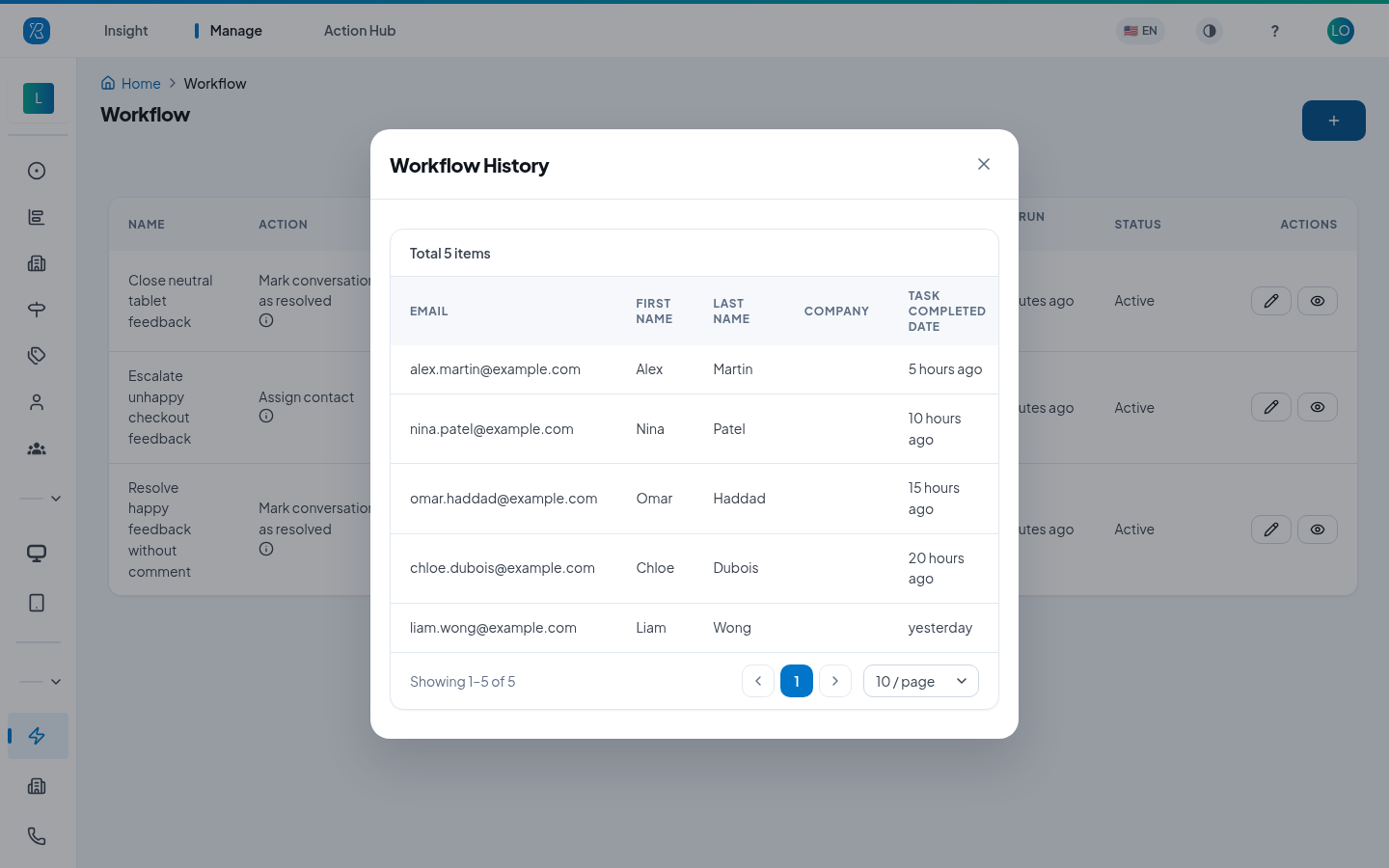
Click the eye icon on a row to open Workflow History. It lists every contact the rule has acted on — email, first name, last name, company, and when the task was completed.
Good to know
- A workflow only acts on feedback that is not yet assigned to anyone and not yet resolved. If your team gets there first, the rule leaves it alone.
- If several workflows match the same feedback, they run in this order: Assign Contact, then Reply Email, then Mark Conversation Resolved.
- Assign Contact sets the conversation to assigned and the feedback to unread for that person.
- Reply Email sends the response template you picked, then sets the conversation to resolved.
- You cannot save two workflows with the same combination of trigger, action and touchpoint. This stops rules from fighting each other.
- Only enabled touchpoints appear in Step 4. See Touchpoint Management.
If you have any questions, contact support@pxp.ai