Agent Management
An agent is a staff member whose service gets rated — the person at the counter, on the phone, or serving the table. It is a person, not a robot or an AI.
When feedback arrives, PXP can tie it to the agent who served that customer. That is how you see how each person is doing, instead of only seeing a score for the whole branch.
The Agents screen is the list of everyone in your organization who can be rated this way. Use it to look someone up, check which touchpoint they are attached to, and fix a misspelled name.
To open it, click Manage in the top bar, then Agent in the left menu.
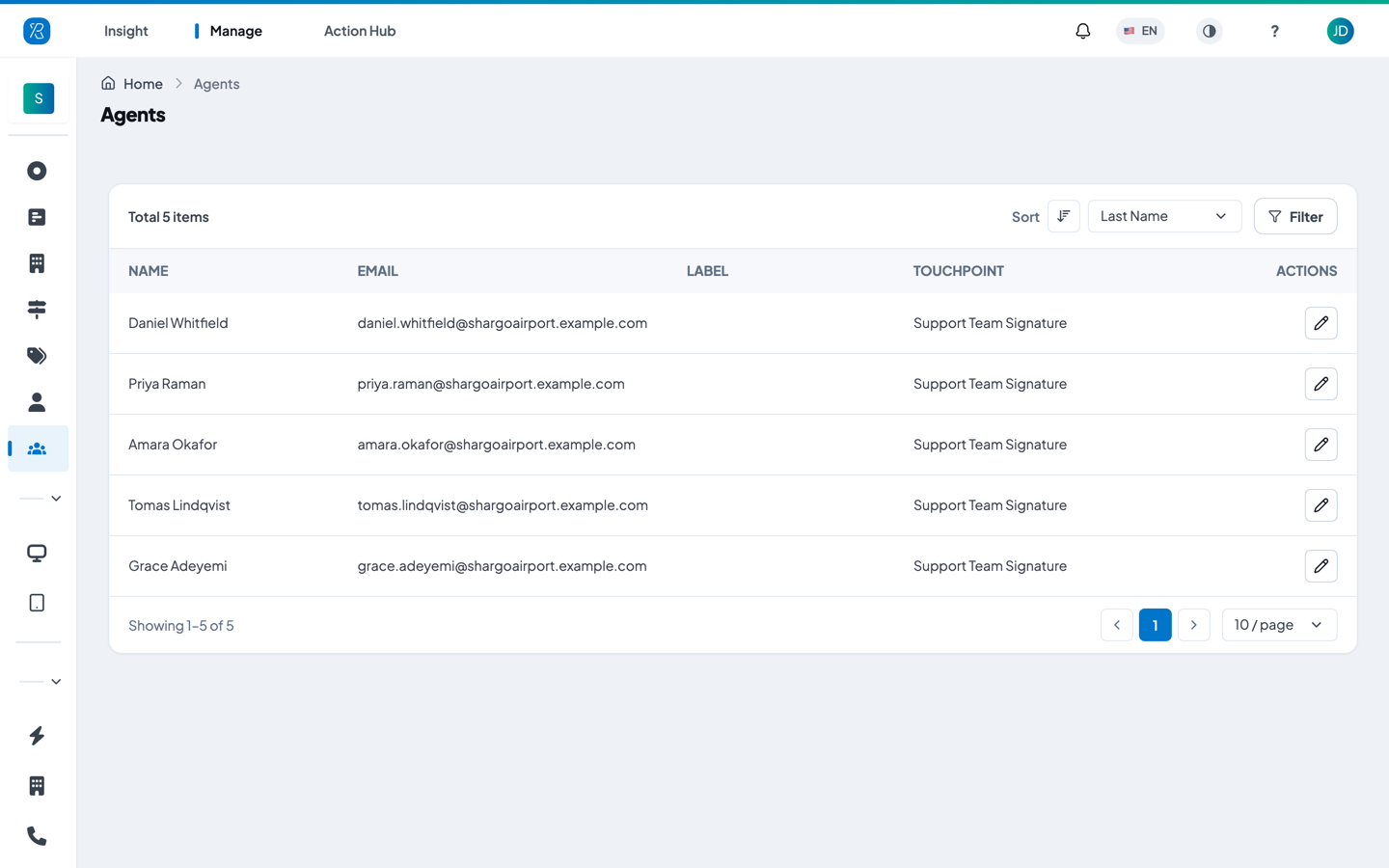
What the list shows
| Column | What it means |
|---|---|
| Name | The agent's first and last name. |
| The email address that identifies this agent. Each agent has one, and it cannot be changed later. | |
| Label | Any labels that include this agent. Labels are set up on the Label Management screen, not here. |
| Touchpoint | The touchpoint the agent collects feedback through — for example a phone line or an email signature. If the agent is attached to more than one touchpoint, each one is listed with its agent token and a +1 more chip appears. |
The count at the top left (Total 5 items in the example above) is how many agents your organization has.
Find an agent
- Click Filter at the top right of the list.
- Type an Email, or pick a Touchpoint from the dropdown.
- Click Apply filters. Click Clear all to go back to the full list.
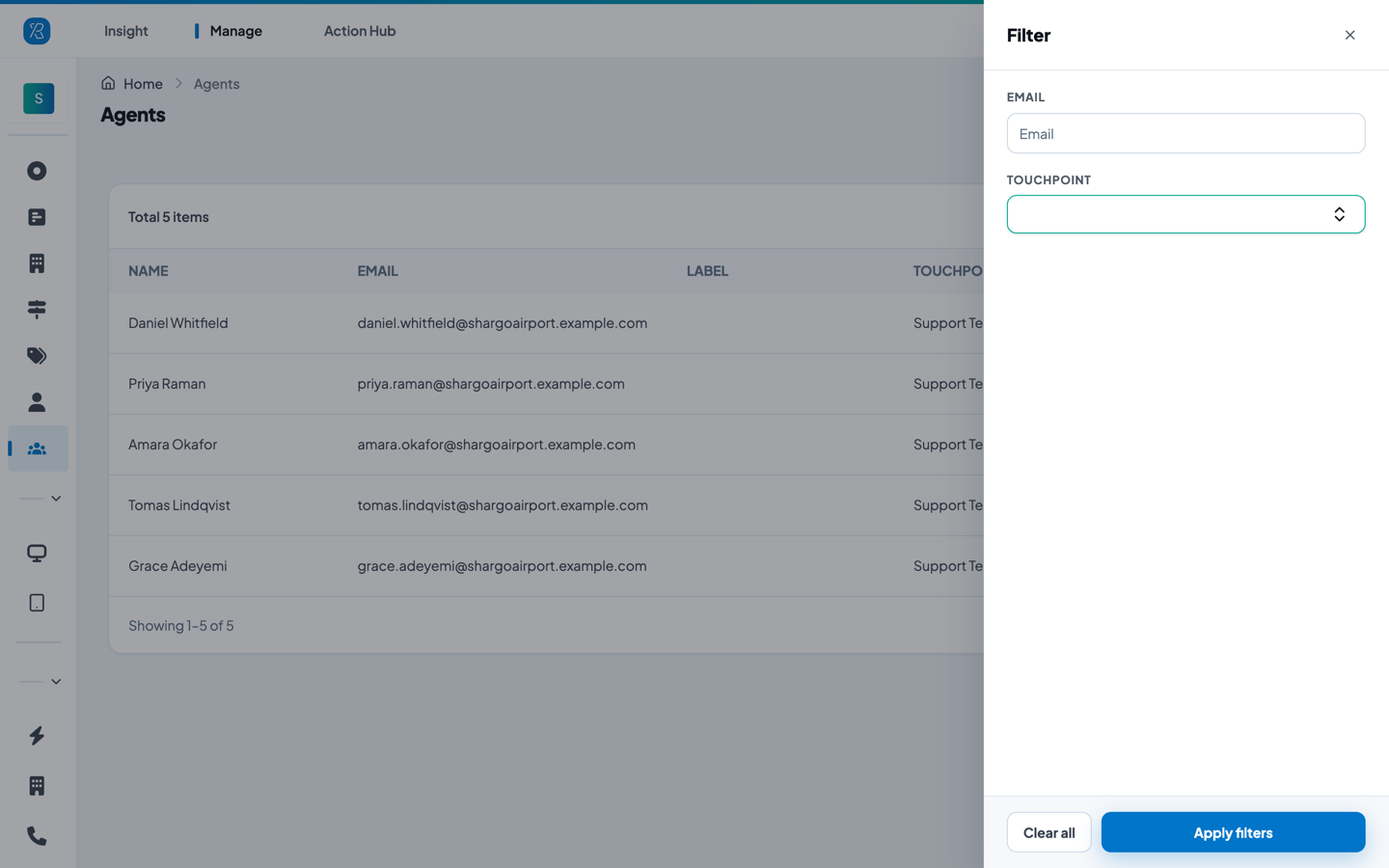
To change the order of the list, use Sort next to the Filter button. You can sort by First Name, Last Name or Email, and click the arrow icon to switch between A–Z and Z–A.
Add an agent
Agents are not created on this screen. You add them on the touchpoint they will collect feedback through, because an agent only makes sense together with a touchpoint. Once added, they appear here automatically.
For a phone (IVR) touchpoint
- Go to Manage > Touchpoint and click the IVR touchpoint you want.
- Open the Agents tab.
- Click Add Agent.
- Type the agent's Email, First Name and Last Name.
- Type the Agent Token. This is the extension or phone number your phone system sends to PXP when it transfers the call. It is how PXP knows which agent handled that call, so it must match exactly what your phone system passes.
- Click Add Agent.
The list underneath the form shows everyone already attached to that touchpoint, with their token.
For more on phone feedback, see IVR Feedback Collector.
For an email signature touchpoint
- Go to Manage > Touchpoint and click the Signature touchpoint you want.
- Open the Signature builder tab.
- Type the person's Email, First Name and Last Name.
- Click Generate Signature Widget.
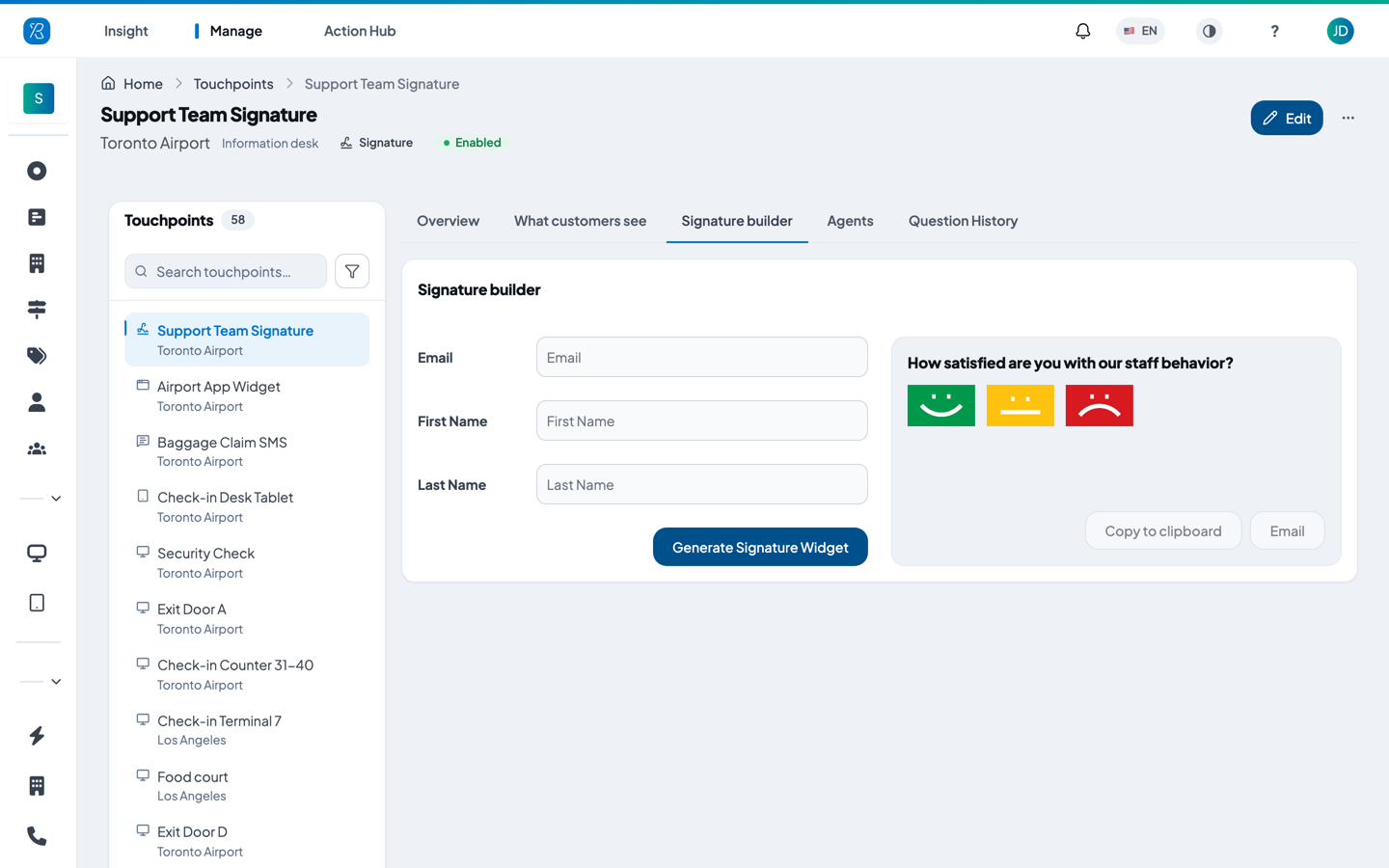
The panel on the right previews what the person's signature will look like: the touchpoint's question and the three faces the customer clicks.
This creates the agent and produces a feedback widget tied to their email address. Click Copy to clipboard to copy the widget and paste it into that person's email signature, or click Email to send it to them. Every response to that widget is credited to them.
The touchpoint's own Agents tab then lists everyone you have generated a signature for, with their first name, last name, email and agent token.
See Signature Feedback Collector for the full steps.
Edit an agent
- Find the agent in the list.
- Click the pencil icon in the Actions column.
- Change the First Name or Last Name.
- Click Save.
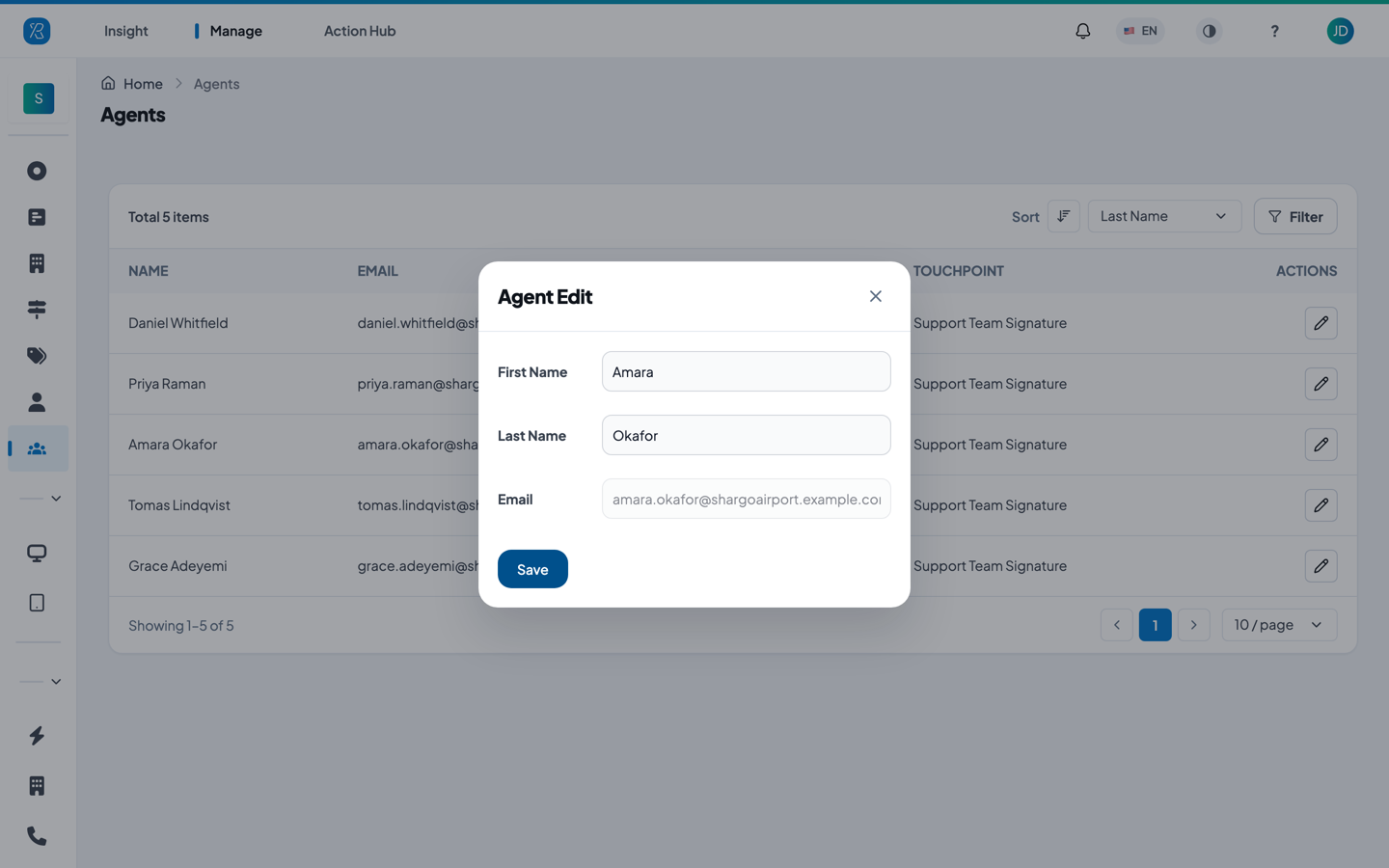
Email cannot be changed. It is greyed out because it is the agent's permanent identity — all their past feedback is tied to it. If someone's email address changes, add them again with the new address.
There is no delete or deactivate button on this screen. To retire an agent, remove or disable the touchpoint they collect through, or stop using their signature widget. If you need an agent record removed entirely, contact support@pxp.ai.
See how an agent is doing
Results live in the reports, not here. Open Insight > Agent Insight to see each agent's scores, response counts and comments side by side with their peers.
See Agent Insight for how to read that report.