QR Feedback Collector
A QR touchpoint is a printed code. You put it where customers are — a table tent, a door sign, a receipt, a flyer, a slide, a product box — and they scan it with their phone camera. The question opens on their phone.
The same touchpoint also works as an NFC chip: a sticker or card the customer taps their phone against instead of scanning. Same link, same question, no camera needed.
On the create screen this collector is called QR. In some menus you will see it written QR | URL — it is the same thing.
[Note] You need admin access to add a touchpoint.
Create a QR touchpoint
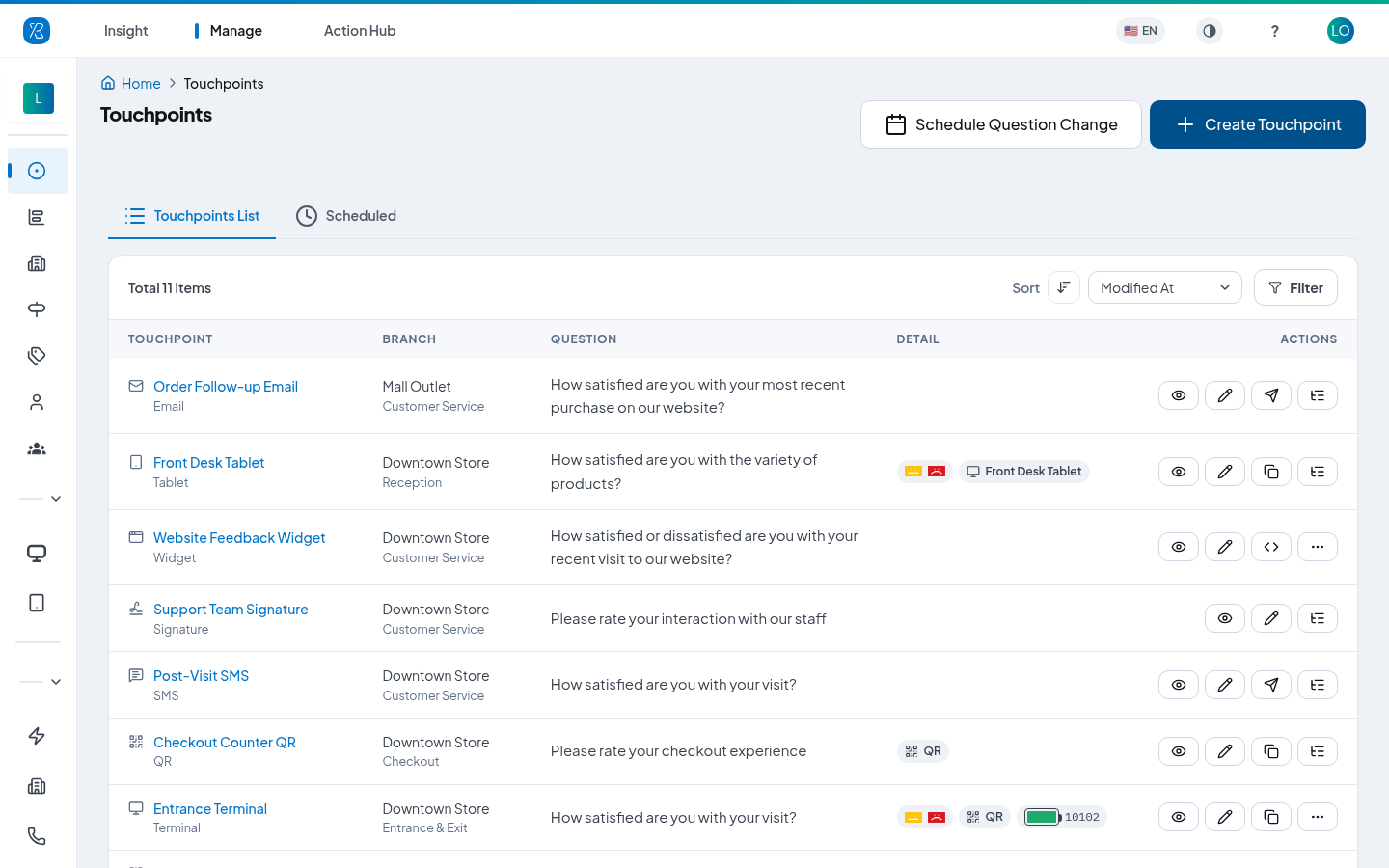
- From the top menu select Manage, then Touchpoints on the left.
- Click Create Touchpoint.
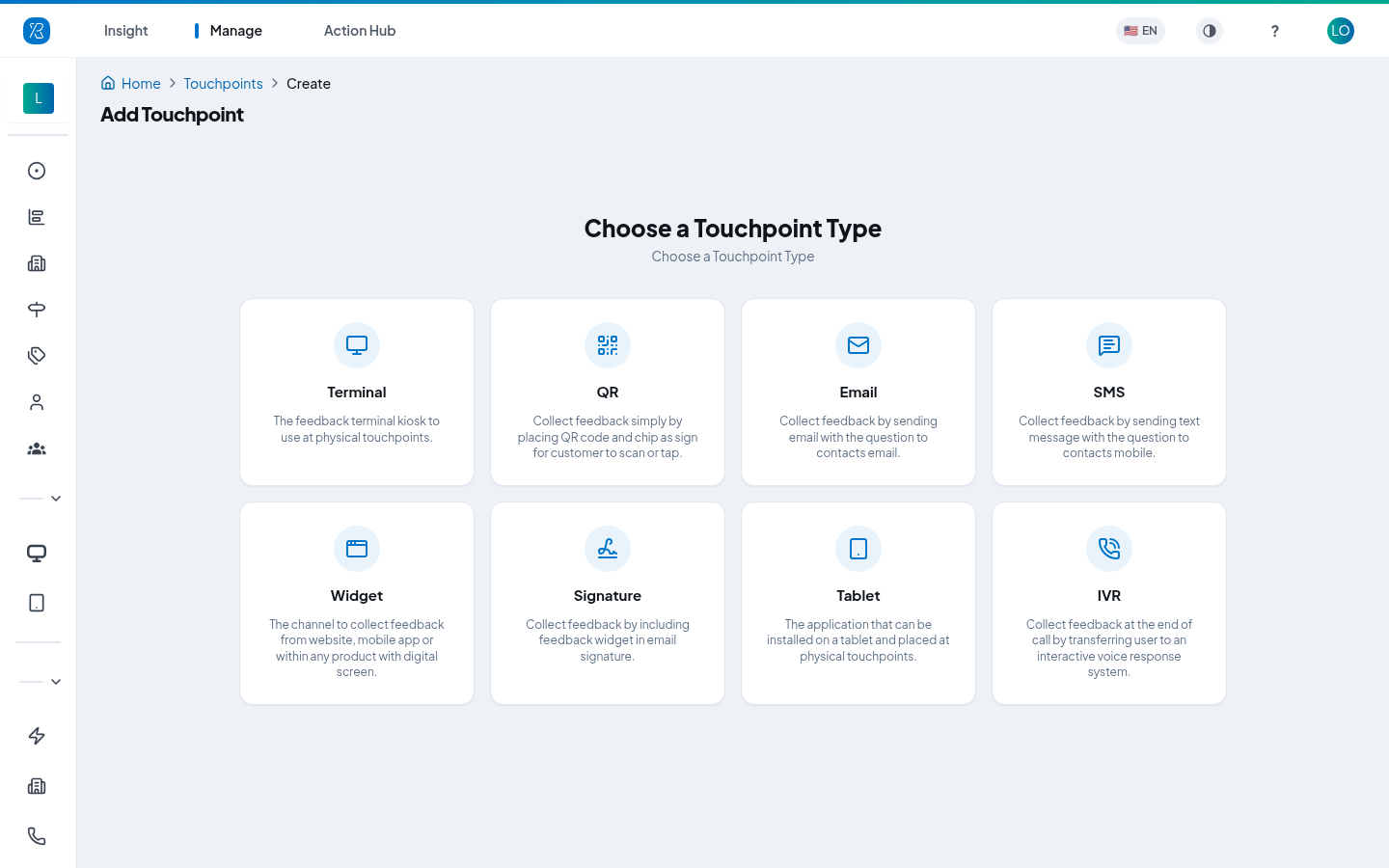
- Click the QR card.
The form has four steps. The step bar at the top shows where you are.
Step 1 — Touchpoint Details
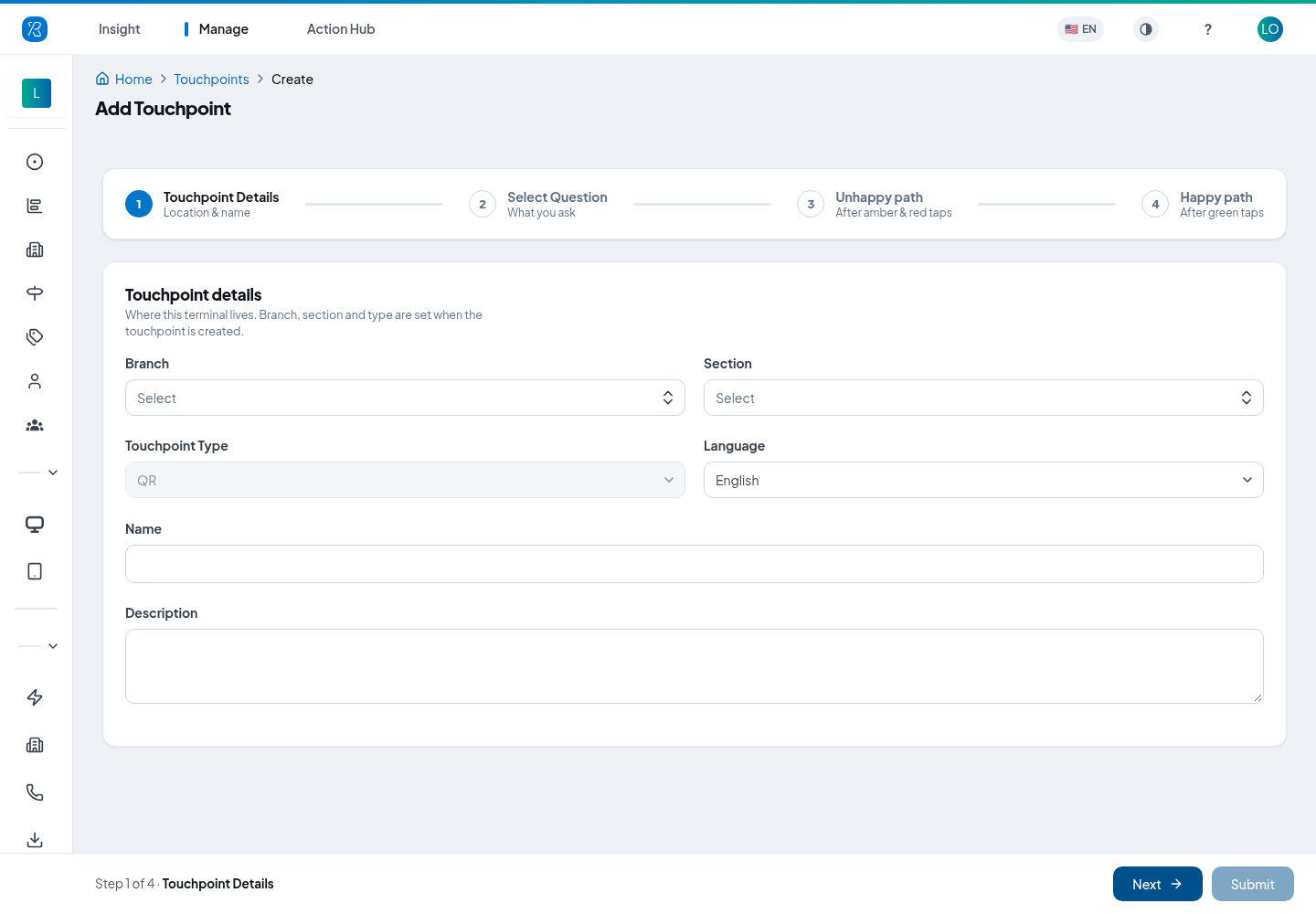
- Pick the Branch — the location this code belongs to. See Branch Management.
- Pick the Section — the spot inside the branch, such as Counter or Exit. The section also decides which questions you can choose from in the next step.
- Touchpoint Type is already set to QR and cannot be changed.
- Pick the Language. This sets the language of everything the customer reads on their phone.
- Type a Name. You will see this name on reports, so make it something you recognise later.
- Description is optional, for your own notes.
- Click Next. Branch, section and type are fixed once the touchpoint is created; everything else can be changed later.
Step 2 — Select Question
-
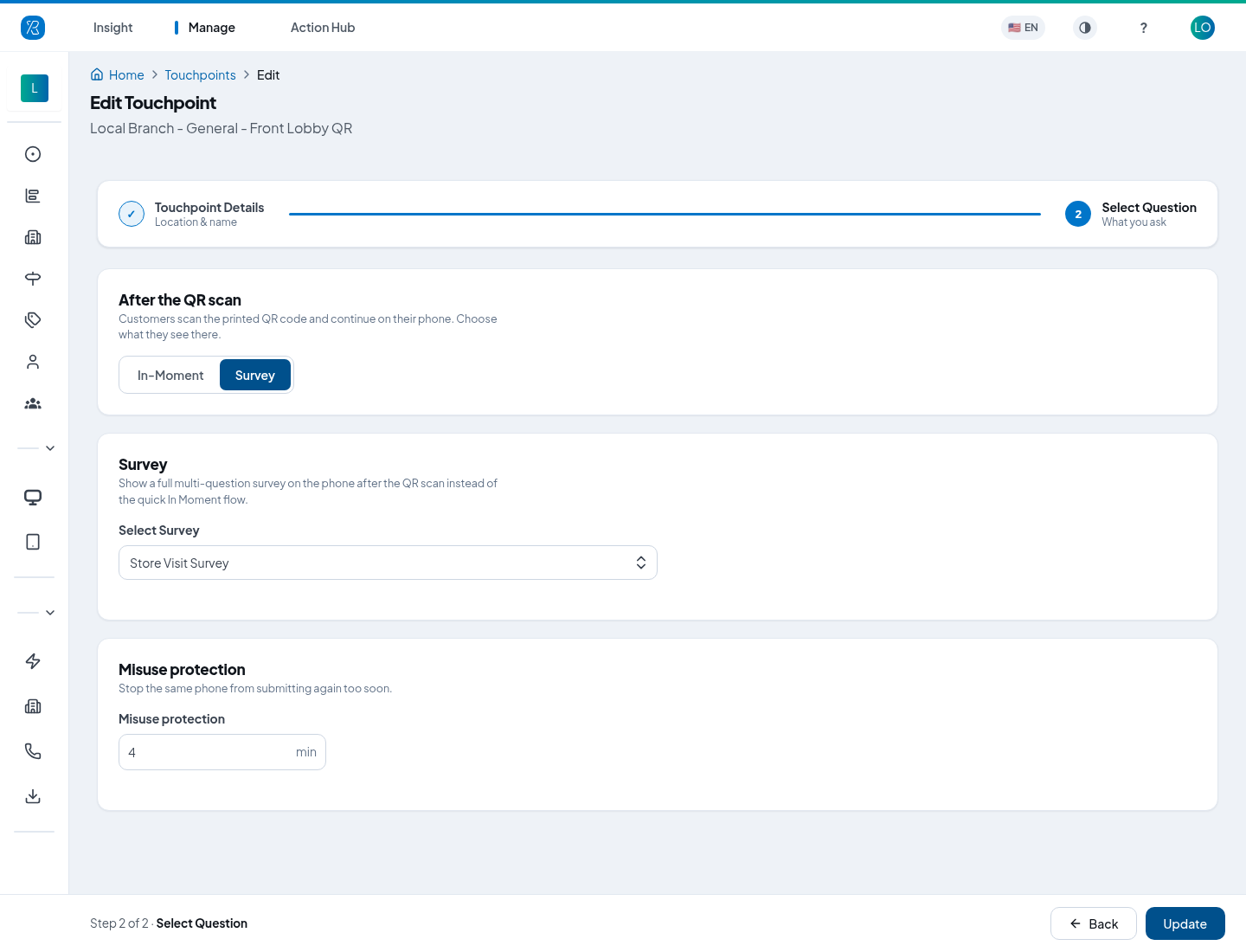
Under After the QR scan, choose what opens on the phone:
- In-Moment: one smiley question, then a short follow-up. This is the usual choice.
- Survey: a full set of questions. See Survey. Choosing Survey removes steps 3 and 4, because the survey carries its own follow-up questions and thank-you.
-
In-Moment: pick a Question from the list. The tags beside each one show what it measures, for example CSAT. Question Text is the wording the customer actually sees. Edit it if you want different words from the catalogue version. The refresh icon puts the original wording back.
Survey: pick the survey under Select Survey.
-
Set Misuse protection in minutes. This stops the same phone submitting again too soon, so one person cannot vote over and over. The default is 4 minutes.
-
Click Next, or Submit for a survey.
Step 3 — Unhappy path, Step 4 — Happy path
These two steps are the same form twice: step 3 is what happens after an amber or red answer, step 4 after a green one. The phone preview on the right updates as you type.
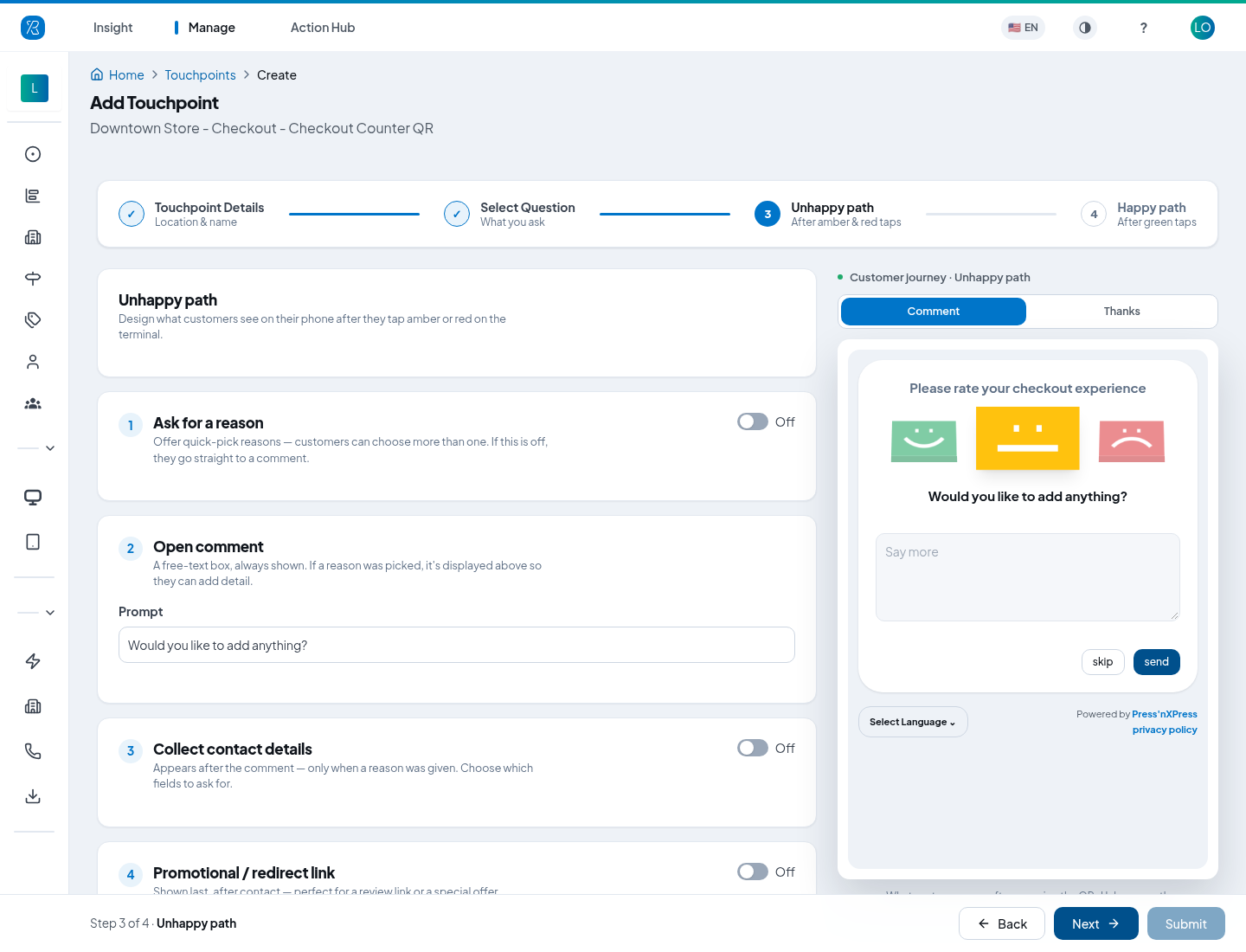
- Ask for a reason — turn on to offer quick-pick reasons. Customers can choose more than one. The reasons come from your Why Categories. Leave it off and they go straight to the comment box.
- Open comment — a free-text box, always shown. Set the Prompt, for example Would you like to add anything?
- Collect contact details — turn on to ask for an email, and optionally first name, last name, company or fields of your own. Email is always required when this is on.
- Promotional / redirect link — turn on to show a link at the end. On the happy path this is normally your public review page.
- Thank-you message — the last thing the customer sees.
On step 4 each of these cards has a Copy from Unhappy button, so you can set the unhappy path up once and mirror the parts you want.
Click Submit on the last step to create the touchpoint.
Get the code out into the world
This is the part that puts the touchpoint on a wall. Open the touchpoint from the Touchpoints list and go to the QR & label tab.
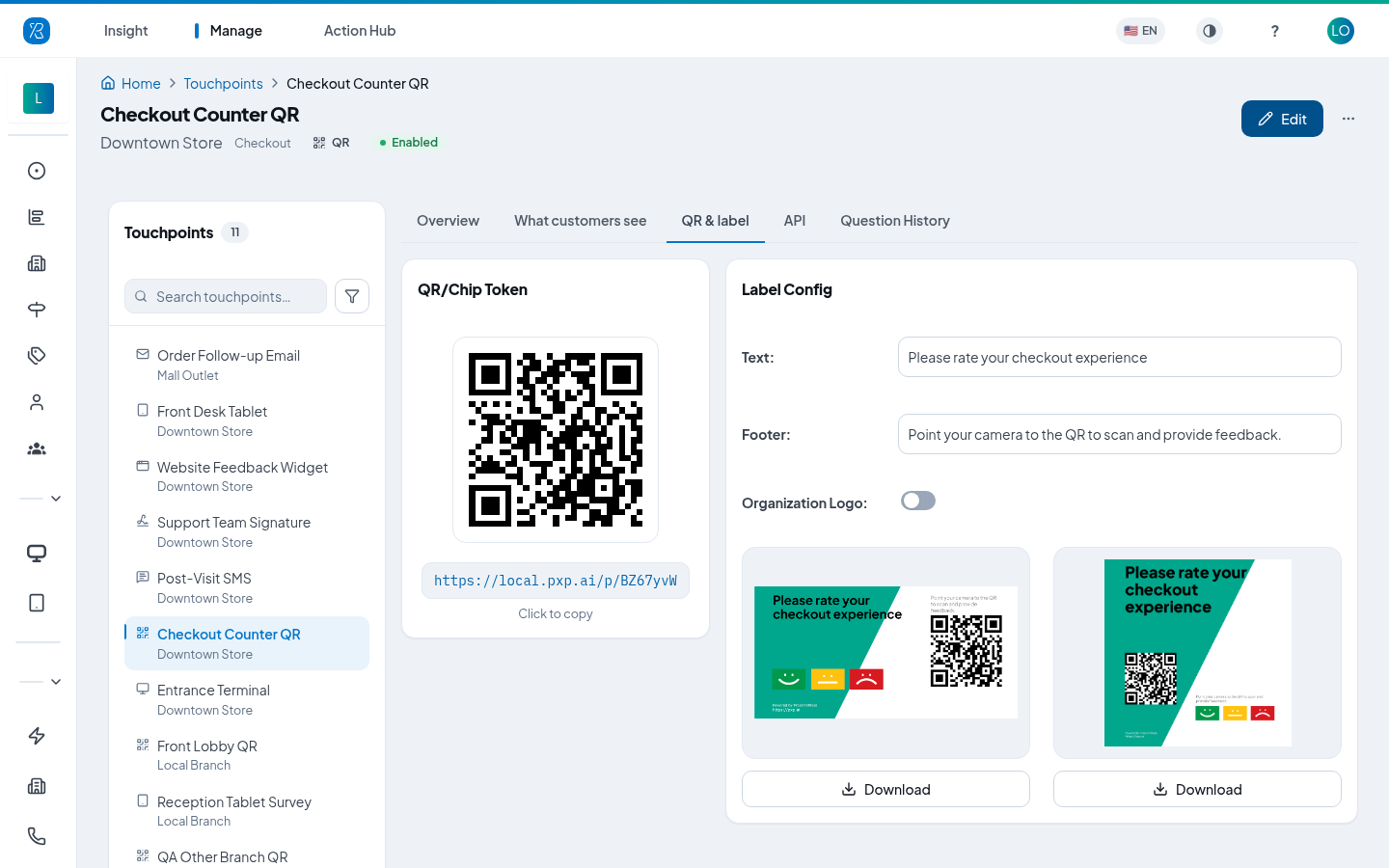
QR/Chip Token — the scannable code and the short link behind it.
- Click the code to download it as an image, on its own, with no artwork around it. Use this when you are dropping the code into your own design.
- Click the link to copy it. It works as a plain link too — put it in an email, a chat message or a button on your site.
Label Config — a ready-made printable sign with the code already on it.
- Text — the big headline. It starts as your question wording. Up to 80 characters. With a survey this line is fixed and cannot be edited.
- Footer — the small line telling people what to do. It starts as Point your camera to the QR to scan and provide feedback. Up to 75 characters.
- Organization Logo — turn on to print your logo on the sign.
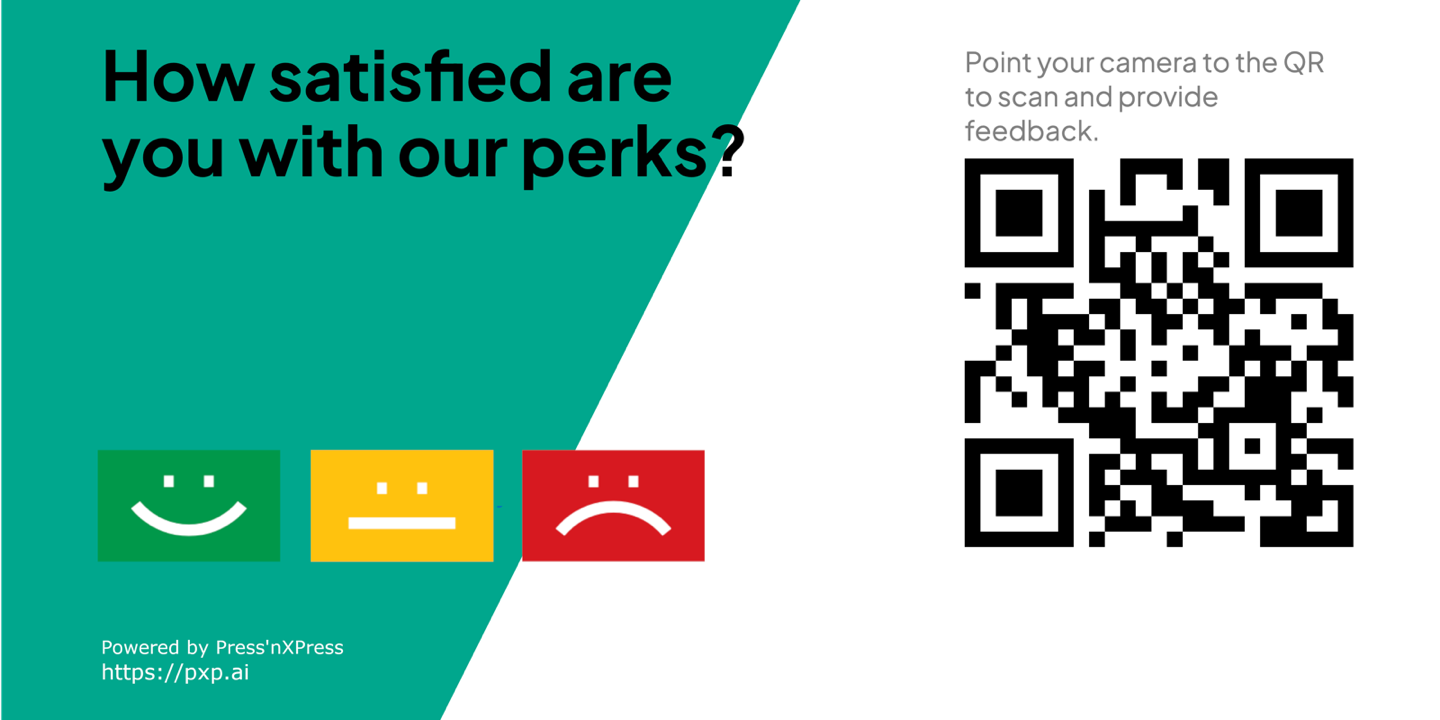
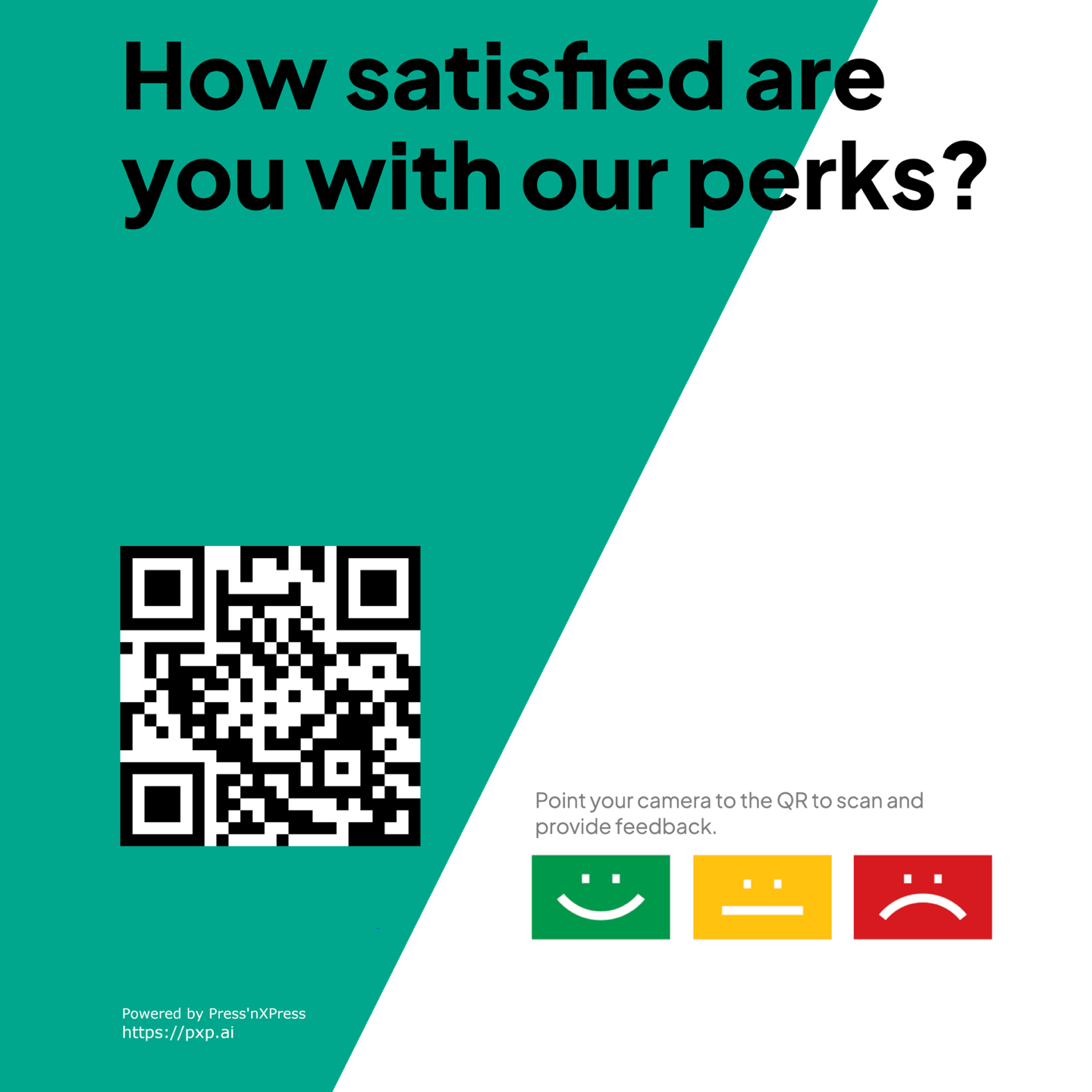
Two shapes are offered and both previews update as you type. Click Download under the one you want and print it.
Order an NFC chip
Chips are supplied by Press'nXPress, already programmed with this touchpoint's link.
- Go to Manage > Touchpoints.
- Click the QR chip on the touchpoint's row to open the code dialog. On a narrow screen the chip is not there — use Get QR Code in the row's actions instead.
- Click Order Chip. This opens an email to support with the request started for you.
Change or check a touchpoint
- Click Edit on the touchpoint page to change the question, the follow-up steps or the name. The code and the link do not change, so anything already printed keeps working.
Switch a QR code to a different survey
You can point a QR touchpoint that runs a survey at a different survey at any time: click Edit, go to Select Question, pick the new survey under Select Survey, and click Update.
The printed code and its link keep working, and they now open the new survey. This also applies to links people saved, bookmarks, and survey tabs they still have open: the address in the browser updates to the new survey. Someone who was already halfway through the old survey can finish it.
The same is true of widget and signature touchpoints. Survey invitations sent by email, SMS or a targeted QR link are different: they keep opening the survey they were sent with.
- See Touchpoint Management for the list, filters and row actions.
- See Touchpoint Report to read the answers.
Generate a code for every transaction
If you want a different code on every receipt or order — so the feedback is tied to that one purchase — use the API instead of a fixed printed code. See REST API for QR Touchpoint.