Terminals
A terminal is the physical smiley-button device installed at one of your locations. People press a button on it, and the terminal sends that press to Press'nXPress.
The Terminals screen is the list of every terminal your organization owns. Use it to check that your devices are still reporting in and still have charge. This screen is read-only — you look things up here, you do not change anything.
To open it: click Manage at the top, then Terminals under Hardware in the left menu.
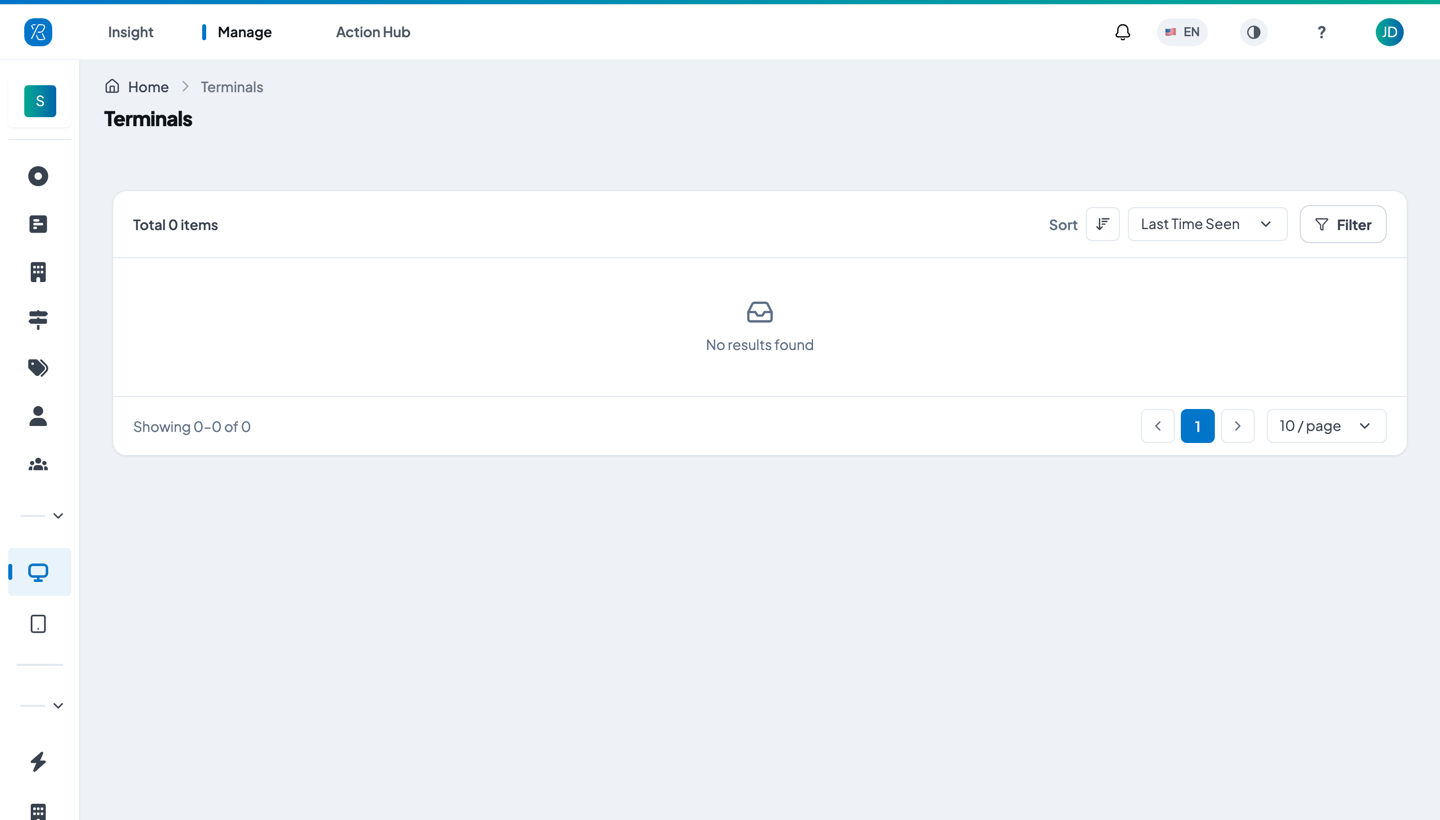
A terminal only shows up here once Press'nXPress has allocated that device to your organization. Until then the list says Total 0 items and No results found, as in the picture above. That is normal for an organization that collects feedback by QR code, tablet, SMS or email and has no terminal hardware yet.
What each column tells you
Once you have terminals, each one is a row:
| Column | What it means |
|---|---|
| Serial Number | The number printed on the terminal itself. This is how you identify a device. |
| Touchpoint | The touchpoint this terminal is currently assigned to. Click the name to open that touchpoint. Blank means the device is yours but is not on a touchpoint yet, so it is not collecting anything. |
| Branch | The location the assigned touchpoint sits in. Blank if the terminal is not on a touchpoint. |
| Battery | How much charge is left. Green is healthy, amber is getting low, red means it needs charging soon. |
| Last Time Seen | How long ago the terminal last connected, for example "9 hours ago" or "4 weeks ago". Hover over it to see the exact date and time. |
The count at the top left — Total n items — is how many terminals you have. The list shows 10 at a time; use the page numbers at the bottom, or change 10 / page.
Sort the list
Click the Sort dropdown at the top right and pick what to sort by: Battery, Last Time Seen, or Serial Number. The small button beside it flips between ascending and descending.
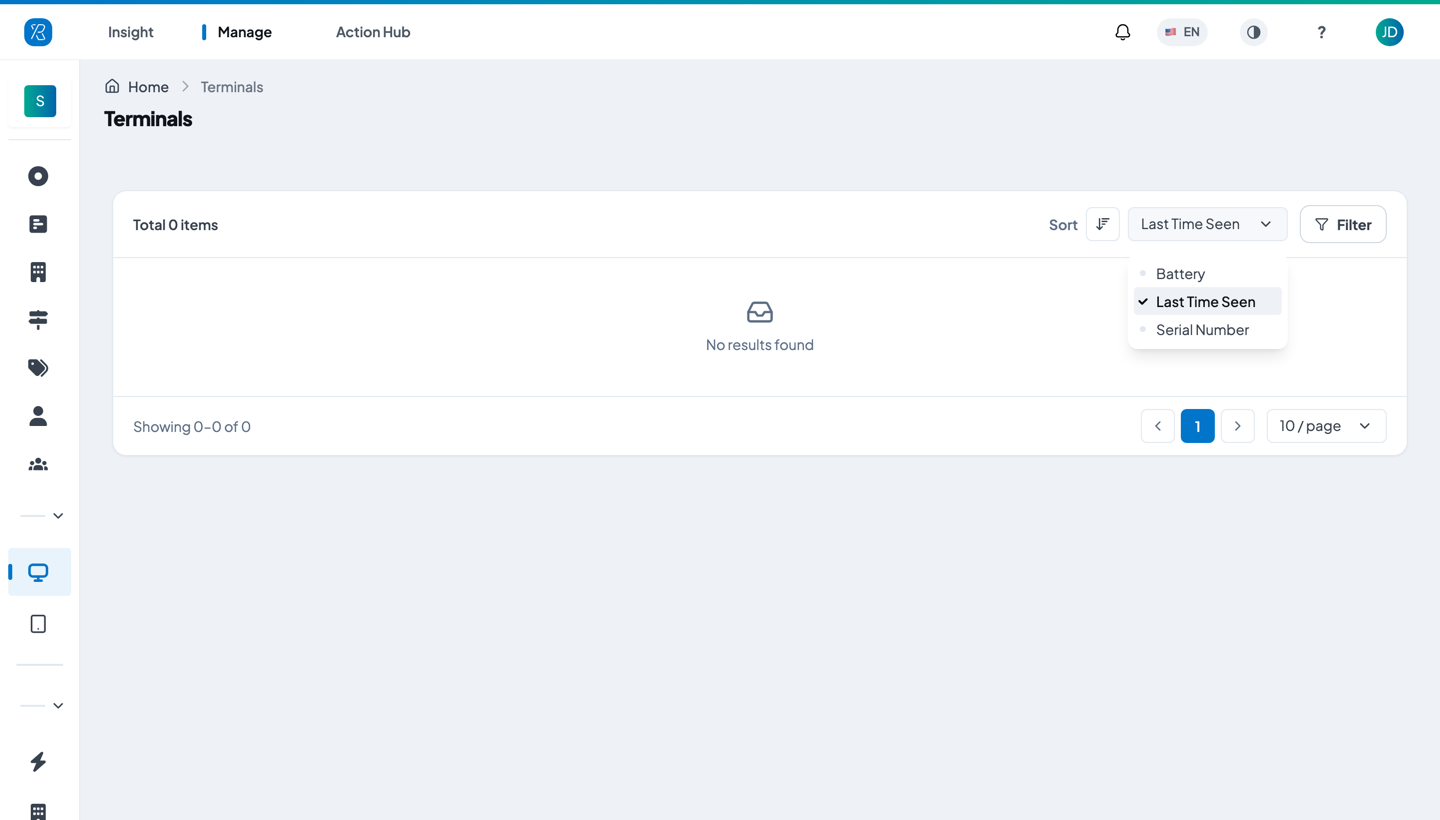
Sorting by Battery ascending puts your emptiest devices at the top. Sorting by Last Time Seen descending, the default, puts the most recently active devices at the top — so anything that has gone quiet sinks to the bottom.
Find one terminal
- Click Filter at the top right.
- Type one or more serial numbers into Serial Number, or pick one or more locations under Branch.
- Click Apply filters.
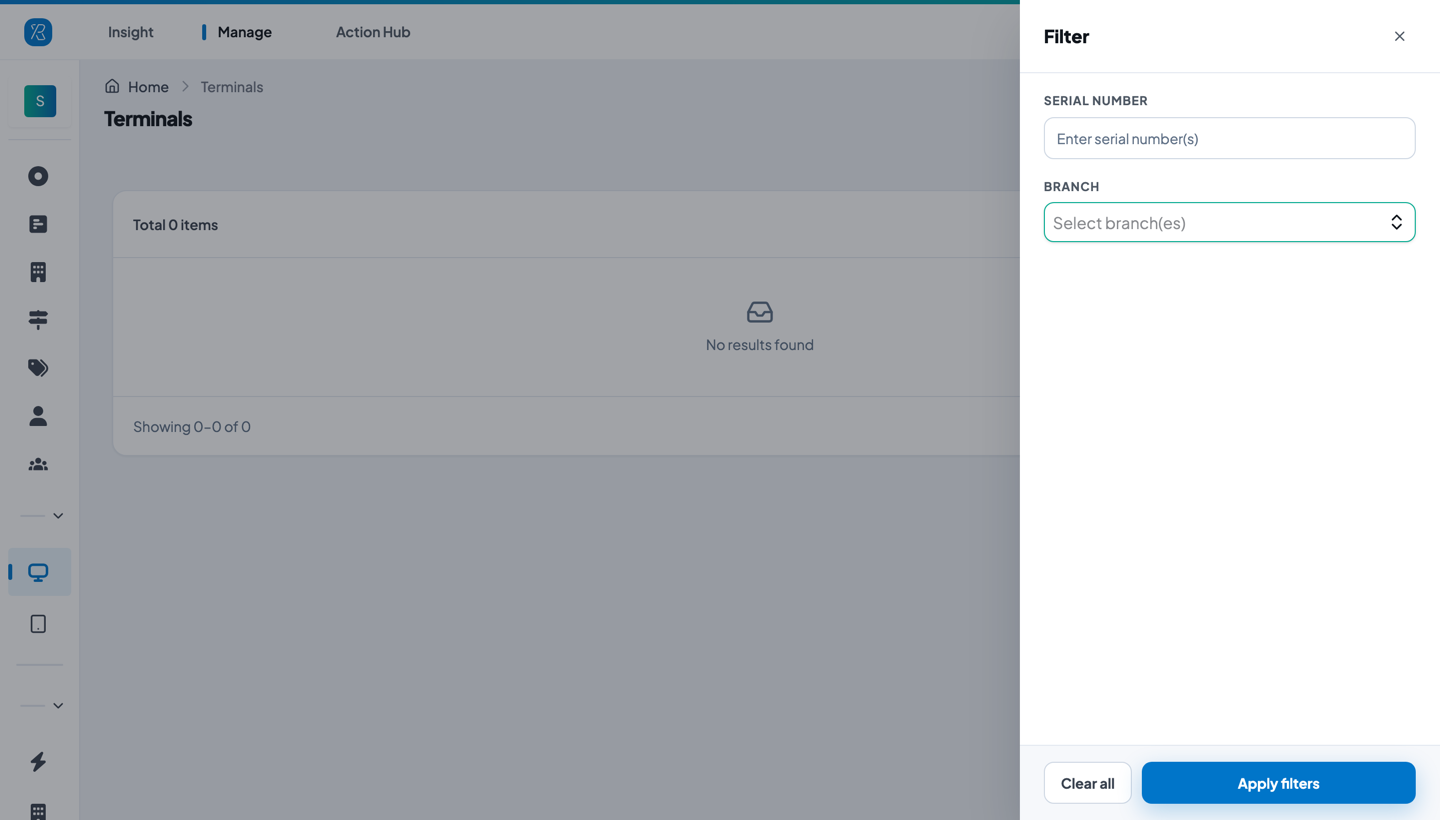
Click Clear all to go back to the full list.
Assign a terminal to a touchpoint
A terminal only collects feedback once it is attached to a touchpoint. You do that on the touchpoint, not on this screen.
- Note the Serial Number of the terminal you want to use. Check that its Touchpoint column is blank — a terminal can only be on one touchpoint at a time.
- Go to Manage → Touchpoints.
- Create or edit the touchpoint, and choose the serial number in the Select Terminal field on the collector setting step.
Full steps are in Smiley Feedback Terminal Touchpoint.
If every terminal already shows a touchpoint, you need to free one up first. See Reassign kiosk to another touchpoint.
A terminal has not been seen for a while
There is no online / offline light on this screen. Last Time Seen is the only signal you get, so read it as one.
A terminal does not report continuously. It connects when someone presses a button, and again on its own schedule, so a quiet day at a quiet touchpoint is normal.
Worry when Last Time Seen is much older than the ones around it — days or weeks when your other terminals are on hours.
Check these, in order:
- Is the terminal still physically there? Someone may have taken it down to charge it, or moved it.
- Is the battery flat? Look at the Battery column on the same row. A flat device cannot report, and the number you see is only the last reading it managed to send.
- Is there wifi where it is installed? The terminal needs the network it was set up on. A changed wifi password or a moved router will silence it.
If it is powered, charged, and on the network and it still has not reported after a day, email support@ pxp.ai with the serial number.
The battery is low
Charge the terminal. Red means roughly 20% or less, amber means roughly 50% or less.
You do not have to wait for red — anything amber is worth charging on your next quiet shift. A full charge takes about 8 hours and can last up to a year of normal use.
Step-by-step instructions, including where the charging port and the LED are, are in Charging Feedback Terminal.
The battery reading only updates when the terminal connects, so it will not change the moment you plug the device in. It catches up on the terminal's next connection.
If you cannot see this screen
Terminals only appears if your organization uses terminal hardware and your user account has permission to manage touchpoints. If you cannot see it, ask your Press'nXPress admin user.
If you have any question contact support@ pxp.ai