Manage Experience Journey Map
A journey map is the list of steps a customer goes through with you, in order — for example Research → Order → Pick up → Support. You attach a touchpoint (a place where you collect feedback) to each step. Once the map is built, you can see the score for every step side by side and spot where people get unhappy.
This page is only about setting the map up. To read the scores and add notes, see Experience Journey Map Insight.
Go to Manage > Journey Map.
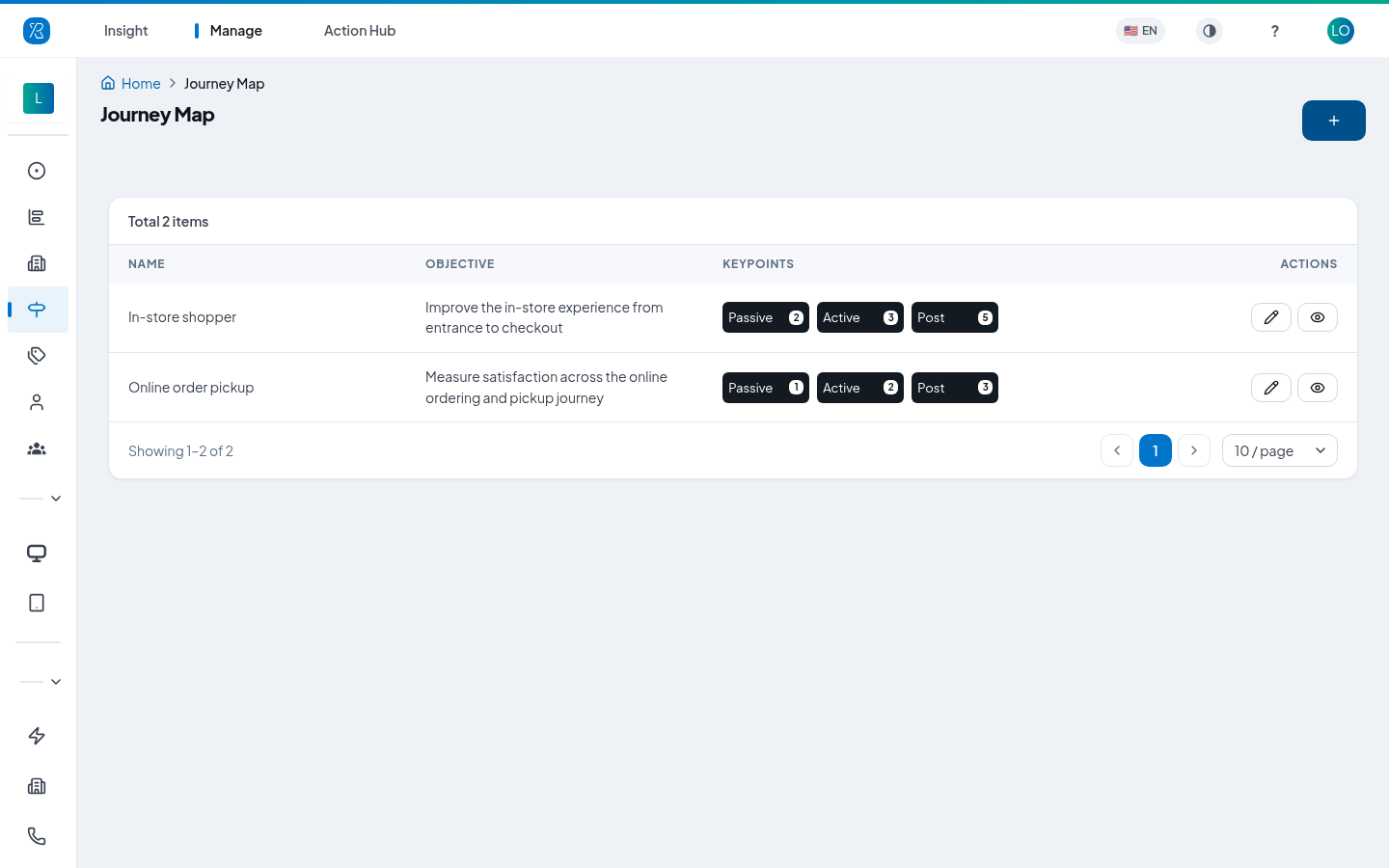
The list shows one row per map:
- Name — what you called the map.
- Objective — what you are trying to learn from it.
- Keypoints — one black badge per phase with the number of touchpoints in it. Hover a badge to see the steps inside that phase and their touchpoints.
- Actions — the pencil opens the map for editing, the eye opens its report.
[Note] Only users with permission to create journey maps see the + button and the pencil. Everyone else can still open the report.
Create a journey map
- Click the blue + button at the top right.
- Fill in step 1, Info:
- Name — a name you will recognise in the list.
- Persona — who this journey is about, for example Customers who order online and pick up in store.
- Objective — what you want to learn.
- Status — leave the toggle on Active.
- Click Next.
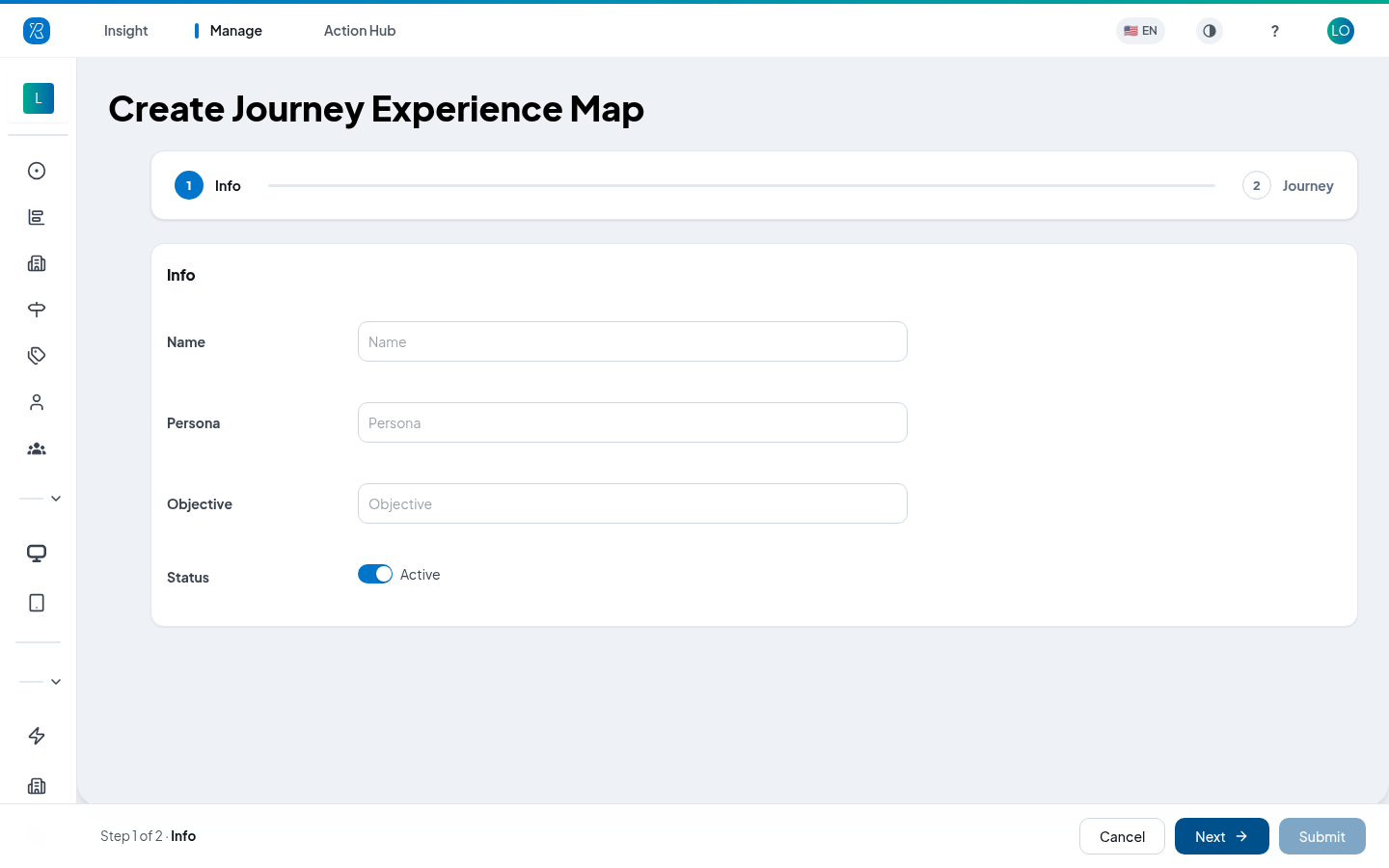
Name, Persona and Objective are all required and each needs at least 5 characters.
Step 2, Journey, is where you build the map itself.
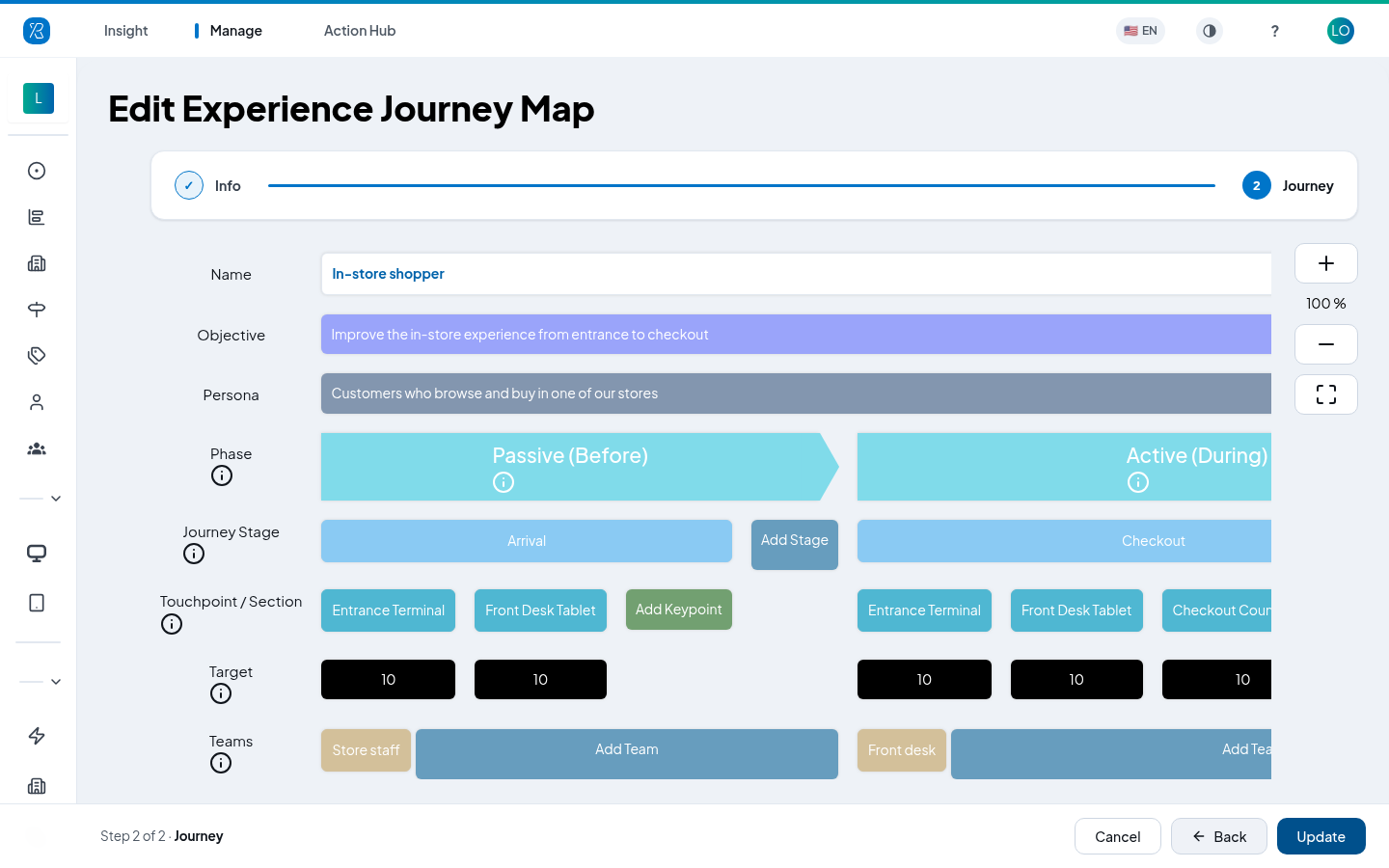
The editor is a grid. It scrolls sideways — drag it to see the rest. Use +, − and the expand icon on the right to zoom in and out. Each row is one thing you fill in:
- Phase — the three fixed parts of a journey: Passive (Before), Active (During) and Post (After). You cannot add or rename phases.
- Journey Stage — your steps, inside a phase.
- Touchpoint / Section — the touchpoints or sections attached to each step.
- Target — the score you want that touchpoint to reach, from 1 to 10.
- Teams — the teams or departments responsible for that phase.
Hover the small i icon next to any row label for a short explanation.
When the map looks right, click Submit at the bottom.
Add the steps
- In the Journey Stage row, click the blue Add Stage chip at the end of the phase you want.
- Type a Stage name.
- Click Submit.
Steps appear in the order you add them, from left to right inside each phase. Phases always run Passive, then Active, then Post. There is no drag-and-drop reordering — if a step is in the wrong place, rename the steps so the order reads correctly, or delete it and add it again.
To rename a step, click its blue chip in the Journey Stage row, change the Stage name, then click Submit.
Attach a touchpoint to a step
- In the Touchpoint / Section row, click the green Add chip at the end of the step you want. A window opens titled Add plus the step name.
- Use the Search touchpoints or sections box to find what you need, then tick it. You can tick more than one. Touchpoints already on that step are greyed out.
- Each one you tick appears on the right with a Target (1-10) box. Change the number if 10 is not the goal for that touchpoint.
- Click Submit.
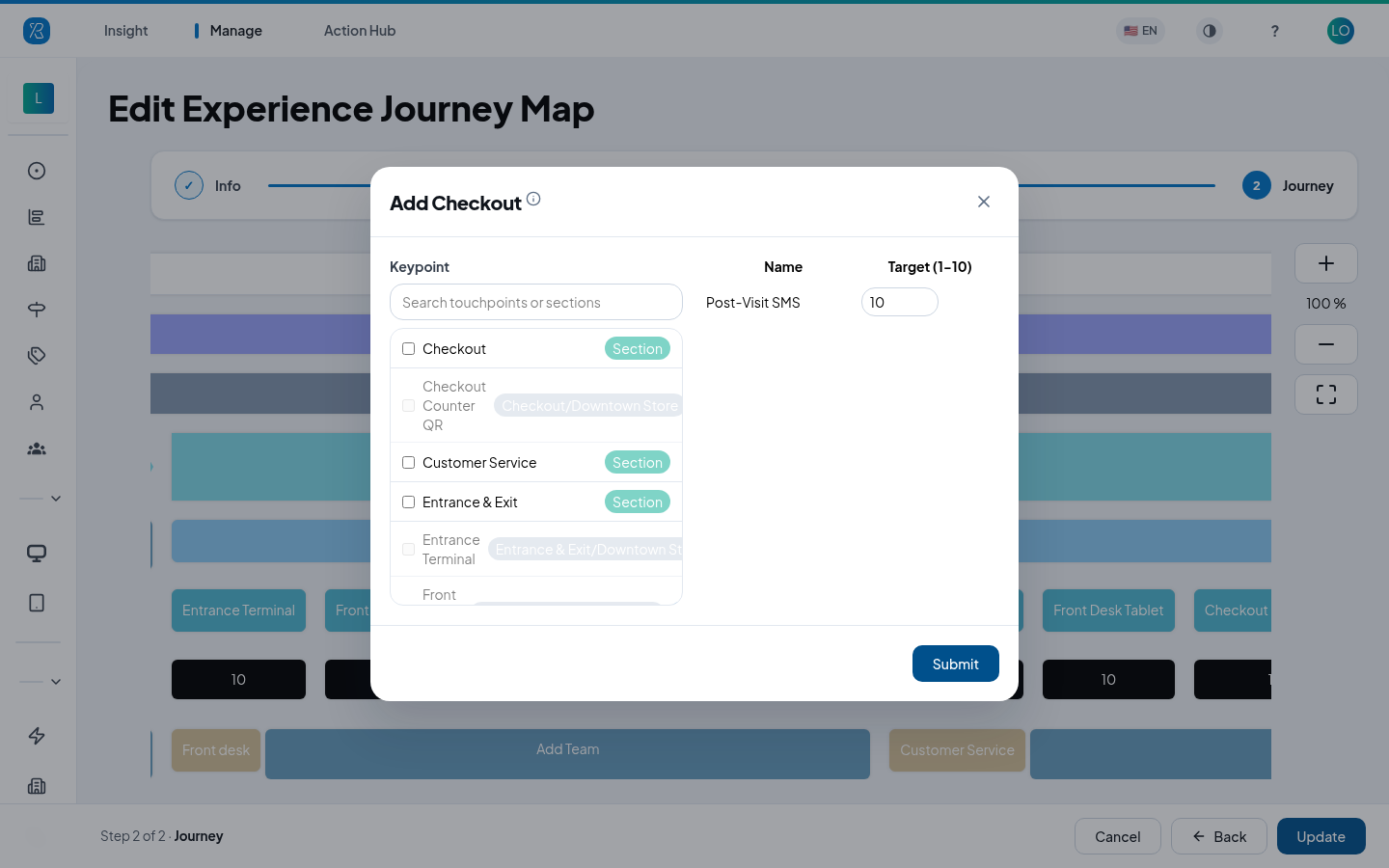
The list mixes two kinds of keypoint, marked with a tag:
- Touchpoint — one feedback collection point. The grey tag next to it shows its section and branch, so you can tell two similarly named touchpoints apart. See Touchpoint Management.
- Section — a whole area of a branch, such as Exit or Cashier.
To change what is attached to a step, click a touchpoint chip in the Touchpoint / Section row. The same window opens with the current selection and targets.
Add the teams
- In the Teams row, click Add Team at the end of a phase.
- Type the Team/Department Name.
- Click Submit.
To rename a team, click its chip. To remove it, click the chip and then Delete Team.
Edit a journey map
- Go to Manage > Journey Map.
- Click the pencil icon in the Actions column.
- Change anything on the Info step, then click Next to reach the map.
- Click Update when you are done.
To remove a step, click its chip in the Journey Stage row and click Delete Stage. This also removes every touchpoint attached to that step, so you are asked to confirm.
To remove one touchpoint from a step, click the step's chip in the Journey Stage row, then click the touchpoint chip in the list — it turns red — and click Submit.
Delete a journey map
Journey maps are not deleted, they are switched off. Their past reports stay intact.
- Open the map with the pencil icon.
- On the Info step, set Status to Inactive.
- Click Next, then Update.
[Note] Once a map is inactive you cannot switch it back on yourself. Email support@pxp.ai to have it reactivated.