Widget Feedback Collector
The Widget collector puts a small feedback box inside your own website or app. The customer never leaves your page — they tap a smiley right where they are.
Use it where you want feedback about a moment on screen: after checkout, on a product page, at the end of a booking, inside a logged-in app.
Make a separate touchpoint for each place you ask. That way each one gets its own score and its own results in Touchpoint Report.
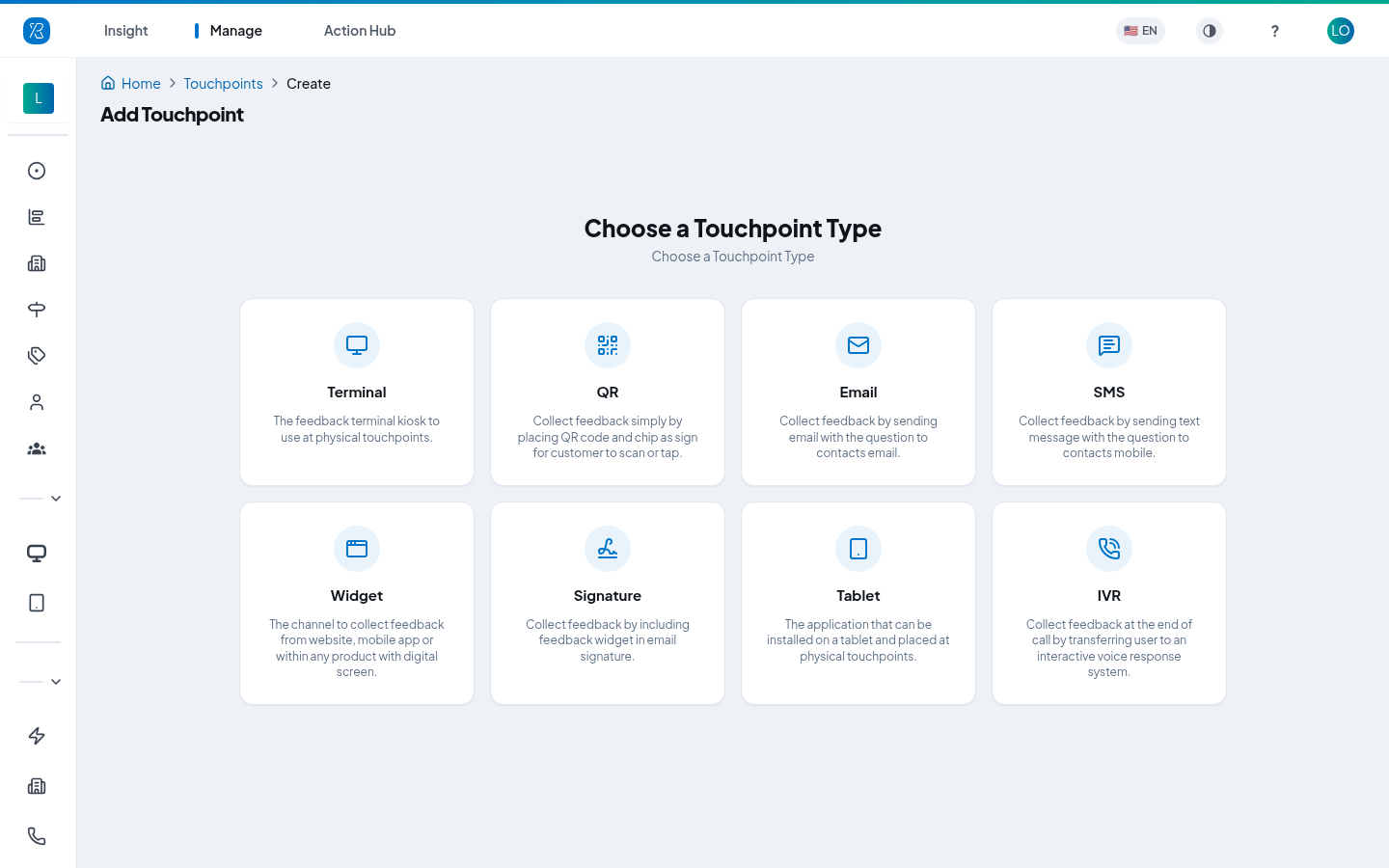
Widget is an add-on. If your organization does not have it, the Widget card on the Choose a Touchpoint Type screen is greyed out and cannot be clicked. Contact support to have it switched on.
Reports and some other screens call this same collector In-App. It is the same thing as Widget.
This page covers what the Widget collector is, how to set one up, and how to get the code for your site. Once you have the code, Website Widget Configuration covers the developer side in detail — install options, the three render functions, and how to pass customer or order details along with the feedback.
Before you start
- You need admin access to create a touchpoint.
- Have your branch and section ready — that is where the feedback will be filed.
- Someone will need to paste a few lines of JavaScript into your site. That is the last step.
Create a Widget touchpoint
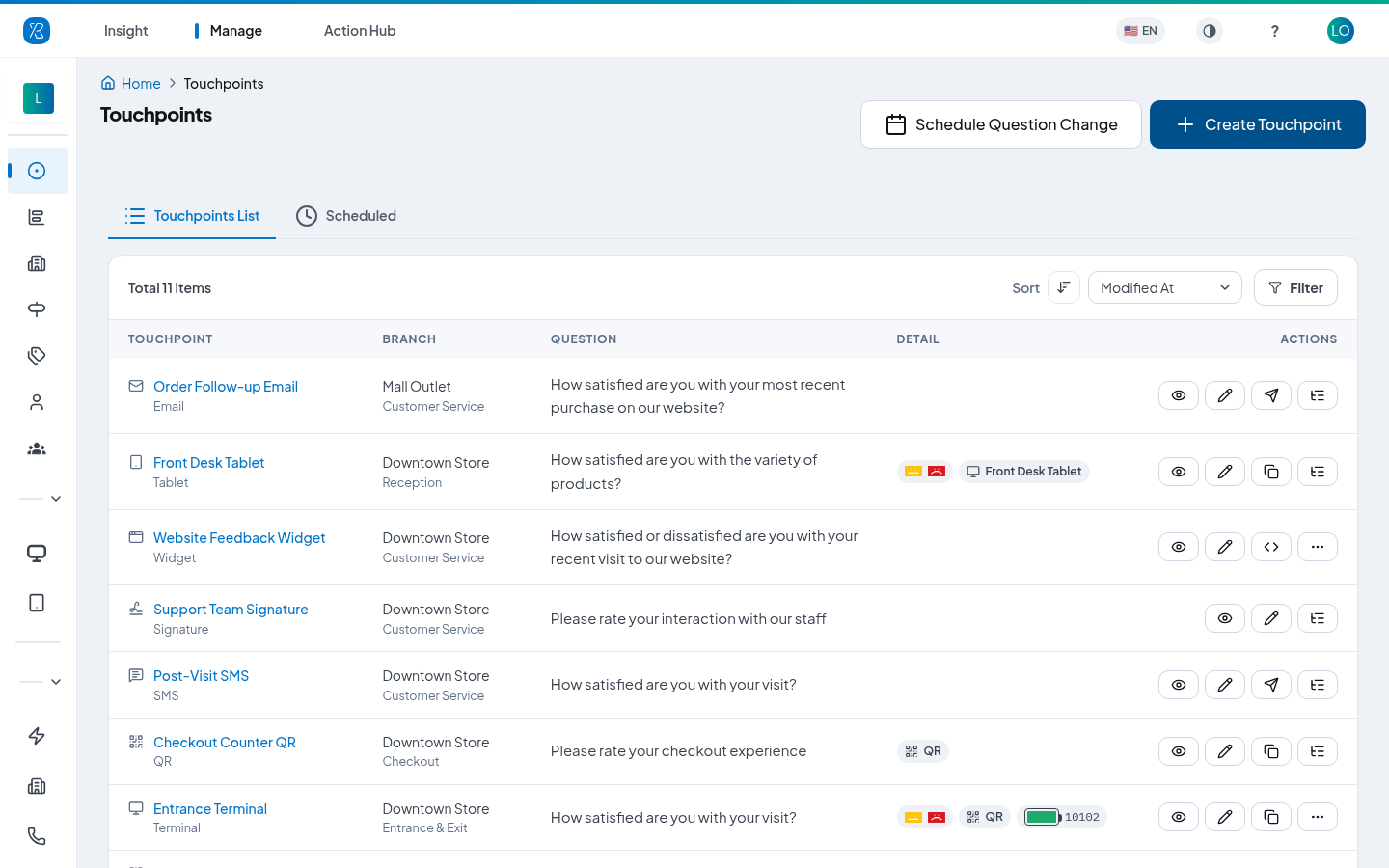
- From the top menu select Manage.
- From the left menu select Touchpoints.
- Click Create Touchpoint.
- On the Choose a Touchpoint Type screen, click Widget.
The form has four steps. You can move between them with Back and Next.
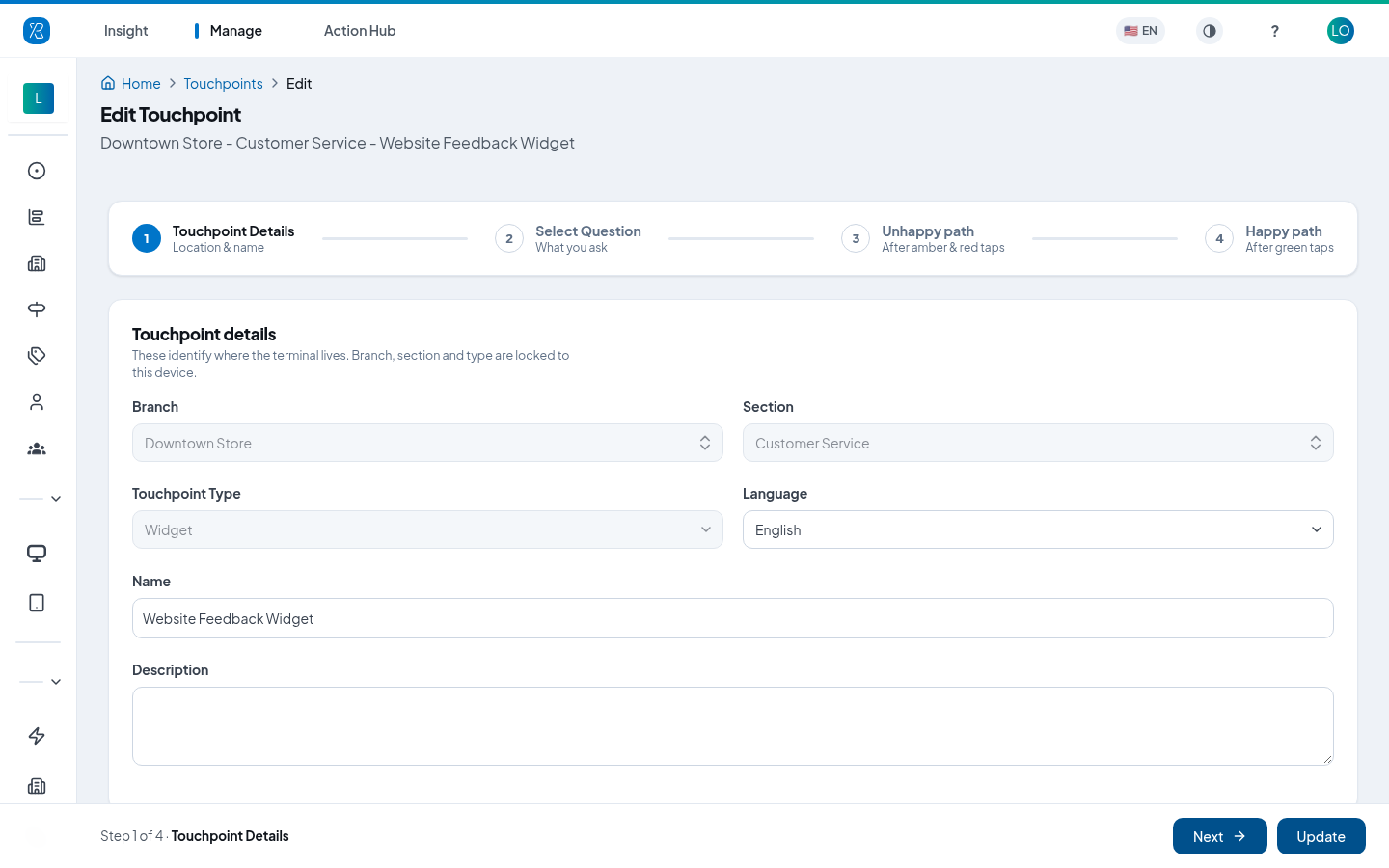
Step 1 — Touchpoint Details
Says where the feedback belongs and what to call it.
- Pick a Branch.
- Pick a Section — the part of the branch this covers, for example Checkout or Exit.
- Pick a Language. This sets the language of the question and the messages the customer reads.
- Type a Name. Use something you will recognise later, like "Checkout page". This name is what you see in reports.
- Add a Description if you want a note for yourself. It is optional.
Step 2 — Select Question
Says what you actually ask.
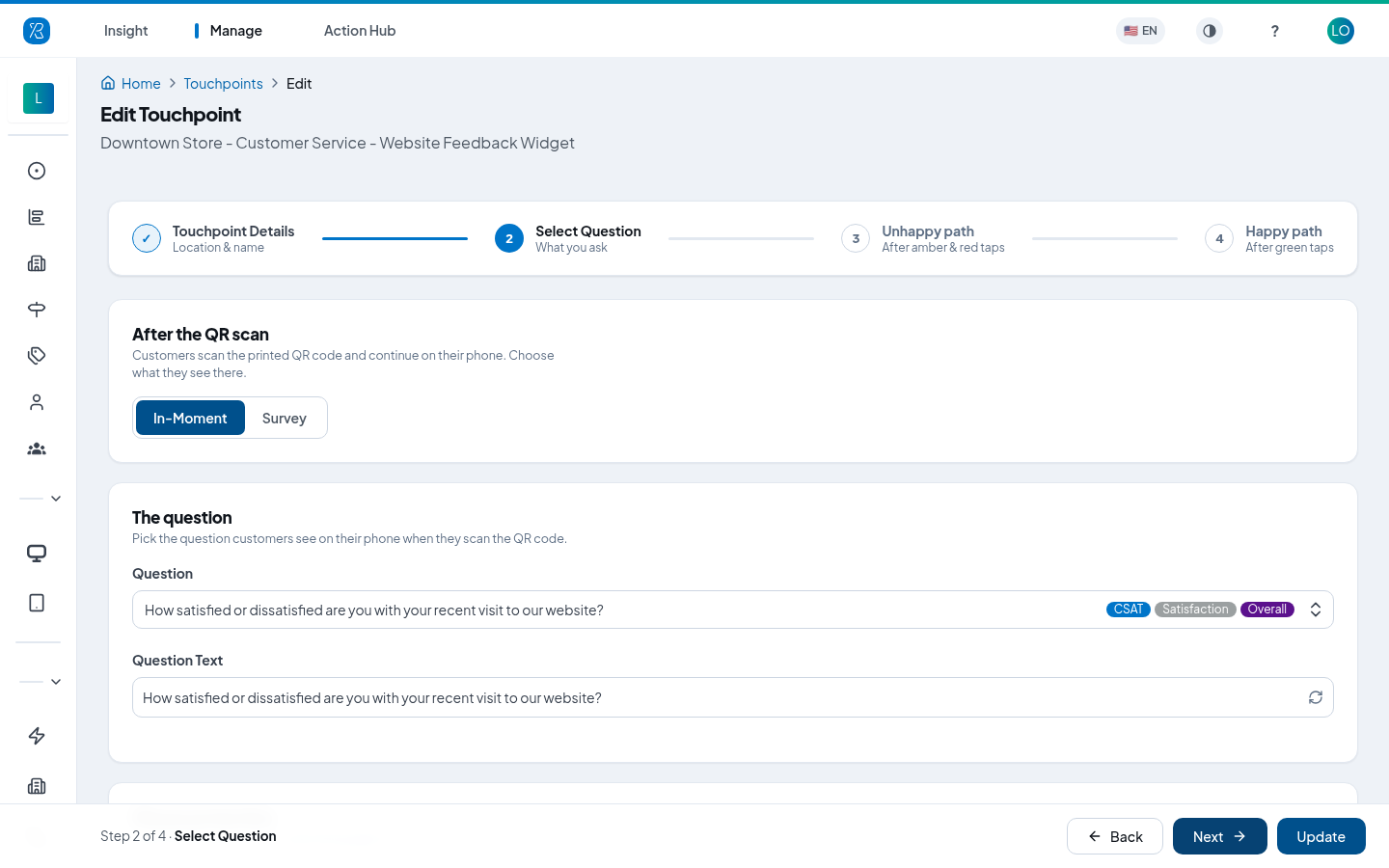
- Choose In-Moment or Survey.
- In-Moment asks one smiley question, then follows up. This is the usual choice.
- Survey hands the customer a full survey instead.
- Pick a Question from the list.
- Question Text is the wording the customer sees. It is filled in for you from the question and the language you chose, and you can change it.
- Set Misuse protection — how long, in seconds, before the same person can answer again. This stops one person voting over and over.
Step 3 — Unhappy path
What happens after someone taps the amber or the red face.
- Ask for a reason — turn this on to offer quick-pick reasons. The reasons come from your Ask Why categories. Leave it off and the customer goes straight to a comment box.
- Open comment — a free-text box, always shown. Set the Prompt, for example "Would you like to add anything?".
- Collect contact details — ask for a name or an email so you can follow up.
- Promotional redirect link — send the customer to another page afterwards.
- Thank you message — the last thing they read.
The panel on the right shows the screens as you change them, so you can check your wording before you save.
Step 4 — Happy path
The same five settings, for people who tapped the green face. Wording it differently is the point — a happy customer is a good moment to ask for a public review with a promotional link.
Click Save when you are done.
Get the embed code
This is the part that puts the widget on your site.
- From the top menu select Manage, then Touchpoints.
- Find your touchpoint and open it, then go to the Embed code tab. (From the list itself you can also use the Get Code row action, which shows the same thing.)
- Choose how the widget should appear:
- Embed — sits inside the page, in a spot you pick.
- Modal — pops up over the page.
- Slider — slides in from the edge of the screen.
- Click Copy to copy the JavaScript snippet.
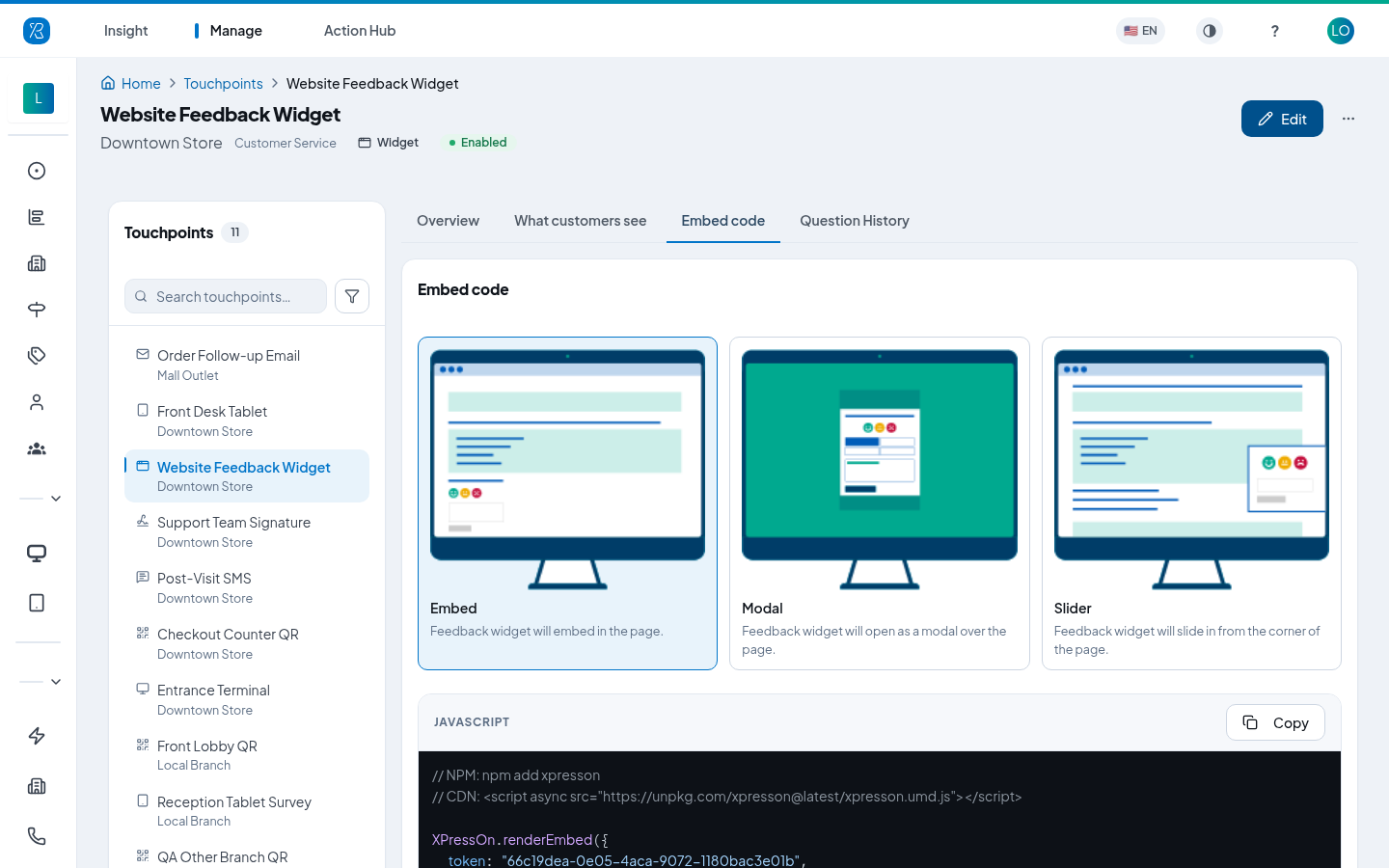
The snippet contains the token for this touchpoint — a long code that tells Press'nXPress which touchpoint the feedback belongs to. Every touchpoint has its own.
Put it on your site
Send the snippet to whoever looks after your website or app. They add the xpresson library, either through npm or from the CDN, and then run the snippet. Both lines are included as comments at the top of the code you copied.
Full instructions, including how to send an order number or customer email along with the feedback so you can follow up, are on Website Widget Configuration.
Check what customers will see
On the touchpoint page, the What customers see tab draws every screen a customer walks through — the question, the happy path, the unhappy path and the thank-you message — exactly as you configured it. Use it to proof-read before you go live.
Edit a Widget touchpoint
- From the top menu select Manage, then Touchpoints.
- Find the touchpoint and click Edit.
- Change what you need and click Update.
Editing does not change the token, so you do not need to touch your website again.
Where to go next
- Website Widget Configuration — installing the code, the three placements, sending customer data.
- Touchpoint Management — the touchpoint list, row actions and bulk changes.
- Touchpoint Report — reading the feedback you collect.