Intro to PXP Reporting and Analytics
Insight is the half of the dashboard where you read your results. Your collectors gather the feedback; Insight turns it into scores, charts and comments you can act on.
Log in at dashboard.pressnxpress.com and click Insight in the top menu. Pick a report from the menu on the left.

Which report do I want?
| I want to… | Open |
|---|---|
| See where feedback comes from and why people rated as they did | Dashboard (Response Flow) |
| Get a quick summary I can arrange myself | XPressView |
| See the full breakdown, every section, in a fixed order | XPressDash |
| Build my own report from a score, a dimension and a time period | Advance Report |
| Compare two things against each other in a grid | Dimension Analysis |
| See every question one touchpoint has asked, and its answers | Touchpoint Report |
| See how people voted on a multiple-choice question | Poll Report |
| Read what people wrote, and the themes inside it | Text Analytics |
| See how each member of staff is doing | Agent Insight |
| Compare how whole locations are doing, on a map | Geo Map |
| See which physical area of a building is scoring badly | Facility Map |
| See the score at each step of a customer journey | Experience Journey Map |
| See the results of a multi-question survey | Survey Report |
| Check whether this month beat last month | Period Comparison |
Things that work the same on every report
The date range sits at the top right. Pick one of the shortcuts (Today, Last 7 Days, This Month, Last Year and so on) or set your own from and to dates.
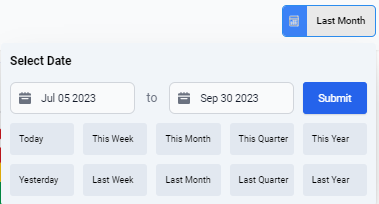
If a report looks empty, widen the date range before assuming something is broken — most reports open on the last 30 days, and a quiet touchpoint can easily have nothing in that window.
The filter panel on the left narrows what you are looking at: branch, section, collector type, question, why, label and so on. Filters stay applied as you move between reports.
The KPI switch, also in the filter panel, changes which score is shown — XPressScore, Customer Satisfaction, or Promoter Index. See the PXP Glossary for what each one means.
A note on menu items you cannot see
Some reports are optional extras. If your organization does not have one switched on, its menu item simply does not appear. Facility Map and Advance Report are the most common examples. Contact your Press'nXPress representative if you need one enabled.