Tablet Feedback Touchpoint
A Tablet touchpoint is a tablet running the Press'nXPress app, stood on a counter or mounted on a wall. It shows your question all day and resets itself after each customer, like a kiosk.
Setting one up takes two things: a touchpoint (the place you collect feedback, and the question it asks) and a device (the actual tablet, paired with the six-character code it shows on its own screen). You build the touchpoint first and pair the device on the last step.
You need permission to create touchpoints. If Manage → Touchpoints is missing, ask your Press'nXPress administrator.
Create the touchpoint
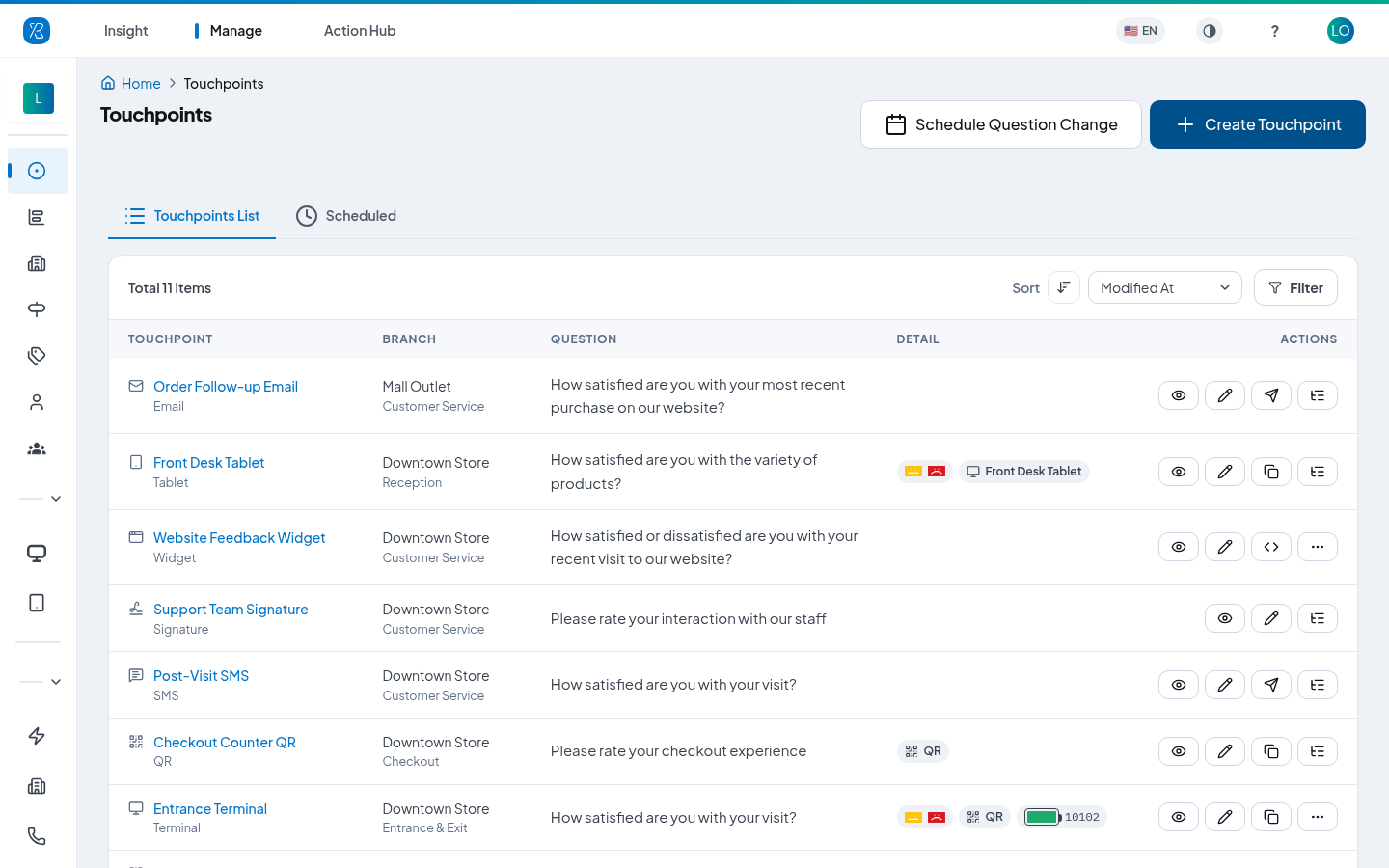
Click Manage at the top, then Touchpoints in the left menu, then Create Touchpoint.
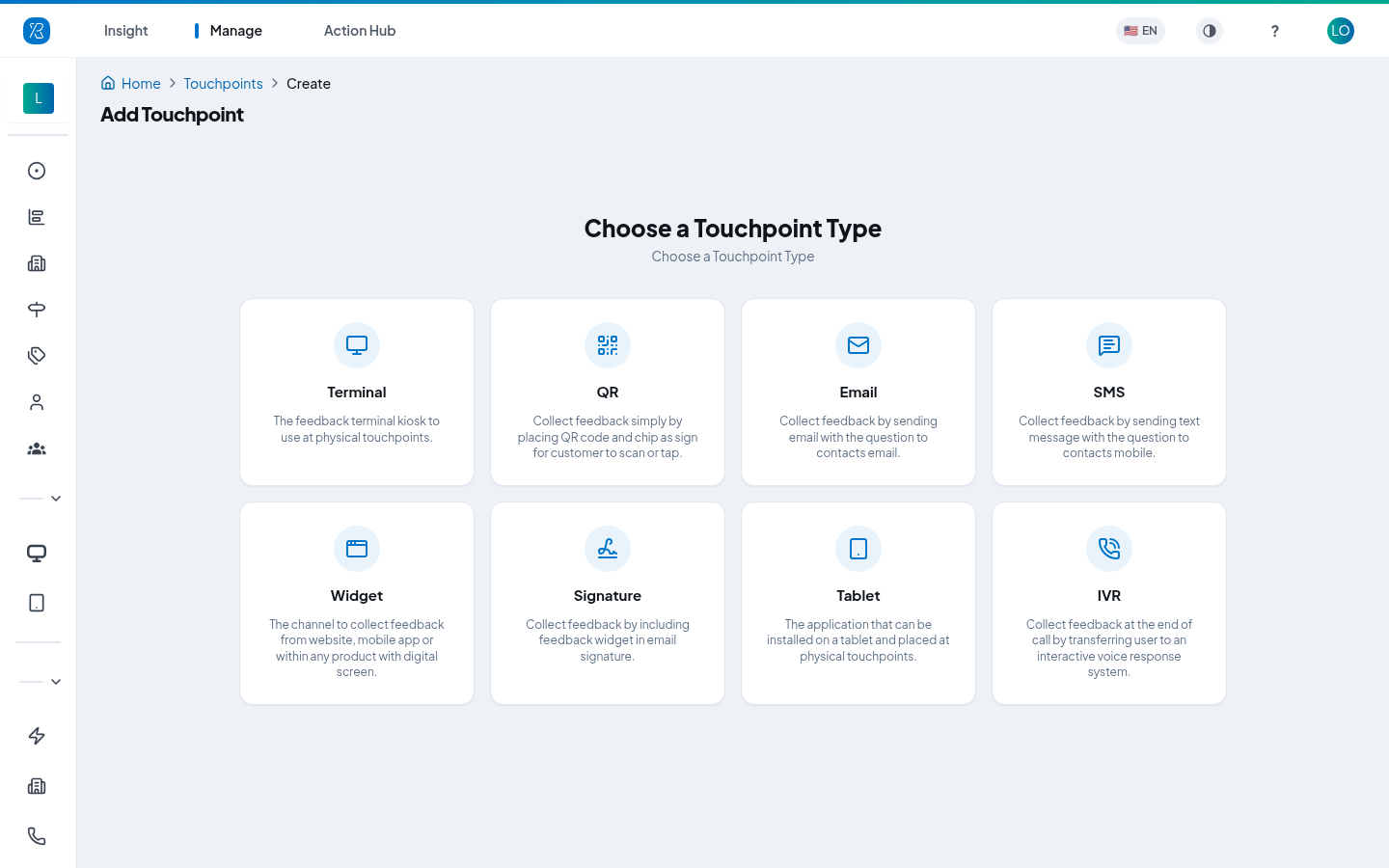
Pick the Tablet card — "The application that can be installed on a tablet and placed at physical touchpoints."
Step 1 · Touchpoint Details
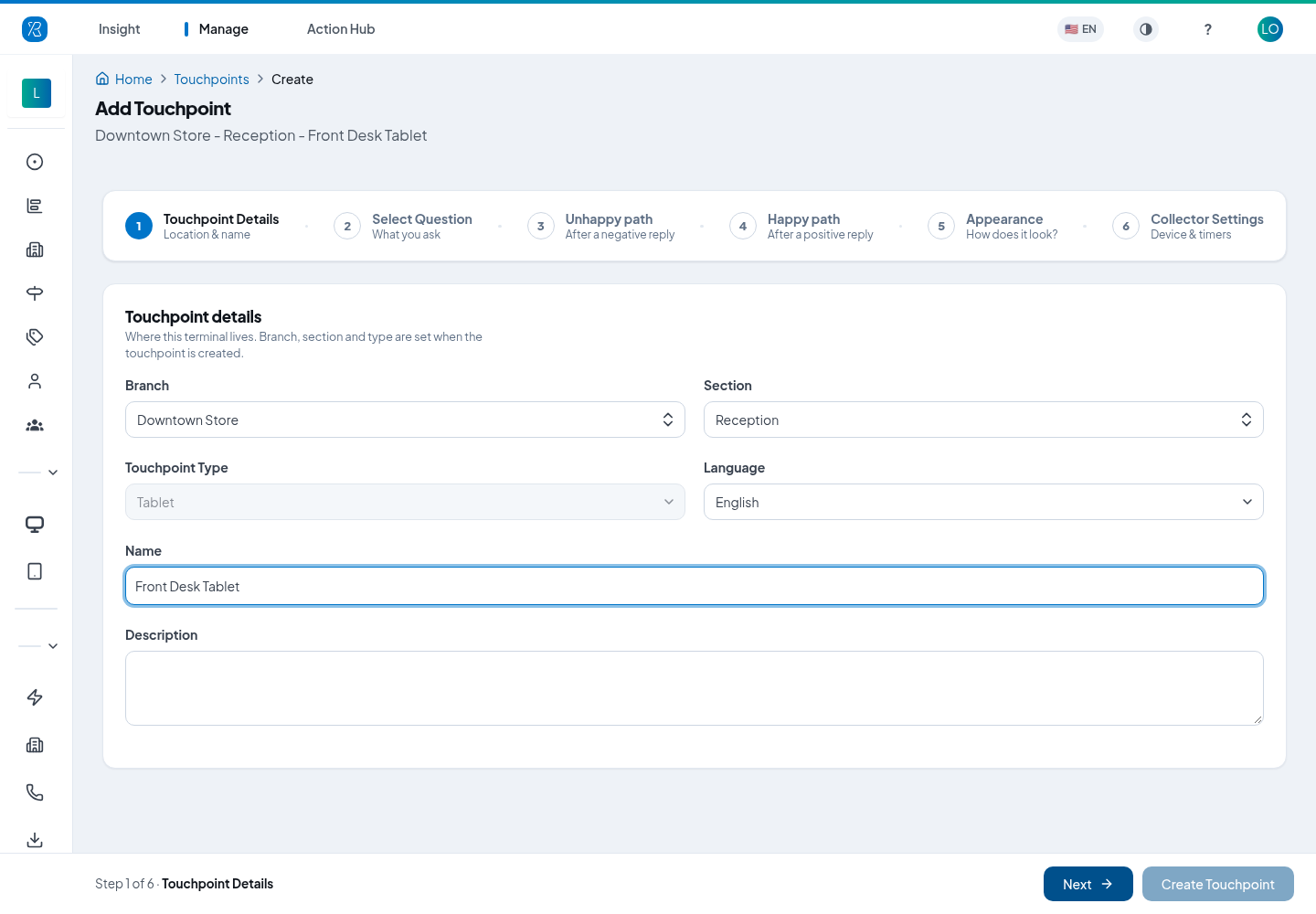
- Pick the Branch — the location this tablet stands in. See Branch.
- Pick the Section — the spot inside that branch, such as Reception or Checkout.
- Choose the Language. This is the language the tablet asks in.
- Type a Name. You will see this name on every report, so make it recognisable: "Reception – ground floor".
- Add a Description if you want a note for yourself. It is optional.
- Click Next.
Branch, section and type are fixed once the touchpoint is created — only the name and description can be changed later.
Step 2 · Select Question
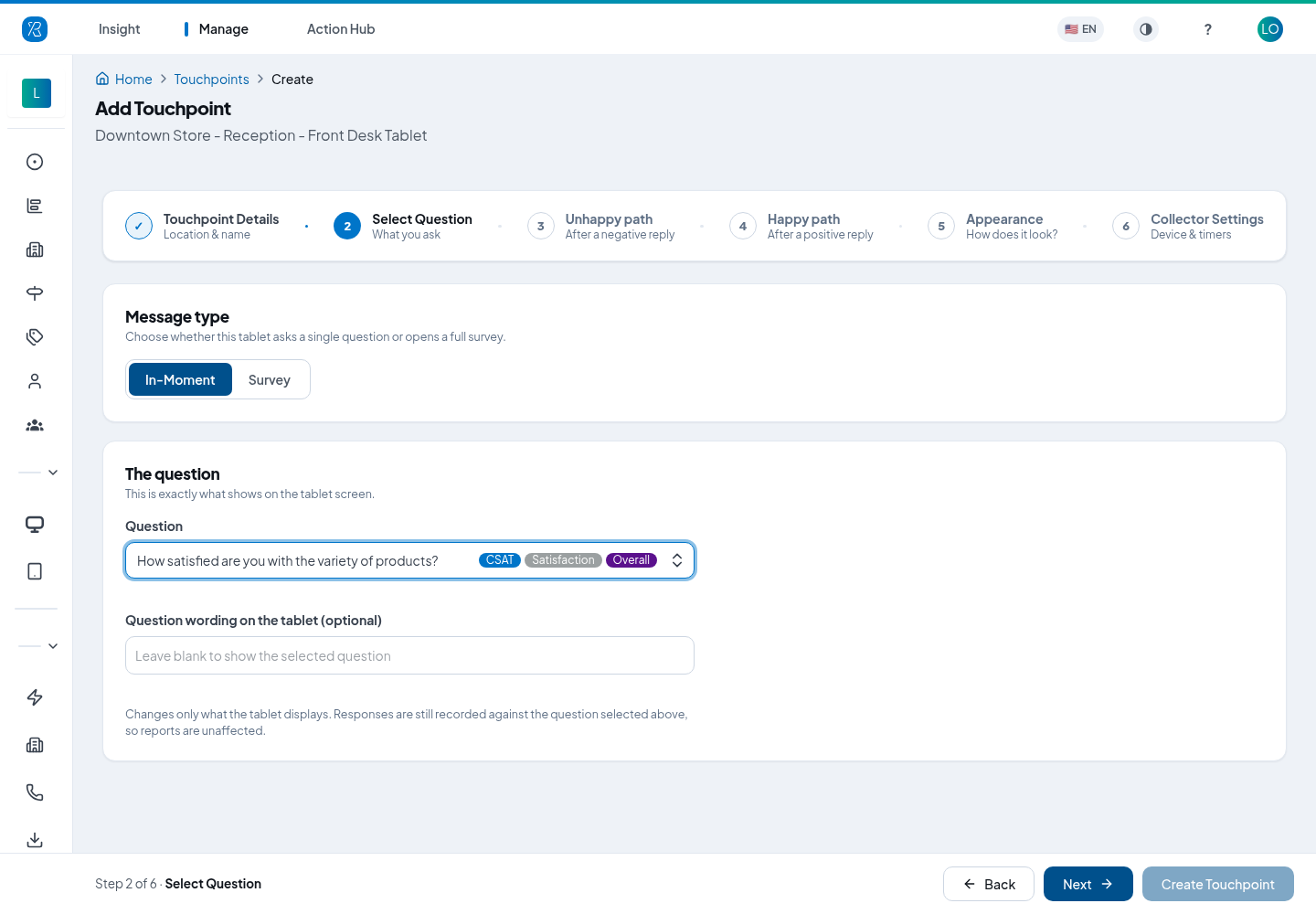
First choose the Message type. A tablet can run either kind:
- In-Moment — one question with three faces: happy, neutral, unhappy. Fastest for a customer walking past. This is the default.
- Survey — a full multi-question survey instead. See Surveys.
If you chose In-Moment, pick a Question from the list. Each one is tagged with what it measures (CSAT, Service, Quality, and so on). Ask support@pressnxpress.com if you are not sure which to use.
Question wording on the tablet is optional. Leave it blank and the tablet shows the question exactly as written above. Fill it in and the tablet shows your wording instead — but the answer is still recorded against the question you picked, so your reports are unaffected.
If you chose Survey, the step has three cards, and the wizard drops from six steps to three.
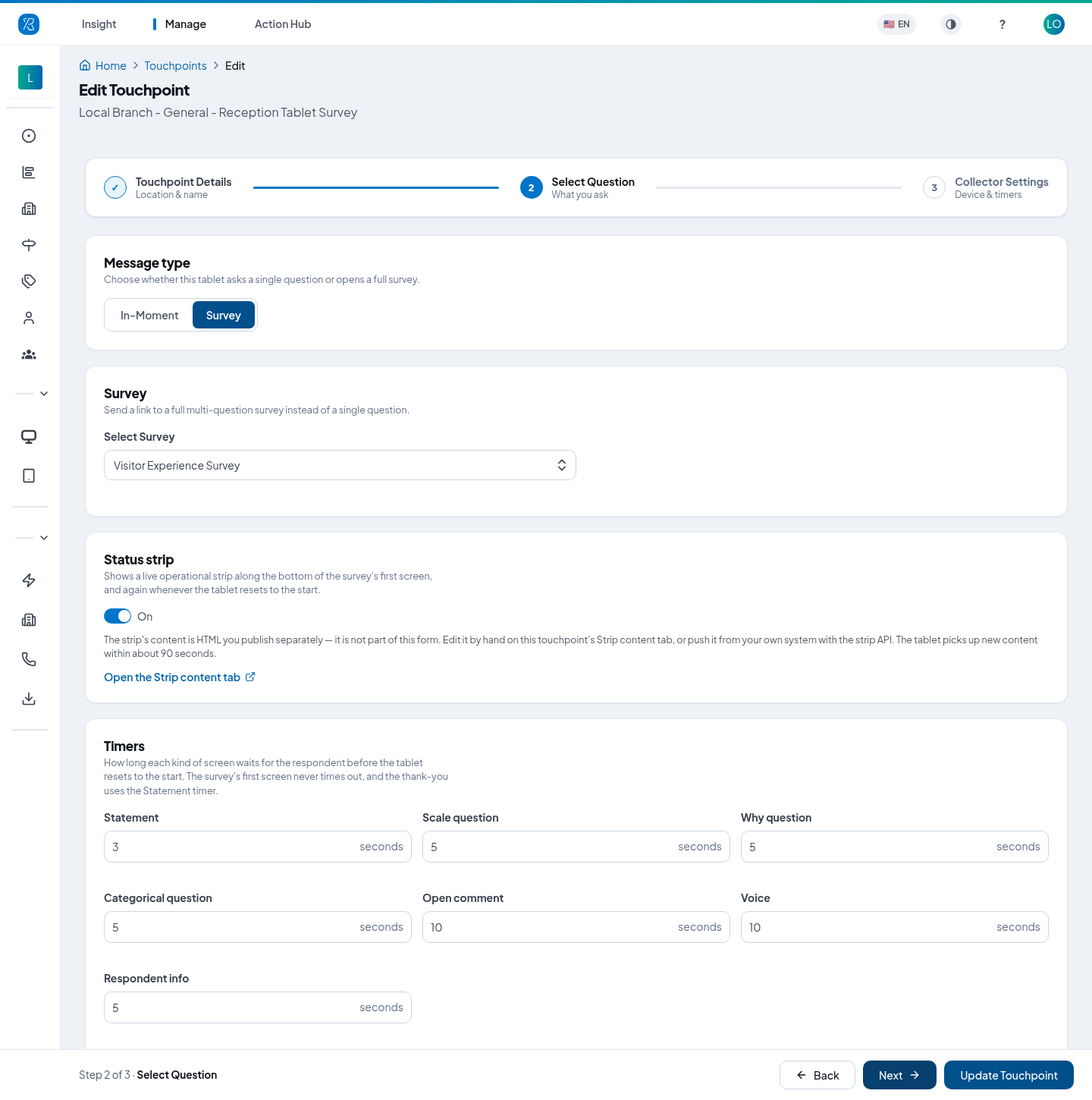
- Survey: pick the survey from the list. Branching, follow-up questions and the thank-you are all part of the survey itself, so there are no Unhappy and Happy path steps. The survey's own Settings apply on the tablet too: its theme, the progress bar, and tap to advance when navigation arrows are off. Use the Display question style for large, centred questions that read well from a distance.
- Status strip: turn on to show a live band along the bottom of the survey's first screen. It shows again each time the tablet resets to the start, and not on the other screens. Its content is HTML you publish separately, for example "Last service 6:30 / next service 5:00" and a QR code. Edit it on the touchpoint's Strip content tab (the Open the Strip content tab link takes you there), or push it from your own system with the strip API. The tablet picks up new content within about 90 seconds.
- Timers: how long each kind of screen waits for the respondent before the tablet resets to the start. See Timers below.
Steps 3 and 4 · Unhappy path and Happy path
These two steps only appear for In-Moment. They are identical, one for a negative answer (neutral or unhappy face) and one for a positive answer (happy face). On the Happy path there is a Copy from Unhappy button so you do not have to type it twice.
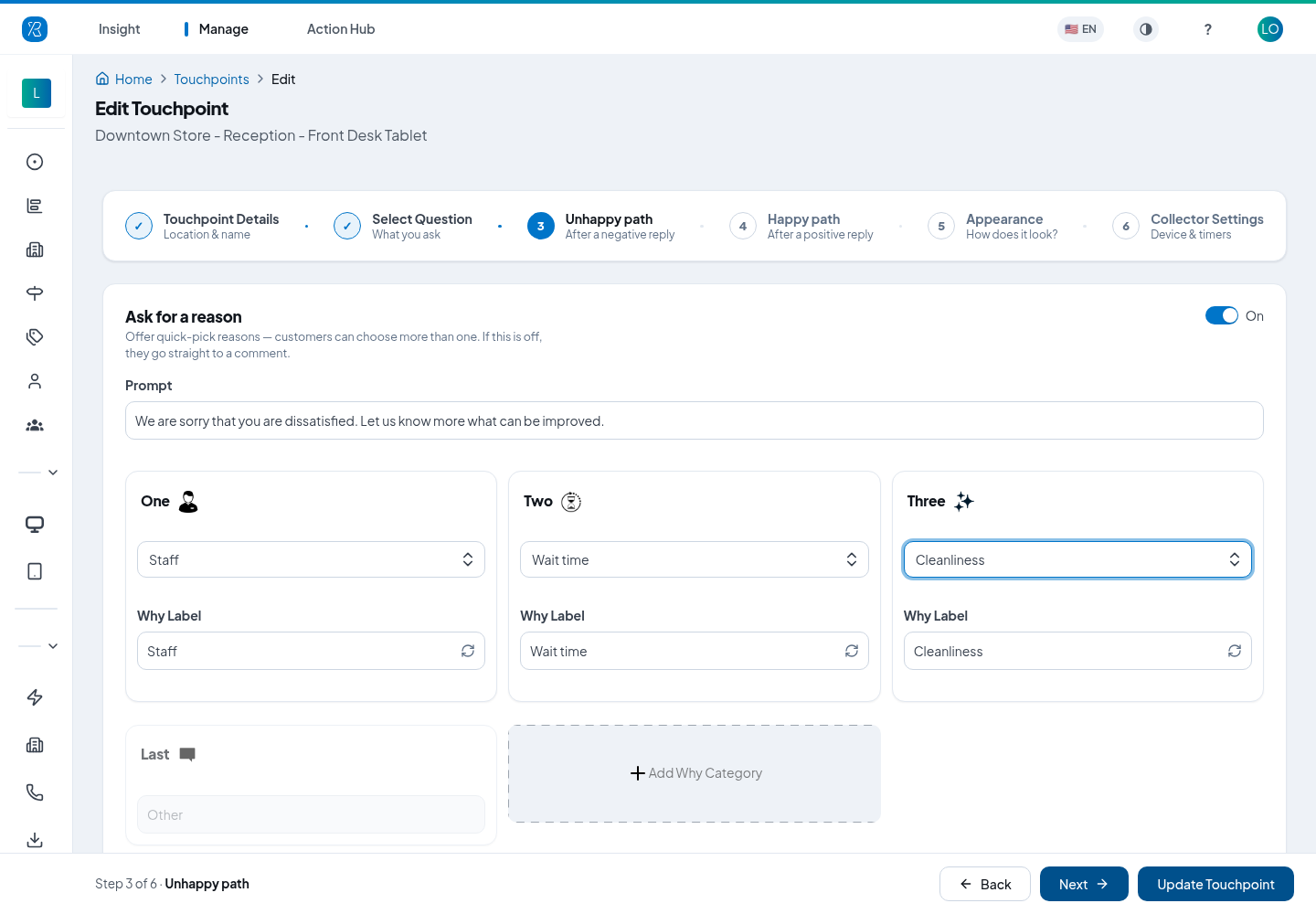
- Ask for a reason — turn this on to offer quick-pick reasons. Customers can choose more than one. Type the Prompt they see ("Let us know more what can be improved."), then pick a reason for each slot. Click Add Why Category for another. See Ask Why categories. Turn it off and the customer goes straight to the comment box.
- Open comment — the free-text box, always shown. Set its Prompt, for example "Would you like to add anything?".
- Thank-you message — the last screen, shown on its own. Set the Message.
Step 5 · Appearance
In-Moment only. This is how the tablet screen looks to someone standing about a metre away. The left half previews every screen exactly as configured.
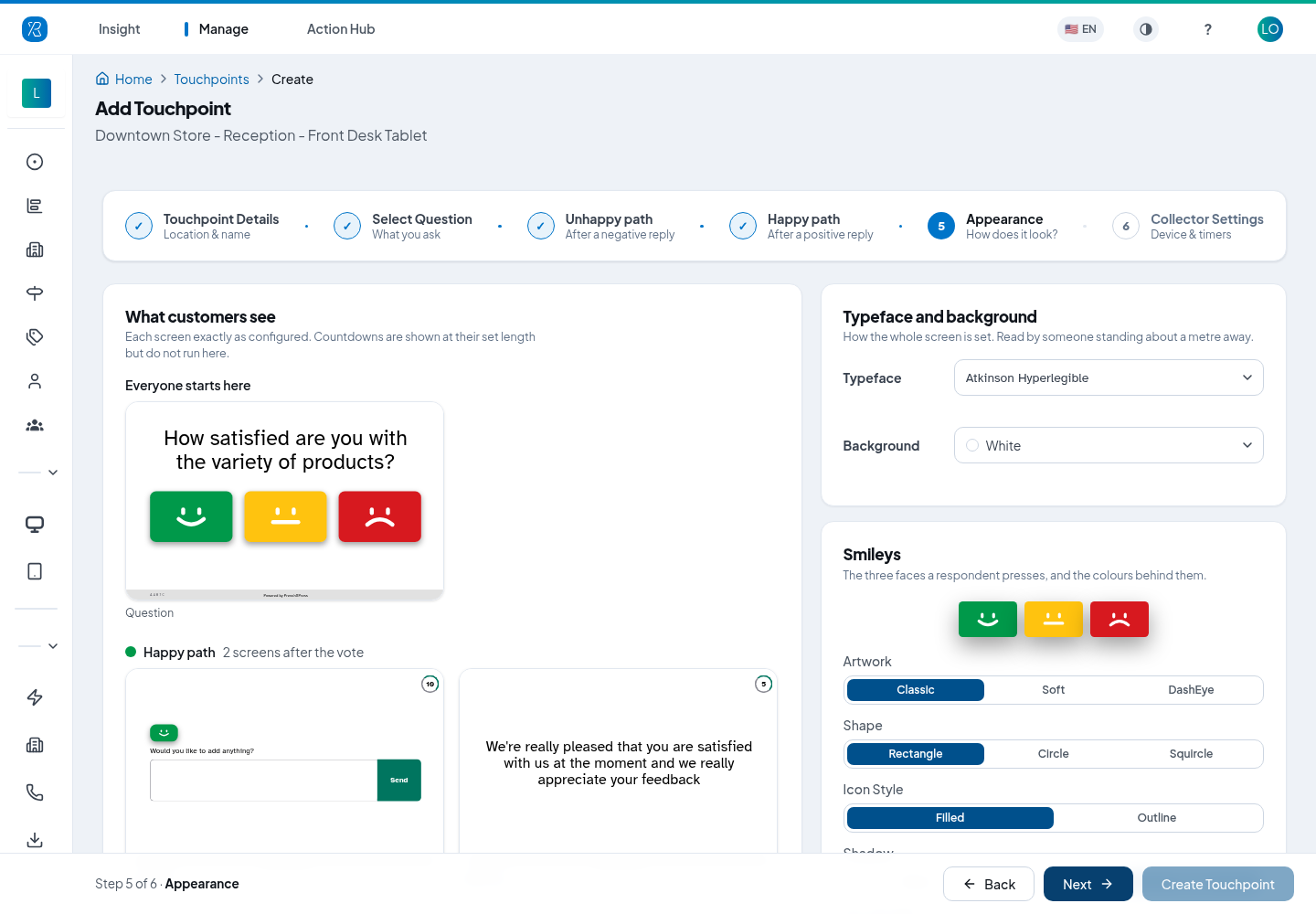
- Typeface and background — the font and the screen colour.
- Smileys — the Artwork (Classic, Soft or DashEye), the Shape (Rectangle or Circle), the colour of each tile, and the face colour and opacity. The Face contrast readout tells you whether the faces are still readable from a distance; 3:1 or more is comfortable.
- Status strip — turn on to show a live band along the bottom of the question screen. The band's content is HTML you publish separately, on the touchpoint's Strip content tab or from your own system. The tablet picks up new content within about 90 seconds.
Step 6 · Collector Settings (step 3 for a survey)
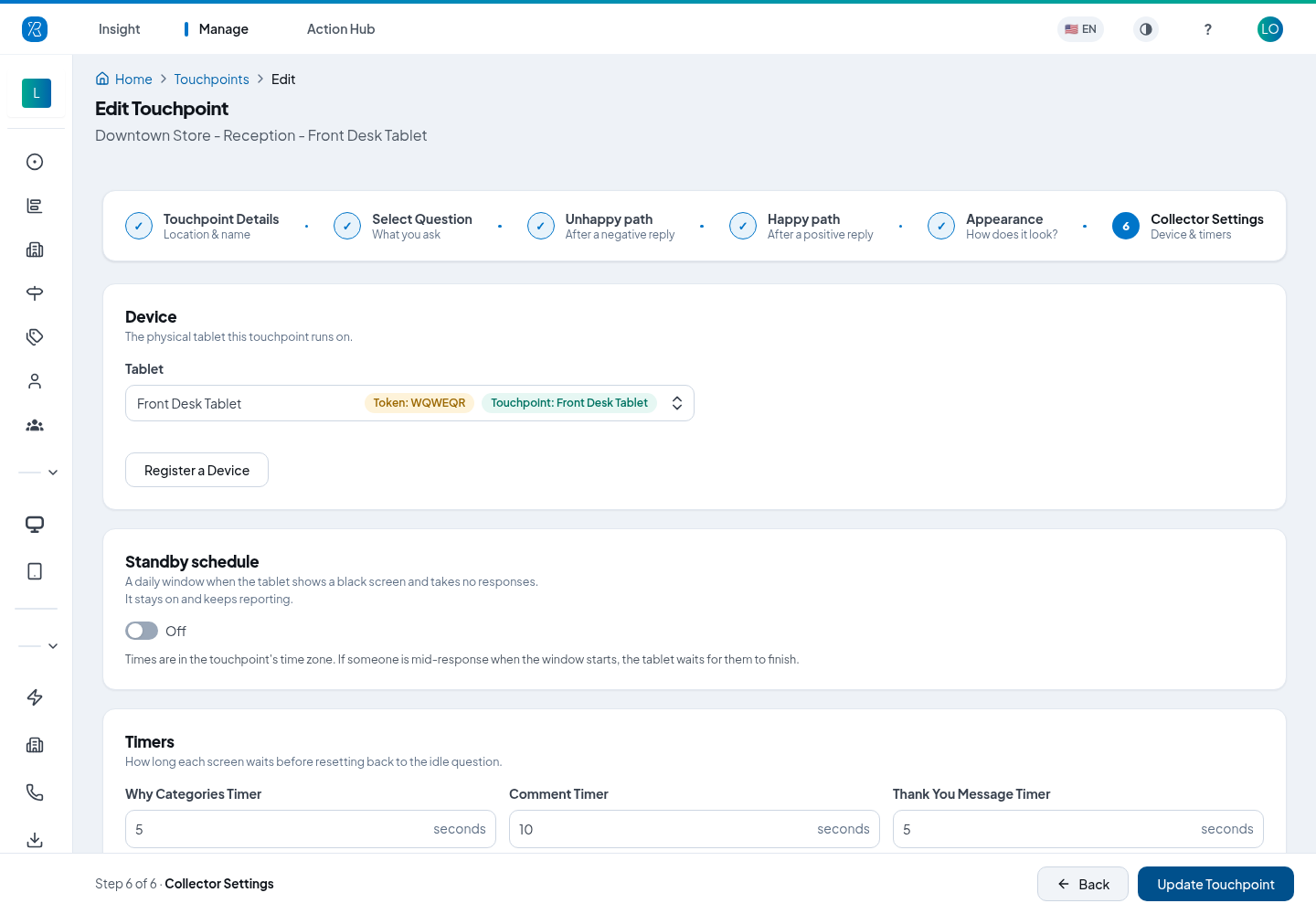
Device is where you pair the tablet — see below.
In-Moment touchpoints also have their Timers here. In Survey mode this step has the Device card and a Standby schedule only; the timers are on step 2.
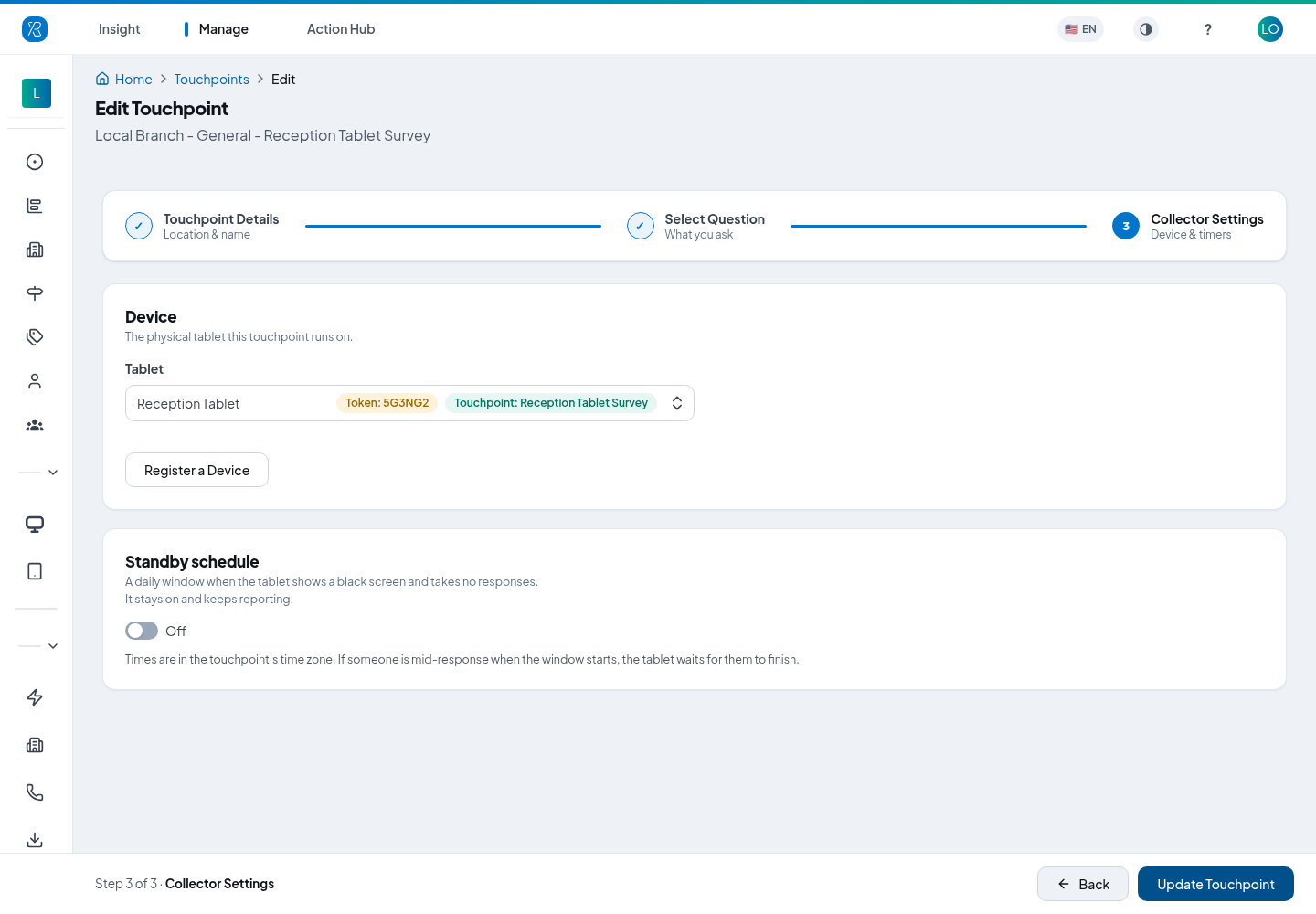
Standby schedule sets a daily window when the tablet shows a black screen and takes no responses. It stays on and keeps reporting. Times are in the touchpoint's time zone, and if someone is answering when the window starts, the tablet waits for them to finish.
Click Create Touchpoint.
Timers
Timers control how long each screen waits before it clears itself and goes back to the start.
In-Moment has three, on Collector Settings: Why Categories Timer, Comment Timer and Thank You Message Timer. Each must be between 5 and 20 seconds.
Survey has one timer per kind of screen, on step 2. Each can be set from 3 to 60 seconds:
| Screen | Default |
|---|---|
| Statement (also used for the thank-you) | 3 seconds |
| Scale question | 5 seconds |
| Why question | 5 seconds |
| Categorical question | 5 seconds |
| Respondent info | 5 seconds |
| Open comment | 10 seconds |
| Voice | 10 seconds |
- The survey's first screen never times out while nobody is touching it.
- Once someone starts, every screen counts down, so a half-finished survey resets itself for the next person.
- A "please answer" message only appears when the respondent tries to move on without answering.
The footer of a survey on the tablet shows the tablet's code and "Powered by Press'nXPress".
Pair a tablet to the touchpoint
A touchpoint with no device collects nothing. On Collector Settings, open the Tablet list and pick your device. Each option shows the device's six-character token, and a pink chip naming the touchpoint it already runs if it is in use somewhere else.
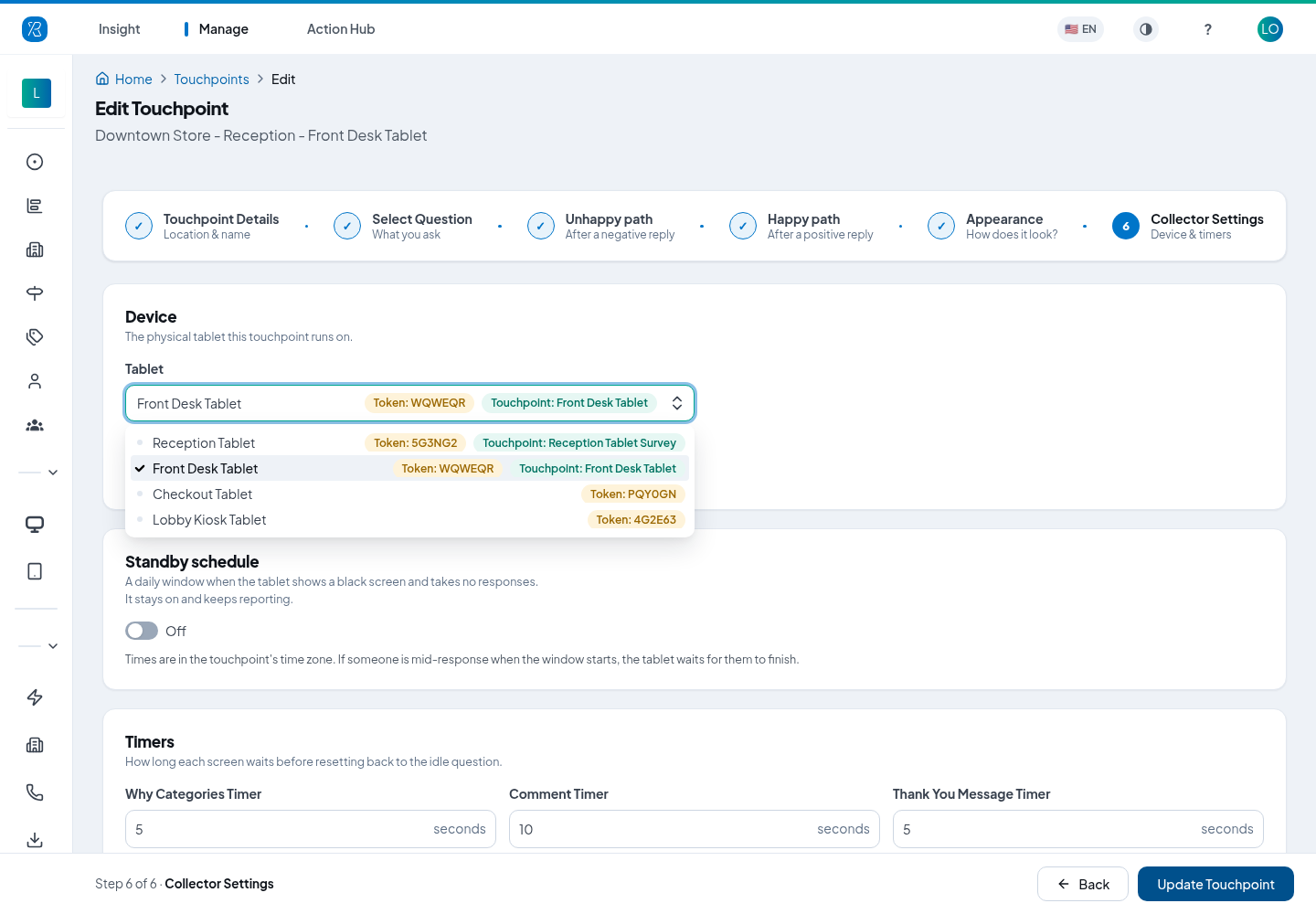
If the tablet is not in the list, it has not been registered yet. Register it without leaving the page:
- Switch the tablet on and open the Press'nXPress app. It shows a pairing screen with a six-character token and a QR code.
- Click Register a Device.
- Type the six characters into Device token.
- Type a Friendly name you will recognise later.
- Click Register a tablet.
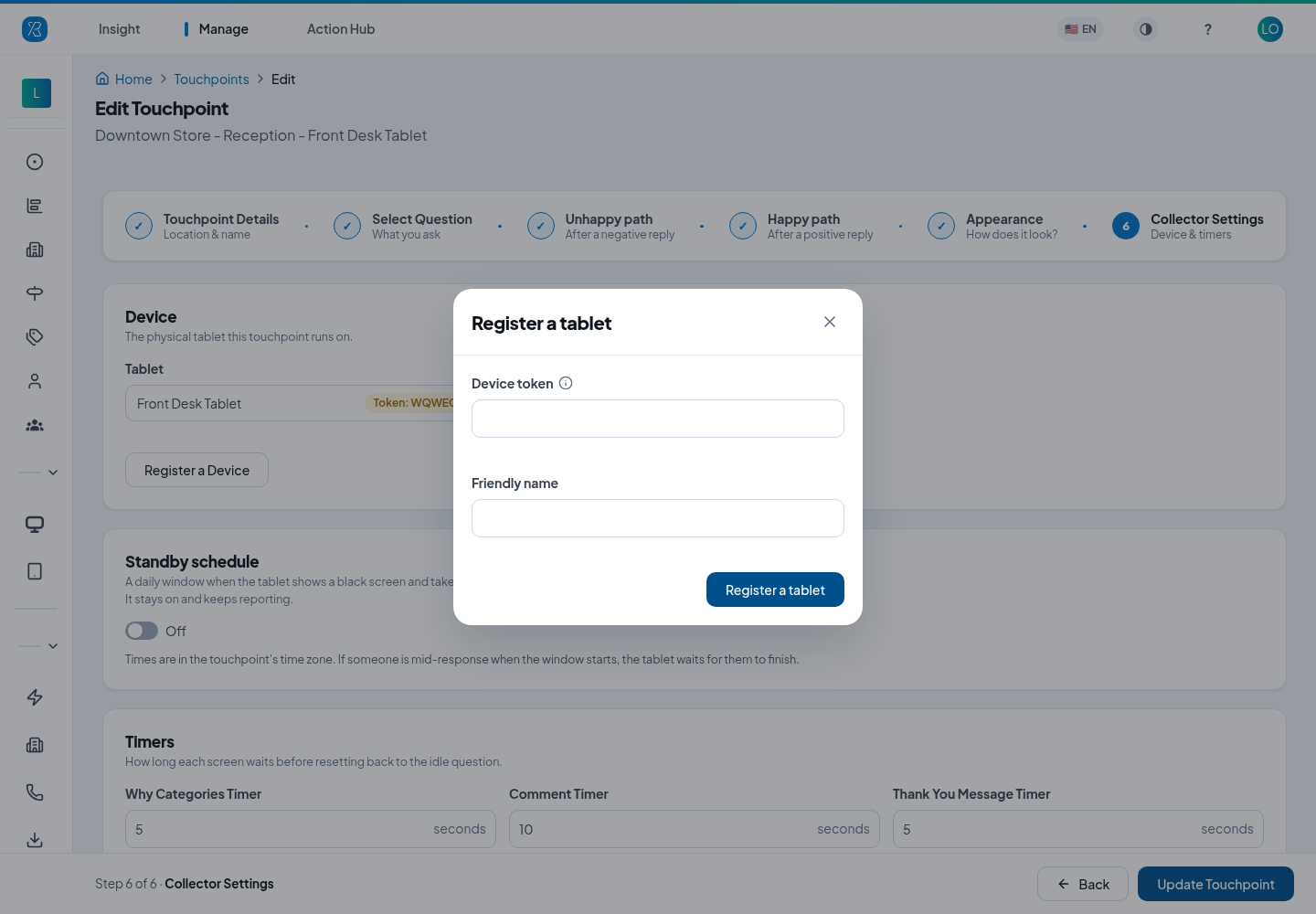
Both fields are required, and the token is checked — if it is rejected, read it off the tablet screen again. You can also point your phone camera at the QR code on the pairing screen instead of typing.
Then pick the newly registered device in the Tablet list and click Update Touchpoint. The tablet picks up the question and starts collecting.
The Tablet field cannot be emptied, and touchpoints cannot be deleted. So "taking a tablet out of service" means giving this touchpoint a different device, which frees the old one — not clearing the field. See Assign a kiosk to another touchpoint.
Change a touchpoint later
Open Manage → Touchpoints, find the row and click Edit. The same steps appear, filled in. Change what you need and click Update Touchpoint. See Touchpoints.
To change the same setting on many kiosk touchpoints at once, use Bulk update multiple touchpoints.
To see all your devices in one place — battery, last seen, which touchpoint each runs — go to Tablets. To read the feedback that comes in, see the Touchpoint Report.
Get the app
- Android
- iOS — ask support@pressnxpress.com for the current link.