User Access Management
Press'nXPress platform provides detail authorization and permission based on user role in the organization. Using the Access level and role/permission you can manage every user access to the dashboard and data as needed.
[Note] Users that have Create User permission can add new users to access dashboard and manage their permission.
Create User
- Go to the dashboard and select Authorization-Users from the menu.
- Click Add User button to add New User.
- Populate user details: Firstname, Lastname, Email, Phone number.
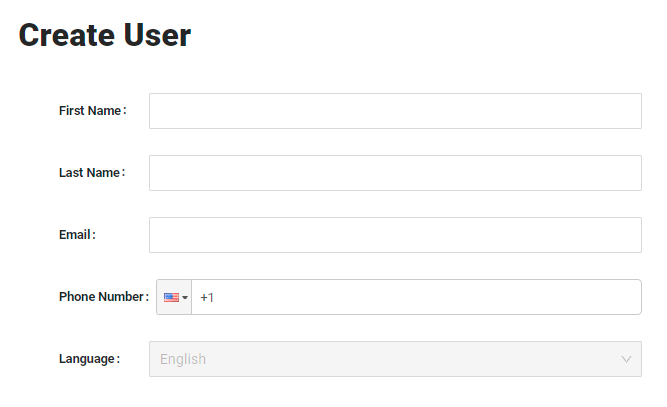
- Select the Language for the user.
- Click Next
- Select Access Level
- Organization: User has access to the organization and all branches.
- Branch: User has access to selected branches.
- Section: User can see feedbacks for selected sections.
- Label: User can see feedbacks for selected labels.
- Depending on Access Level selected (Branch, Section, Label), select the Label, Section or Branches that user need access to.
- Click Next
- Select Permission
- Role dropdown list is defined per Access Level that was selected in step 2
- Depending on the role selected preset permission will be shown.
- Add or remove permissions as needed by clicking the checkbox next to them
- Click Submit button to create the new user.
Action Hub Permission
Conversation module enables to close the feedback loop with your customers. It is one single location to see the history of feedback and conversation with customers.
If the user needs access to conversation module, Assign user as Member or Manager in Step 4 of Create/Edit User.
- None User does not have access to Action Hub.
- Member User has access to Action Hub but cannot edit Action Hub settings.
- Manager User has full access to Action Hub and can edit Action Hub settings.
Edit User
- Go to the dashboard and select Authorization-Users from the menu.
- Find the user that you want to edit and click Edit button under Actions.

- Update user details: Firstname, Lastname, Email, Phone number.
- Click Next
- Update Access Level
- Organization: User has access to the organization and all branches.
- Branch: User has access to selected branches.
- Section: User can see feedbacks for selected sections.
- Label: User can see feedbacks for selected labels.
- Depending on Access Level selected (Branch, Section, Label), select the Label, Section or Branches that user need access to.
- Click Next
- Update Permission
- Role dropdown list is defined per Access Level that was selected in step 2
- Depending on the role selected preset permission will be shown.
- Add or remove permissions as needed by clicking the checkbox next to them
- Click Update button to update the user.
Deactivate User
To disable user access to the dashboard,
- Go to the dashboard and select Authorization-Users from the menu.
- Find the user that you want to edit and click Deactivate button under Actions.
- A pop up shows: Are you sure to Deactivate this user?
- Click the OK button to deactivate the user.
- User will be deactivated and cannot access the dashboard anymore.
[NOTE] To Activate the user again, find the user. Ensure to select filter Status All or Inactive to see Inactive users. Click the Activate button.