Branch Management
A branch is one physical location of your business — a store, a clinic, a hotel, a head office. Every organization starts with at least one branch.
A section is an area inside a branch — for example Exit, Cashier, Counter, Will Call, or Entrance & Exit. Sections tell you where in the building the feedback came from.
Every touchpoint you create belongs to one branch and one section. That is what lets you later read a report per location, and then drill into the exact spot inside it.
[Note] You need admin access to add a branch.
Branch List
-
From the top menu open Manage, then select Branch in the side menu.

-
The list shows every branch in your organization.
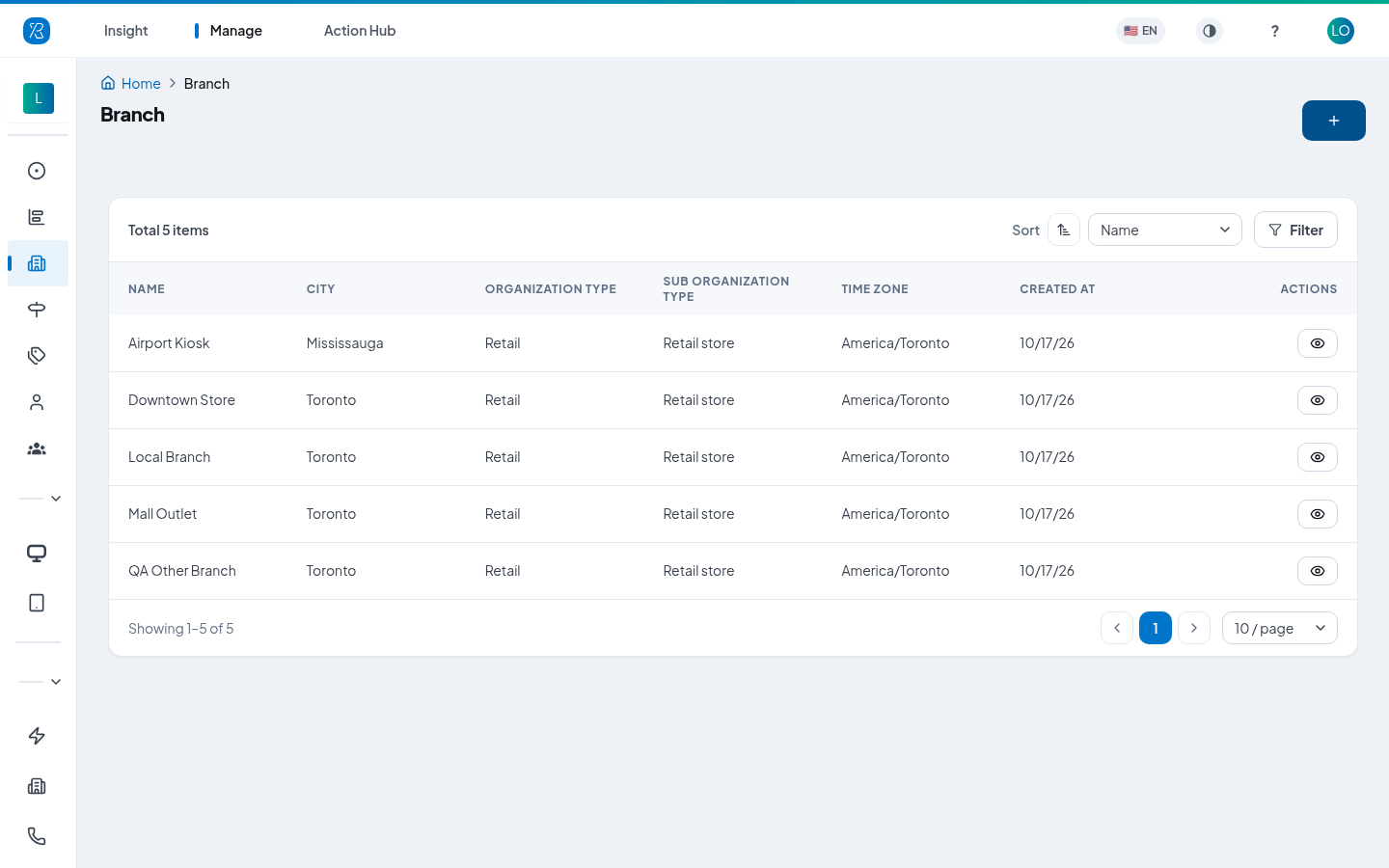
Each row shows the branch Name, City, Organization Type, Sub Organization Type, Time Zone, and the date it was Created At. Hover over the city to see the full street address.
You can also:
- Sort the list by Name, Organization Type, or Created At.
- Filter the list by name, to find one branch quickly.
- Click the eye icon in the Actions column to jump to the touchpoints of that branch.
Add a Branch
-
On the Branch list, click the blue + button at the top right.
-
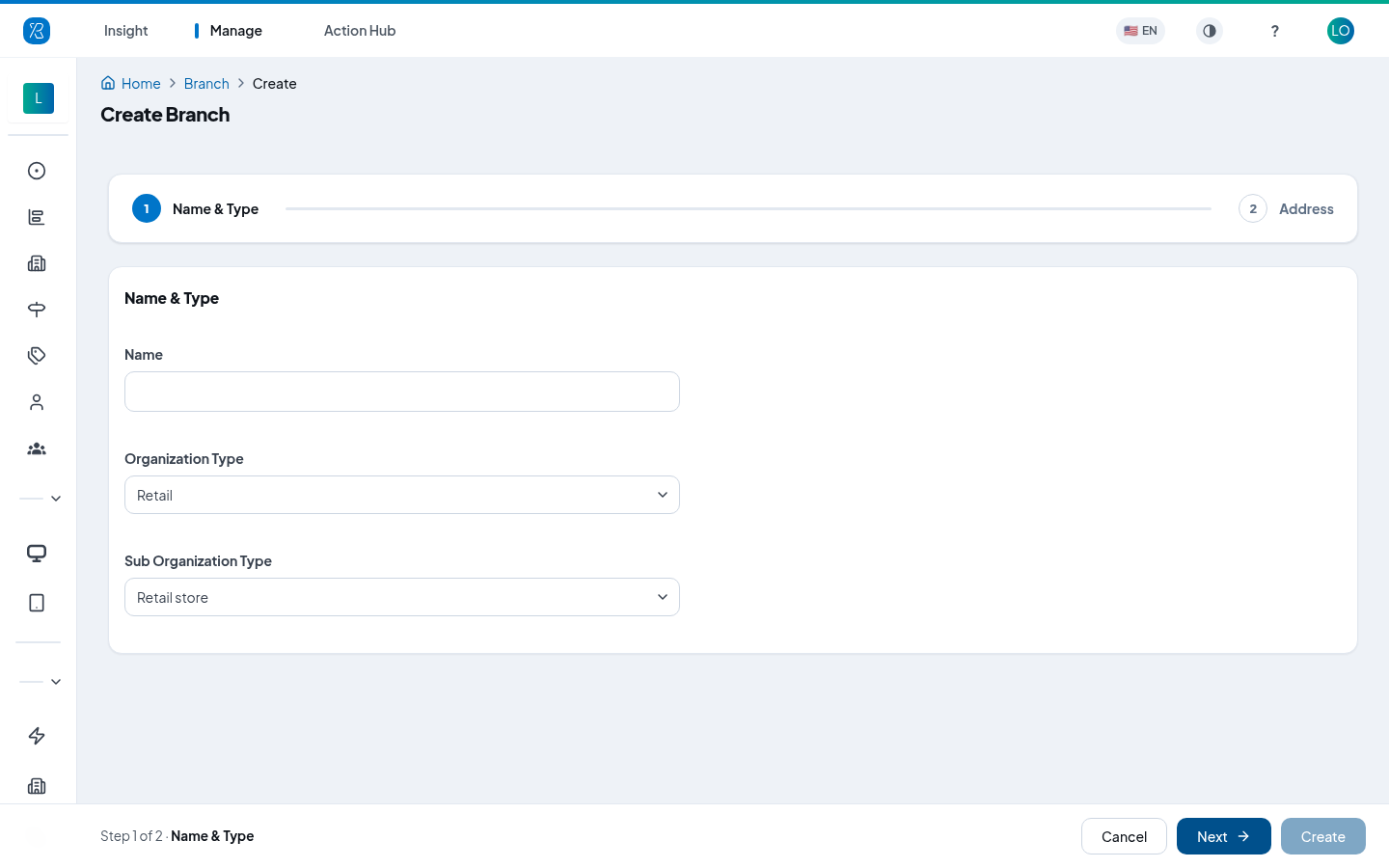
Type the Name of the branch. [Note] This name appears on every report, so use the name your team already uses for that location.
-
Pick the Organization Type and the Sub Organization Type. [Note] This decides which ready-made questions the question library offers you for this branch.
-
Click Next.
-
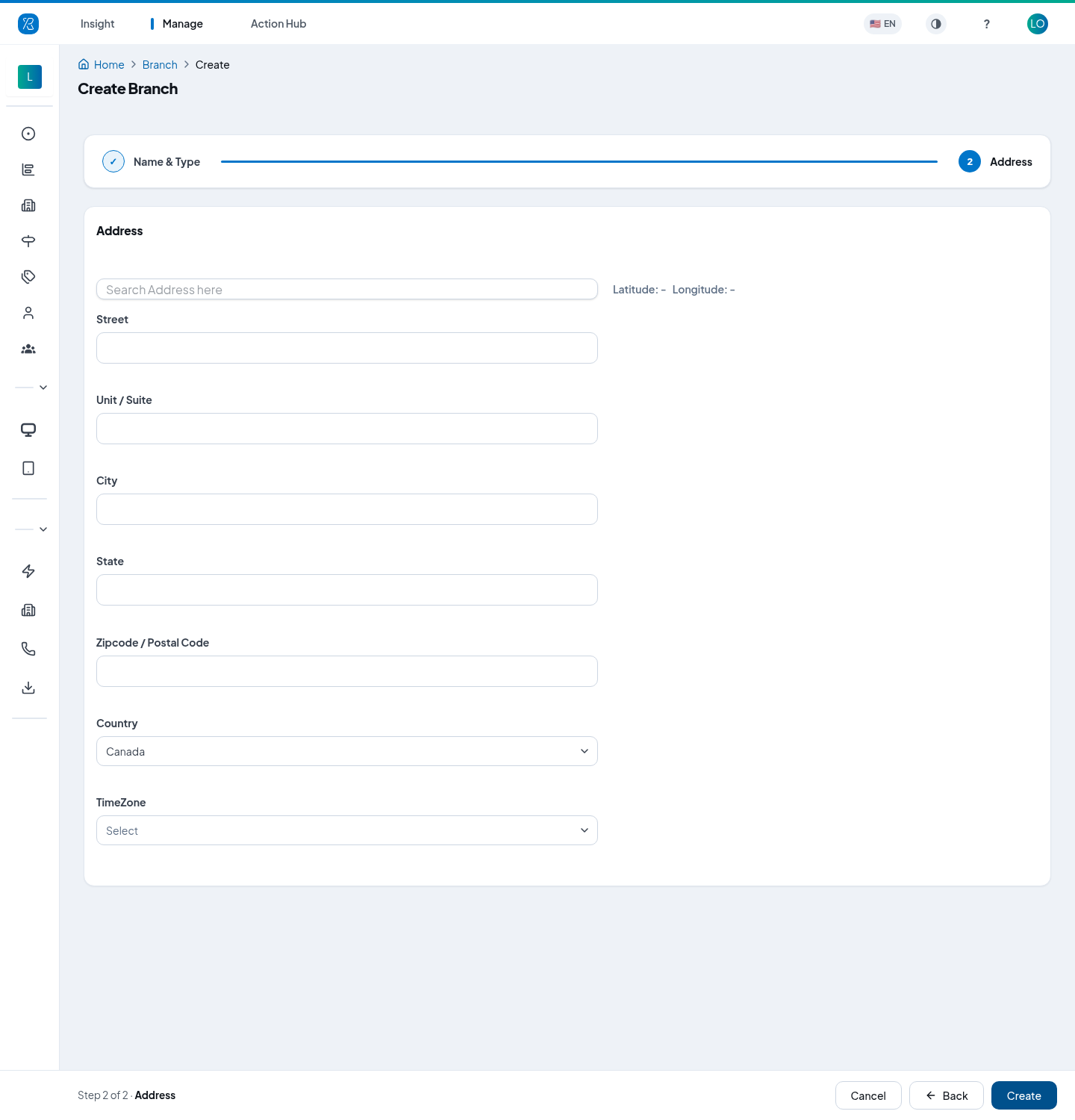
Type the address in Search Address here and pick the match, or fill Street, Unit / Suite, City, State, Zipcode / Postal Code and Country by hand. Picking the address on the map is required — it sets the latitude and longitude shown beside the search box.
-
Choose the TimeZone. [Note] This one matters. Every response is stamped in the branch time zone, so reports such as "busiest hour" are wrong if the time zone is wrong.
-
Click Create.
You return to the Branch list and the new branch is there.
Editing a Branch
A branch cannot be edited from this screen. If a name, address, or time zone is wrong, contact Press'nXPress support to have it corrected.
Sections
Sections are not created on the Branch screen. They come from a shared list of area names, and you pick one for each touchpoint when you create it.
To see or add section names, open Admin, then Sections.
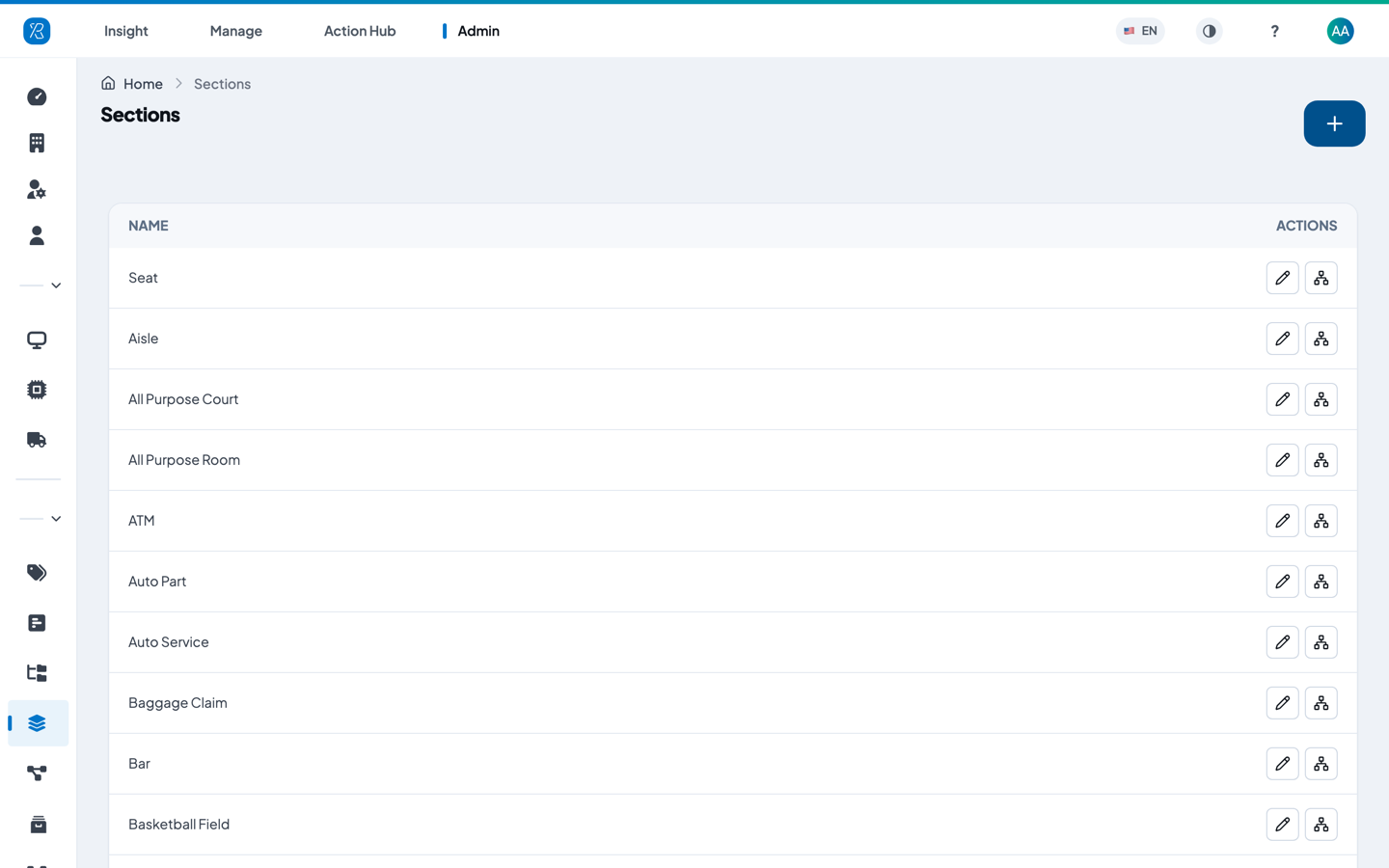
Click the pencil icon to rename a section. Click the blue + button to add a new one. [Note] You need admin access for this screen.
Why the Branch and Section Split Matters
A touchpoint is always identified as Branch - Section - Touchpoint name, for example Downtown Store - Cashier - Checkout.
That gives you two useful levels when you read results later:
- Branch answers "which location has a problem?" Use it to compare stores against each other.
- Section answers "where inside that location?" Two branches can both be scoring low, but one at the Cashier and the other at the Exit — and those are different problems with different fixes.
Most report screens let you filter by Branch and by Section, so the more carefully you set these when creating touchpoints, the more useful every report becomes.
Next Step
Once the branch exists, add touchpoints to it to start collecting feedback. See How to Create a Touchpoint?.