Email Feedback Collector
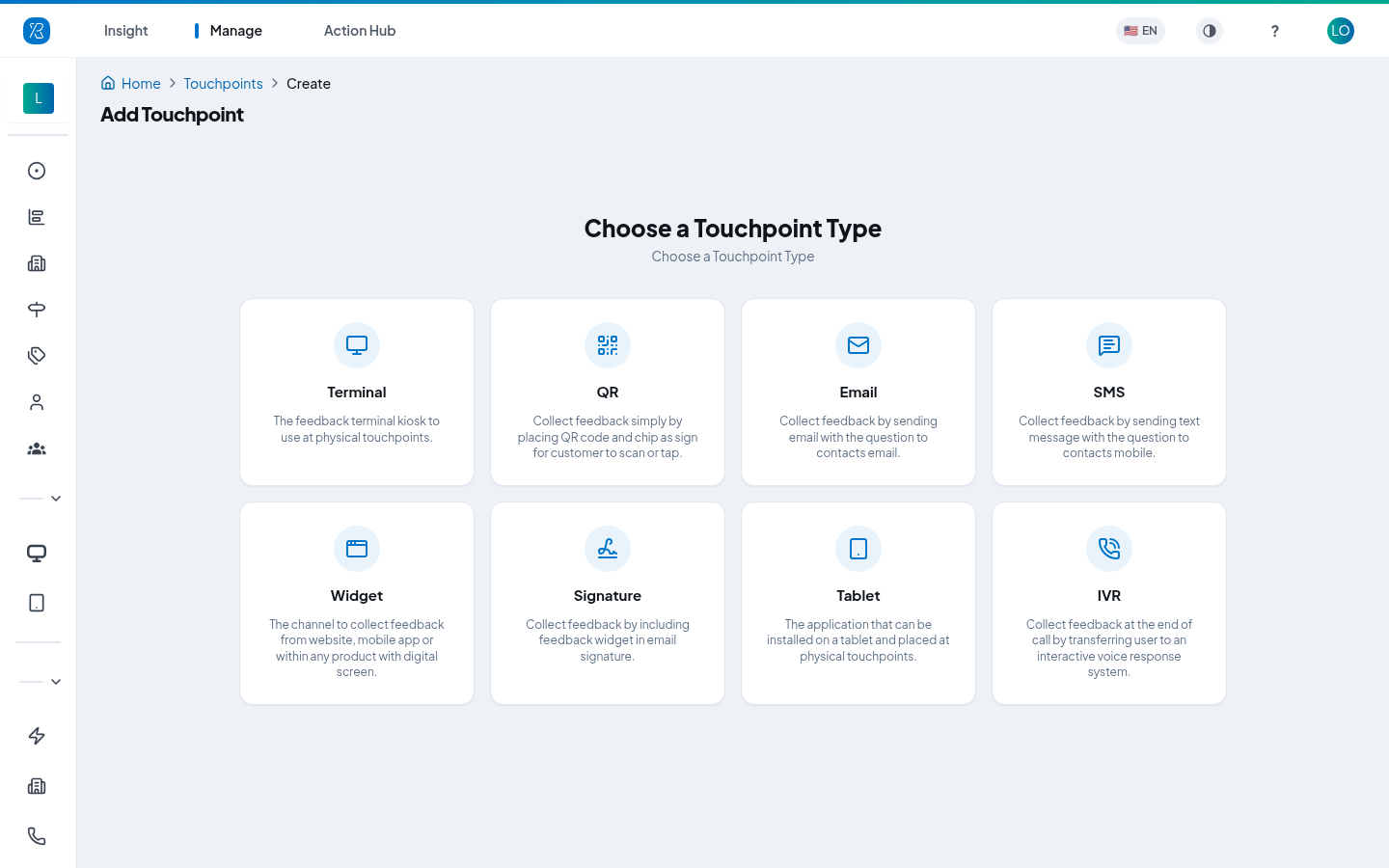
The Email collector asks for feedback by sending an email. On the create screen its card reads Email — "Collect feedback by sending email with the question to contacts email."
A touchpoint is one place where you ask for feedback. An Email touchpoint asks in the customer's inbox.
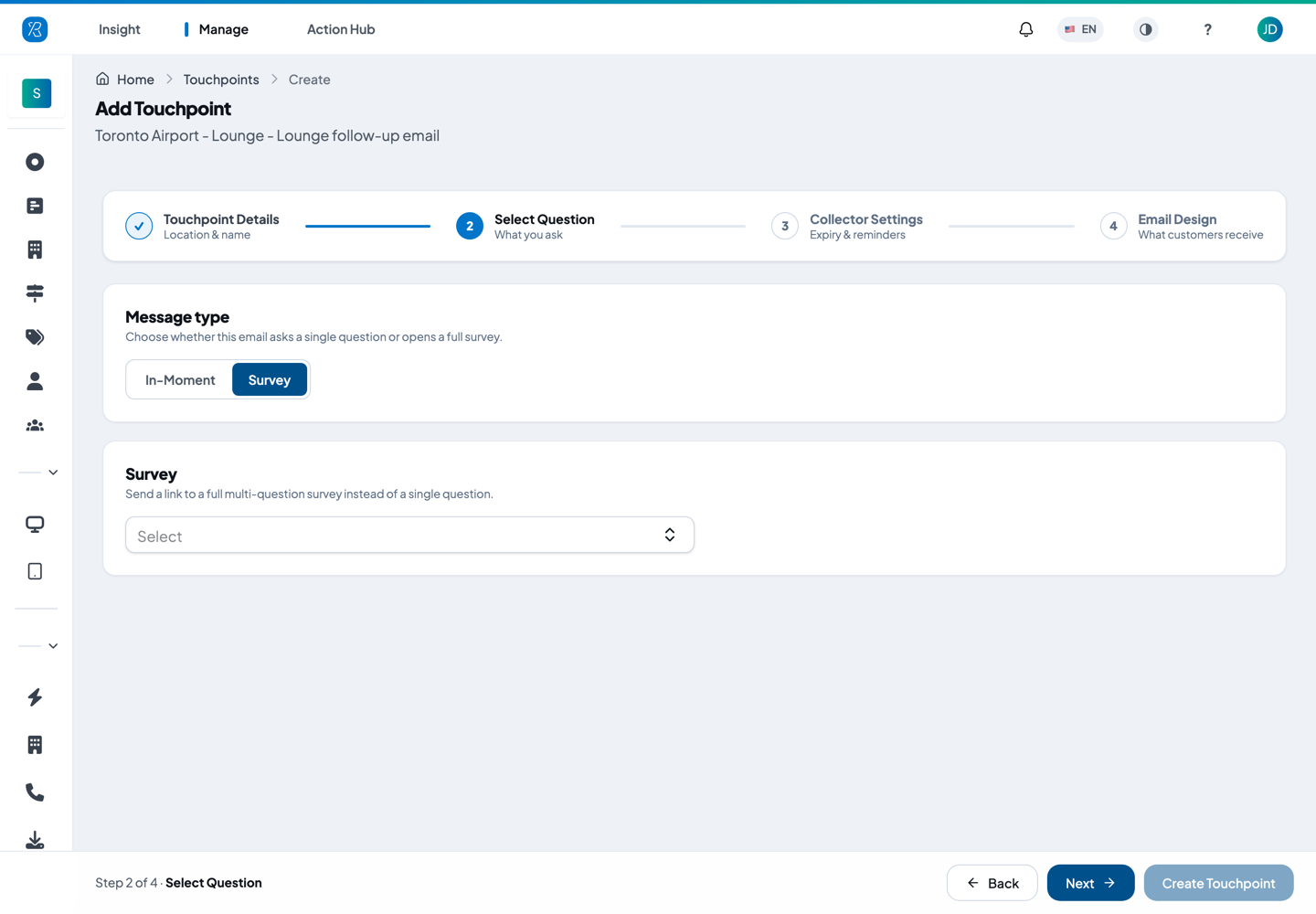
An Email touchpoint can ask in either of two ways, and you choose which on step 2:
- In-Moment — the email carries one question and three faces. The customer taps a face in the email itself, and that tap is their answer. They then land on a short page that asks why, and lets them add a comment.
- Survey — the email carries a link that opens a full multi-question survey in the browser.
Everything else — the wording, the sending, the reminders — works the same either way.
Before you start: you need admin access to create a touchpoint, and a link to your own privacy policy, because step 6 asks for one.
Create an Email touchpoint
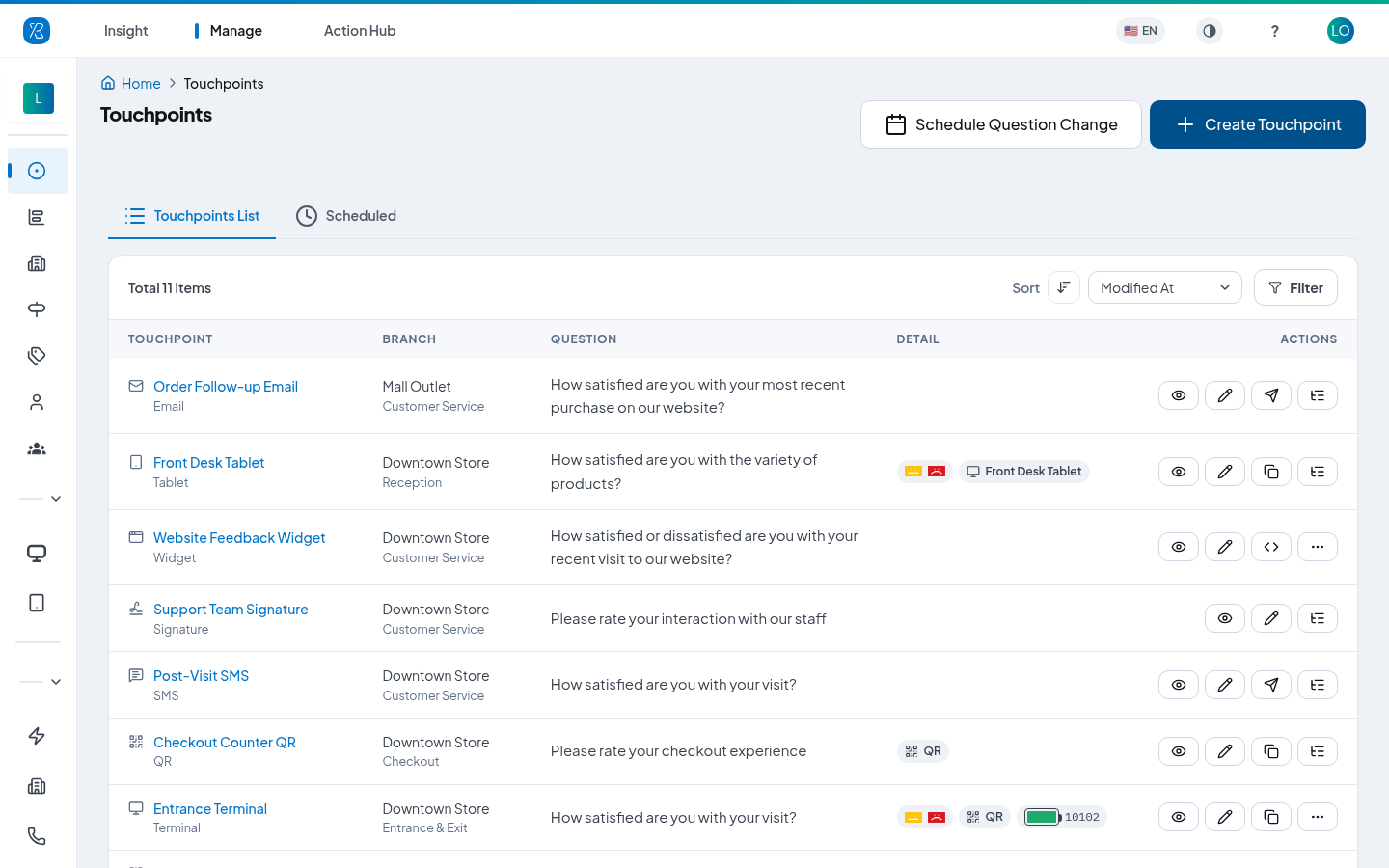
- From the top menu select Manage, then Touchpoints in the left menu.
- Click Create Touchpoint.
- Click the Email card.
Step 1 — Touchpoint Details
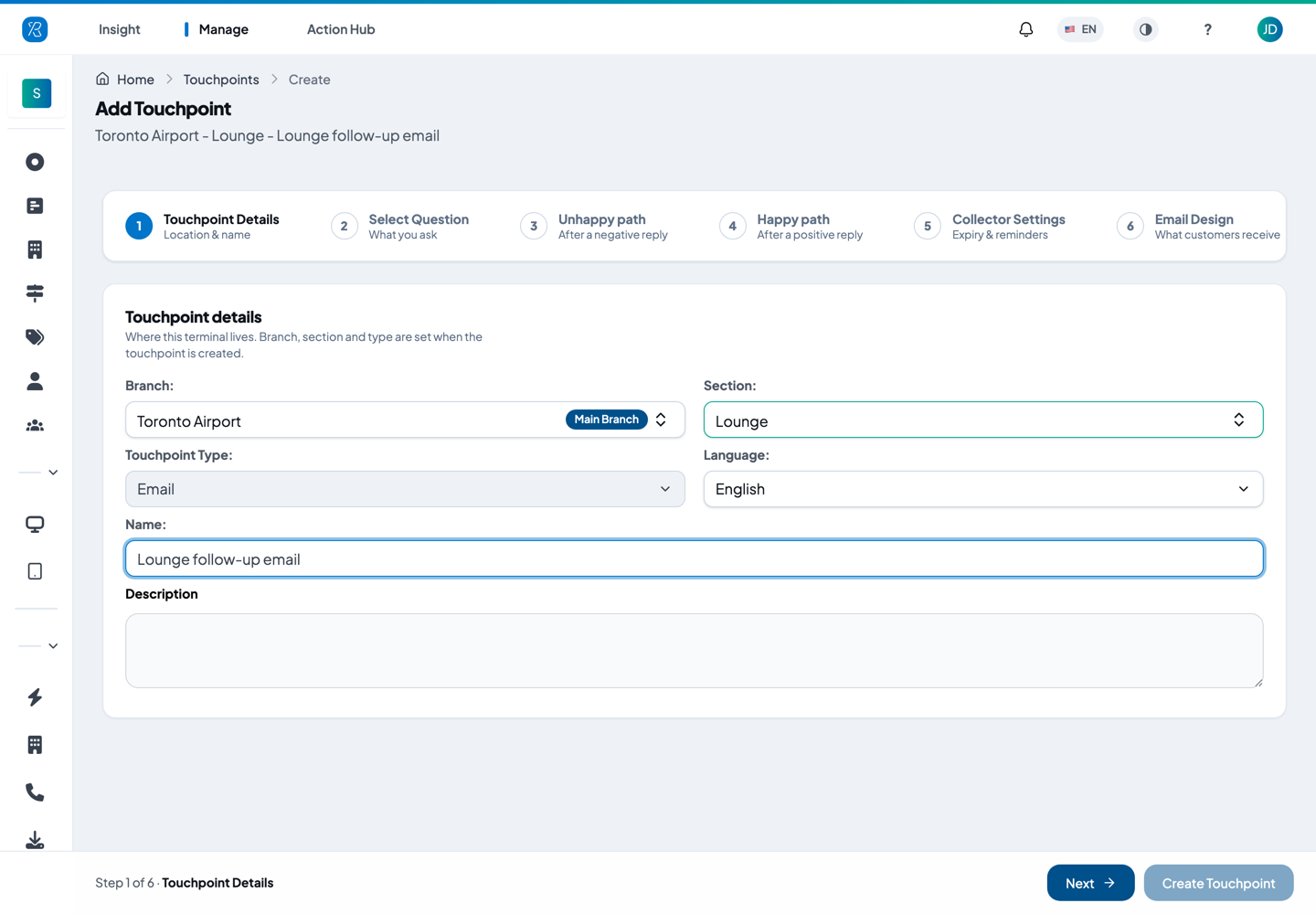
- Pick the Branch — the location this feedback belongs to. See Branch Management.
- Pick the Section — the part of that branch, such as Lounge or Check-in counter.
- Type a Name you will recognise later. It is what you look for on the touchpoint list and in reports.
- Check the Language. It sets the language of the question and of the follow-up screens.
- Add a Description if you want a note for yourself. It is optional.
- Click Next.
Branch, section and type are fixed once the touchpoint is created. Name, language and all the wording can be changed later.
Step 2 — Select Question
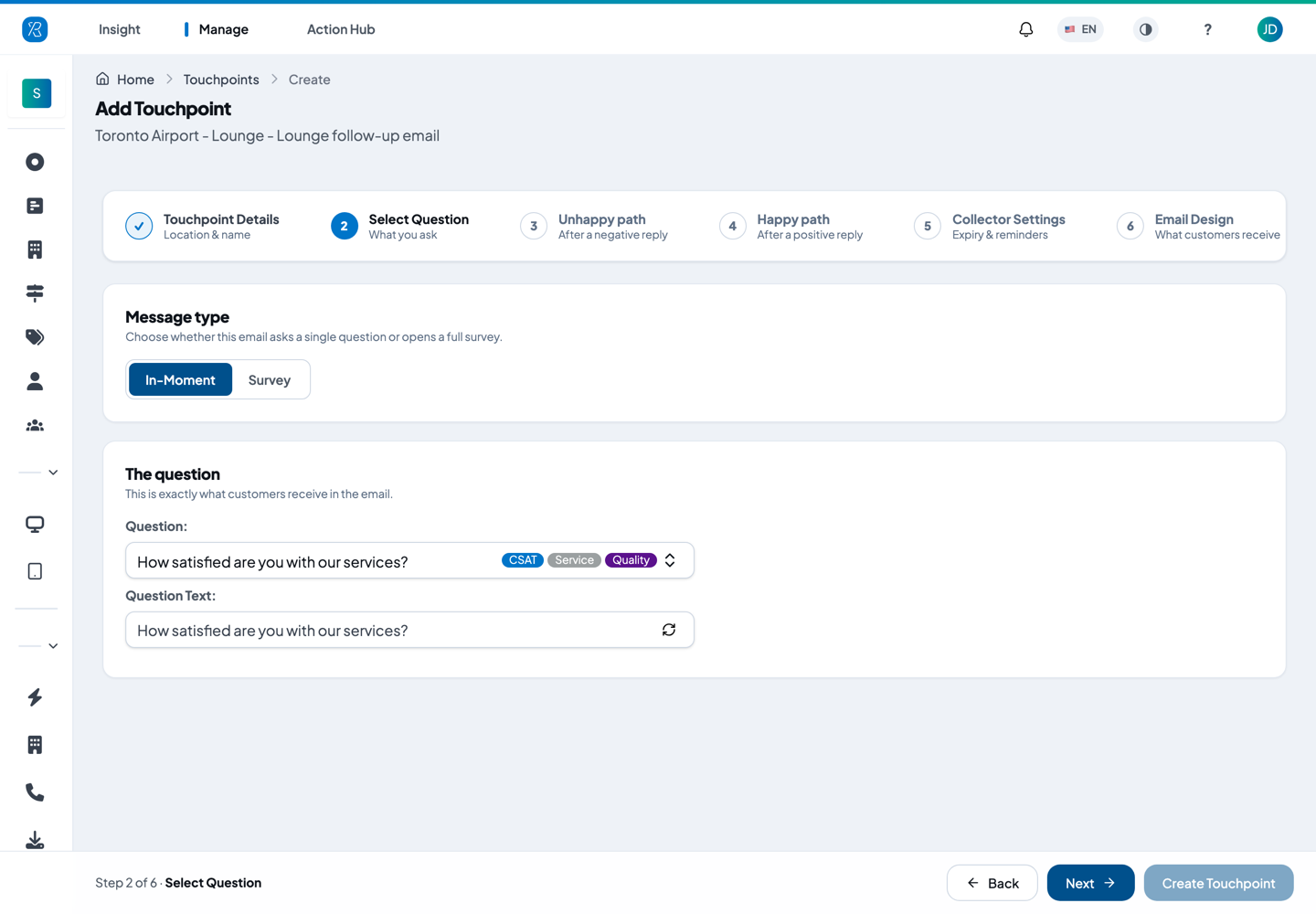
- Message type — choose In-Moment or Survey.
- The question — pick the Question the customer receives. Question Text below shows the exact wording that goes in the email; edit it if you want this email to word it differently. The refresh icon puts the question's own wording back.
- Click Next.
Choosing Survey replaces the question with a survey picker, and the wizard drops from six steps to four — a survey carries its own follow-up questions, so the two path steps are not needed.
Steps 3 and 4 — Unhappy path and Happy path
These two steps appear for In-Moment only. They are the same screen twice: step 3 is what happens after a negative reply (Meh or Sad), step 4 after a positive one (Happy).
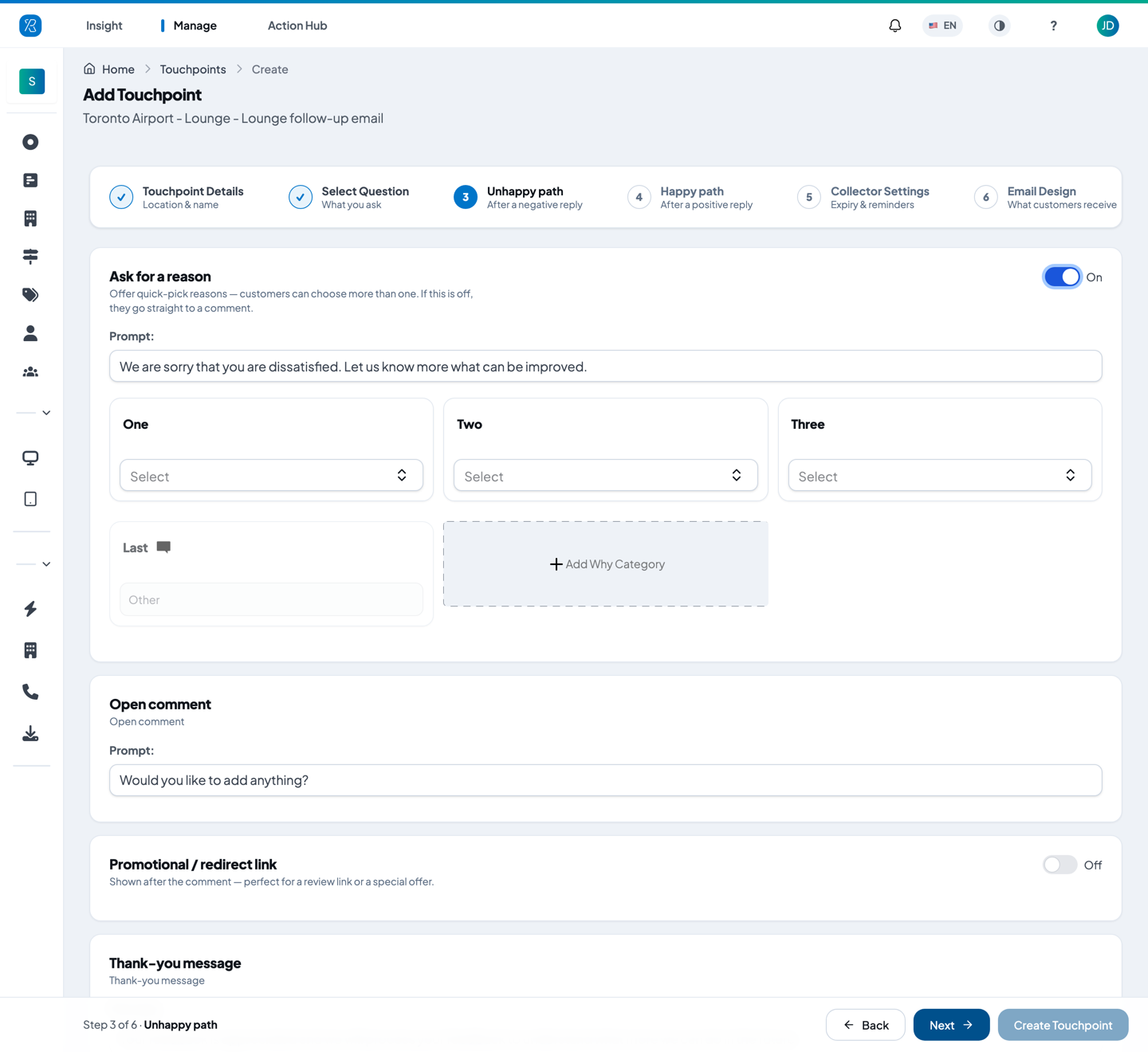
- Ask for a reason — turn this on to offer quick-pick reasons; customers can choose more than one. Write the Prompt that introduces them, then pick a reason for each slot. Click Add Why Category for another. The Last slot is a free-text Other box. Turn it off and the customer goes straight to the comment. The reasons themselves are set up under Ask Why categories.
- Open comment — a free-text box, always shown. The Prompt is the wording that invites it, for example "Would you like to add anything?"
- Promotional / redirect link — optional. Shown after the comment; most often used on the happy path to send people to a public review page.
- Thank-you message — the last thing the customer sees.
Click Next on each.
Step 5 — Collector Settings
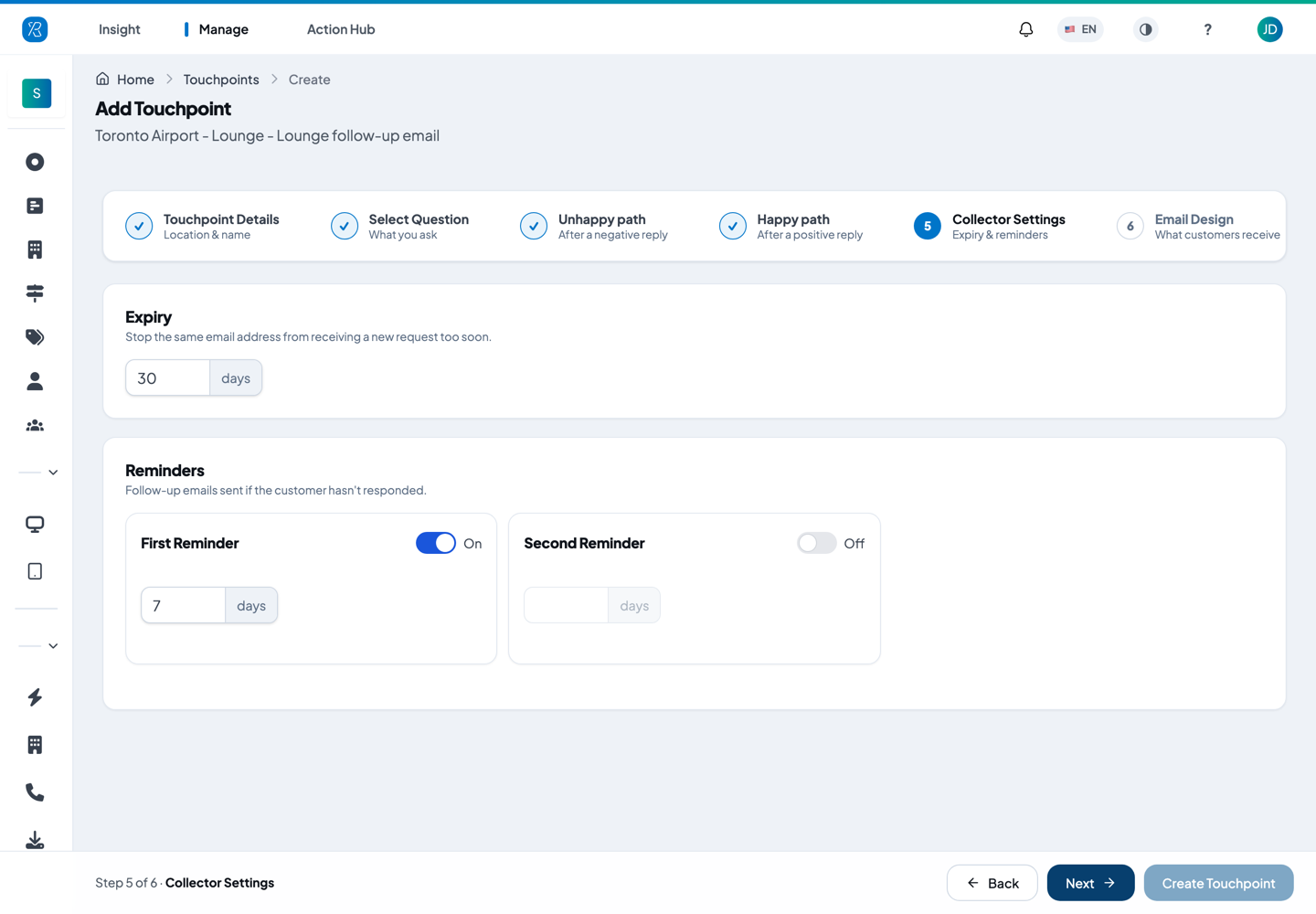
- Set Expiry in days. It stops the same email address being sent another request from this touchpoint too soon — anyone emailed inside that window is skipped on the next send. The default is 30 days.
- First Reminder is on by default, at 7 days. That is a follow-up email to people who have not answered yet. It must be at least 7 days, and less than the expiry.
- Turn on Second Reminder for one more nudge. It must be at least 7 days after the first one, and still inside the expiry.
- Click Next.
Expiry and reminders cannot be changed after the touchpoint is created, so set them now.
Step 6 — Email Design
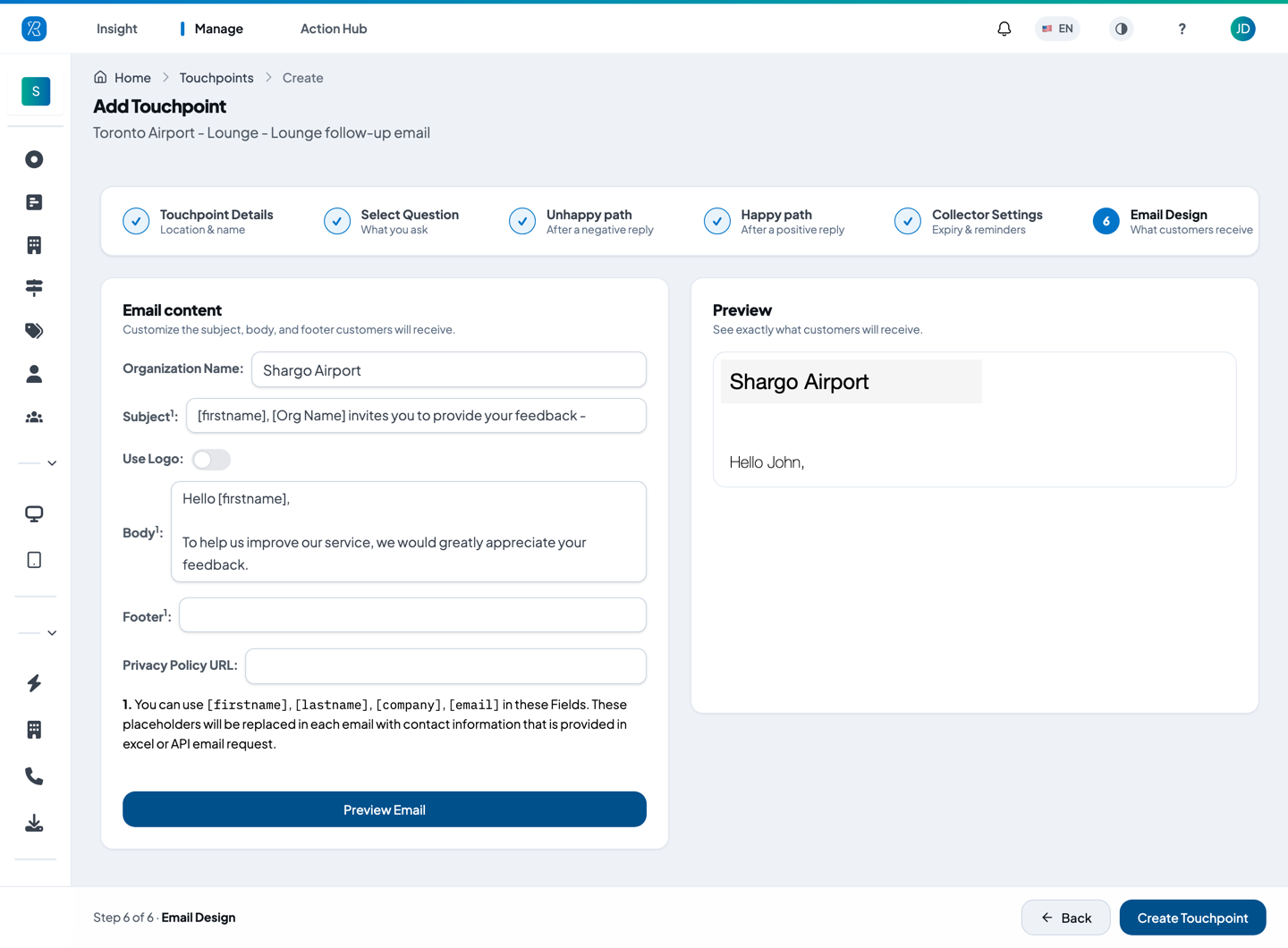
- Organization Name — the sender name. It shows at the top of the email and in the footer sentences. It starts as your organization's name.
- Subject — the subject line.
- Use Logo — turn this on to show your organization's logo at the top of the email instead of the name. The logo comes from Organization Settings.
- Body — the message above the question.
- Footer — an optional line under the message.
- Privacy Policy URL — your own privacy page. It becomes a Privacy Policy link at the bottom of the email. This one is required.
In Subject, Body and Footer you can use four placeholders. Each is replaced with that person's own details when the email goes out:
| Placeholder | What it becomes |
|---|---|
[firstname] | the recipient's first name |
[lastname] | the recipient's last name |
[company] | the recipient's company |
[email] | the recipient's email address |
Those four are the only ones. Anything else in square brackets is simply deleted — including the
[Org Name] that the default subject line ships with, so rewrite that subject in your own words
before you send.
The Preview panel on the right shows the top of the email as you type. Preview Email opens the whole thing in a new tab.
Click Create Touchpoint to finish.
Send the emails
Creating the touchpoint does not send anything. You send from the touchpoint list.
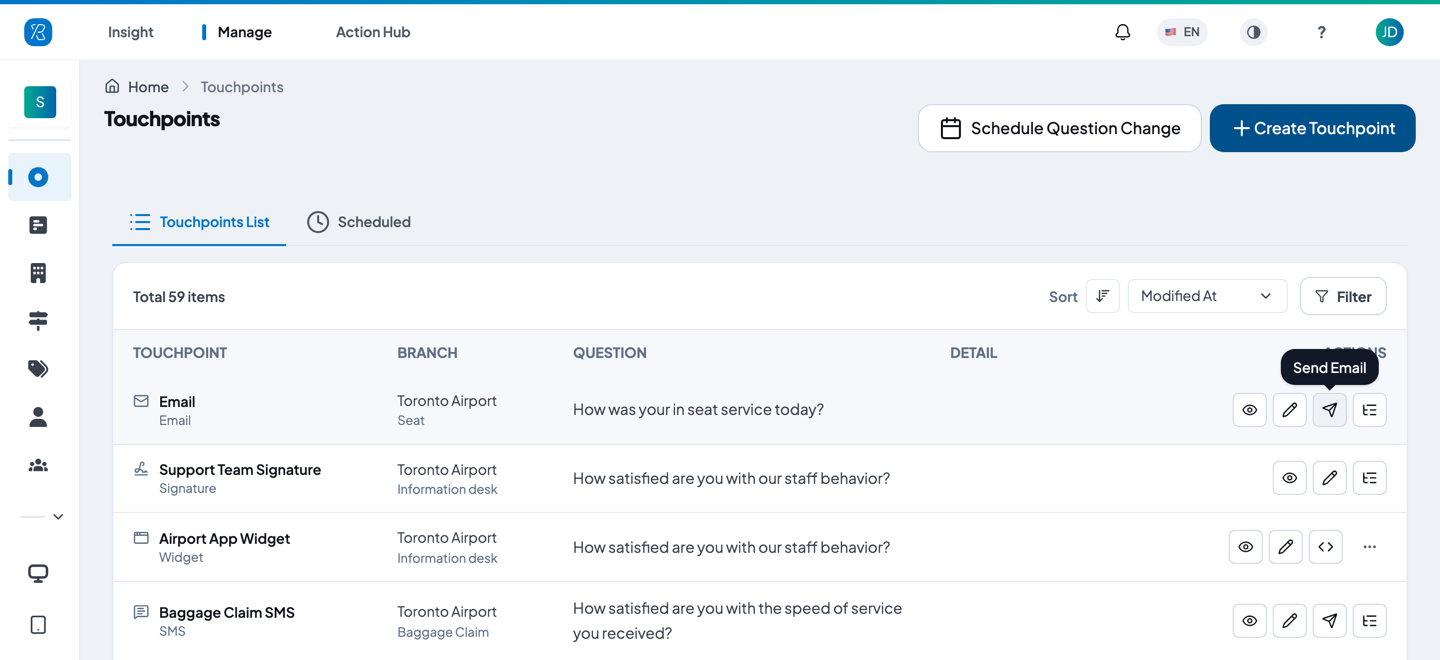
- Go to Manage > Touchpoints and find your Email touchpoint.
- Click the paper-plane icon, Send Email.
- On the Batch E-Mail Upload screen, click Template Excel File to download the template. It is
a CSV with these columns:
identifier,email,phone,firstname,lastname,company. Onlyemailis required.
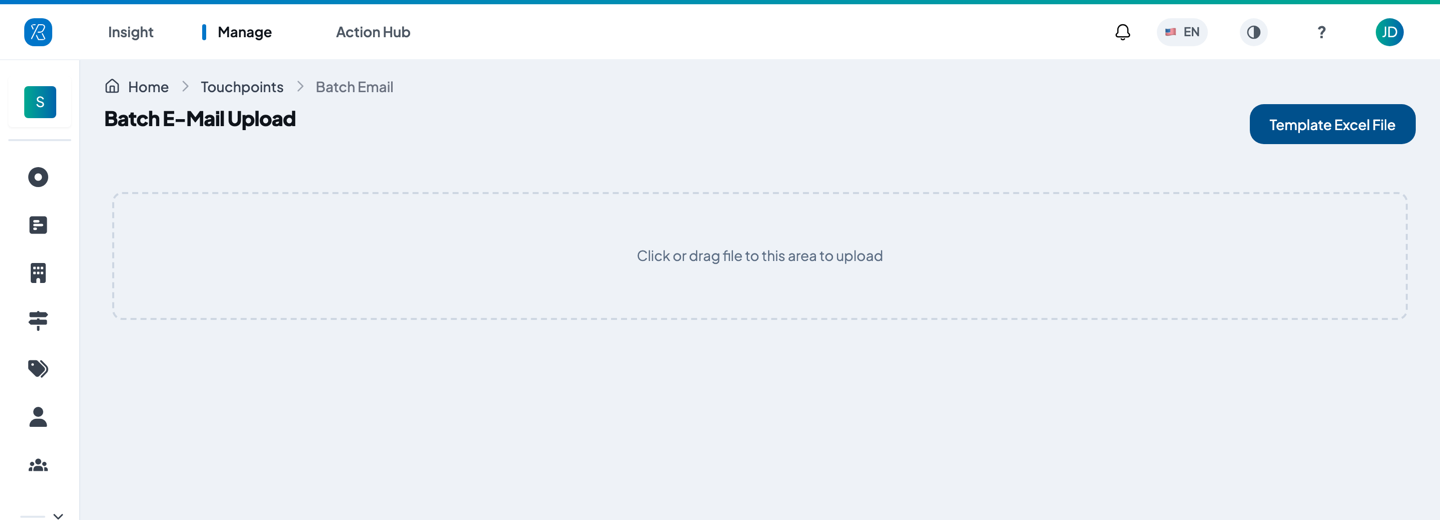
- Fill in one row per person and save it as CSV. The upload box takes
.csvfiles. - Click the upload box, or drag your file onto it.
- Check the tables that appear. Good rows are listed under Accepted targets; anything that will not be sent is grouped by the problem — missing, invalid or duplicated email address, too many extra columns, or a time-gap violation.
- Tick I confirm these contacts uploaded have consented to receive communications by E-Mail.
- Click Send. Click Reject instead to throw the upload away and start again.
A time-gap violation means that address was already emailed by this touchpoint inside its Expiry window.
You can add columns of your own beyond the six in the template — an order number, say — and they are stored with the response as extras. Up to 15 extra columns per row; rows with more are rejected.
To send from your own system instead of a file, use the API. The touchpoint's own API tab holds the token and the endpoint — see REST API for Email Touchpoint.
Check what customers get
Open the touchpoint from the list (the eye icon, View) and go to the What customers see tab.
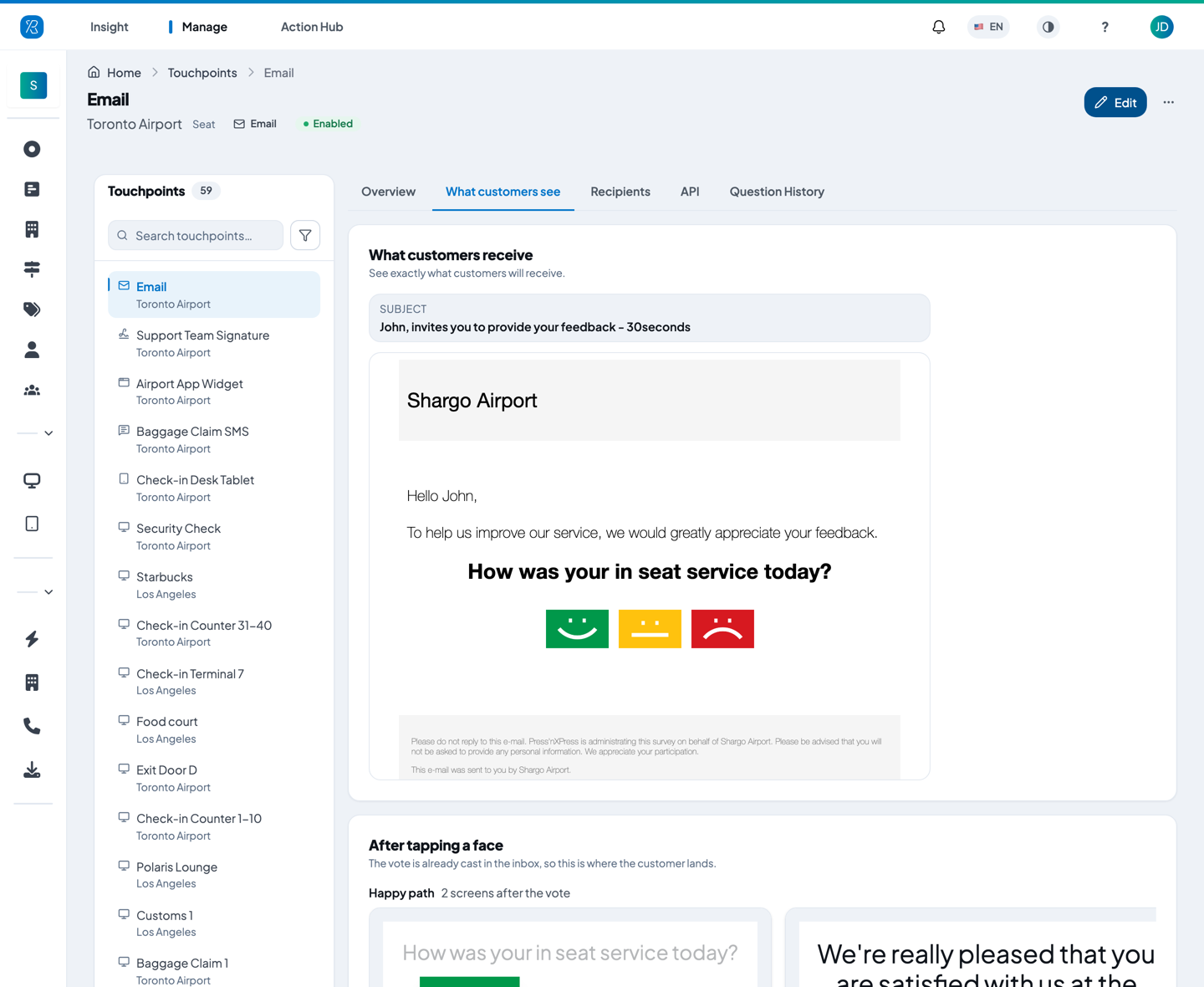
What customers receive shows the subject line and the finished email, faces and all, filled in for a sample recipient called John Doe. Below it, After tapping a face shows the screens the customer lands on after the vote — one run for a happy reply, one for an unhappy one.
The other tabs are Overview (branch, section, language, expiry, reminders, privacy link), Recipients (everyone this touchpoint has emailed and what they answered, with Export), API and Question History.
Edit an Email touchpoint
- From the top menu select Manage, then Touchpoints.
- Find the touchpoint (use the Filter to narrow by collector type).
- Click the pencil icon, Edit.
- Change what you need and click Update Touchpoint.
Branch, section, collector type, expiry and reminders cannot be changed. More on the list and its row actions in Touchpoint Management.
To read the answers properly, open Touchpoint Report.