SMS Feedback Touchpoint
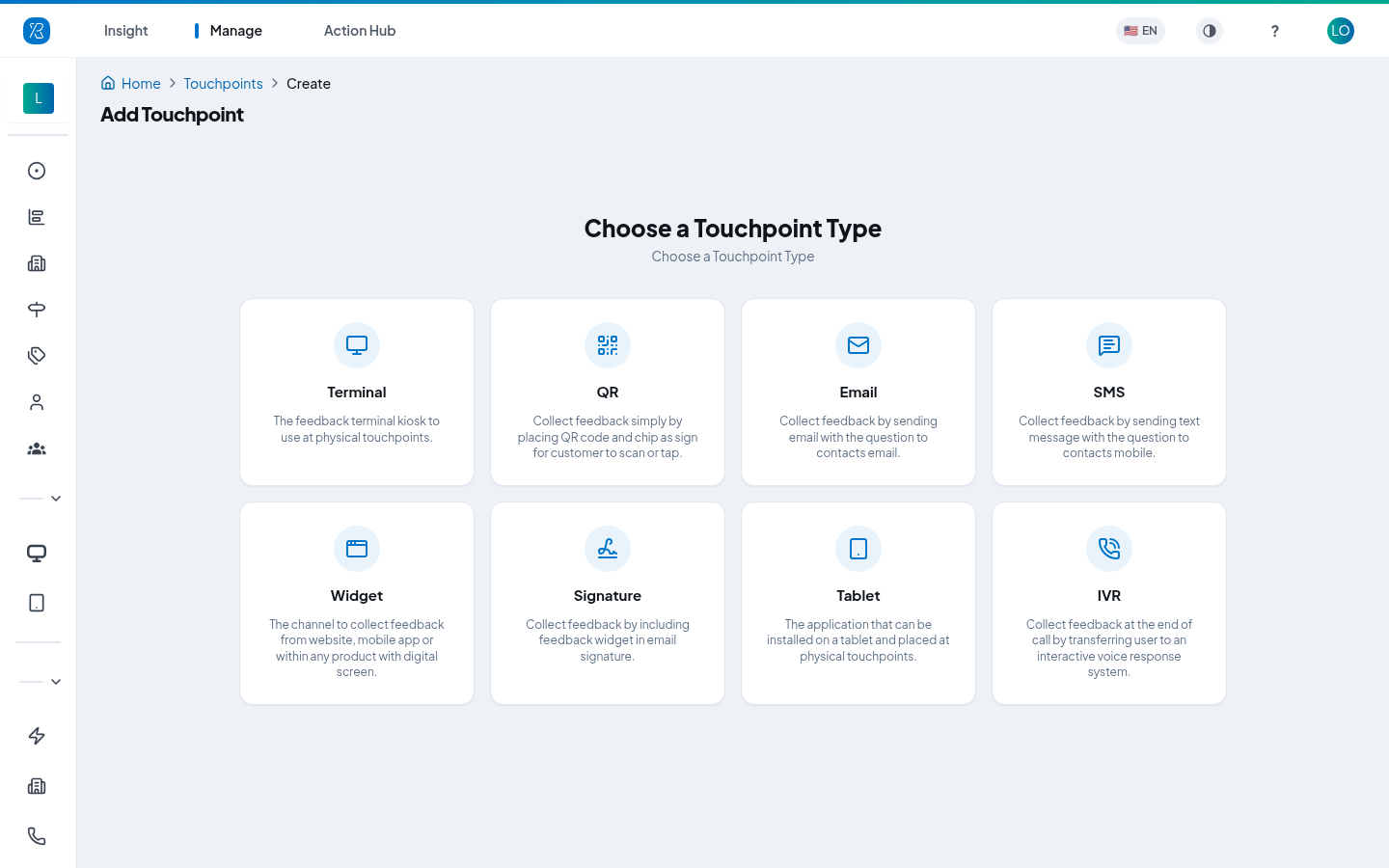
The SMS collector asks for feedback by sending a text message to a customer's mobile. On the create screen its card reads SMS — "Collect feedback by sending text message with the question to contacts mobile."
A touchpoint is one place where you ask for feedback. An SMS touchpoint is a text-message one.
There are two ways a customer can answer:
- By Link — the text carries a short link. They tap it and answer on a web page. This is the default.
- Two Way — the whole survey happens in the messages app. The text lists numbered options and they reply with a digit. No web page at all.
Before you start: you need a phone number to send from. Numbers are bought under Manage → Settings → Phone Numbers, and only US and Canada numbers are available. See Phone Numbers. You also need admin access to create a touchpoint.
Create an SMS touchpoint
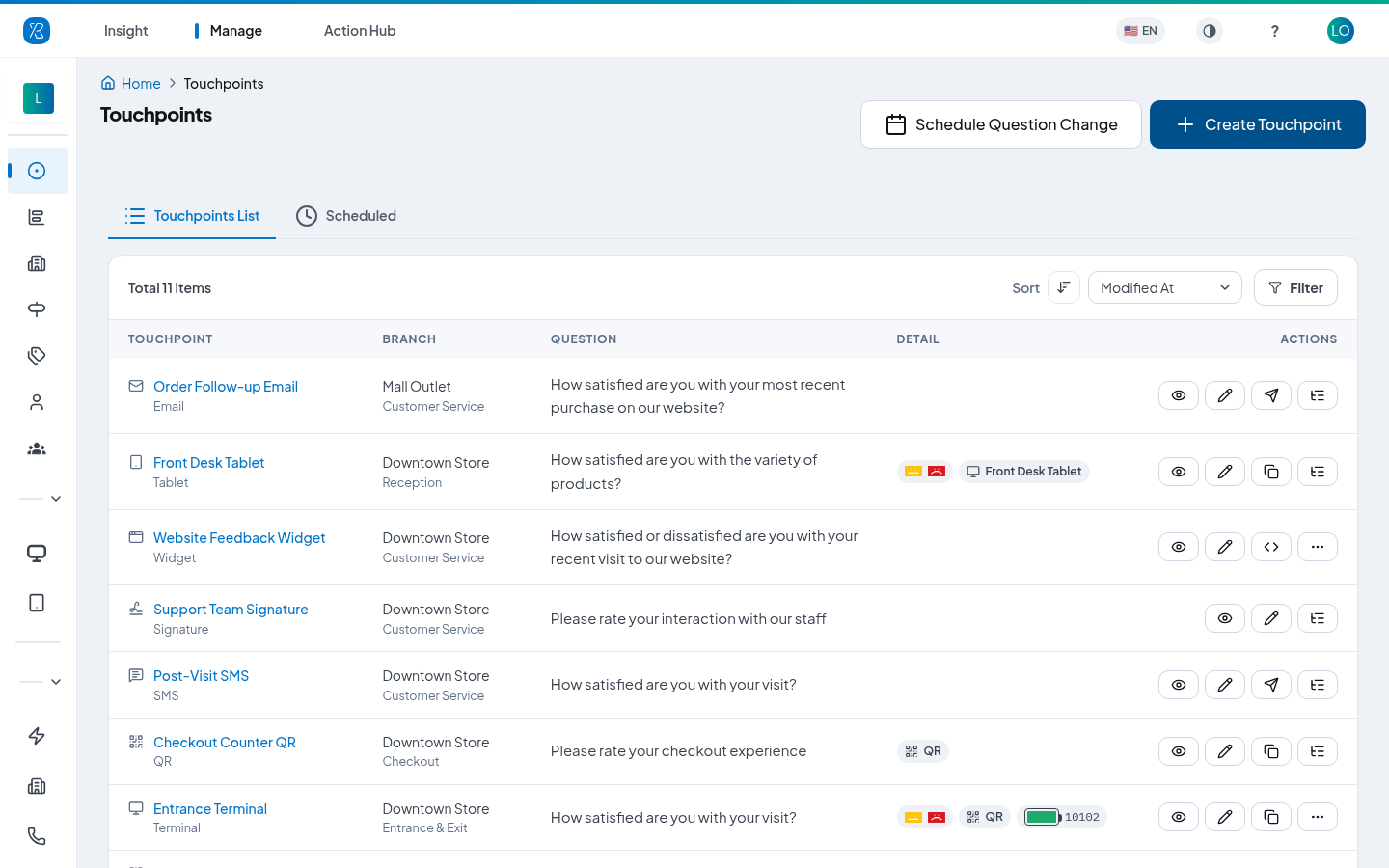
- From the top menu select Manage, then Touchpoints in the left menu.
- Click Create Touchpoint.
- Click the SMS card.
Step 1 — Touchpoint Details
- Pick the Branch — the location this feedback belongs to. See Branch Management.
- Pick the Section — the part of the branch, such as Will Call or Counter.
- Set the Language. This sets the language of the question and the wording the customer sees.
- Type a Name you will recognise later. It is what you look for on the touchpoint list and in reports.
- Add a Description if you want a note for yourself. It is optional.
- Click Next.
Branch, section and type are fixed once the touchpoint is created. Everything else can be changed later.
Step 2 — Select Question
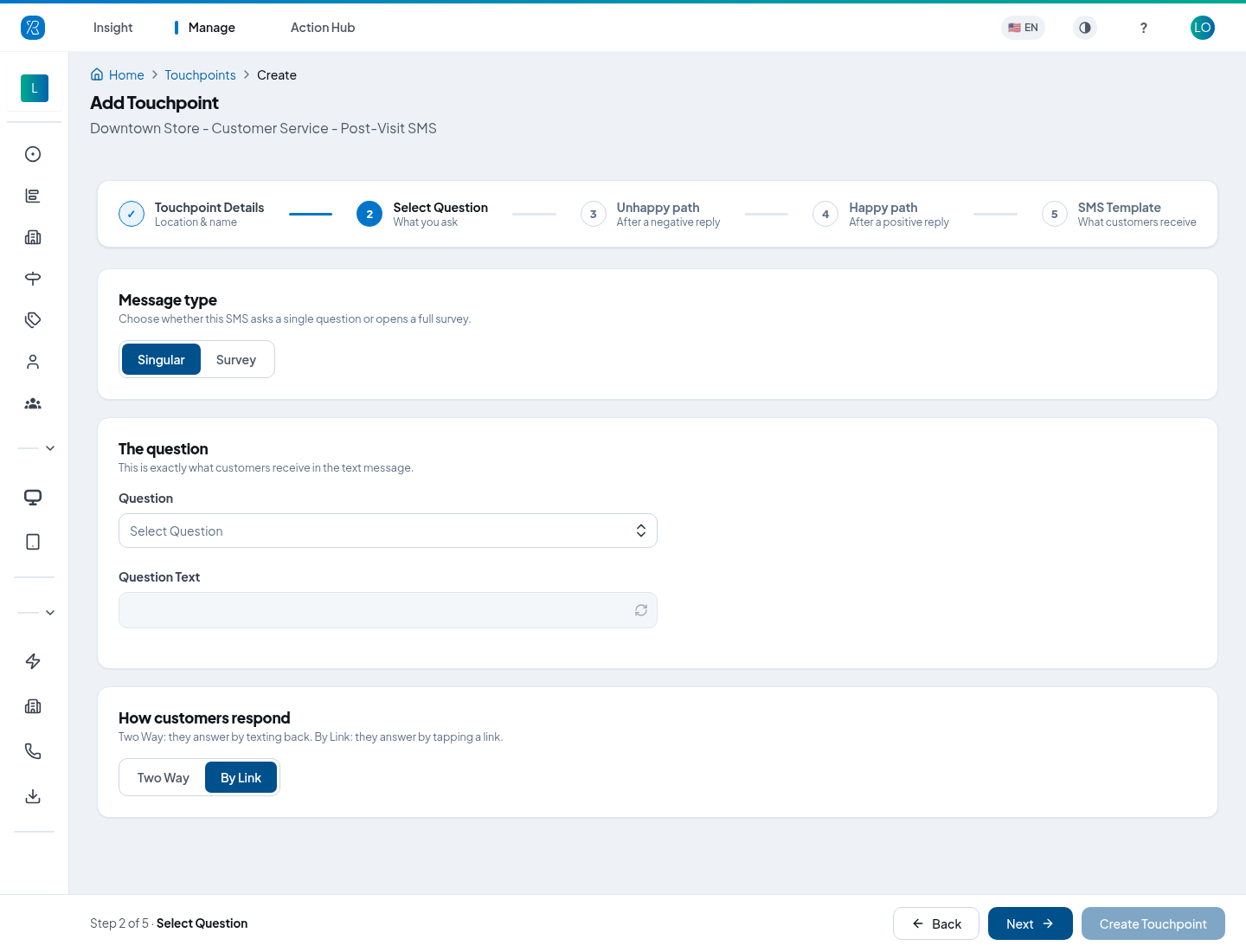
- Message type — choose Singular to ask one question, or Survey to send a link that opens a full multi-question survey. Choosing Survey then asks you which survey to use.
- The question — pick the Question the customer receives. The Question Text box below shows the exact wording and you can edit it.
- How customers respond — choose Two Way or By Link.
Click Next.
Steps 3 and 4 — Unhappy path and Happy path
These two steps only appear for a Singular message. They are the same screen twice: step 3 is what happens after a negative reply (Meh or Sad), step 4 after a positive one (Happy).
- Ask for a reason — turn this on to offer quick-pick reasons. Write the Prompt that introduces them, then choose the reasons from the list. If it is off, the customer goes straight to the comment. The list of reasons is set up under Ask Why categories.
- Open comment — a free-text box, always shown. The Prompt is the wording that invites it, for example "Would you like to add anything?"
- Promotional / redirect link — optional, and only for By Link. Shown after the comment; useful for a review link or an offer.
- Thank-you message — the last thing the customer gets, on its own.
On the Happy path each card has a Copy from unhappy button, so you can reuse the wording you just wrote instead of typing it twice.
Click Next on each.
Step 5 — SMS Template (By Link only)
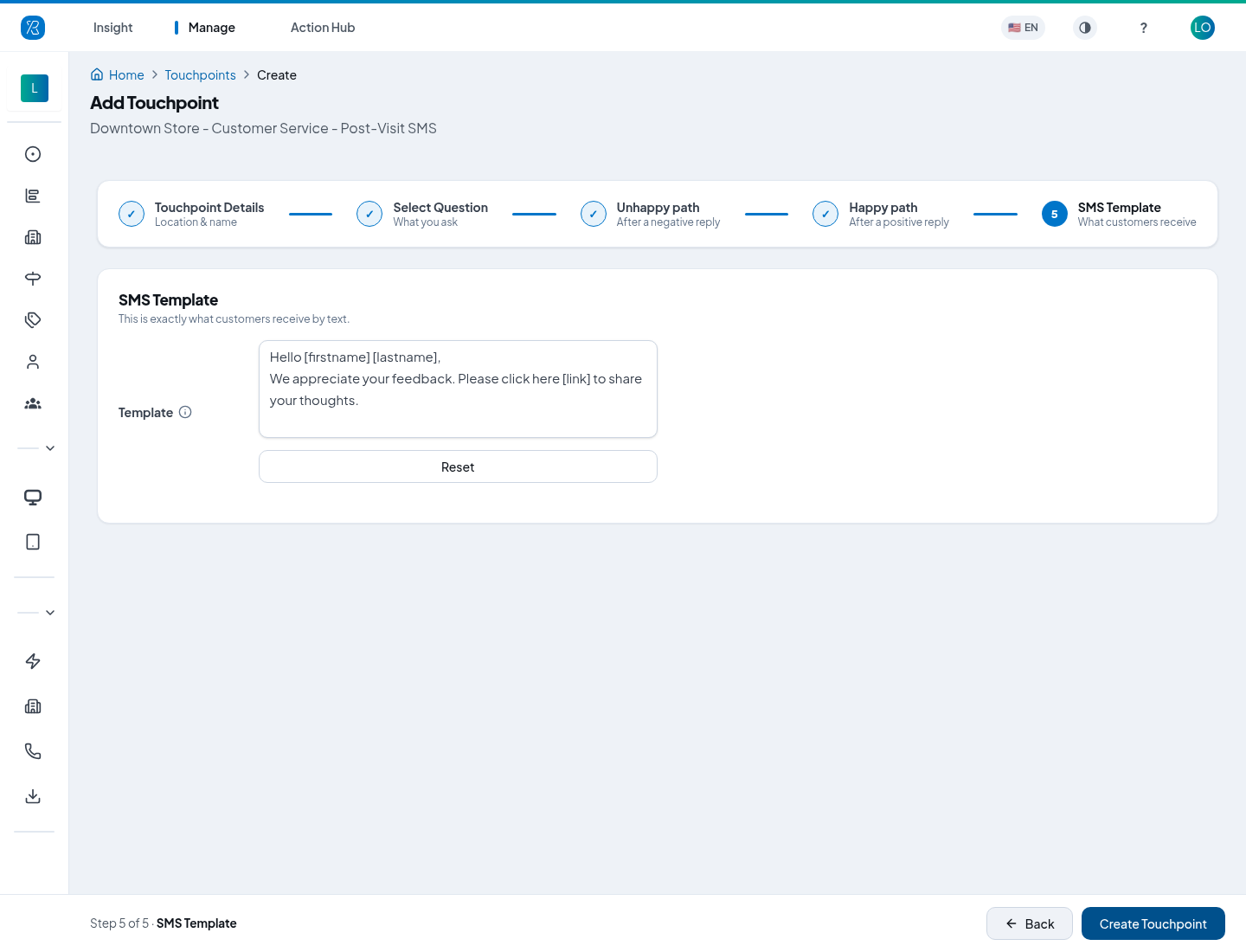
Write the text message the customer receives. Three placeholders are filled in for each person when the message goes out:
| Placeholder | What it becomes |
|---|---|
[firstname] | the recipient's first name |
[lastname] | the recipient's last name |
[link] | the short link to their survey |
Reset puts the default wording back. Keep it short — if the finished message would run past 160 characters, the recipient's name is dropped to make room.
Click Create Touchpoint.
Step 5 — Two Way Config (Two Way only)
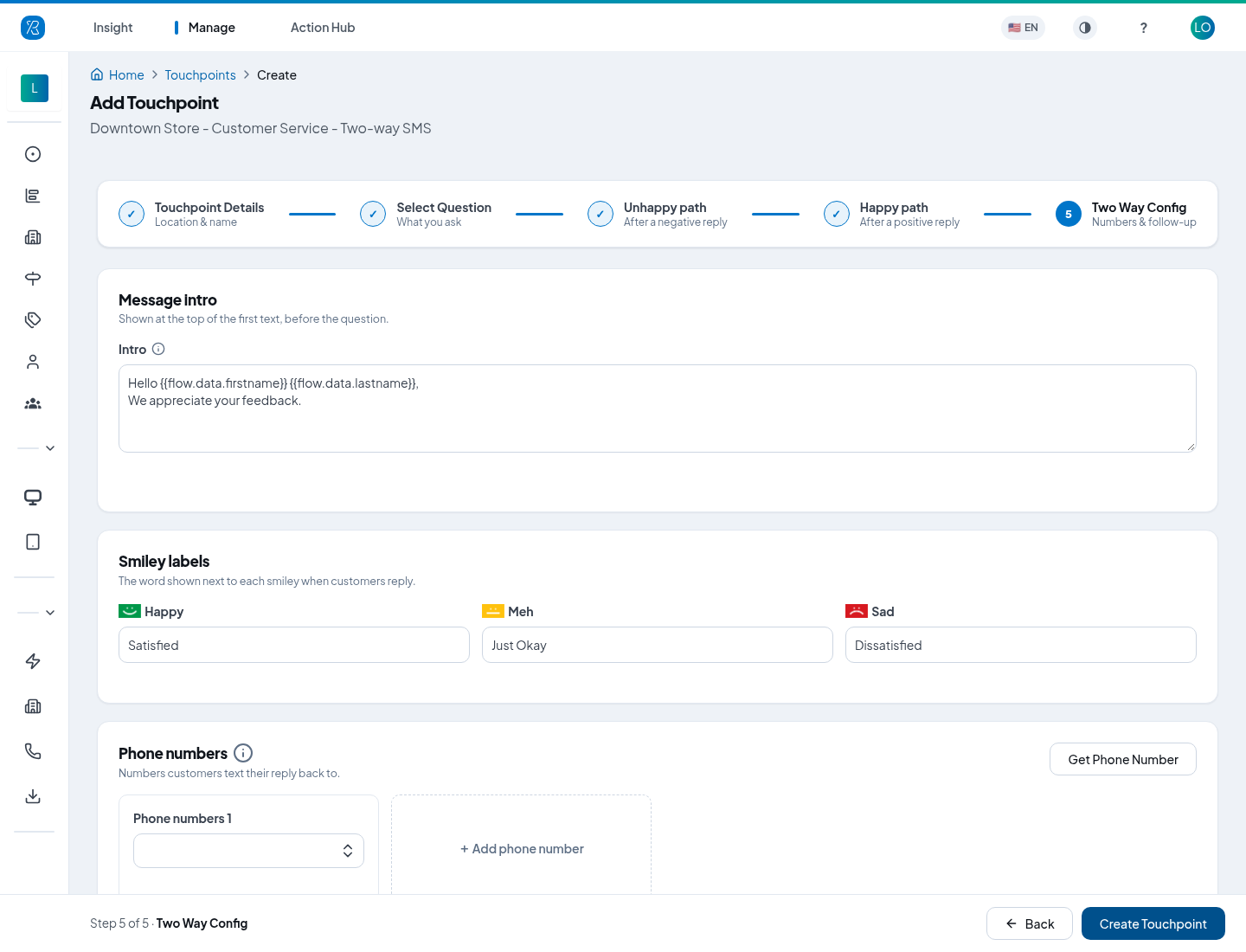
- Message intro — the lines at the top of the first text, before the question.
- Smiley labels — the word next to each smiley. The customer replies with the number, so Satisfied / Just Okay / Dissatisfied become Press 1 / Press 2 / Press 3.
- Phone numbers — the numbers customers text their reply back to. Pick one from the list, or click + Add phone number to attach more. Get Phone Number opens the Phone Numbers screen in a new tab.
Two rules of thumb, also shown in the tooltip next to Phone numbers:
- Add one number for every 100 feedback texts you expect to send per day.
- Use a number from the same country as the people you are texting. If you text both US and Canadian customers, get one number for each and attach both.
Click Create Touchpoint.
Two-way conversations have a built-in time limit you do not set here: the whole conversation expires after 24 hours, and the customer has 3 hours to reply at each step. Both are shown on the touchpoint's Overview tab once it exists.
Send a test message to yourself
Before you text real customers, text yourself.
- Open the touchpoint from the Touchpoints list (the eye icon, View).
- Open the Test message tab. The panel on the right is the real message, exactly as a customer receives it.
- Click Send a test.
- Enter a Phone Number, and a First Name and Last Name if you want to see the placeholders filled in.
- Click Send SMS.
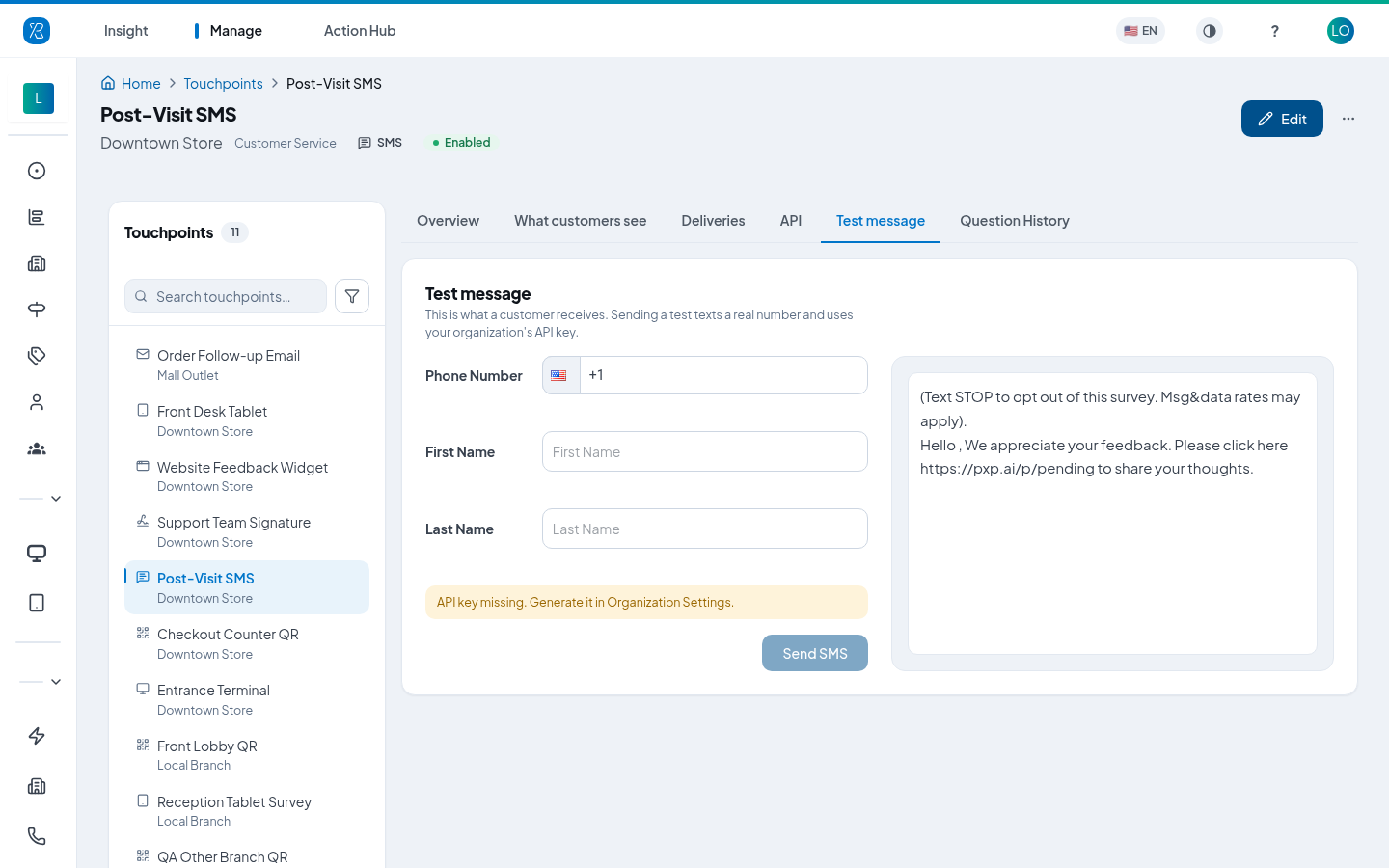
This texts a real number and uses your organization's API key, so it costs a message. If the button is disabled and you see "API key missing", generate the key first in Organization Settings.
Send to a list of customers
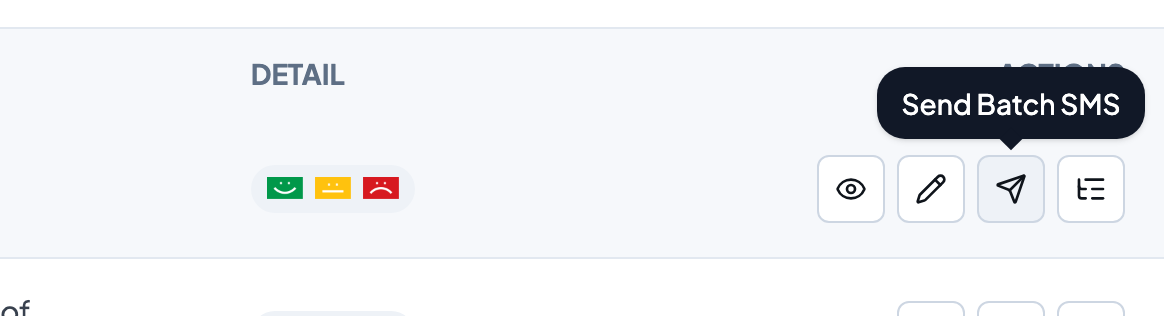
The Send Batch SMS row action uploads a list of people and texts them all.
- On the Touchpoints list, find your SMS touchpoint and click the paper-plane icon, Send Batch SMS.
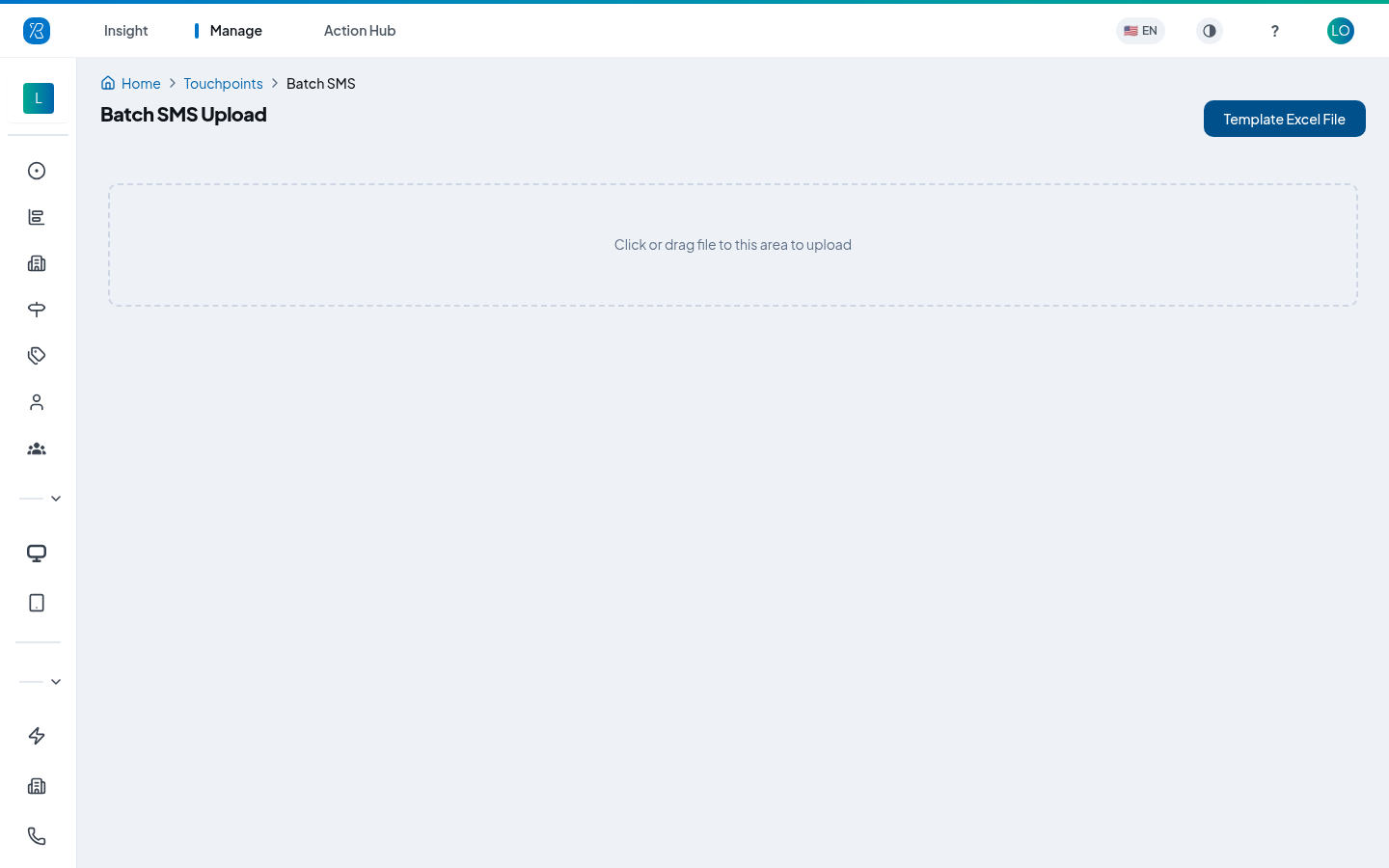
- On the Batch SMS Upload screen, click Template Excel File to download the template. It is a CSV with these columns:
identifier,phone,email,firstname,lastname,company. Onlyphoneis required.
- Fill in one row per person. Write phone numbers in international format, for example
+12345678900. - Click the upload box, or drag your file onto it.
- Check the tables that appear. Good rows are listed under Accepted targets; anything the system will not send is grouped by the problem — missing phone number, invalid phone number, duplicated phone number, too many extra columns, or a time-gap violation.
- Tick I confirm these contacts uploaded have consented to receive communications by SMS.
- Click Send. Click Reject instead to throw the upload away and start again.
A time-gap violation means that number was already texted recently. The SMS Time Gap setting in Organization Settings controls how long the gap must be — 7 days by default.
You can add columns of your own beyond the six in the template — an order number, say — and they are stored with the response as extras. Up to 15 extra columns per row; rows with more are rejected.
To send from your own system instead of a file, use the API — see REST API for SMS Touchpoint.
Edit an SMS touchpoint
- From the top menu select Manage, then Touchpoints.
- Find the touchpoint (use the Filter to narrow by collector type).
- Click the pencil icon, Edit.
- Change what you need and click Update Touchpoint.
Branch, section and collector type cannot be changed. More on the list and its row actions in Touchpoint Management.
See the results
The Deliveries tab on the touchpoint counts how many texts were sent, how many people replied, and the split of Happy, Meh and Sad answers. Below that is a row per person — their number, what they answered and when — with Export to download it.
The What customers see tab shows the finished message, or for Two Way the whole conversation, both for a happy reply and an unhappy one.
To read the answers properly, open Touchpoint Report.