IVR Feedback Collector
IVR collects feedback at the end of a phone call.
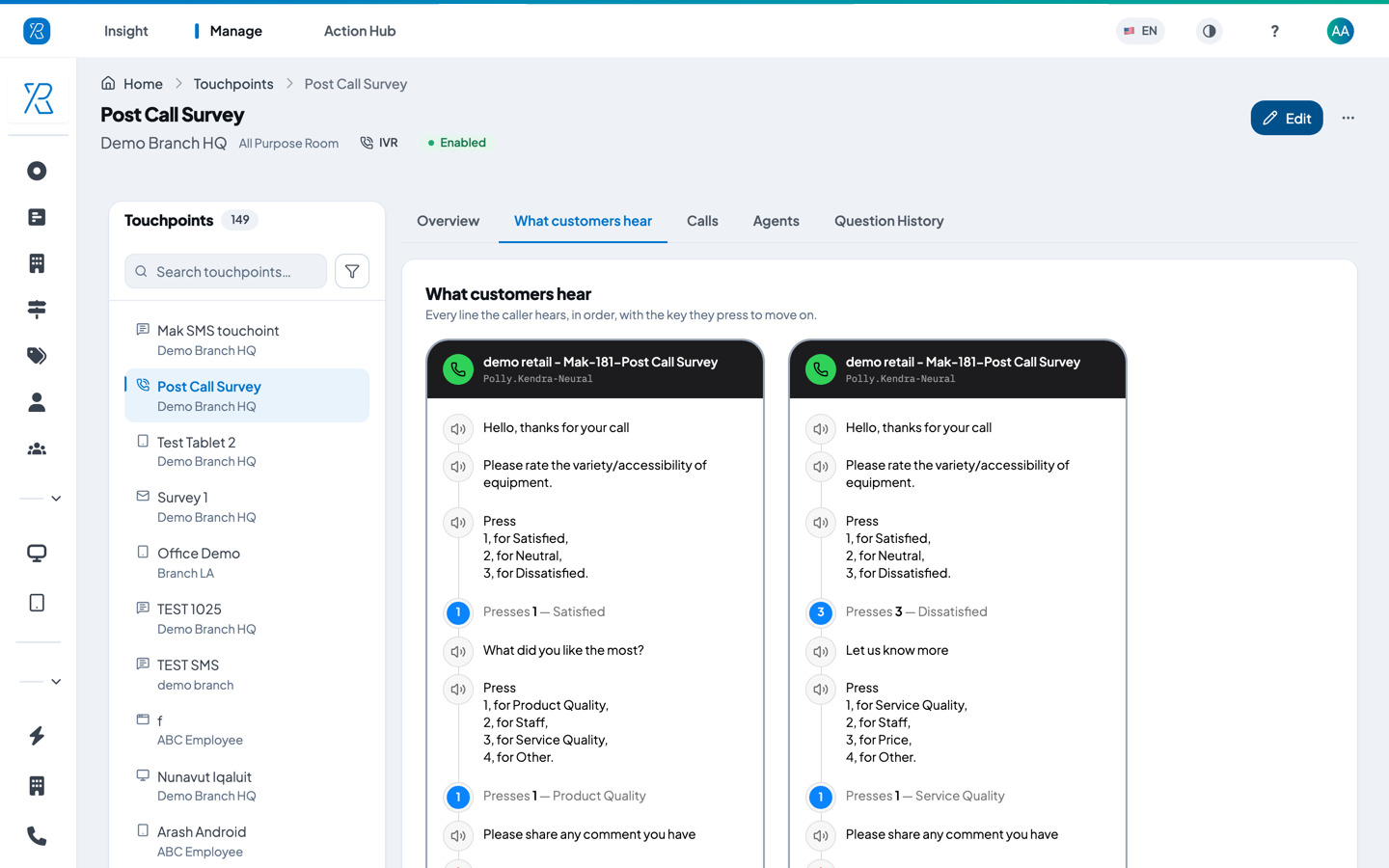
When the call is over, your phone system transfers the caller to Press'nXPress. An automated voice thanks them, reads your question, and asks them to press a key on their phone: 1 for Satisfied, 2 for Neutral, 3 for Dissatisfied. It can then ask why, and let them leave a spoken comment. The caller never has to type, click, or open anything.
IVR also ties each answer to the person who handled the call. Your phone system sends an agent token with the transfer, and Press'nXPress matches it to an agent you have added on the touchpoint. That is what makes Agent Insight work for a call centre.
Before you start
- Your phone system has to be connected to Press'nXPress first. This is a one-off setup done with the Press'nXPress team — write to support@pxp.ai. You cannot set up the phone side yourself.
- You need admin access to create or edit a touchpoint.
Create an IVR touchpoint
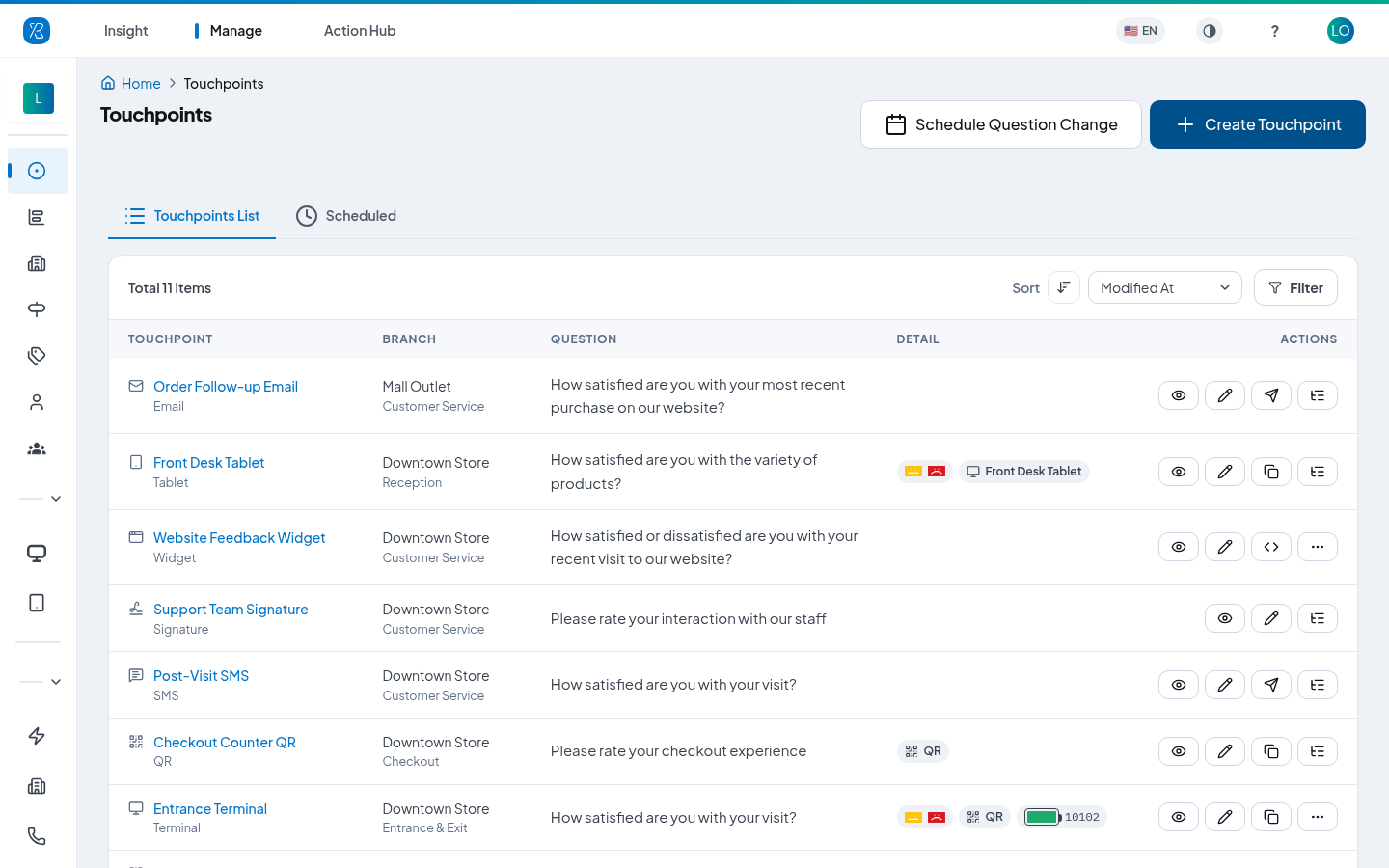
- From the top menu select Manage, then Touchpoints on the left.
- Click Create Touchpoint.
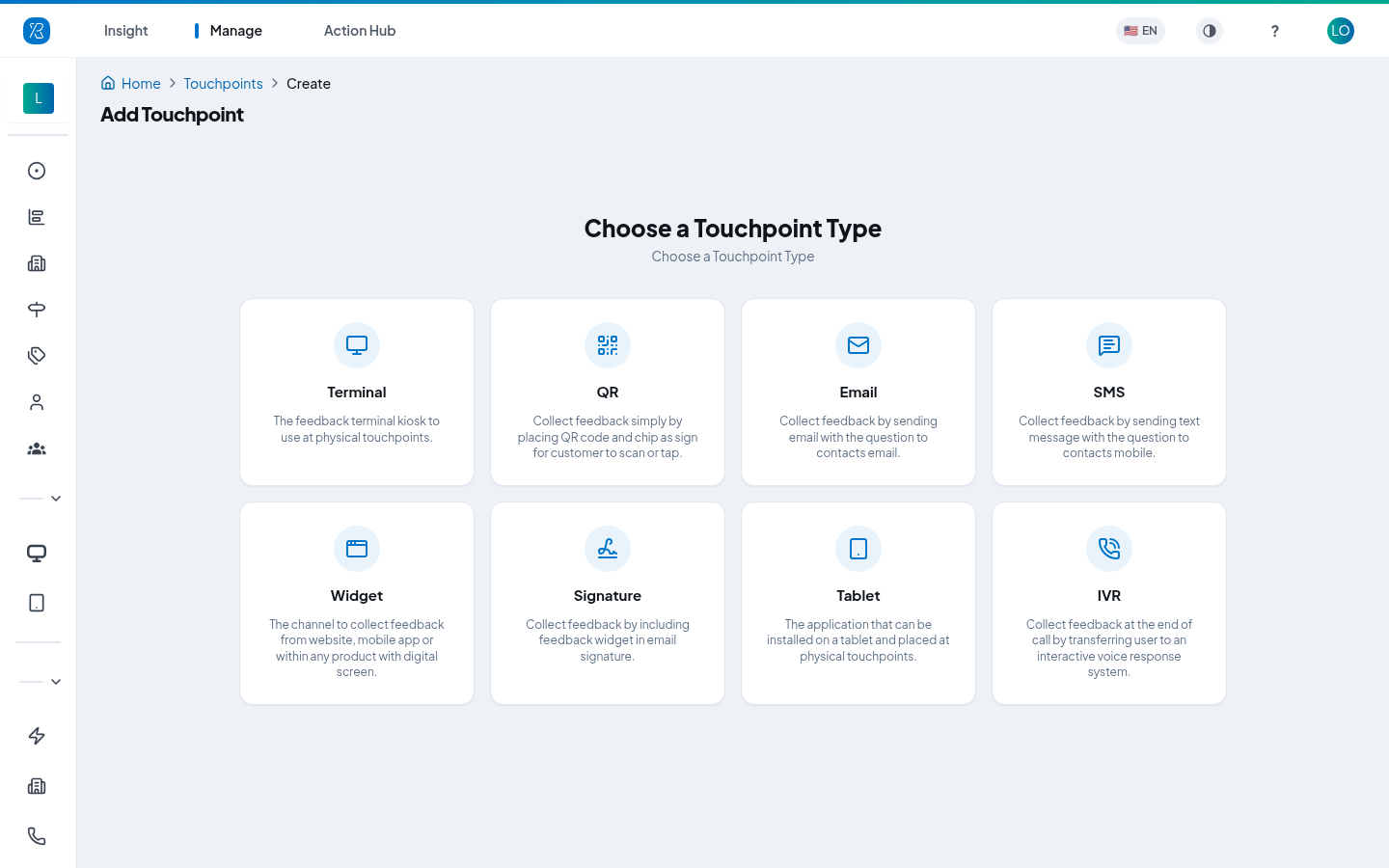
- Choose the IVR card.
The form then walks you through five steps.
Step 1 — Touchpoint Details
- Pick the Branch and the Section the calls belong to. See Branch Management.
- Pick the Language. The voice reads everything in this language.
- Type a Name. This is the name you will look for in reports, so make it recognisable, for example Post Call Survey.
- Add a Description if you want. It is optional.
Branch, Section and type are fixed once the touchpoint is created. Everything else you can change later.
Step 2 — Select Question
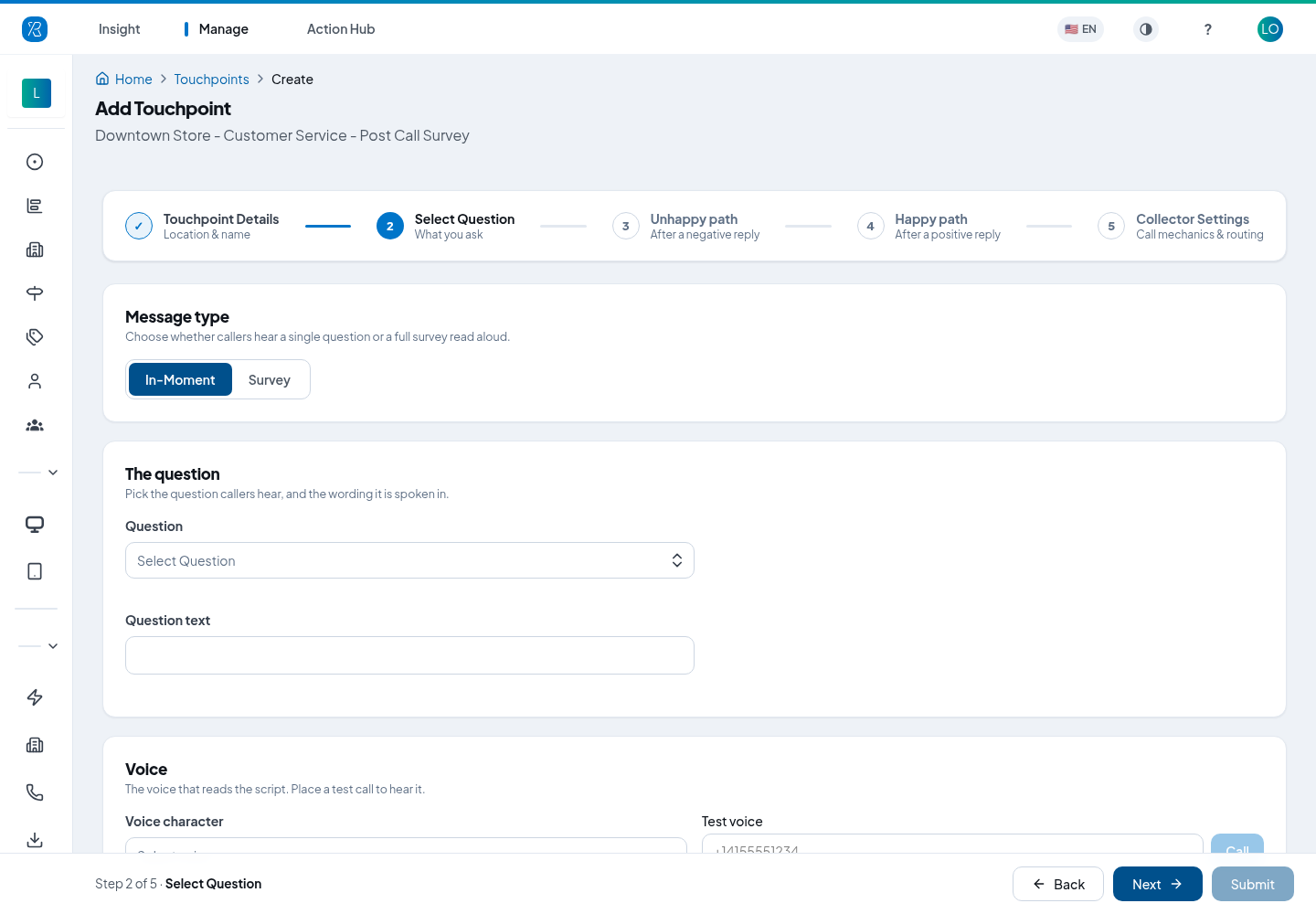
- Choose the Message type:
- In-Moment asks one question, then a reason, then a comment. This is the usual choice.
- Survey reads a whole survey out loud instead. A survey cannot be used if it has a rating question with more than 10 options, or if it does not support this touchpoint's language — those surveys are greyed out in the list.
- Pick the Question from the list.
- Check the Question text. This is the exact wording the voice reads out, so you can reword it to make it sound right when spoken.
- Choose a Voice character. Only a few languages have voices available; if the list is empty, the language has none.
- To hear it, type your own phone number under Test voice and click Call. Press'nXPress rings you and reads the text in that voice. Nothing is saved by doing this.
Steps 3 and 4 — Unhappy path and Happy path
These two steps are the same form twice: step 3 is what happens after a Neutral or Dissatisfied answer, step 4 after a Satisfied one. On the Happy path step, Copy from Unhappy fills in the same wording you used on step 3.
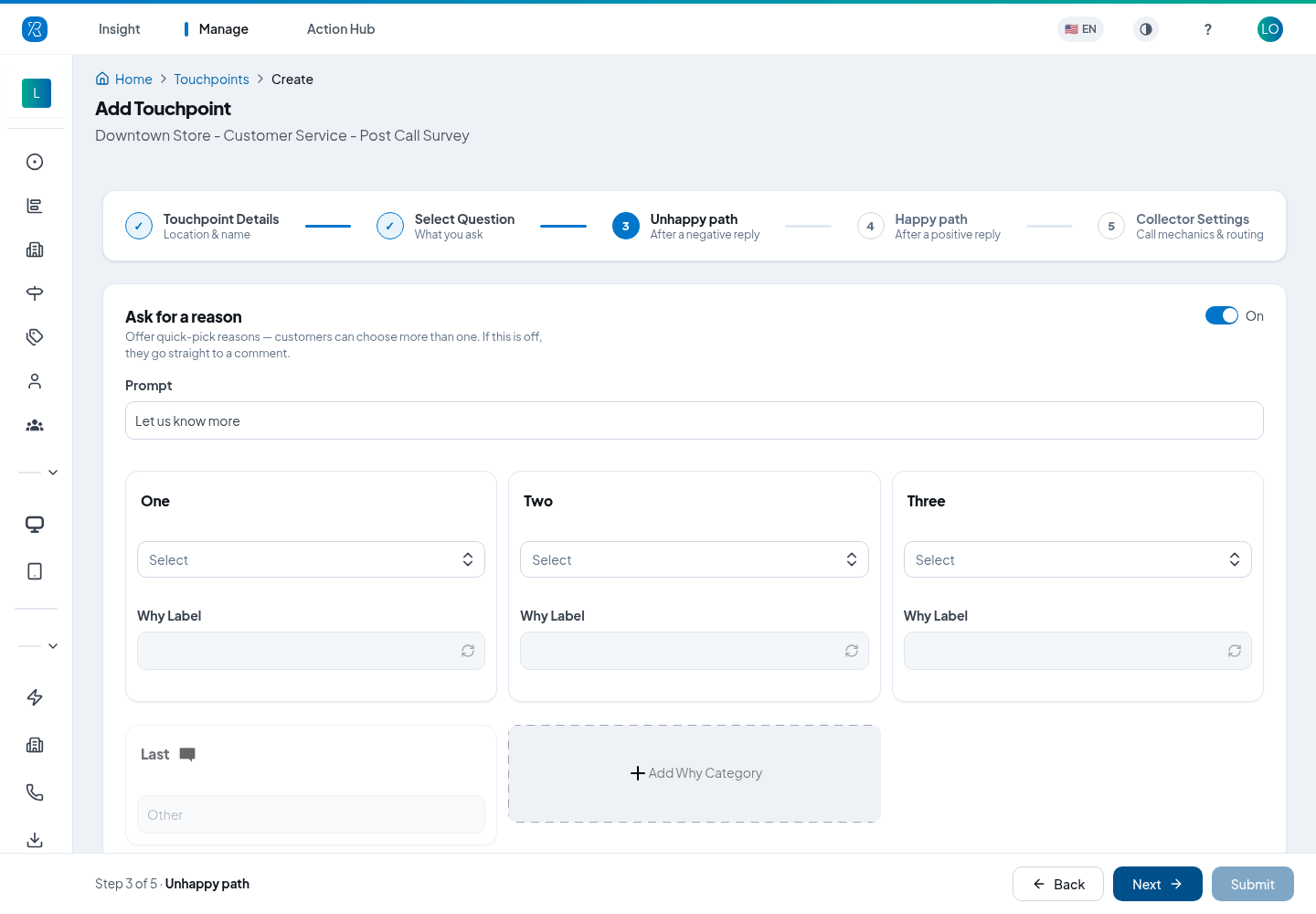
- Ask for a reason — turn this on to offer quick-pick reasons the caller chooses by keypad. Turn
it off and they go straight to the comment.
- Prompt is what the voice says before the list, for example Let us know more.
- Pick a reason for each slot, and click Add Why Category for more. The last slot is always Other. The list you pick from is set up under Ask Why categories.
- Open comment — the Prompt the voice reads before recording, for example Would you like to add anything?
- Thank-you message — the last thing the caller hears before the call ends.
Step 5 — Collector Settings
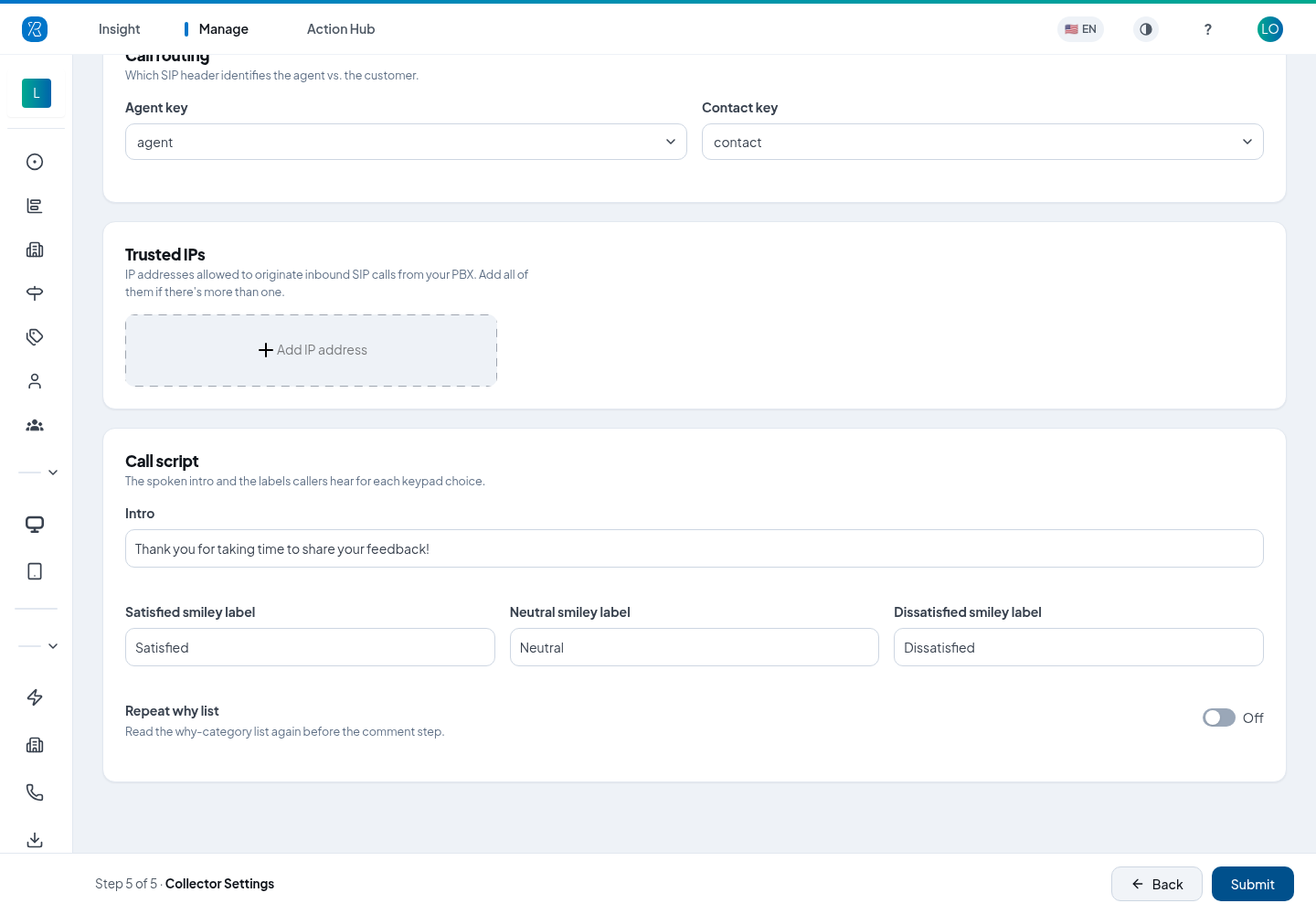
This step is about the phone side. If you are not sure, leave the defaults and ask support@pxp.ai.
- Call routing — Agent key and Contact key say which part of the transferred call carries the staff member's number and which carries the customer's. Agent key can be from, to, caller, called or agent; Contact key can be contact, from, caller, called or to. Your phone team knows which one your system sends. The agent key is what has to match an Agent Token on the Agents tab.
- Trusted IPs — the IP addresses your phone system calls in from. Only calls from these addresses are accepted. Click Add IP address for each one, up to five.
- Call script:
- Intro is the first line the caller hears.
- Satisfied / Neutral / Dissatisfied smiley label are the words read out with each key, as in Press 1 for Satisfied.
- Repeat why list reads the reason list a second time before the comment step.
- Click Submit.
Connect your phone system
Open the touchpoint and look at the Overview tab. Under Call routing it shows the address Press'nXPress created for this touchpoint. Your phone system transfers finished calls to that address. Your phone team, together with support@pxp.ai, does this part once.
Your firewall also has to allow the Press'nXPress call traffic through. Ask support@pxp.ai for the list of addresses and ports.
Add your agents
Feedback is only tied to a person if that person is on the touchpoint's agent list. Open the touchpoint and go to the Agents tab.
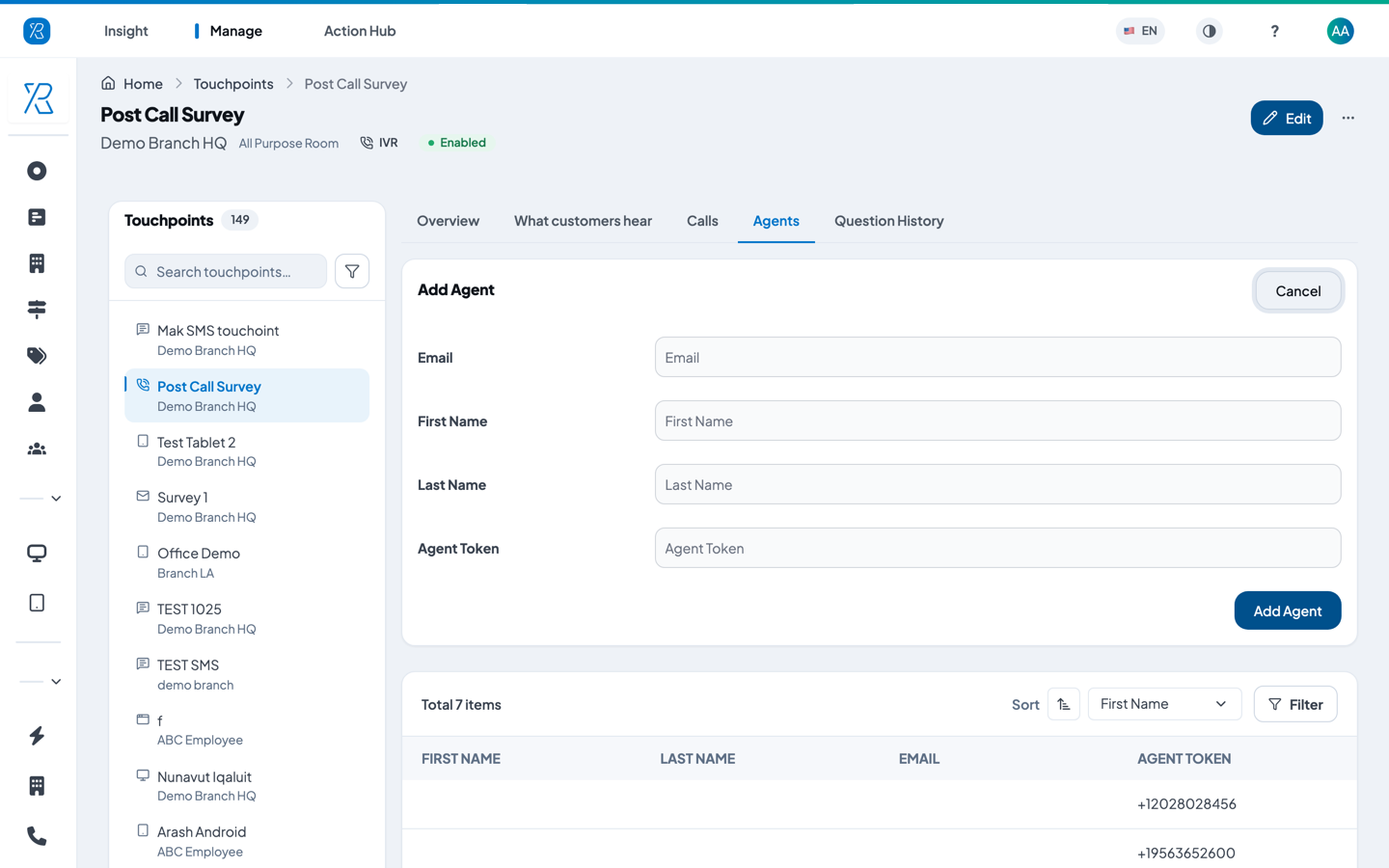
- Click Add Agent.
- Type the agent's Email, First Name and Last Name.
- Type the Agent Token. This is the extension or phone number your phone system sends when it
transfers the call — for example
2041or+12028028456. It has to match exactly, or the call will not be matched to anyone. - Click Add Agent again to save. The person appears in the list below.
The list below shows every agent on this touchpoint with their token. Sort or filter it by first name, last name or email.
This tab is one of only two places in Press'nXPress where an agent is created — see Agent Management for the full list of your staff.
See the results
- Calls tab on the touchpoint — every call this touchpoint handled.
- Touchpoint Report — the answers this touchpoint collected.
- Agent Insight — how each person scored.
Change an IVR touchpoint
- Go to Manage, then Touchpoints.
- Find the touchpoint and click Edit.
- Make your changes and click Save.
Branch, Section and collector type cannot be changed. For those, create a new touchpoint. See Touchpoint Management.