Label Management
A label is your own tag on feedback. You set the rules once, and every feedback response that matches gets the label — old responses and new ones. You can then group and filter your reports by label, on top of the built-in Branch, Section and Touchpoint grouping.
For example: a label called Food and Dining covering the cafés and food-court touchpoints, or Checkin & Security covering the check-in counters and the security check.
Only Admin users can add, edit and delete labels. If Label is missing from the Manage menu, your organization does not have the label add-on.
The Labels screen
Go to Manage and select Label from the menu.
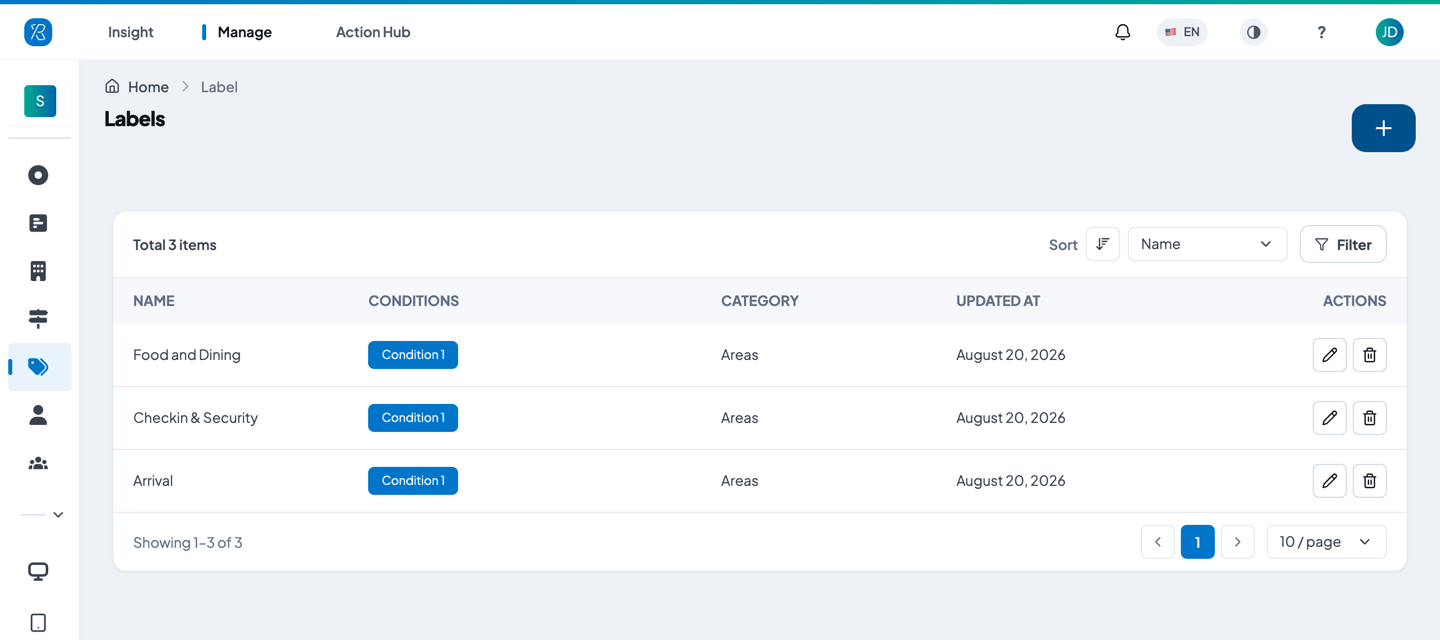
Each row is one label:
| Column | What it shows |
|---|---|
| Name | The label name. This is the name you see in reports. |
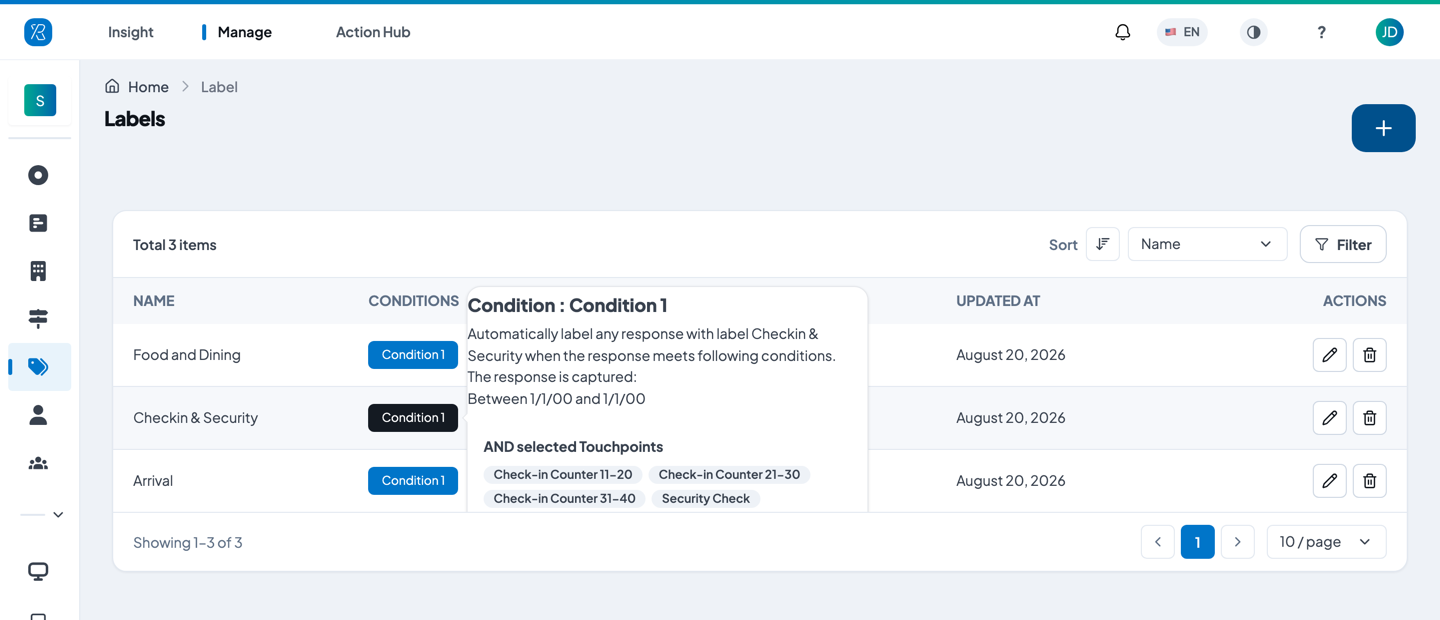
| Conditions | One blue chip per rule, showing that rule's friendly name. Click a chip to see what it matches. Only the first four chips are shown. |
| Category | The group this label belongs to. Categories let you filter several labels at once in reports. |
| Updated at | When the label was last changed. |
| Actions | The pencil edits the label. The bin deletes it. |
Clicking a chip opens a plain-English summary of that rule and lists the branches, touchpoints, agents and extras it covers.
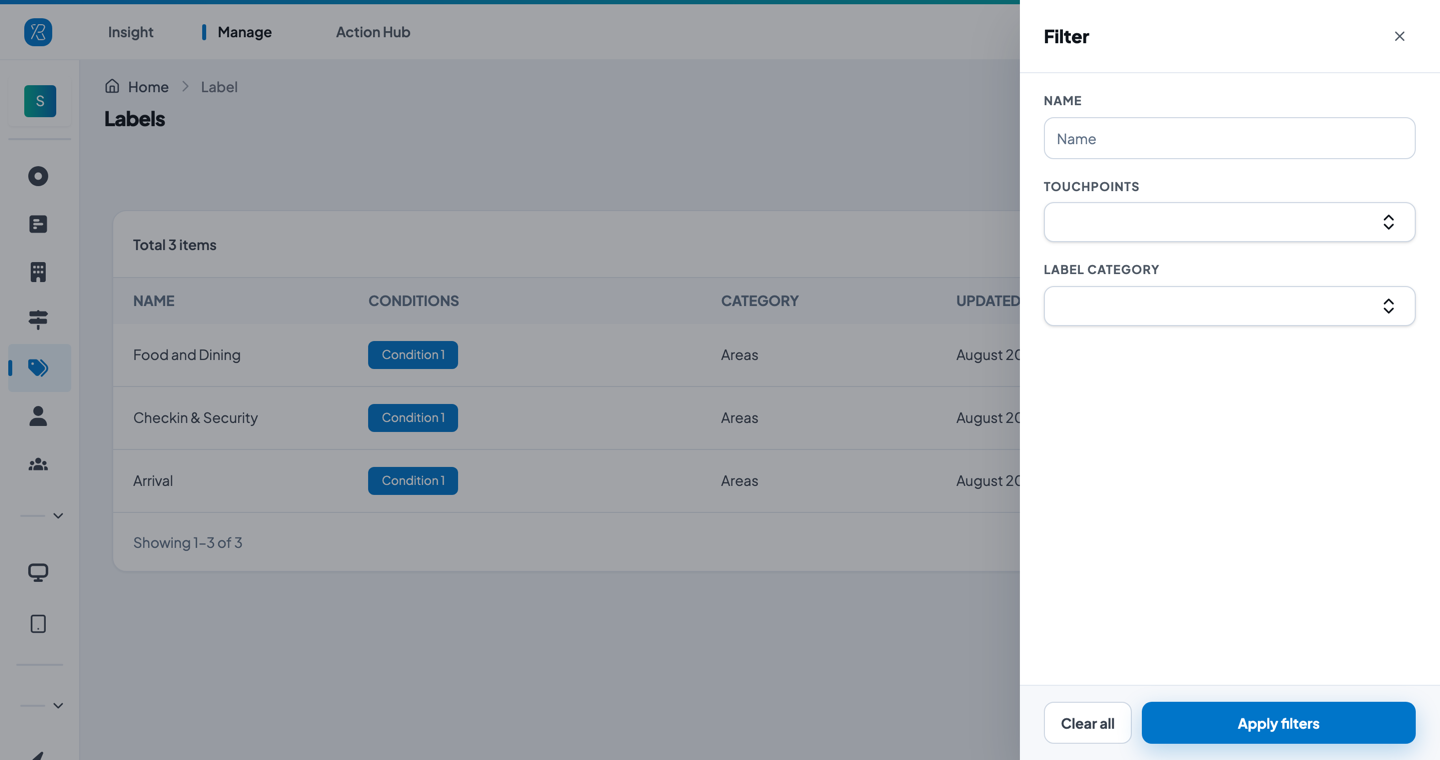
Use Sort to order by name, and Filter to narrow the list. The filter offers Name, Touchpoint, Label Category, Branch and Agent — but only the ones your labels actually use appear, so a filter is missing when no label mentions that kind of thing.
Add a label
-
On the Labels screen, click the blue + button, top right.
-
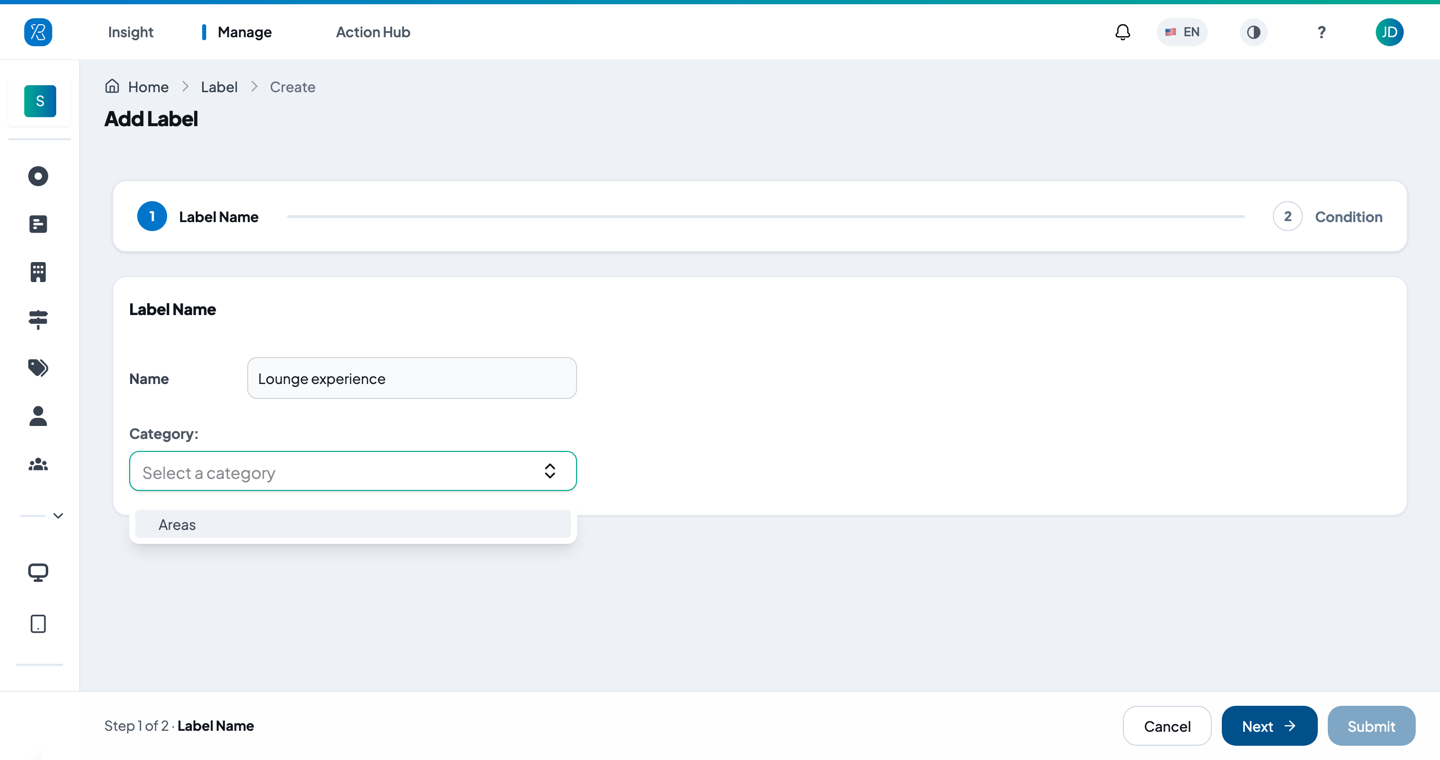
Type a Name. Use at least 3 characters, or you will see Minimum length is 3. Label names must be different from each other.
-
Pick a Category. To make a new one, type its name and click the Create option that appears. A category is required — leave it empty and you will see Category is required.
-
Click Next. You are now on step 2, Condition.
-
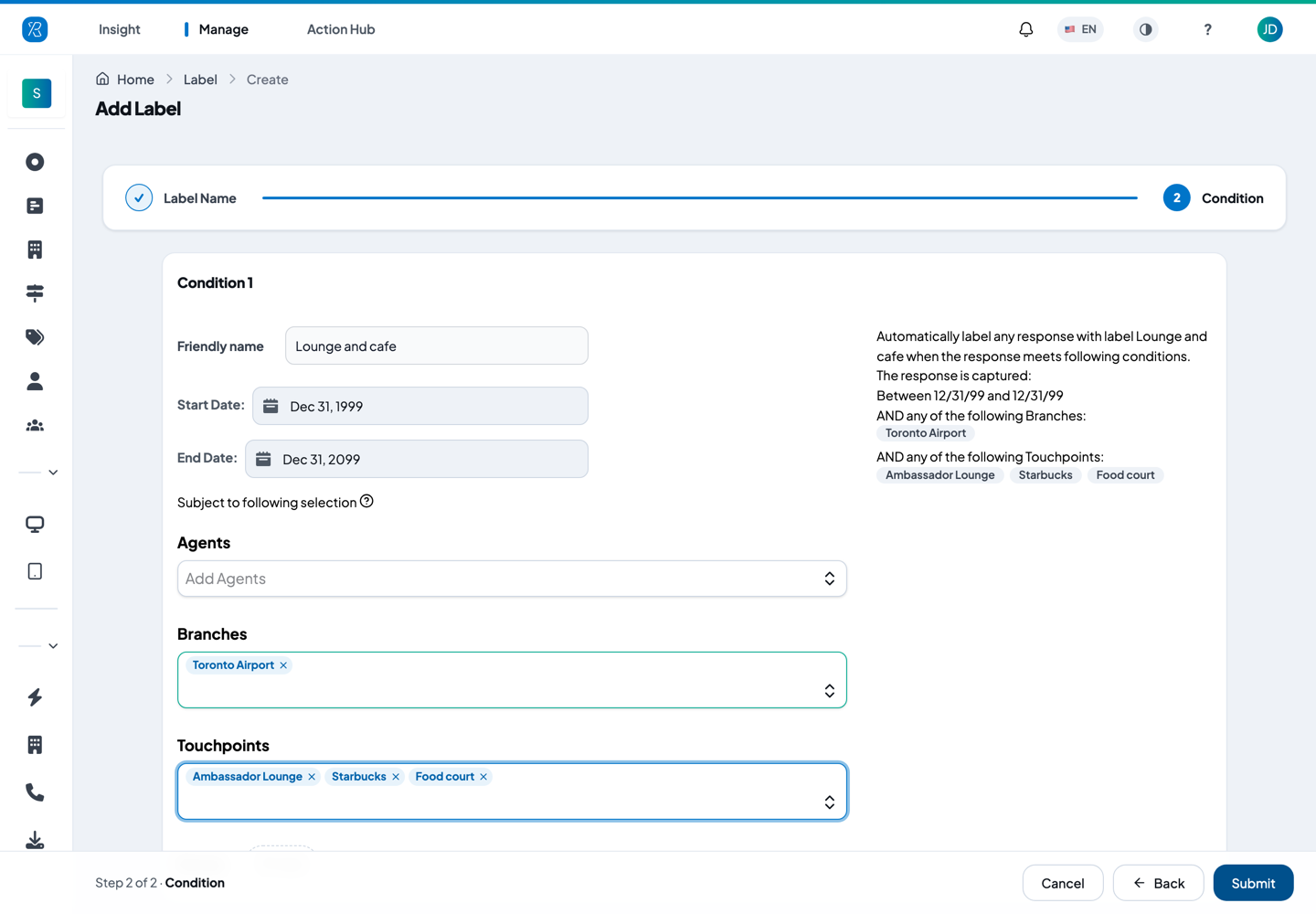
Fill in Condition 1 — see Fill in one condition below.
-
To add a second rule, click + Add a condition at the bottom and fill it in the same way. A response gets the label if it matches any one of your conditions.
-
Click Submit.
Existing feedback takes a couple of minutes to pick up the new label. Feedback collected from now on gets the label as soon as it matches.
Fill in one condition
Each condition card has these fields.
| Field | What to do |
|---|---|
| Friendly name | A name for this rule, at least 3 characters. It is filled in as Condition 1, Condition 2 and so on. It is the text on the chip in the list, and it is not used in reports. |
| Start Date / End Date | The period the rule covers. The defaults — Dec 31, 1999 to Dec 31, 2099 — are wide enough to cover all your feedback, so leave them alone unless you want a specific period. The end date must be at least one day after the start date. |
| Agents | Pick one or more agents. |
| Branches | Pick one or more branches. |
| Touchpoints | Pick one or more touchpoints. |
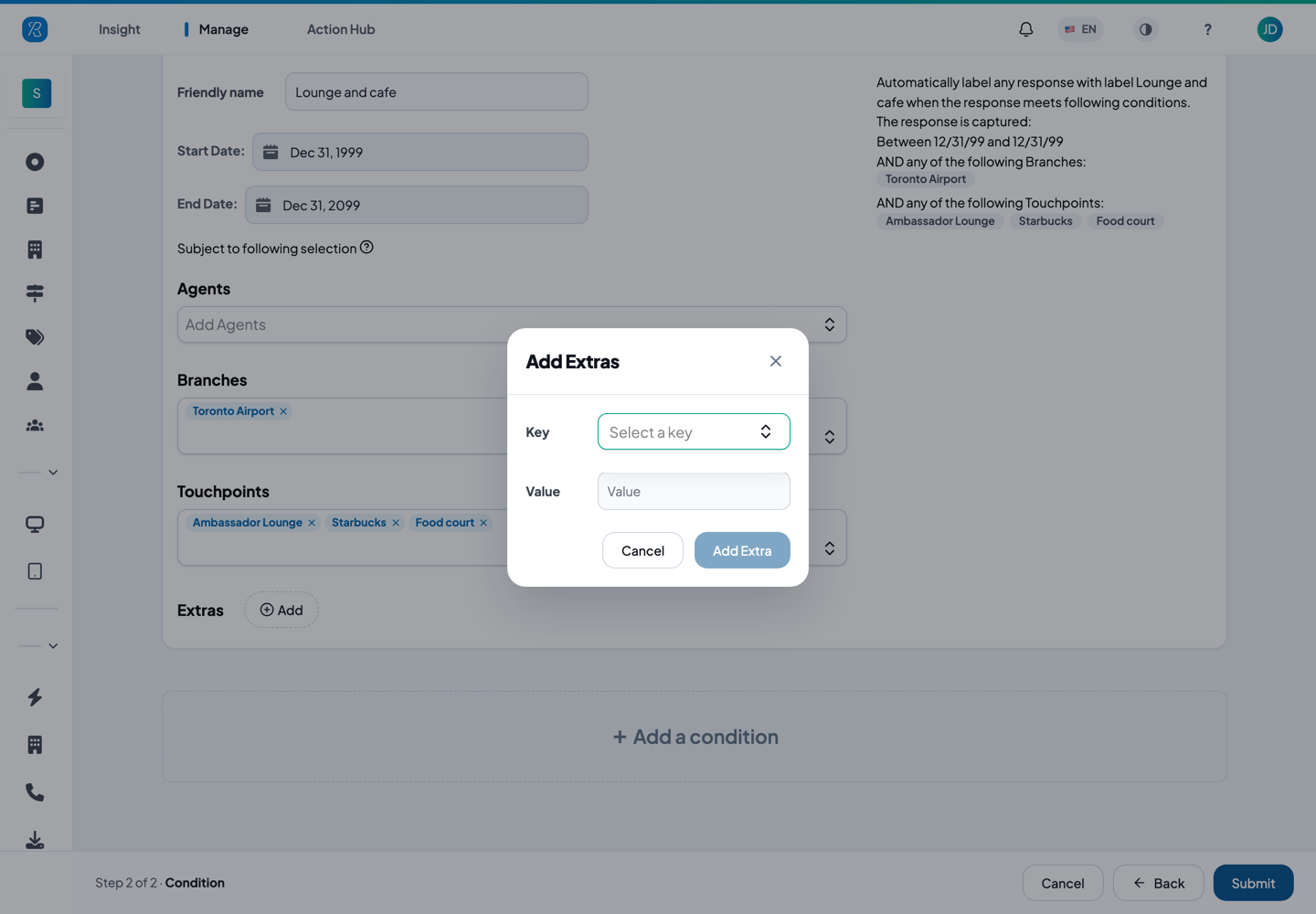
| Extras | Extra information sent with your feedback, such as an order type or a booking channel. Click Add, pick a Key, type a Value, then click Add Extra. The Key list only offers keys your feedback already sends, so it is empty until your organization sends some. Click the x on a chip to remove it. |
You must fill in at least one of Branch, Touchpoint or Agent. If you don't, clicking Submit shows One of Branch, Touchpoint or Agent must be entered.
The panel on the right of the card writes your rule out in plain English as you build it. Read it before you submit — it is the quickest way to check you set up what you meant to.
How the picks combine: a response has to match every group you filled in, but only one of the items inside a group. So Branches = Toronto Airport plus Touchpoints = Ambassador Lounge, Starbucks, Food court means feedback from any one of those three touchpoints at Toronto Airport.
Edit a label
- On the Labels screen, find the label and click the pencil in Actions.
- Change the Name or Category on step 1, and the conditions on step 2 — the form is the same one you used to create the label, already filled in.
- To remove a rule, click Delete on that condition card and confirm. The Delete button only appears when there are two or more conditions, so you cannot remove the last one.
- Click Update. You can do this from either step.
Again, it takes a couple of minutes for the label to be reapplied to existing feedback.
Delete a label
Click the bin in Actions and confirm. This cannot be undone, and the label is removed from every response that had it.