Signature Feedback Collector
A Signature touchpoint puts three faces — green, amber and red — at the bottom of a staff member's emails. Every email that person sends quietly asks the customer to rate the service. The customer taps a face straight from their inbox; the rating is saved right away, and they land on a web page where they can pick a reason and leave a comment.
Each person gets their own copy of the block, so every response is tied to that person. That is what feeds Agent Insight — the report that shows how each member of staff is doing.
You need admin access to create a touchpoint or generate a signature block.
Step 1 — Create the touchpoint
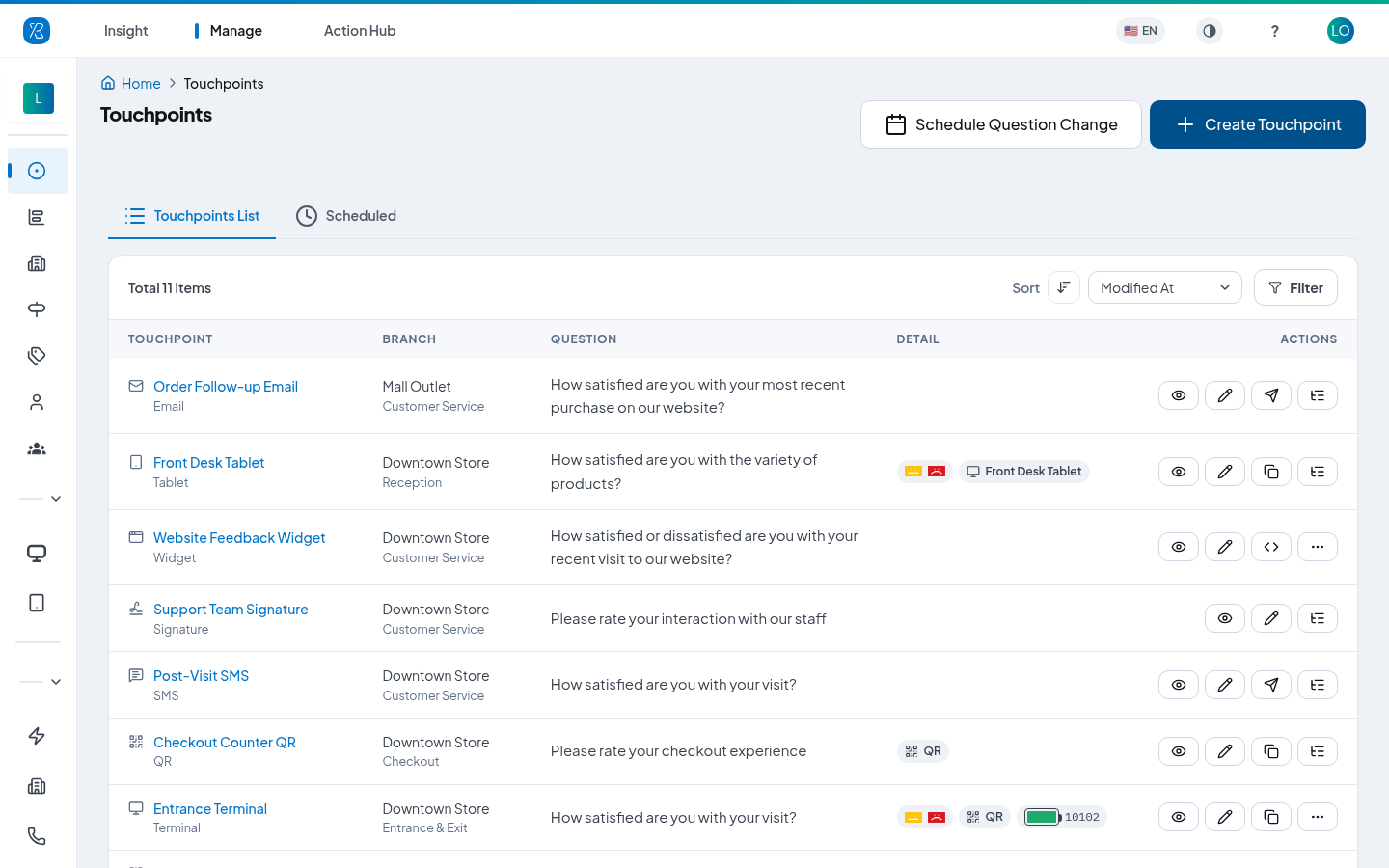
- From the top menu select Manage, then Touchpoints in the left menu.
- Click Create Touchpoint.
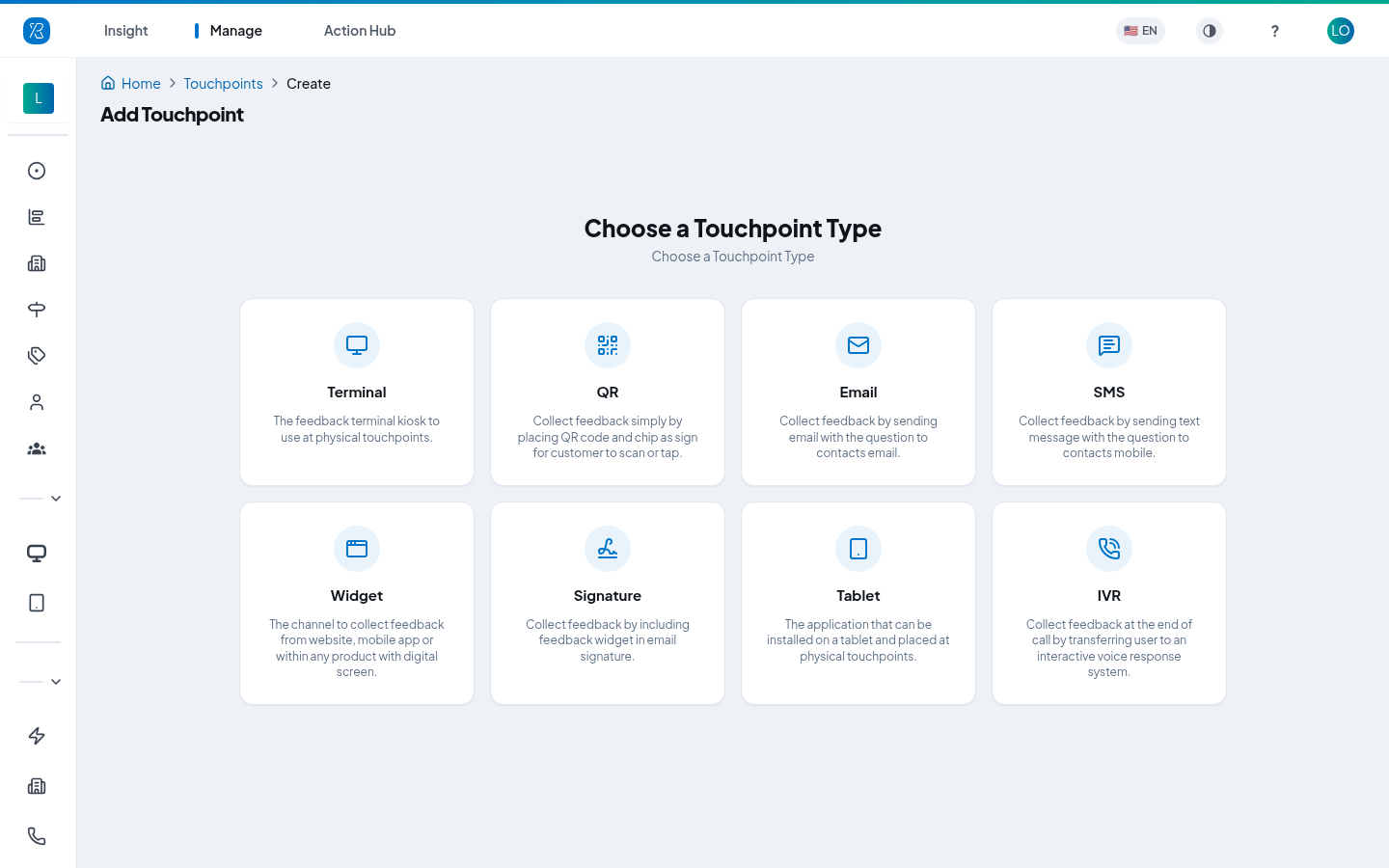
- Click the Signature card — "Collect feedback by including feedback widget in email signature."
The form then walks you through four steps.
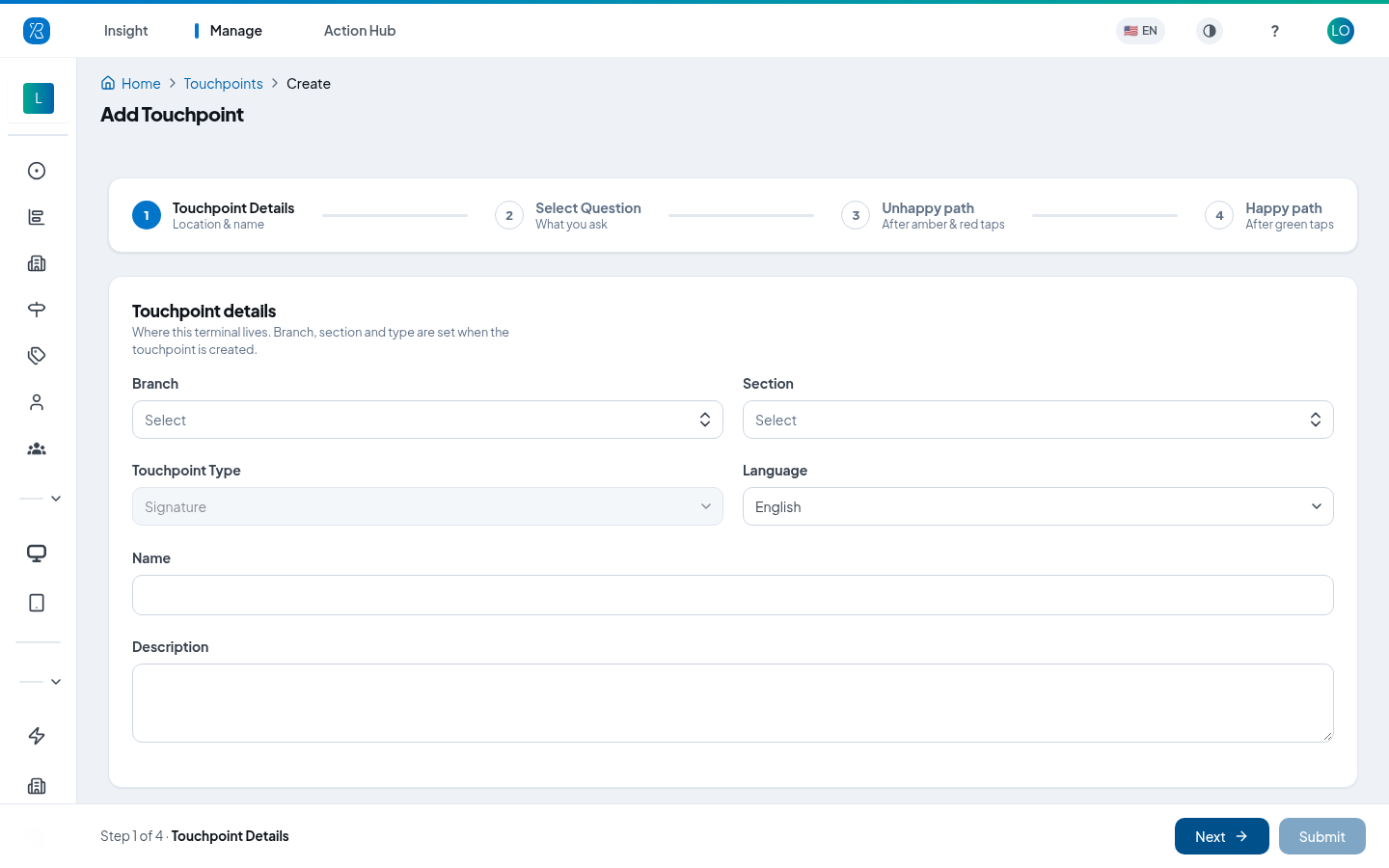
Touchpoint Details
Pick the Branch and Section this touchpoint belongs to, the Language it asks in, and a Name you will recognise later on reports. Touchpoint Type is already set to Signature. Description is optional.
Click Next.
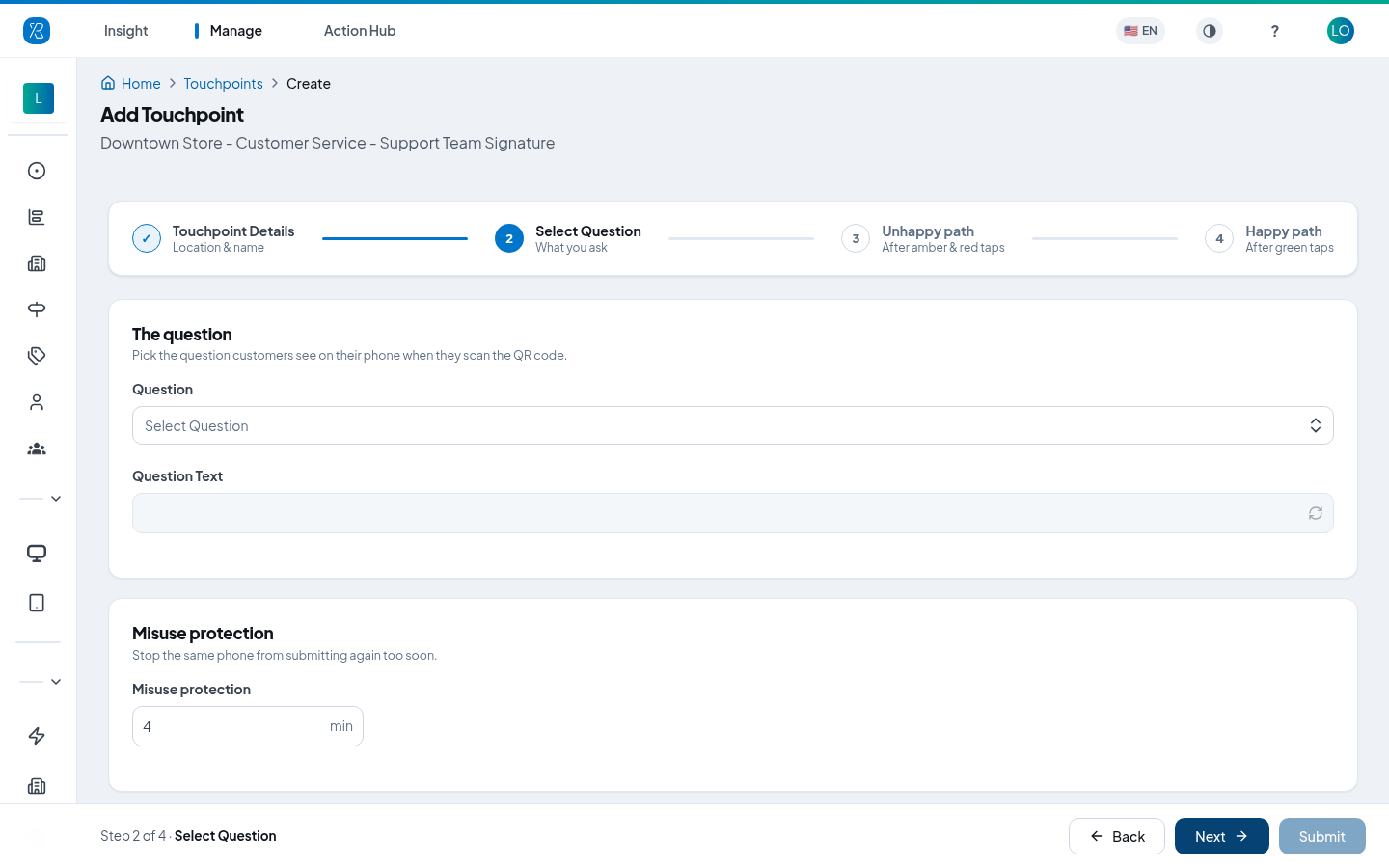
Select Question
- Question — the rating question the three faces answer.
- Question Text — the exact wording that appears above the faces. Leave it and the question's own wording is used.
- Misuse protection — how many minutes must pass before the same person can rate again. It stops one recipient from tapping the faces over and over.
Click Next.
Unhappy path and Happy path
The last two steps set up what the customer sees after they tap a face — amber and red on the Unhappy path, green on the Happy path. Each has the same five cards, with a live phone preview beside them:
- Ask for a reason — a short list of quick-pick reasons. Reasons come from your Ask Why categories.
- Open comment — a free-text box, always shown.
- Collect contact details — ask for email, first name, last name, company or your own fields.
- Promotional / redirect link — a link shown after the comment, such as your Google review page. Most people turn this on for the Happy path only.
- Thank-you message — the last screen.
On the Happy path each card has a Copy from Unhappy button, so you do not have to type the same wording twice.
Click Submit on the last step.
Step 2 — Give each person their own signature block
The block is generated one person at a time, from the touchpoint itself.
- Open the touchpoint from the Touchpoints list (filter by Collector Type → Signature to find it).
- Open the Signature builder tab.
- Type the person's Email, First Name and Last Name.
- Click Generate Signature Widget.
- Click Copy to clipboard, then paste it into the signature settings of their mail client — Outlook, Gmail or anything else that allows a formatted signature.
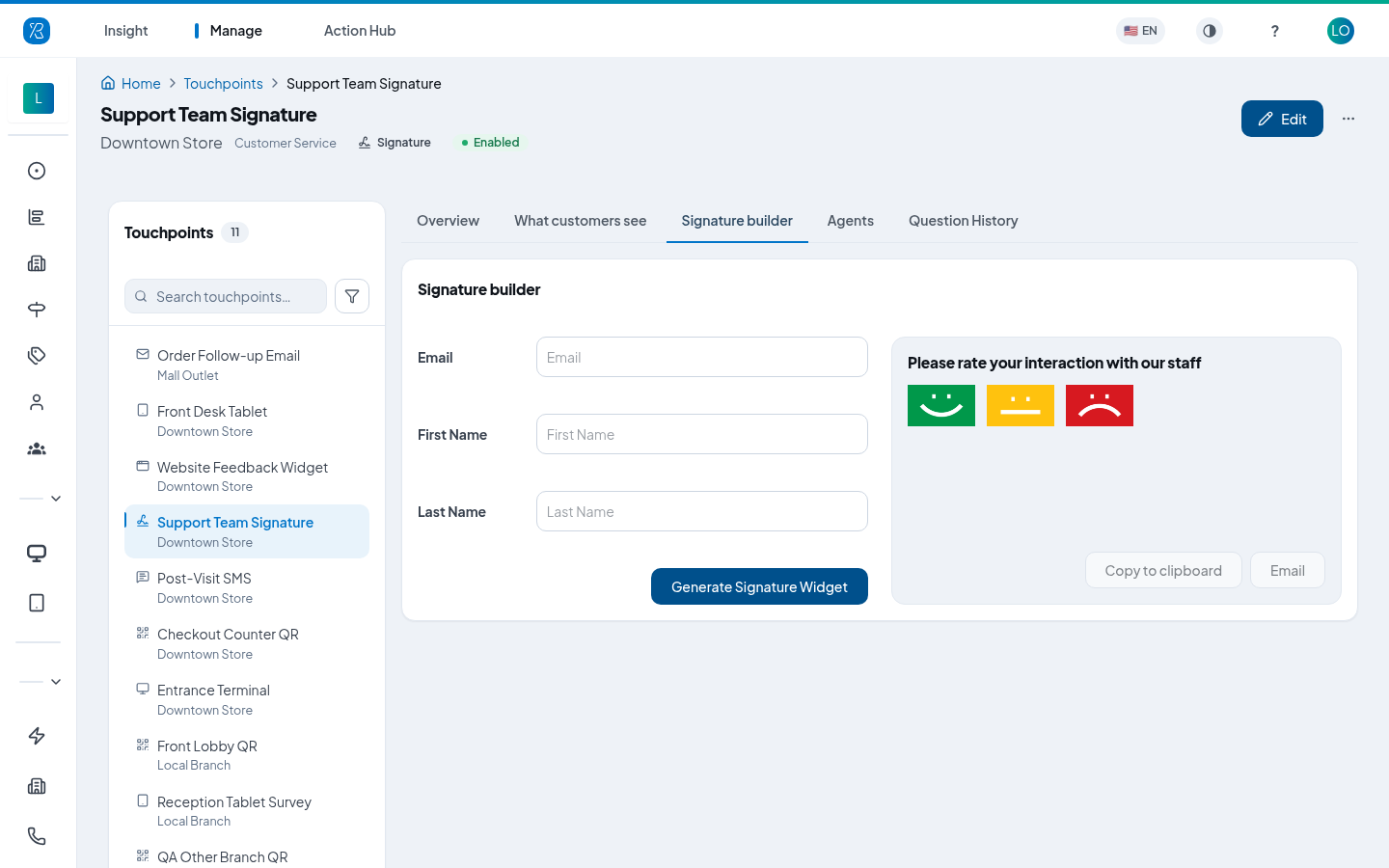
The Email button next to it does the same copy and then opens a new message addressed to that
person, with PASTE HERE in the body — handy for sending someone their own block to install.
Repeat for the next person. A few things worth knowing:
- Generating a block creates an agent. This screen is one of only two places in Press'nXPress where an agent record is created. From then on that person appears in Agent Management and in Agent Insight.
- The links are unique to the email address. Enter the same address again and you get the same block back — you do not create a second agent, and the first and last name of an agent that already exists are left as they were. Change a name in Agent Management instead.
- The block is plain HTML with three linked images. Paste it as formatted text, not as plain text, or the faces will not appear.
Find who already has a block
The Agents tab lists everyone attached to this touchpoint — first name, last name, email and agent token. Sort or filter by any of them to check whether someone is already set up.
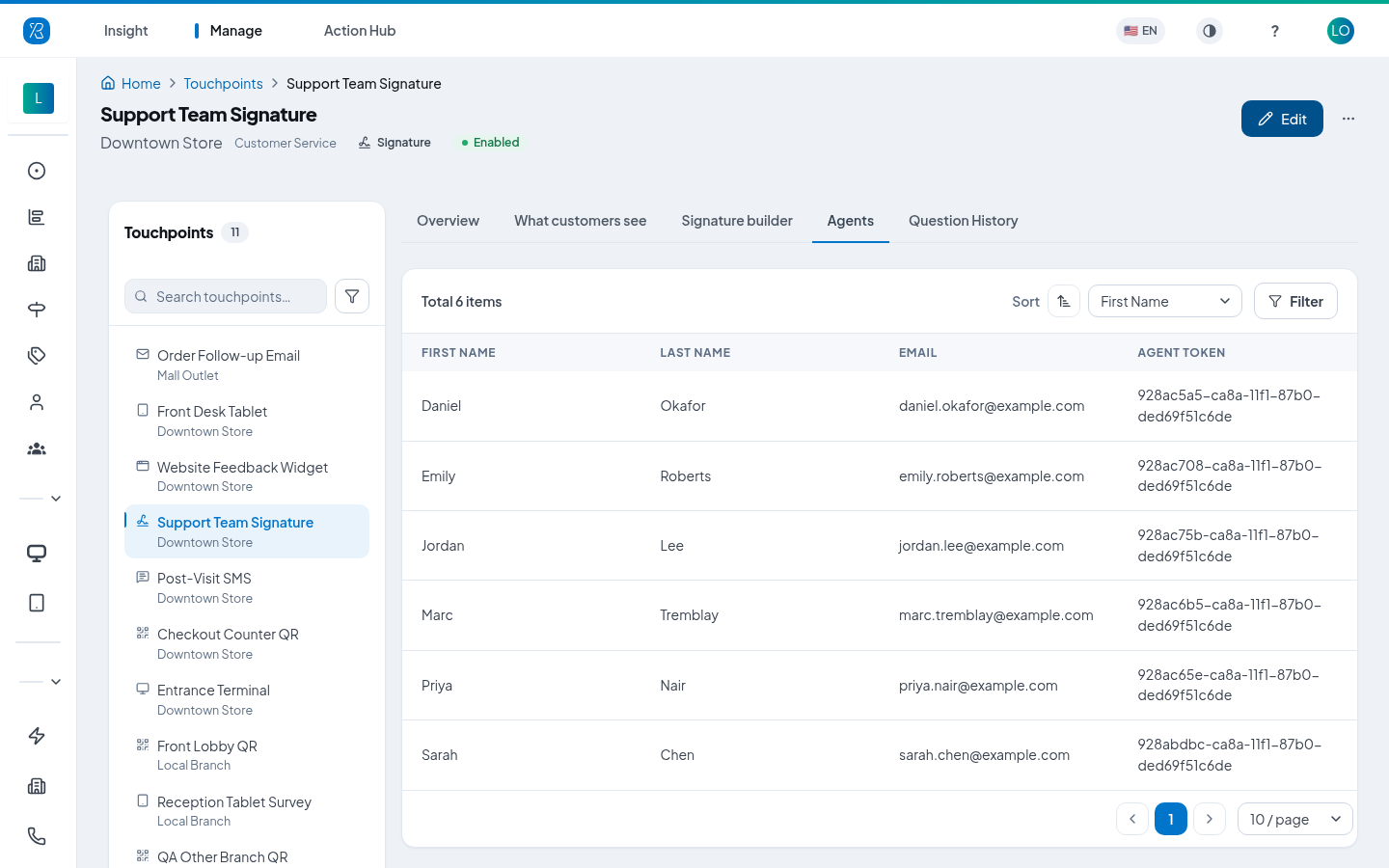
The list is read-only. To hand someone their block again, go back to Signature builder and enter their email — the same links come back.
See what the customer sees
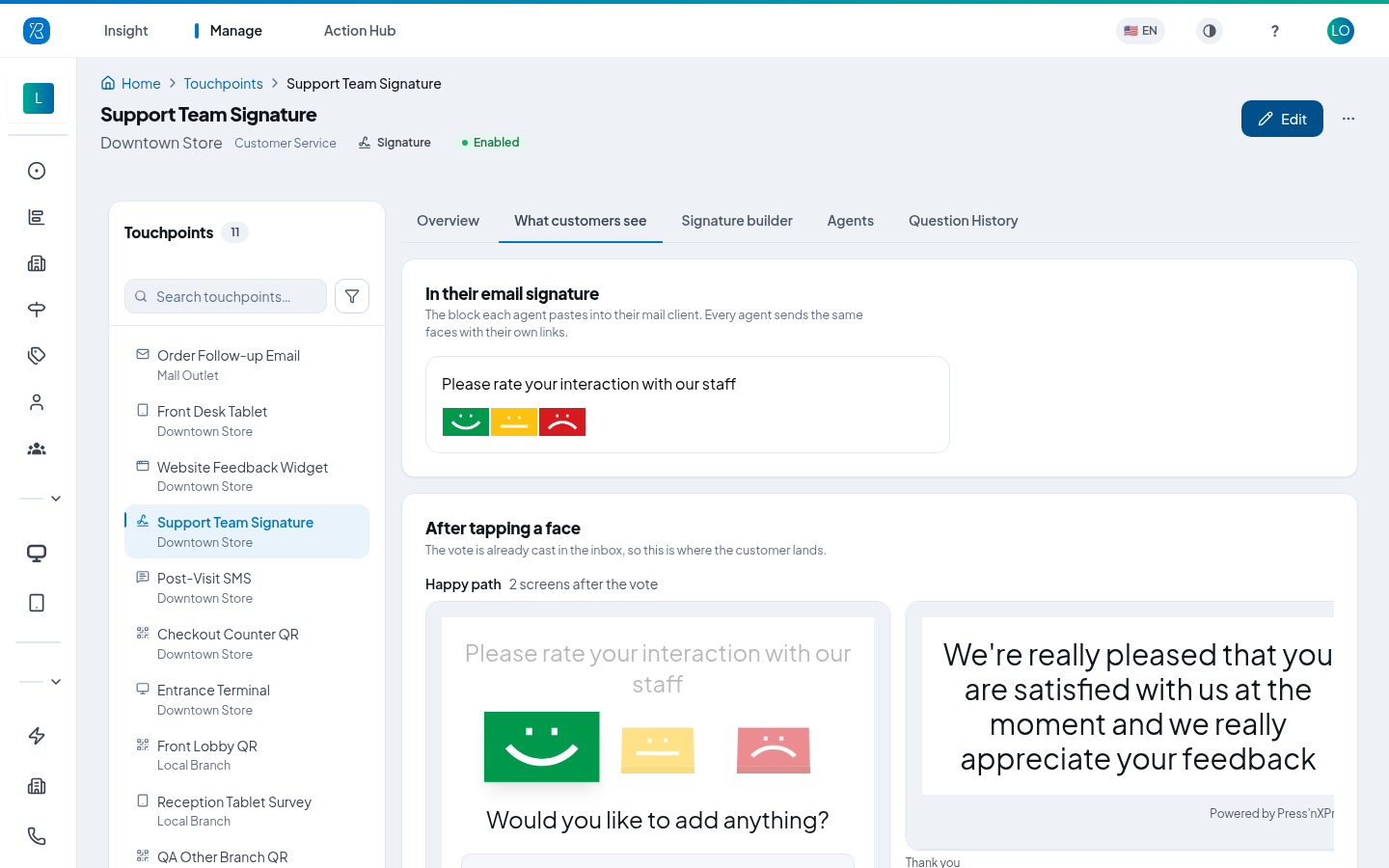
The What customers see tab draws the block exactly as it lands in an inbox, then every screen that follows a tap on each of the three faces.
Change or turn off a touchpoint
Open the touchpoint and click Edit to go back through the same four steps, then Update. See Touchpoint Management for the list, row actions and how to disable a touchpoint.
Results arrive in the Touchpoint Report and, broken down per person, in Agent Insight.