Terminal Feedback Collector
A terminal is the physical smiley-button device you mount on a wall or stand on a counter. A customer presses a button on it and the answer goes straight to Press'nXPress. It is the fastest way to ask people how things went while they are still standing in front of you.
To collect feedback from one you need two things: a touchpoint (the question and the settings, which you set up here) and a terminal (the device itself). This page walks you through creating the touchpoint and pointing a device at it.
You need admin access to create a touchpoint. If you do not have it, ask your Press'nXPress admin.
Start a new terminal touchpoint
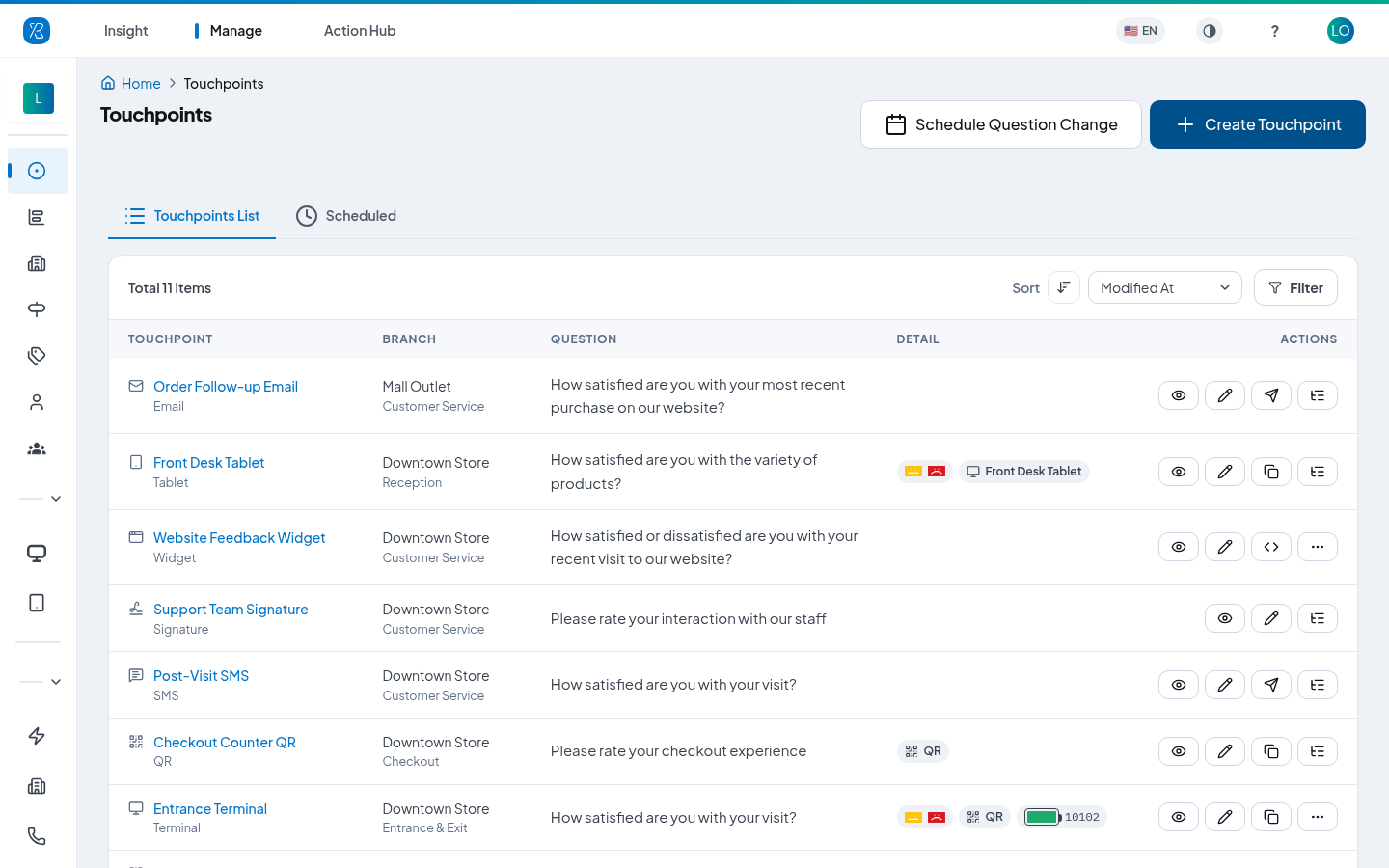
- Click Manage at the top, then Touchpoints in the left menu.
- Click Create Touchpoint.
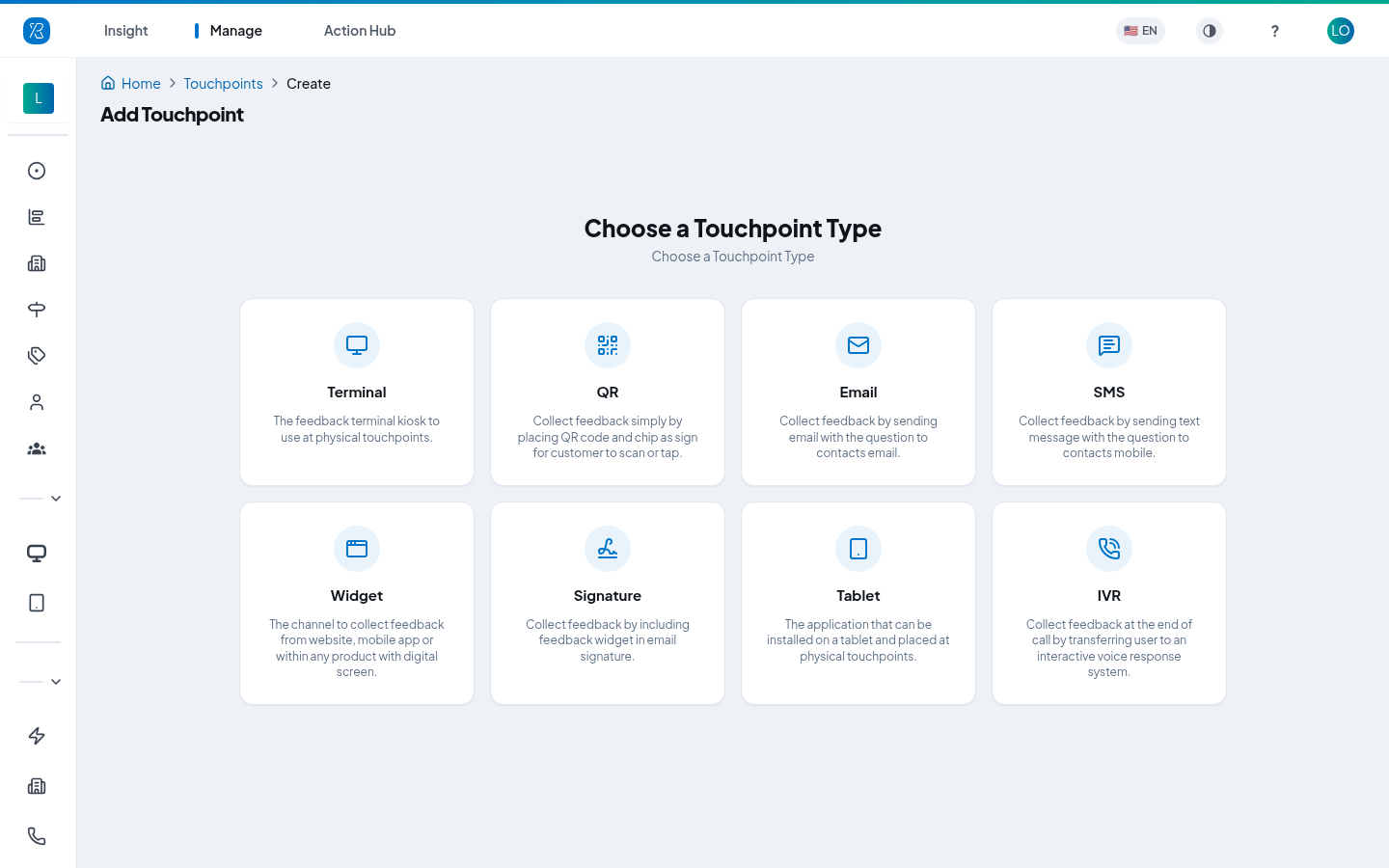
- On the Choose a Touchpoint Type screen, click the Terminal card.
The form opens on step 1 of 5.
Step 1 — Touchpoint Details
This is where the terminal lives and what you will call it.
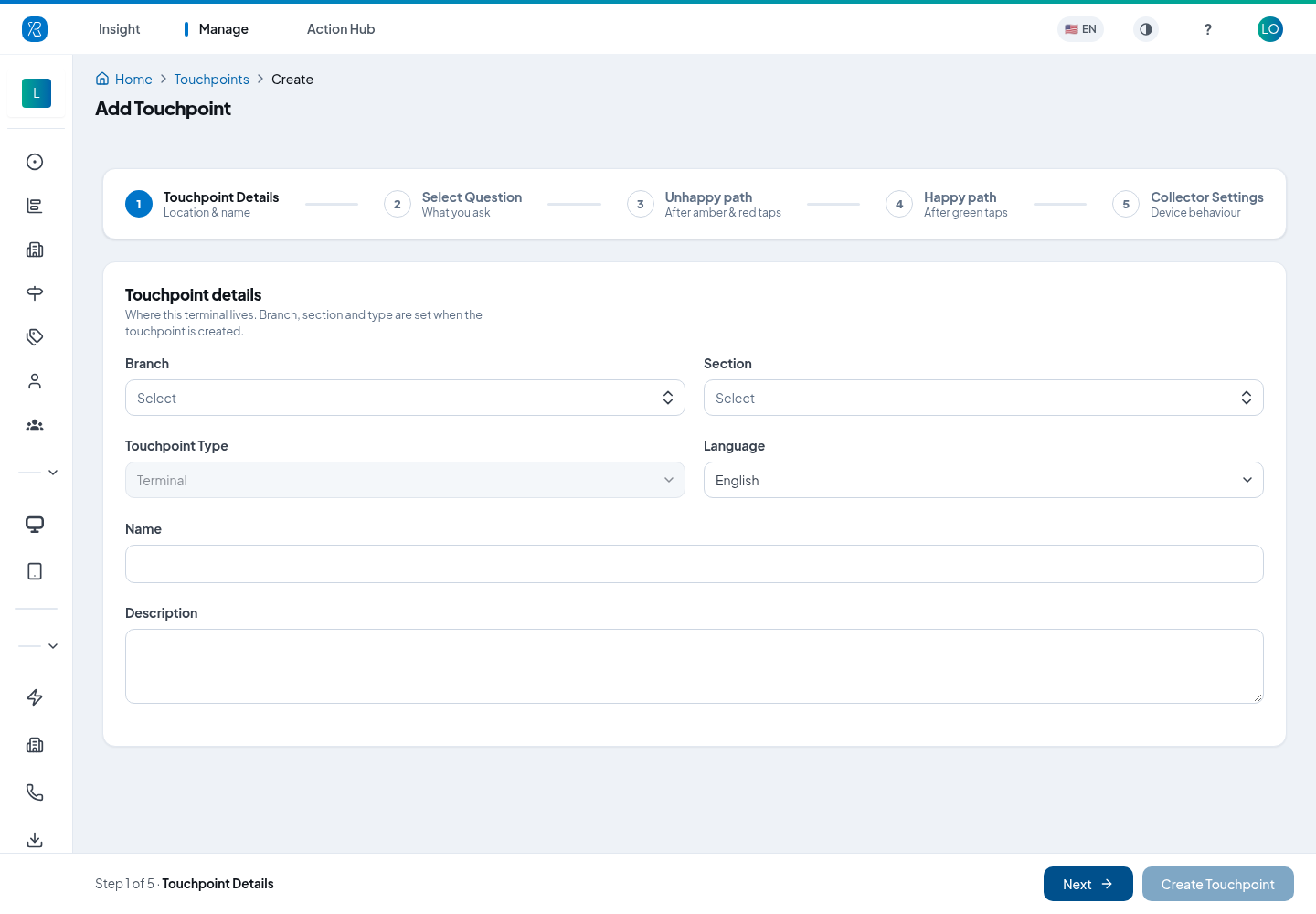
- Pick a Branch — the location the device sits in. See Branch Management.
- Pick a Section — the spot inside that branch, such as Entrance & Exit or Cashier.
- Choose a Language. This sets the language of the question shown on the device.
- Type a Name you will recognise later, such as Front Door. This name is what you see in reports.
- Add a Description if you want. It is optional.
- Click Next.
Branch, section and type are fixed once the touchpoint is created. Everything else you can change later.
Step 2 — Select Question
Choose what the terminal asks and how it looks. The panel on the right is a live preview of the device screen — flip it between Dark and Light, and use the download button under it to save the image.
Pick a question type
There are three, and the one you pick changes the rest of the form:
| Type | What the customer does | What you get back |
|---|---|---|
| Smiley | Taps a green, amber or red face | A score, plus an optional reason and comment |
| ABC | Picks one of three labelled options | Counts per option, with no score behind them |
| Poll | Picks one of three answers you wrote yourself | Counts per answer |
Smiley
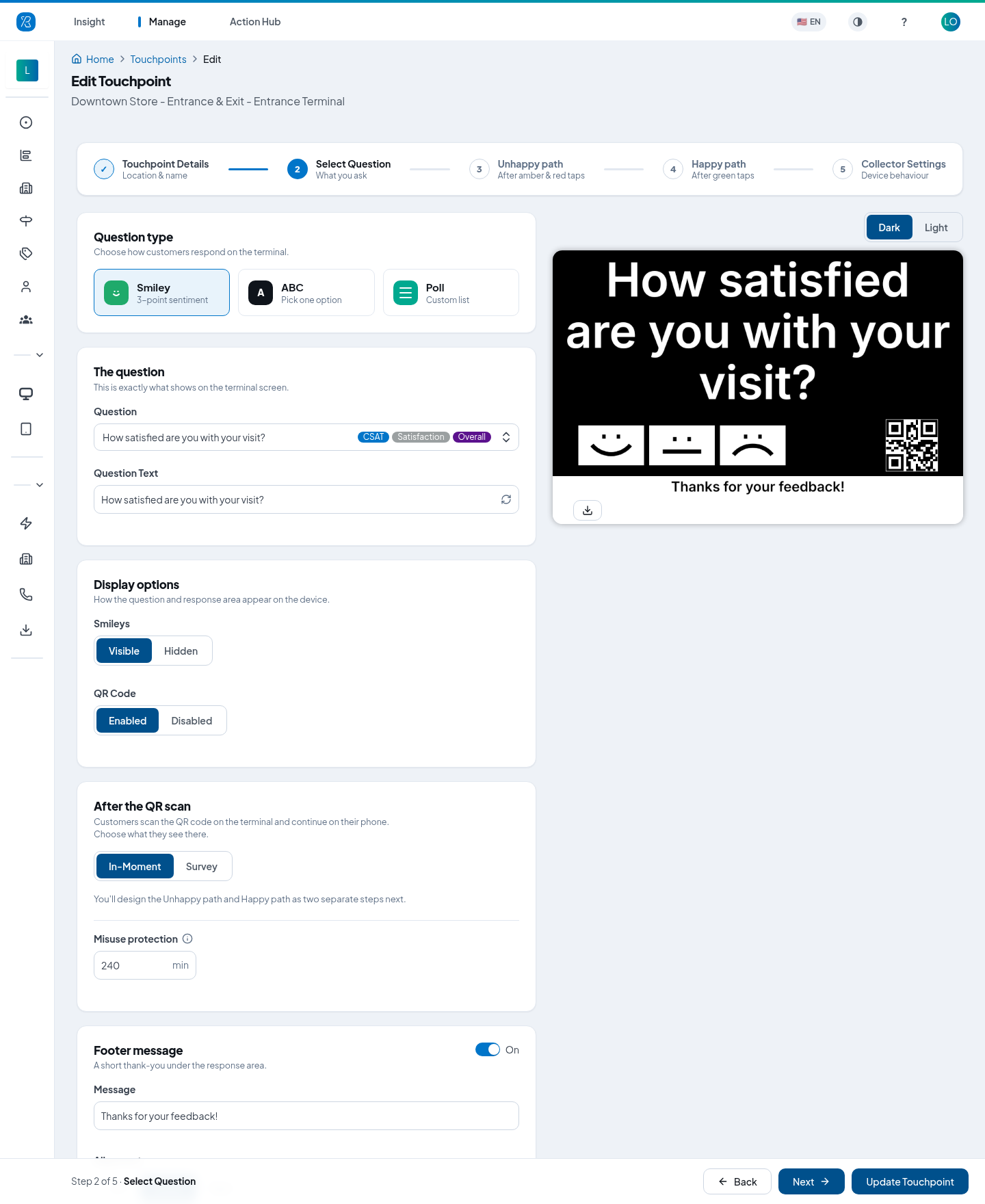
- Pick a Question from the list. The tags beside it (CSAT, Service, Quality) tell you what it measures.
- Question Text is what the device actually prints on screen. Change it if the wording needs to be shorter, but keep the meaning — reports still file the answers under the question you chose above.
- Under Display options, set Smileys to Visible or Hidden, and QR Code to Enabled or Disabled. The QR code lets a customer carry on giving detail on their own phone.
- If the QR code is on, After the QR scan decides what they see there:
- In-Moment — a short follow-up you design in steps 3 and 4.
- Survey — a full multi-question survey instead.
- Misuse protection (in minutes) is how long the same phone has to wait before it can scan again.
- Footer message is a short line under the response area, such as Thanks for your feedback! Turn it off, change the wording, or align it left, centre or right.
ABC
ABC turns each button into a reason. A customer picks the reason directly, so there is no rating behind it.
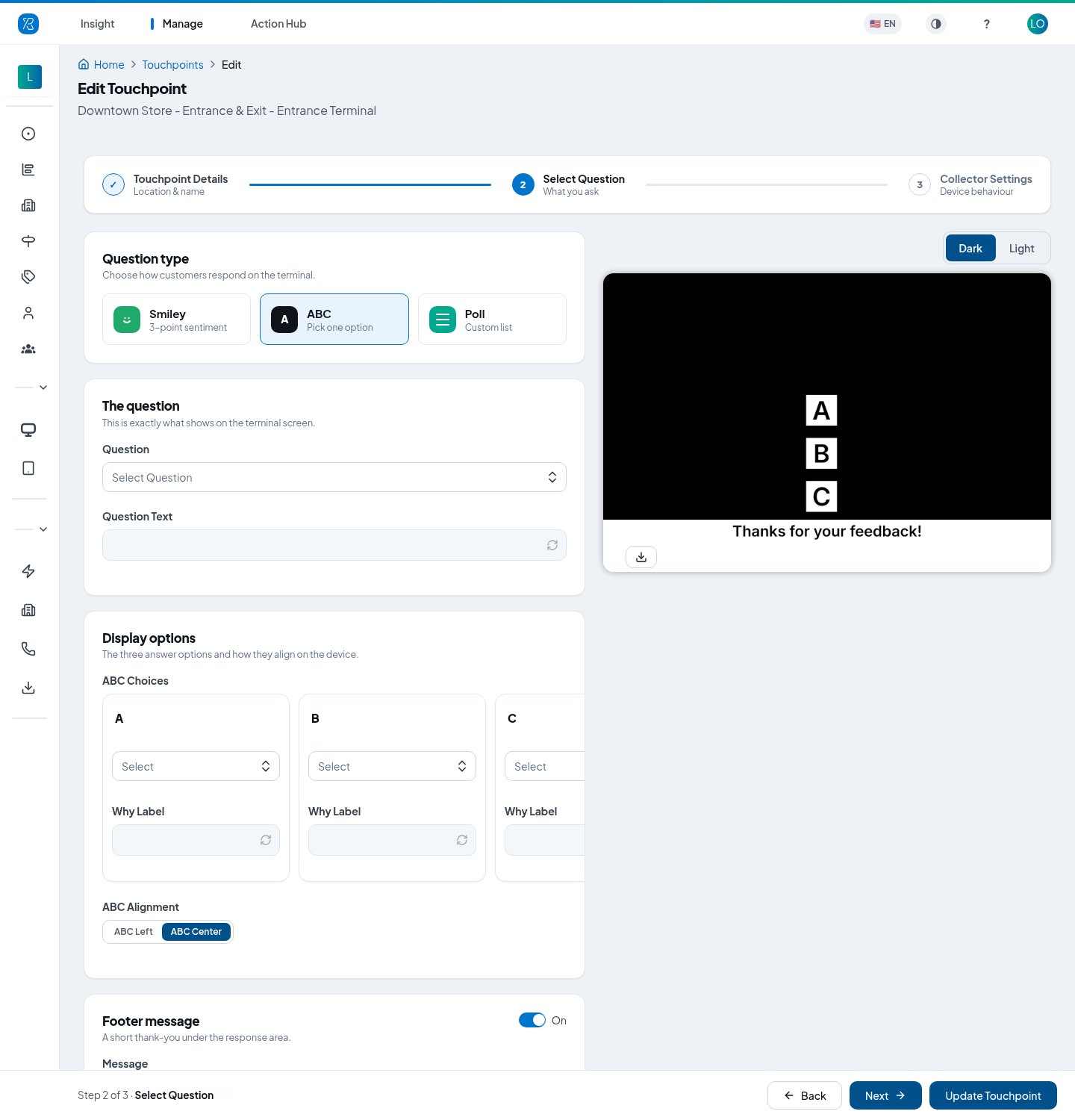
- Pick a Question. ABC has its own question list, so the box clears when you switch type.
- Under ABC Choices, choose a why category for A, B and C. All three are required and must be different. See Ask Why Category Config.
- Set ABC Alignment to ABC Left or ABC Center.
- Set the Footer message as above.
Your terminal has to be an ABC-capable device. Check with support@pressnxpress.com if you are not sure.
Poll
Poll asks a question of your own with three answers of your own — good for which item do you like most?
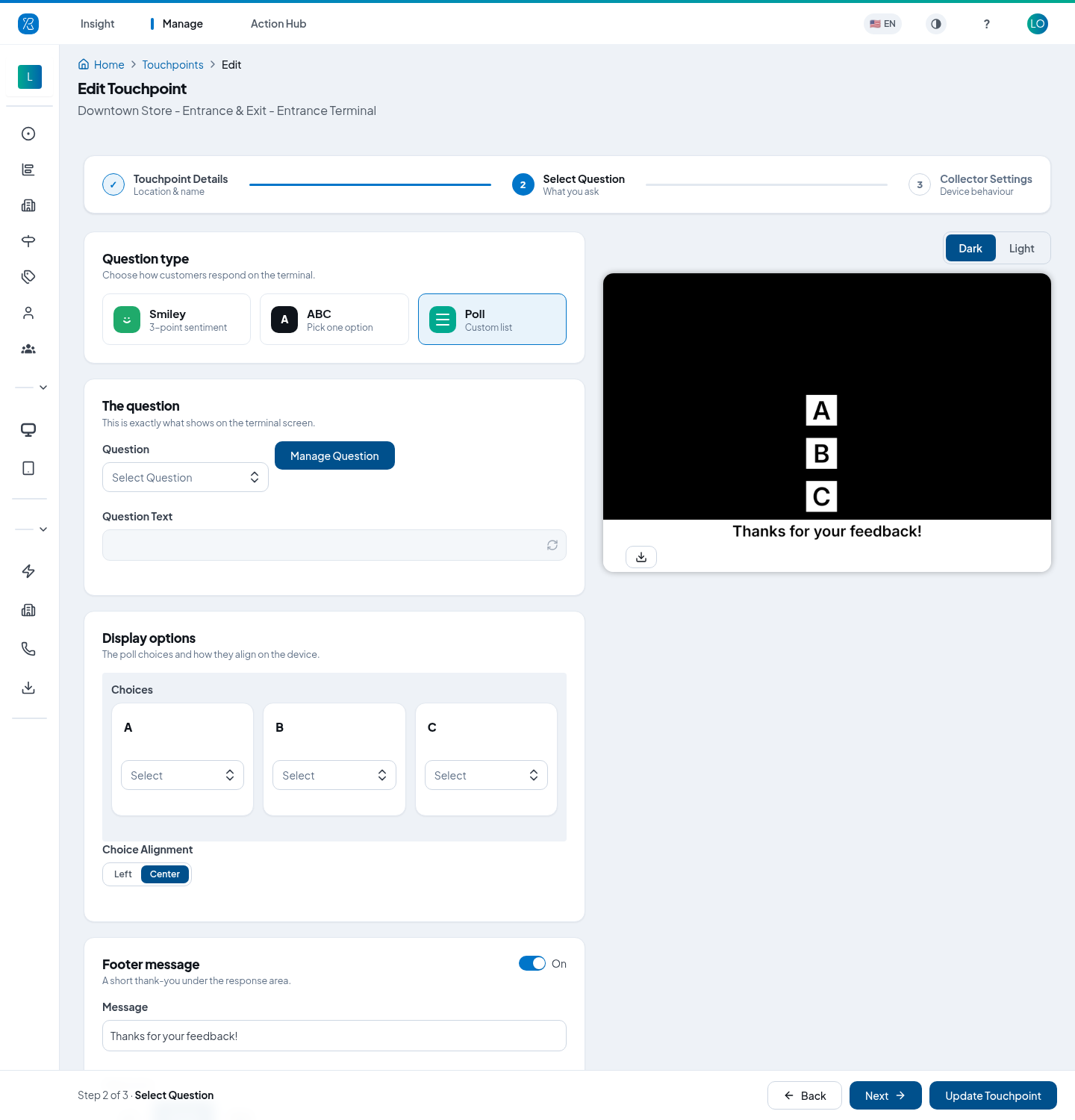
- Pick a Question, or click Manage Question to write a new one with its own list of answers.
- Under Choices, pick the answer to put on A, B and C. All three must be different.
- Set Choice Alignment to Left or Center, and the Footer message as above.
Editing a question title or an answer here changes it everywhere — every other touchpoint using that same question sees the change too.
Steps 3 and 4 — Unhappy path and Happy path
These two steps only appear for a Smiley question with the QR code enabled and set to In-Moment. They design what the customer sees on their own phone after scanning: Unhappy path after an amber or red tap, Happy path after a green one. Otherwise the form is just three steps.
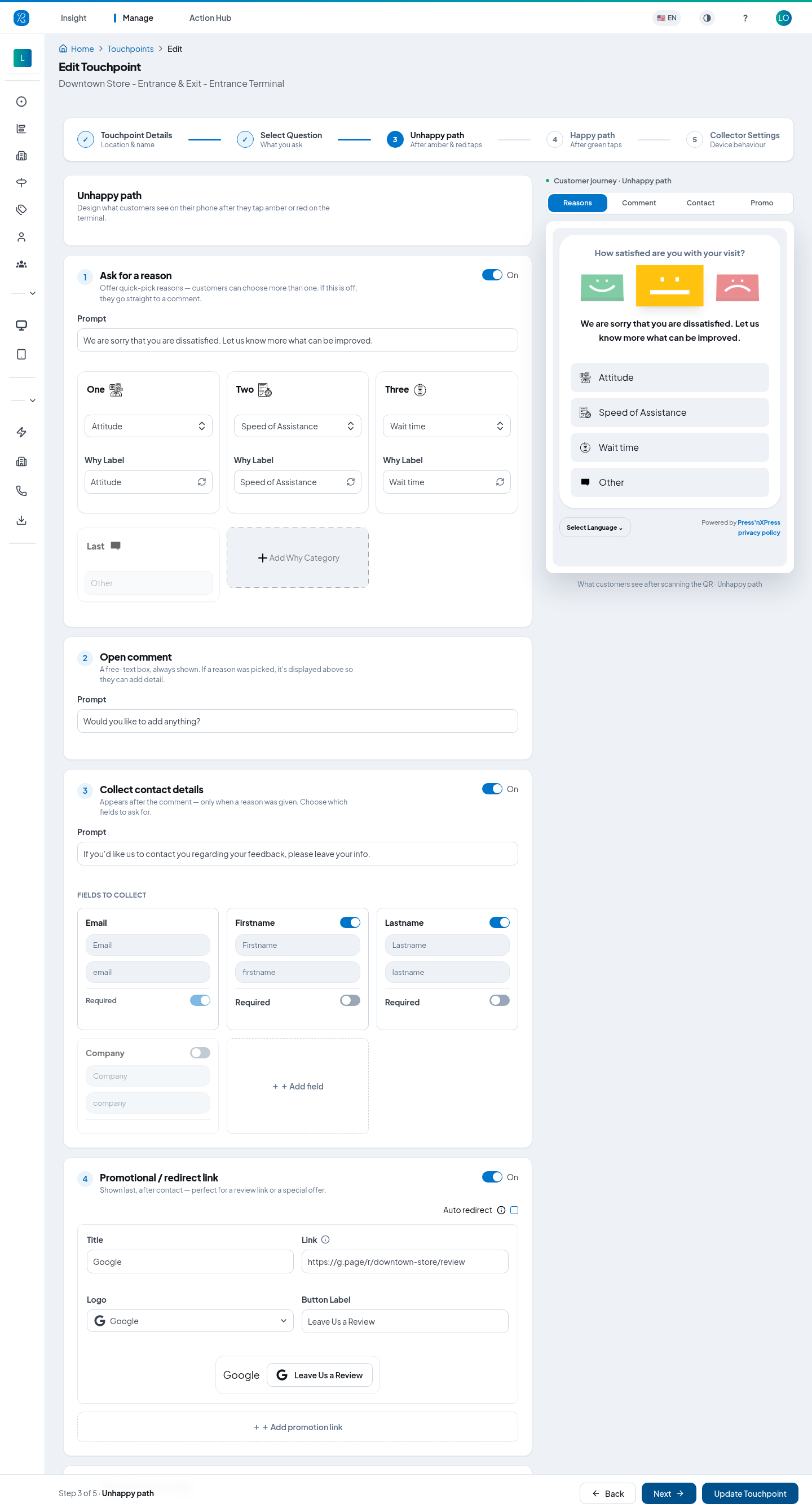
Both steps have the same five sections, and the preview on the right shows each one — use the Reasons / Comment / Contact / Promo tabs to move between them.
- Ask for a reason — offer quick-pick reasons. Write the Prompt, then choose a why category for each slot. Add Why Category adds more. Turn this off and the customer goes straight to a comment.
- Open comment — a free-text box, always shown. You only set the prompt.
- Collect contact details — asks for their details after the comment. Email is always there; switch Firstname, Lastname and Company on or off, mark any of them required, or Add field for something of your own.
- Promotional / redirect link — shown last. Use it to send happy customers to a review site. Set the Title, Link, Logo and Button Label. Auto redirect sends them there without a tap.
- Thank-you message — the last screen, shown on its own.
On the Happy path, Copy from Unhappy fills the reason list from the step before so you do not have to type it twice.
Step 5 — Collector Settings
This is where you attach the physical device and set how it behaves.
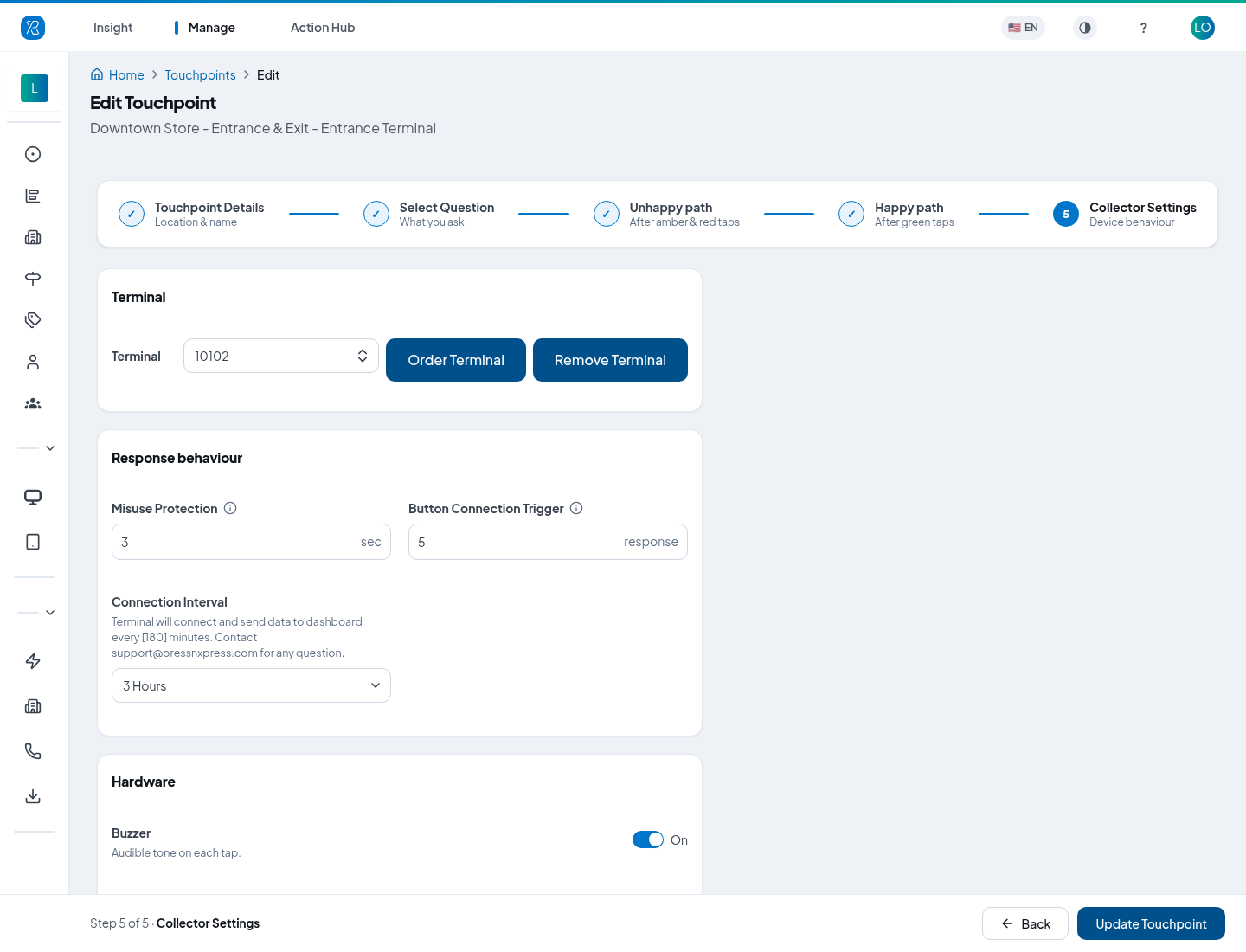
- Open the Terminal list and pick a serial number. Greyed-out numbers are already installed on another touchpoint — free one up first, see Assign a kiosk to another touchpoint. If the list is empty, click Order Terminal to email support.
- Under Response behaviour:
- Misuse Protection — seconds the device ignores after a valid press, so nobody can tap it ten times.
- Button Connection Trigger — after this many red presses in a row, the device reports in straight away instead of waiting.
- Connection Interval — how often the device connects and sends its data, for example every 9 hours. A longer interval saves battery; a shorter one gets results to you sooner.
- Under Hardware, switch the Buzzer on or off. That is the beep the device makes on each tap. This card only appears once a terminal is selected.
- Click Create Touchpoint.
After it exists
- Fix the terminal in place and switch it on. It picks up its question on its next connection, so allow up to one Connection Interval before it changes.
- Watch battery and last-seen time on the Terminals screen. When one runs low, see Feedback Terminal Charging.
- Read the answers on the Touchpoint Report.
Change it later
Open Manage → Touchpoints, find the row and click Edit. You get the same five steps, so you can swap the question, redesign the follow-up, or move the device to a different touchpoint. Click Update Touchpoint when you are done. To change the same setting on many kiosks at once, use Bulk update multiple touchpoints.
Managing the list itself — searching, disabling, deleting — is covered in Touchpoint Management.
If you have any question contact support@pressnxpress.com