Survey
A survey is a set of questions asked one after another.
Most feedback collectors ask a single question, like "How was your visit?". A survey goes further: it can ask five or ten questions, collect a name and an email, and ask different things depending on the answers.
You build the survey here, then attach it to a touchpoint (a place where you collect feedback, such as a kiosk, a tablet, a link, or a phone call). The touchpoint shows the survey to the customer.
Go to Manage > Survey.
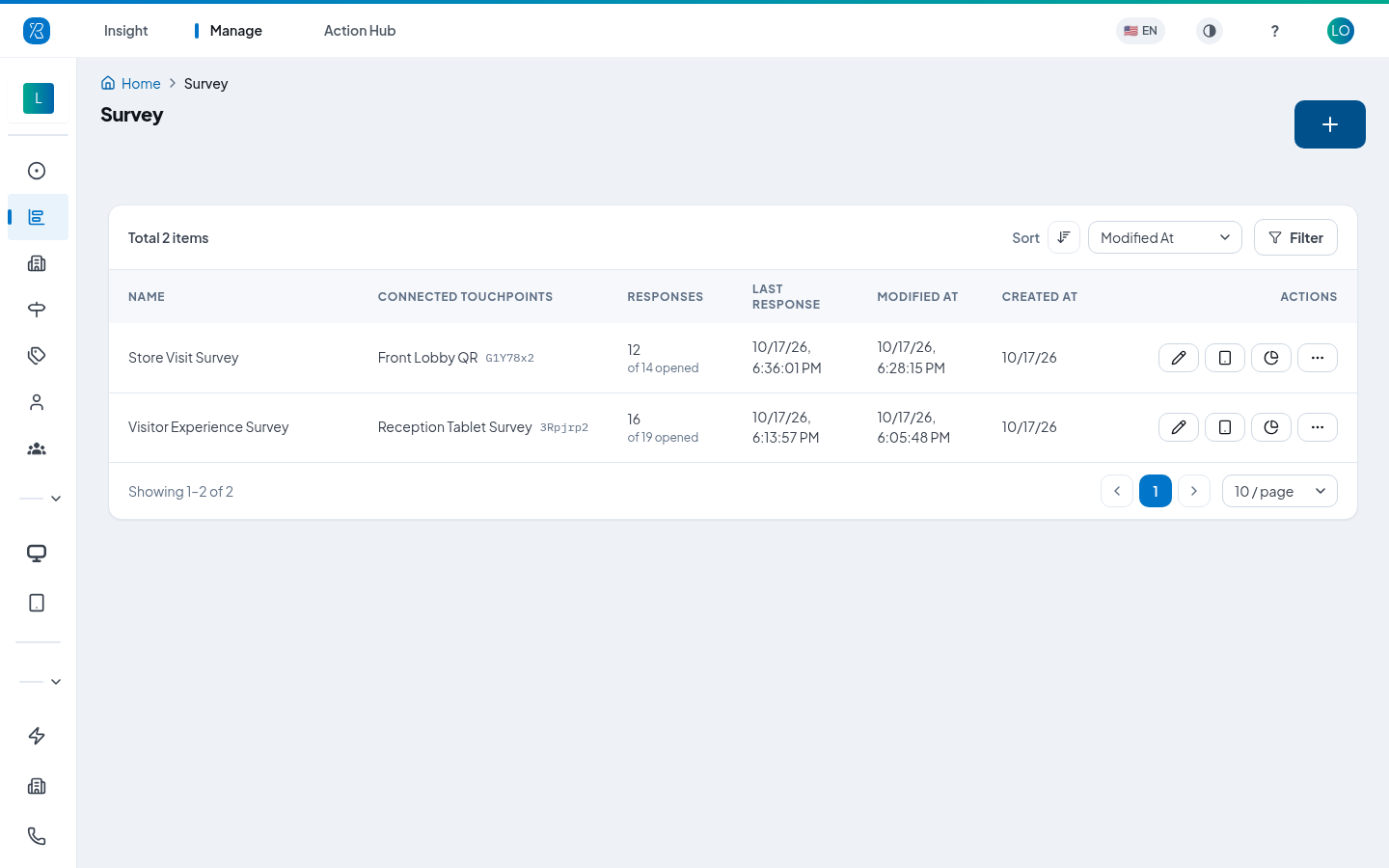
Read the list
Each row is one survey.
- Name: what you called the survey.
- Connected Touchpoints: where the survey is live. The short code next to the name is the survey token for that touchpoint. A dash means the survey is not attached to anything yet.
- Responses: how many people finished the survey, out of how many opened it.
- Last response: when someone last answered.
- Modified at and Created at: when the survey was last changed and when it was made.
A dash in a column means there is nothing to show yet.
The Actions column holds three buttons (the pencil edits the survey, the tablet icon opens its answers, and the pie chart opens its report) plus a three-dot menu with two more.
Use Sort to reorder the list by name, response count, last response, or date. Use Filter to search by survey name or by token.
Create a survey
- Click the blue + button at the top right.
- Pick a template, or pick From Scratch to start with an empty survey.
- Give it a name and add your questions.
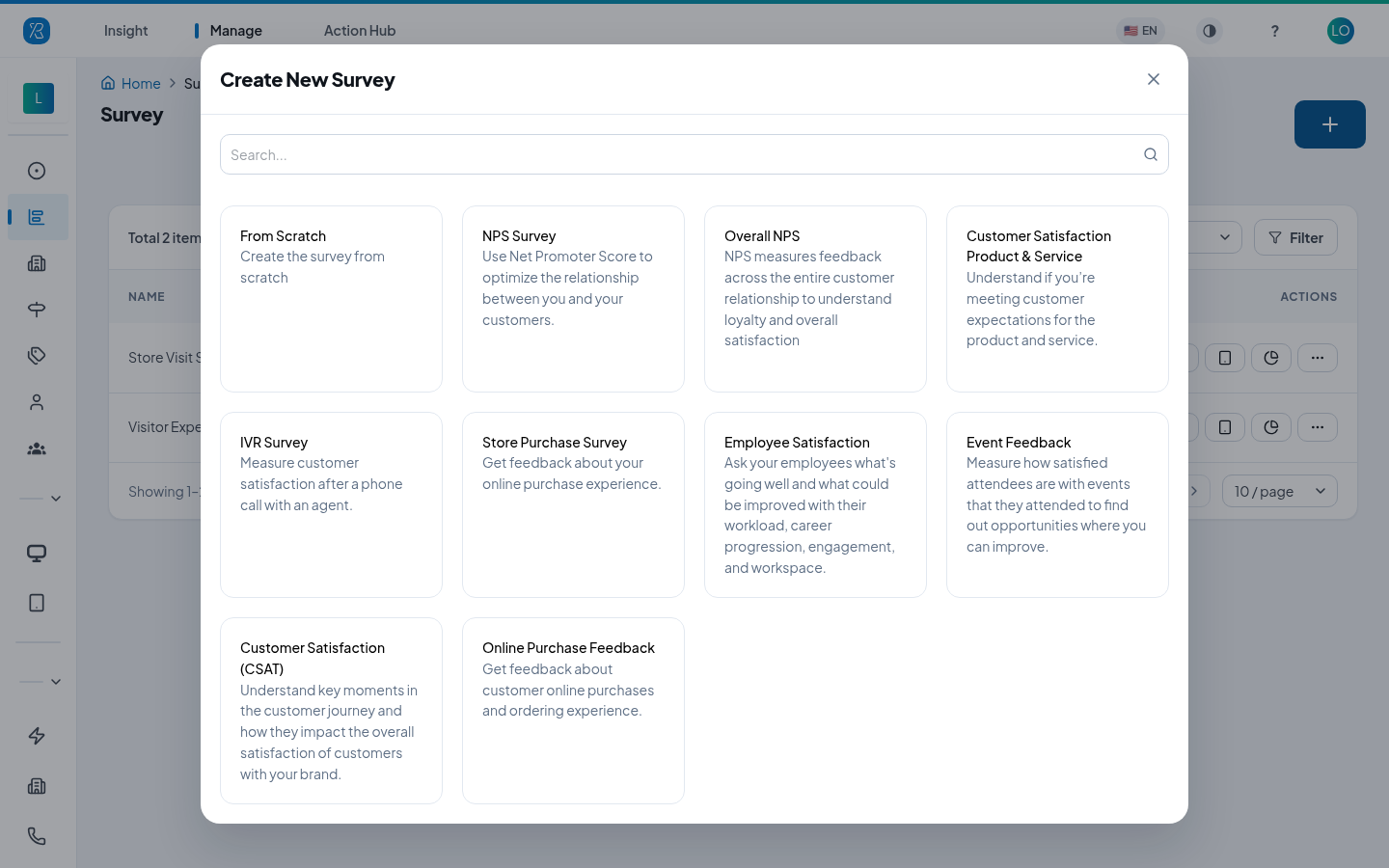
There are nine templates: NPS Survey, Overall NPS, Customer Satisfaction Product & Service, IVR Survey, Store Purchase Survey, Employee Satisfaction, Event Feedback, Customer Satisfaction (CSAT), and Online Purchase Feedback. Use the search box at the top of the window to find one by name. A template is only a starting point: you can reword every question in it, and delete the ones you do not want.
From Scratch starts with an empty list. Templates come with their own intro and thank-you statements.
How a survey runs
A survey is one list of elements: questions, contact fields and text-only statements. The respondent goes through the list from top to bottom.
Any element can have a Show when rule, which says which earlier answers make it appear. An element whose rule does not hold is skipped. An element with no rule is always shown.
That is all there is to branching. There are no "jump to question 5" or "end survey" rules: to ask something only of unhappy customers, put it in the list and give it Show when: the rating is Dissatisfied.
Surveys you built before this change were converted automatically, so they look and behave as before.
Build and edit a survey
Click the pencil icon on a row to open the survey builder.
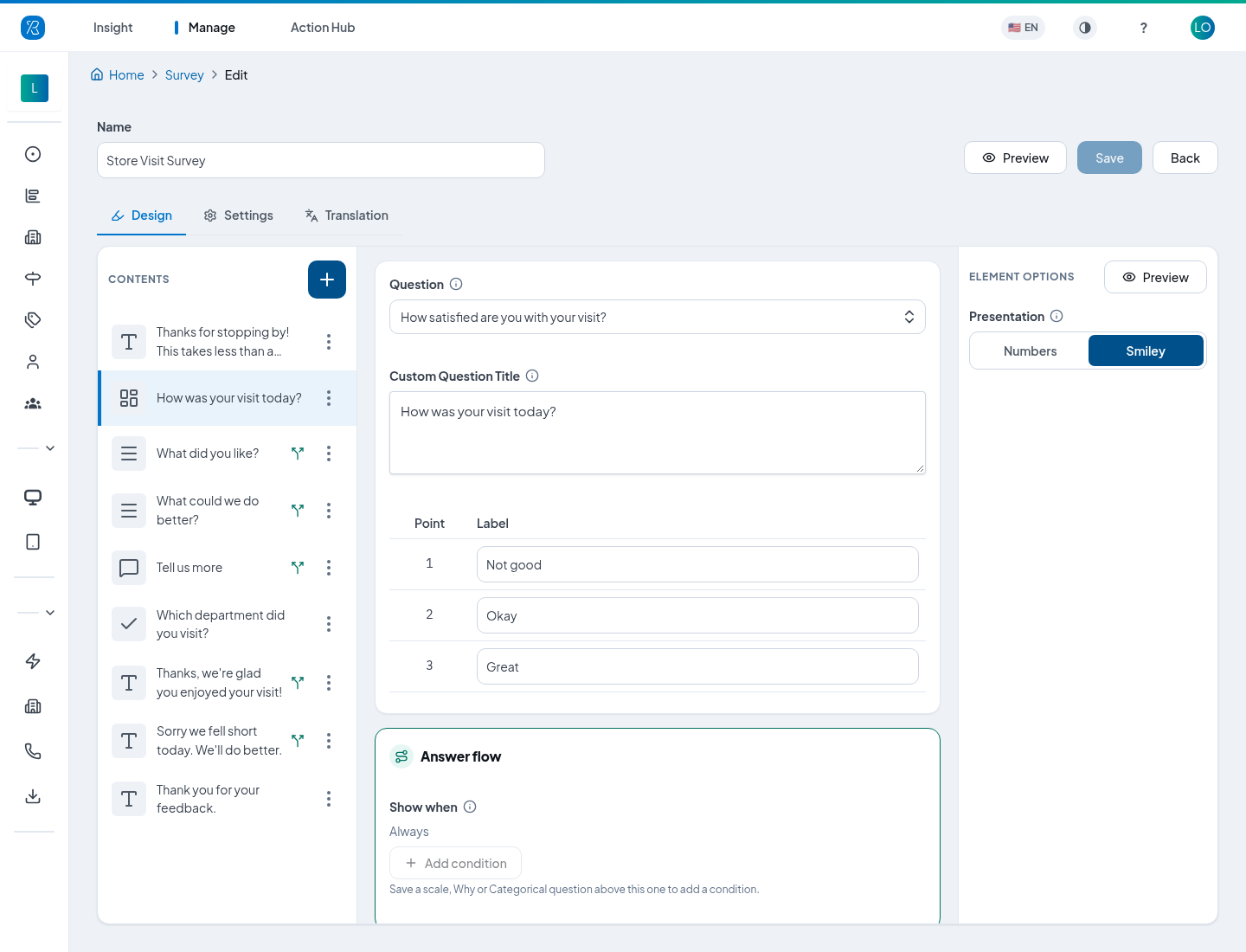
The builder has three tabs:
- Design: the questions themselves.
- Settings: how the survey looks and behaves.
- Translation: the same survey in other languages.
On the Design tab, the Contents list on the left is the order the elements are asked in. Click an item to edit it in the middle panel; its own settings are in Element Options on the right. Drag an item to move it. The three-dot menu on an item has Duplicate and Delete.
A small branch icon next to an item means it has a Show when rule, so not everyone sees it.
Statements are ordinary elements: you can put one anywhere, including first (an intro) and last (a thank-you), and you can have several.
Click Preview to see the survey the way a customer will. Click Save when you are done, or Back to leave without saving.
The example above is a short "Store Visit Survey": an intro, a smiley rating, a Why question for happy customers and another for unhappy ones, a "Tell us more" comment, a Categorical question, and a different thank-you for happy and unhappy customers.
Add an element
Click the + above the Contents list.
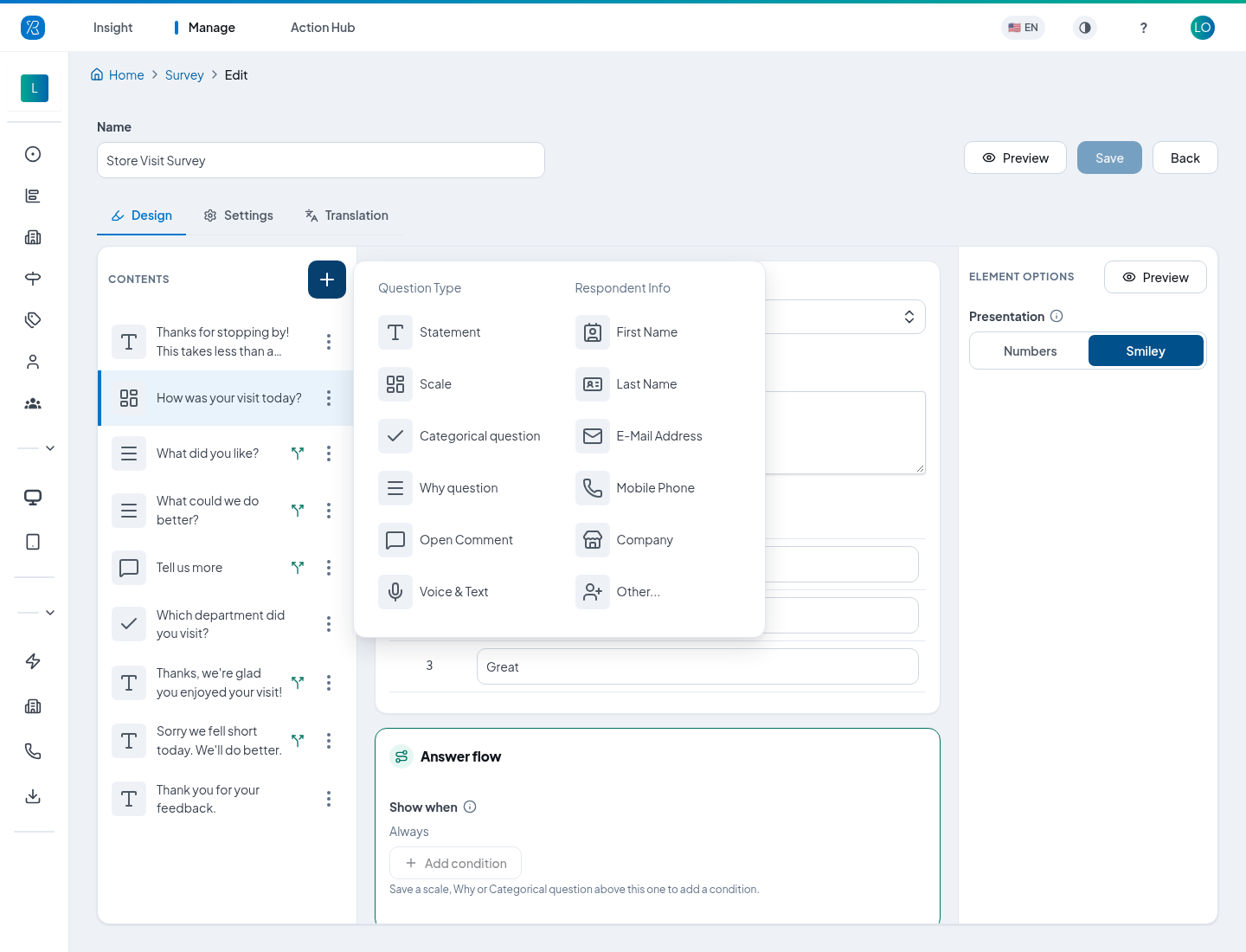
Question Type
- Statement: text only, no answer. Use it for an intro, instructions, a section heading or a thank-you.
- Scale: a rating on 3, 5, 7, 10 or 11 points, shown as numbers or as smiley faces.
- Categorical question: pick one or several from a list of choices, such as "Which department did you visit?". This used to be called Multiple Choice.
- Why question: pick the reasons behind a rating, such as Staff or Wait time. This used to be called ABC Choice.
- Open Comment: a free text box.
- Voice & Text: the person can speak their answer or type it.
"Multiple selection" is not a question type: it is a setting on a Categorical or Why question that lets the respondent pick more than one answer.
Respondent Info
- First Name, Last Name, E-Mail Address, Mobile Phone, Company: collect contact details.
- Other…: a custom field you name yourself.
Scale question
- Question: pick a ready-made question from your library. The answer is recorded against it.
- Custom Question Title: the wording the customer actually sees.
- Point / Label: the words for each point on the scale, such as "Great".
- Presentation (in Element Options): Numbers shows the points as numbered buttons. Smiley shows three faces: sad, neutral and happy. A Smiley scale always has three points. The point labels name the faces for screen readers.
How the faces are drawn is set once for the whole survey, under Smiley look on the Settings tab.
A scale is only a scale. To ask why someone gave a rating, or to ask for a comment about it, add a Why question or an Open Comment after it as a follow-up (see below).
Why question
A Why question asks for the reasons behind an answer. Customers tap one or more whys from your Why categories.
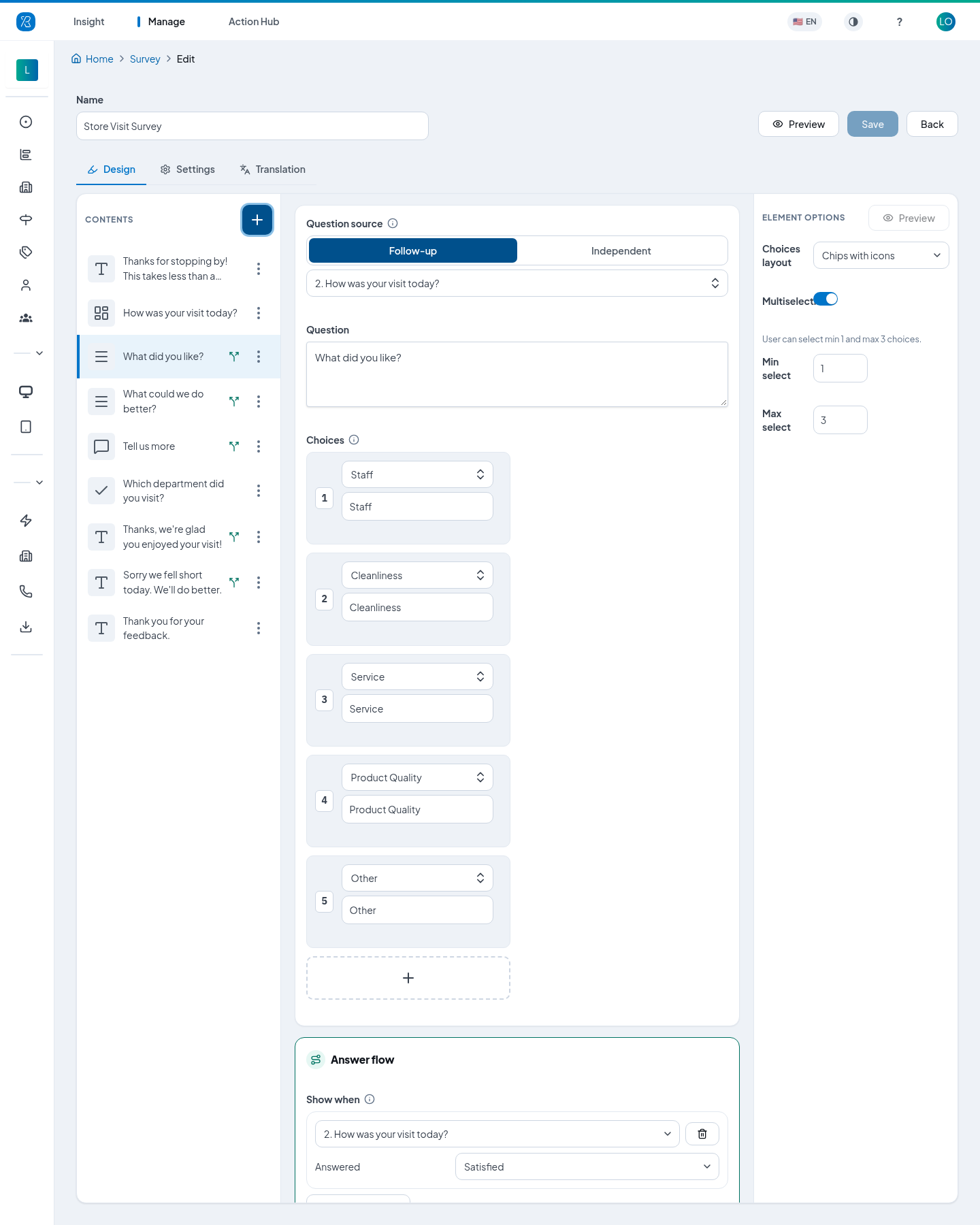
At the top, Question source has two options:
- Follow-up: the question follows an earlier scale question, which you pick from the list. Each why a respondent picks takes the mood of the point they chose on that scale, and the report lists these whys under that scale. You do not need a question from the library.
- Independent: a question of its own, backed by a positive or negative question from your library, which decides the mood.
A new Why question starts as a follow-up of the nearest saved scale question above it. Only saved scale questions above it can be followed. If there is none, the editor shows Missing scale question.
Then:
- Question: the wording the customer sees, such as "What did you like?".
- Choices: the whys to offer, one per slot. Click the + under them to add another. Other is the why that comes with a free comment box; add it like any other why.
- Choices layout (in Element Options): List, or Chips with icons, which shows each why as a rounded button with its icon.
- Multiselection: turn on to let the respondent pick several, then set Min select and Max select.
The usual setup is one follow-up Why question per mood, each with its own Show when: "What did you like?" for satisfied customers, "What could we do better?" for neutral and dissatisfied ones.
Open Comment
An Open Comment has the same switch, with Follow-up or Standalone. A follow-up comment is listed under its scale question in the report, with the mood of the point picked there. A standalone comment is reported on its own. Turn on Required to stop the respondent moving on with an empty box.
Categorical question
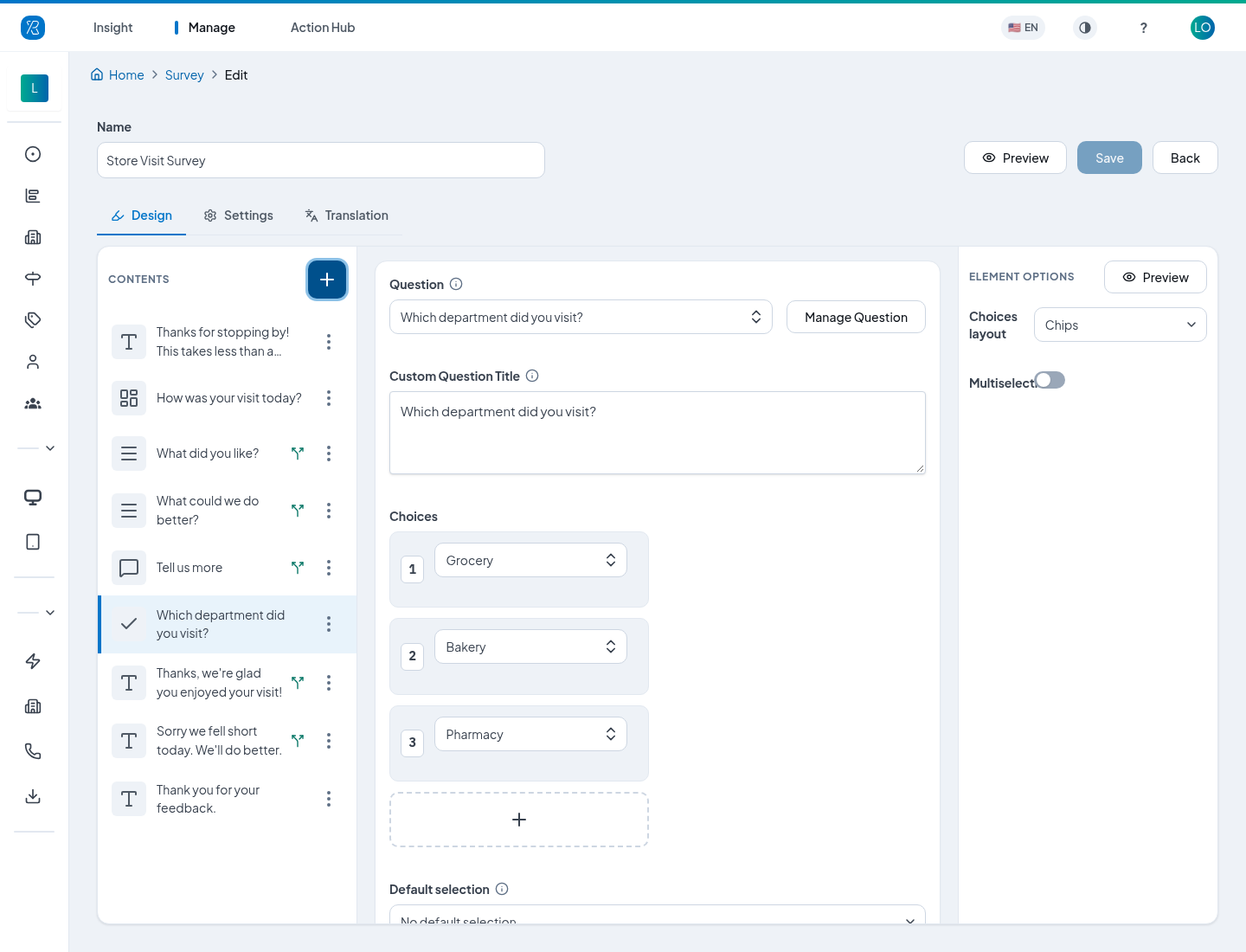
- Question: pick the question from your library, or click Manage Question to edit the library.
- Custom Question Title: the wording the customer sees.
- Choices: the answers to offer.
- Default selection: choices that start out already selected. Leave it on No default selection for most surveys.
- Choices layout: List, Button group, or Chips (text only).
- Multiselection: let the respondent pick several.
Chips have a minimum width, so short labels still read as a button.
Show when
Every element has an Answer flow card below it, with its Show when rule. Always means everyone sees the element.
To show an element only to some respondents:
- Click Add condition.
- Pick an earlier question. Only saved Scale, Why and Categorical questions above this element are listed.
- Under Answered, pick the answers that make it appear:
- for a Scale question, the moods: Satisfied, Neutral, Dissatisfied;
- for a Why question, the whys;
- for a Categorical question, the choices.
The respondent sees the element if they gave any of the chosen answers.
Several conditions: all or any
Add a second condition and a switch appears above them:
- When all conditions hold: every condition must be met.
- When any condition holds: one is enough.
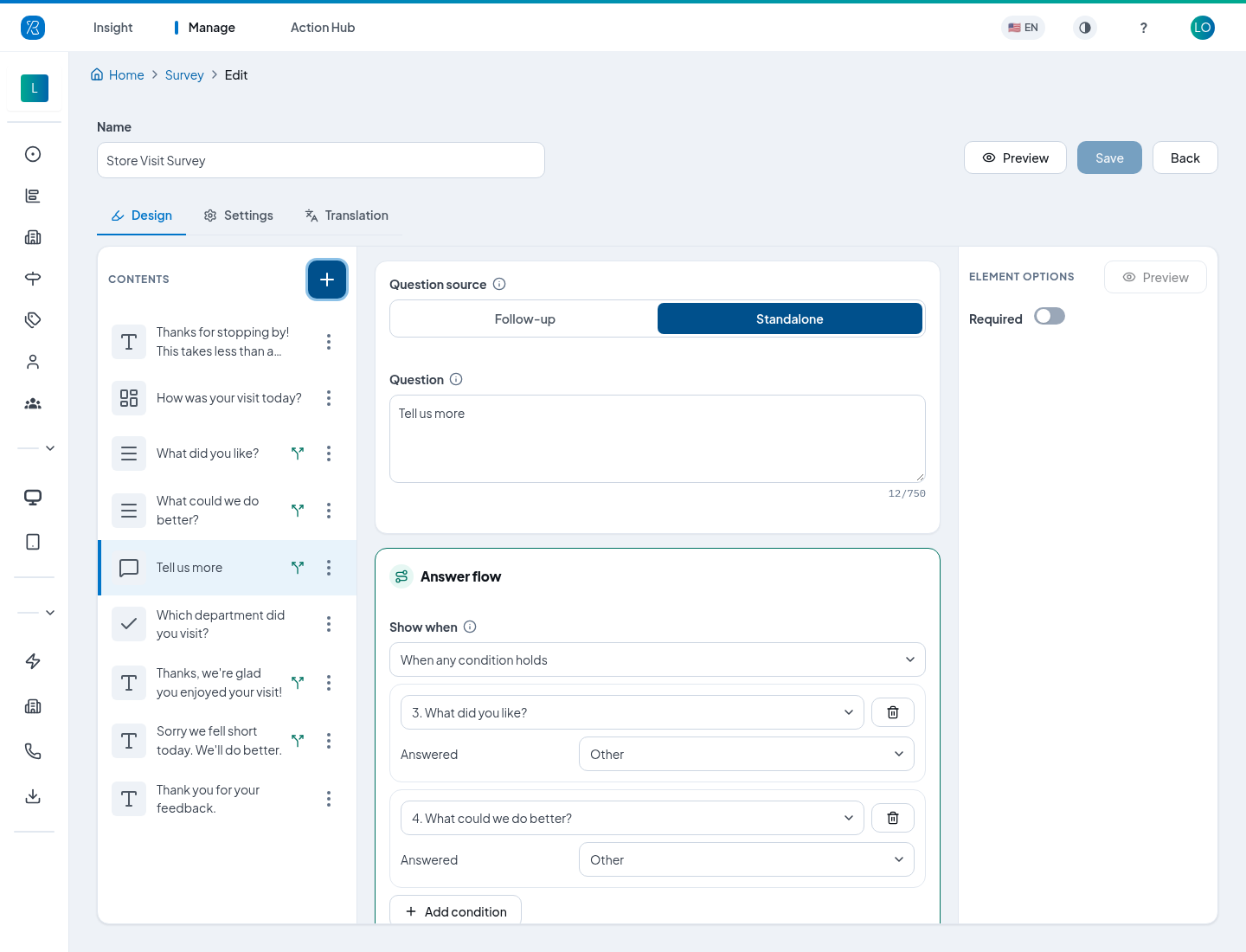
In the example, "Tell us more" is shown when the happy customer's why is Other or the unhappy customer's why is Other, so everyone who picks Other is asked to explain.
Good to know
- A condition can only look at questions above the element. If you delete or move a question that a condition relies on, the editor marks the condition (Missing question or Missing answer) and will not save until you fix it.
- If the respondent never answered the question a condition looks at (they skipped it, or it was hidden), the condition is not met and the element stays hidden.
- If a respondent goes back and changes an answer so that a later question no longer applies, the answer they gave to that question is dropped. On a One Pager this happens as they change it. Only the answers to questions still shown at the end are submitted.
A different thank-you for each mood
Add several statements at the end of the survey, each with its own Show when. The respondent sees the first one whose rule matches, so put a statement with no rule last, as the default.
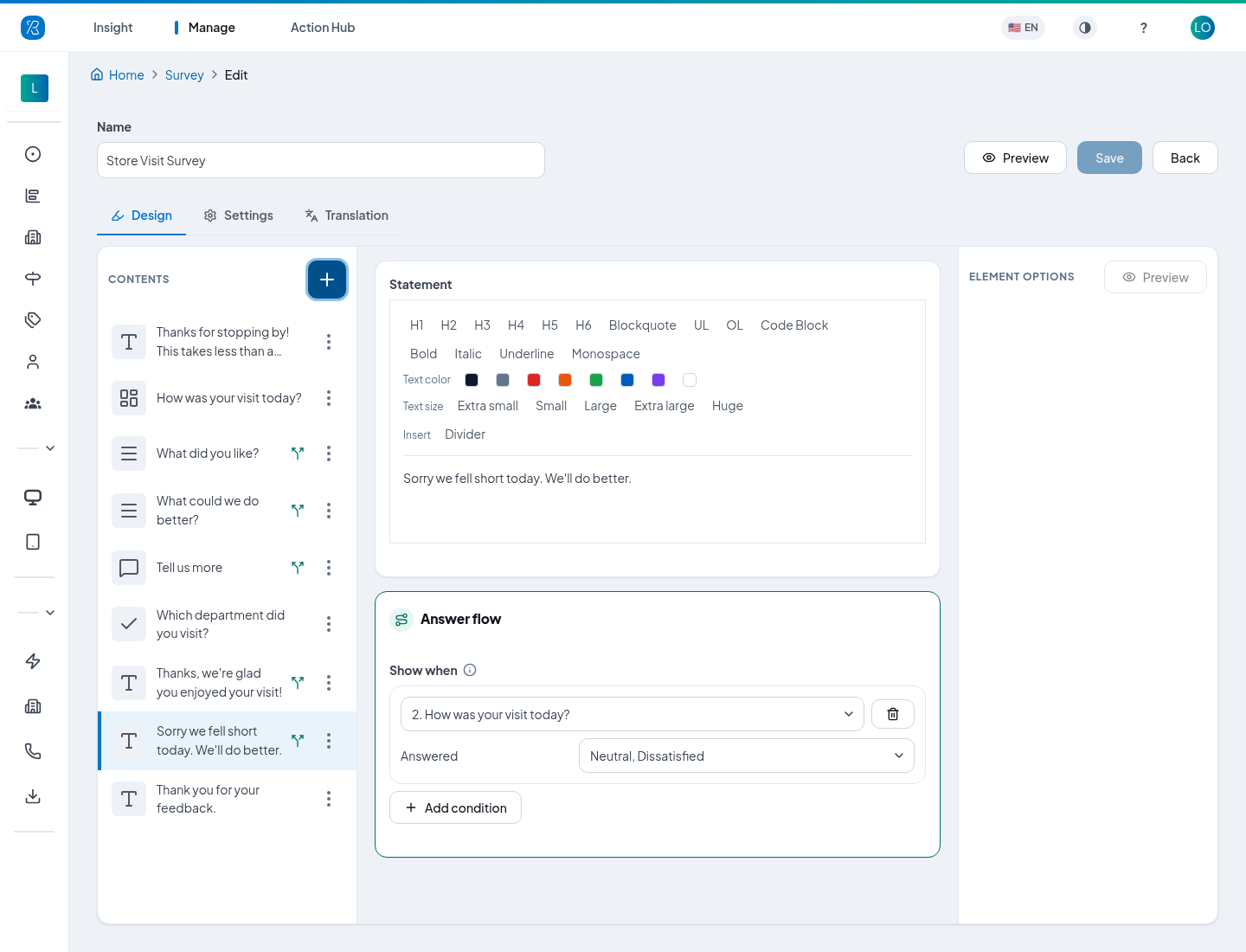
For example:
- "Thanks, we're glad you enjoyed your visit!": Show when the rating is Satisfied.
- "Sorry we fell short today. We'll do better.": Show when the rating is Neutral or Dissatisfied.
- "Thank you for your feedback.": no rule.
What the respondent sees
Here is the example survey on a phone, for a happy customer who picks Other and for an unhappy one.
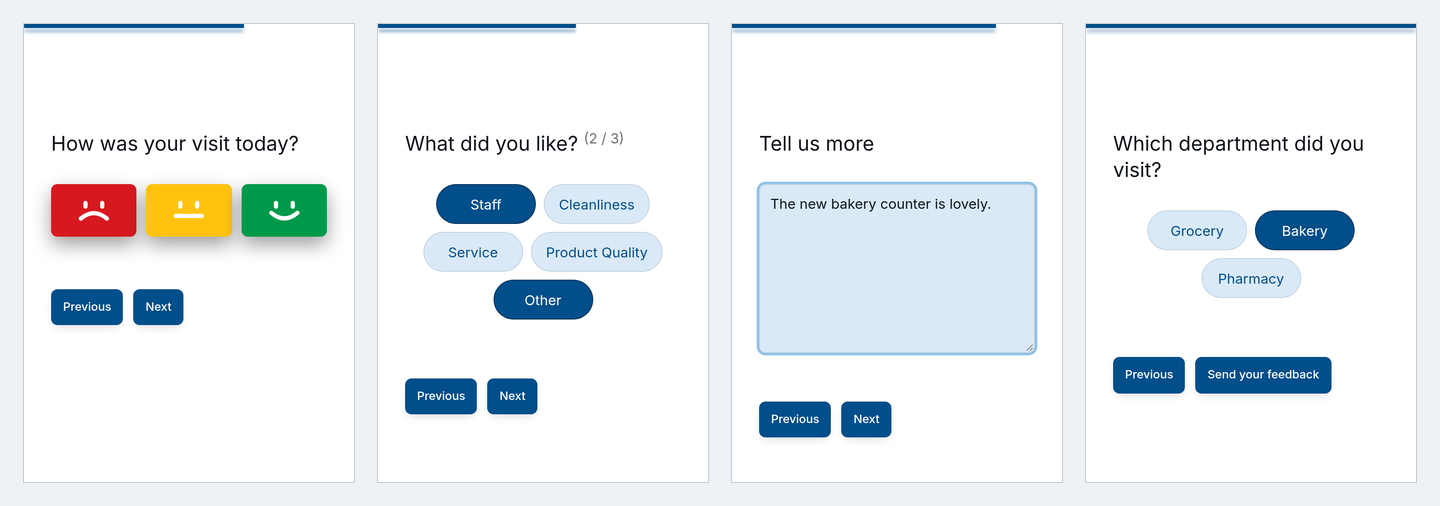
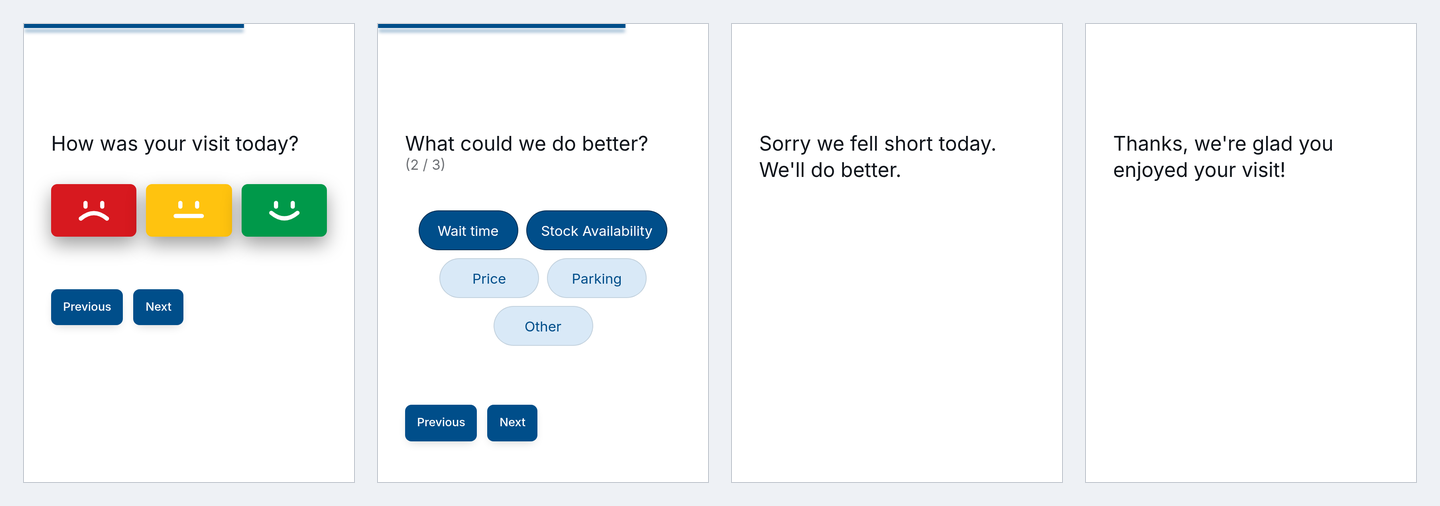
The unhappy customer did not pick Other, so they never see "Tell us more".
Settings
The Settings tab controls how the survey looks and behaves. A live preview on the right switches between Phone and Desktop.
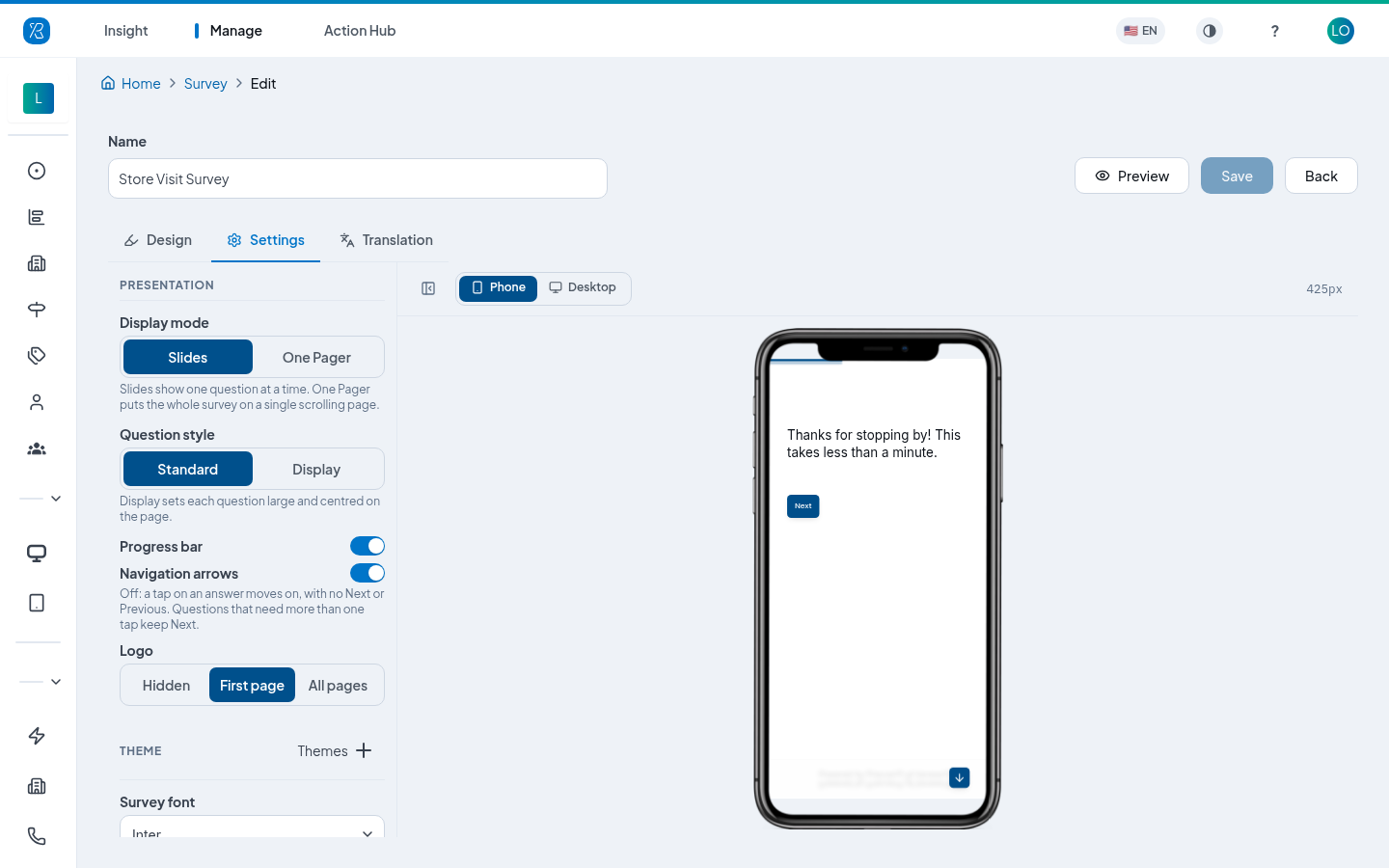
Presentation
- Display mode: Slides shows one question at a time. One Pager puts the whole survey on a single scrolling page.
- Question style: Standard, or Display, which sets each question large and centred on the page, with smileys filling the row. Display is meant for tablets and screens.
- Progress bar: a bar along the top showing how far the respondent has got. Tablets show it too.
- Navigation arrows: see Tap to advance below.
- Logo: Hidden, First page only, or All pages.
Theme
- Themes: ready-made colour themes, from light to dark, including White, Cream, Stone, Charcoal and Midnight Blue.
- Survey font: Roboto, Inter, Work Sans, Nunito, Poppins, Lora, IBM Plex Sans, Cabin Condensed or Atkinson Hyperlegible.
- The colours of the page, the questions, the answers and the buttons. Each colour pair shows a contrast number so you can check the text stays readable.
Smiley look
This section only appears when at least one Scale question uses Smiley. It applies to every smiley question in the survey.
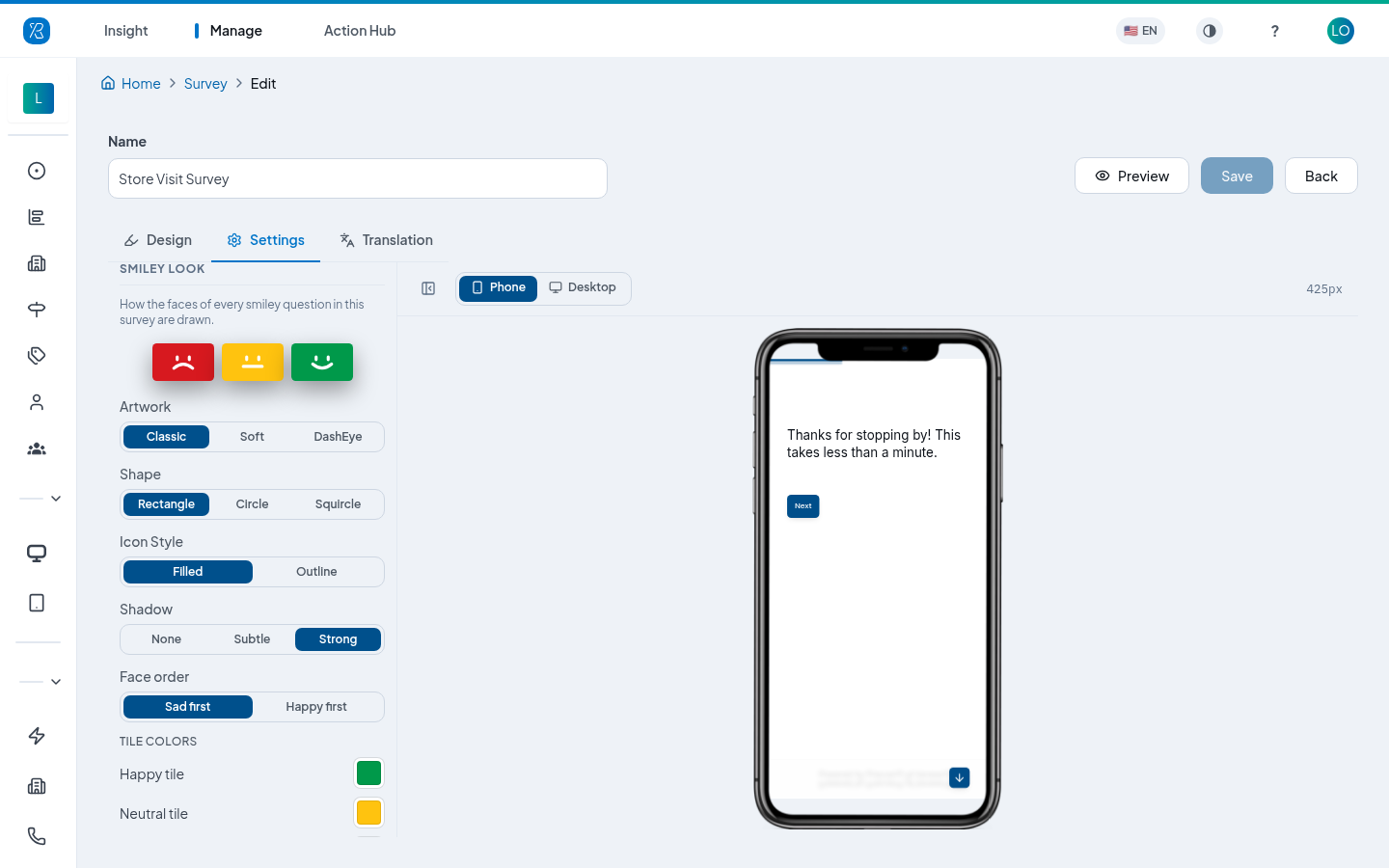
- Artwork: Classic, Soft or DashEye faces.
- Shape: Rectangle, Circle or Squircle tiles.
- Icon Style: Filled or Outline.
- Shadow: None, Subtle or Strong.
- Face order: Sad first or Happy first.
- Tile colors and Face colour, with a Face contrast readout. 3:1 or more is comfortable at kiosk distance.
Tap to advance
Turn Navigation arrows off and the survey moves on as soon as an answer is tapped:
- There is no Previous button, and no Next on questions a single tap answers: a scale, a smiley, or a single-choice Categorical or Why question (list or chips).
- If the last question is a one-tap question, tapping the answer submits the survey. There is no Submit button.
- Questions that need more than one tap keep their button: multiple selection, comments (which get a Send button), voice, and respondent info.
- A One Pager has no pages to move between, so it keeps its Submit button.
Tablets and the phone survey behave the same way.
Put the survey live
A survey only reaches customers once a touchpoint uses it. On the Touchpoint screen, set the touchpoint to survey mode and pick this survey. It then appears in the Connected Touchpoints column here.
For a QR code, widget or signature link, you can later switch the touchpoint to a different survey and the links you already handed out open the new one. See QR Feedback Collector.
See the answers
Click the tablet icon on a row to open Responses.
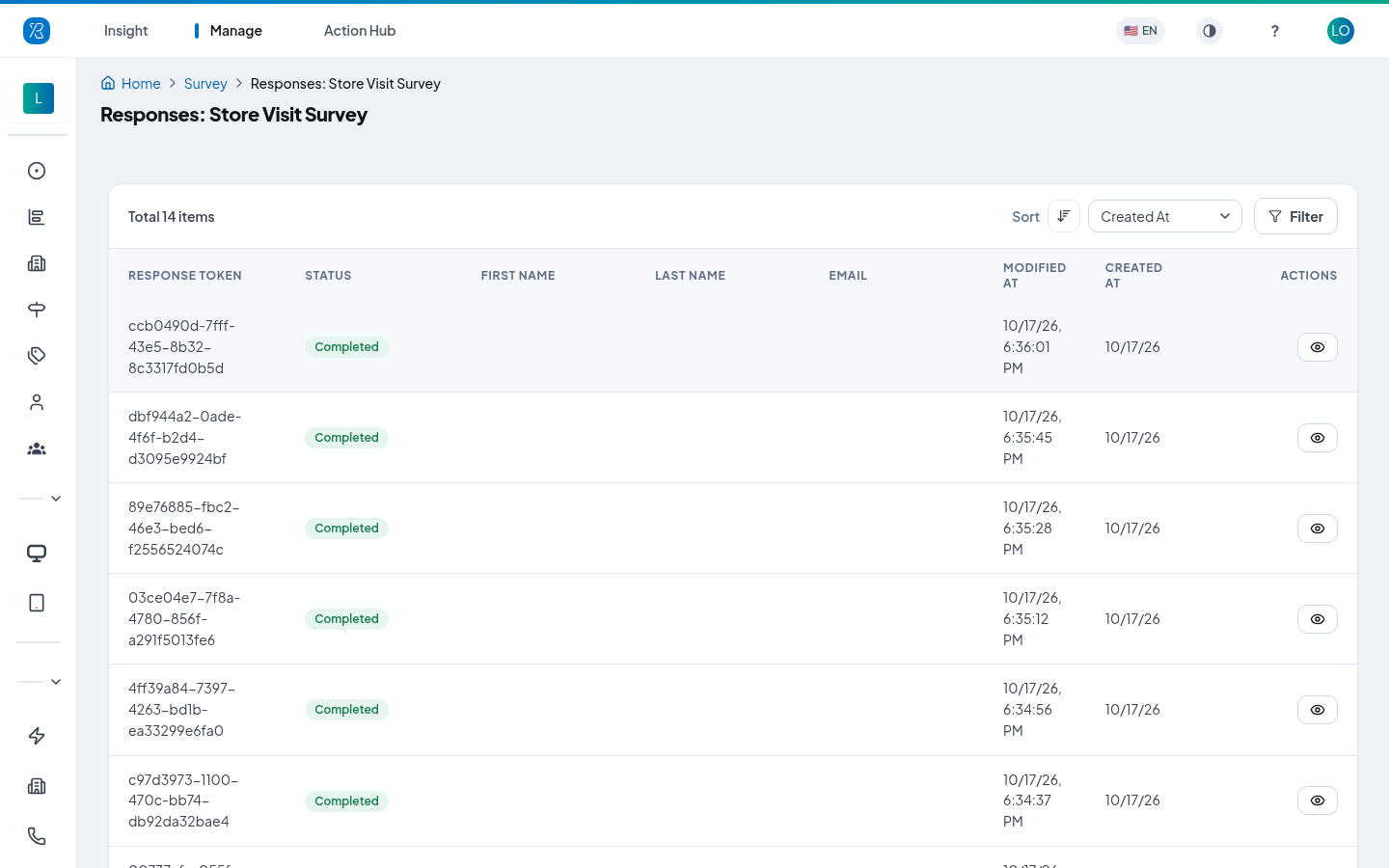
Each row is one person's session:
- Response token: a code for that one session.
- Status: Opened (they saw it but answered nothing), In Progress (they started and stopped), or Completed (they finished).
- First name, Last name and Email: filled in only if the survey asked for them.
- Modified at and Created at: when they last answered and when they started.
Use Filter to show only one status. Click the eye icon on a row to read that person's full set of answers.
See the report
Click the pie chart icon on a row to open the survey report: the results of every question, added up across all responses. See Survey Report for how to read it.
To send each answer to your own system as it arrives, use a webhook.
Other row actions
The three-dot menu at the end of a row holds two more actions:
- Copy: make a duplicate you can edit without touching the original.
- Preview: open the survey in a new tab exactly as a customer sees it. Nothing you do in preview is recorded as a response.