User Access Management
The Users screen is where you add people to your dashboard, decide which locations and feedback they can see, and turn their access off when they leave.
Go to Manage > Users. You need the Create User permission to add or change a user.
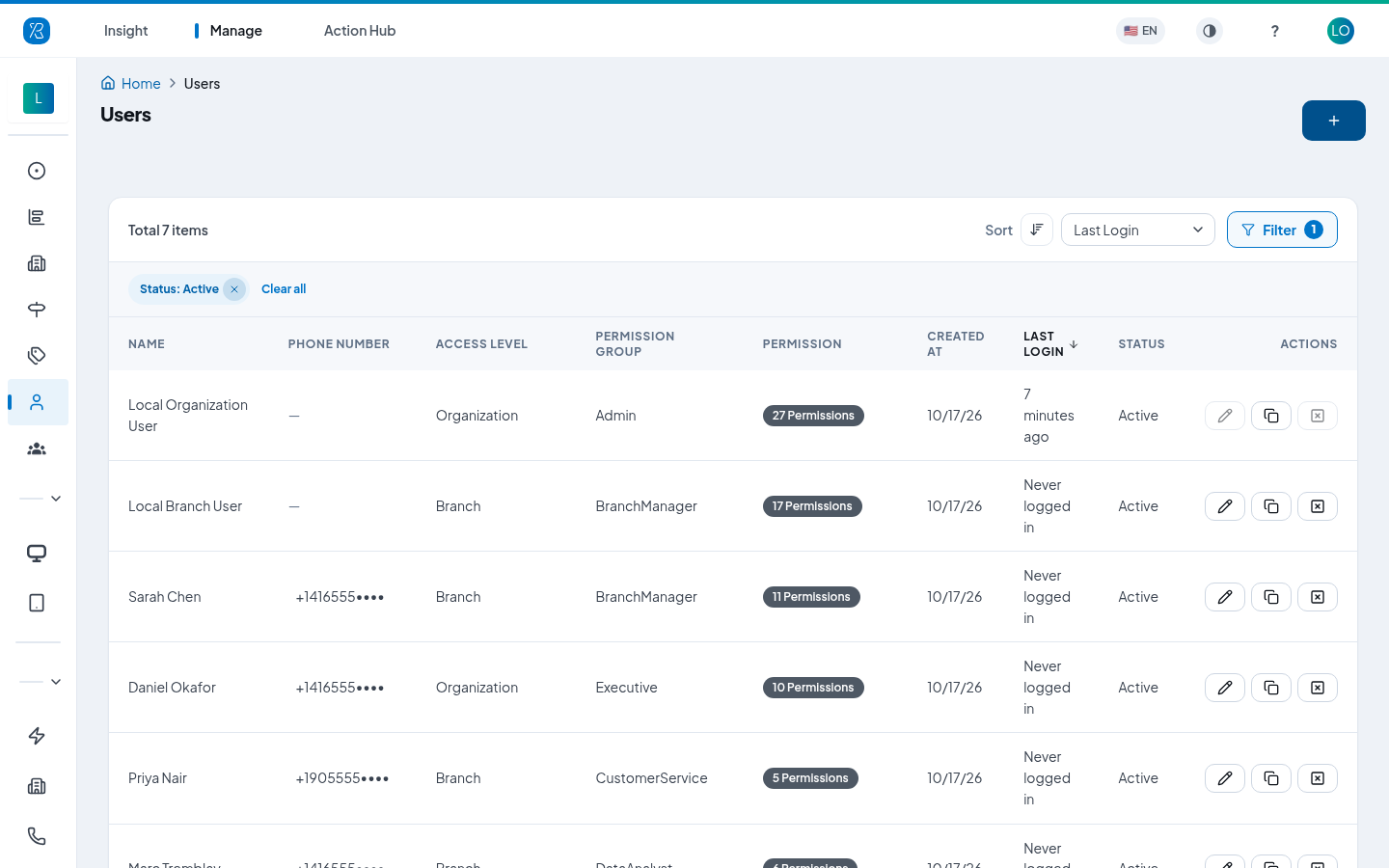
Each row shows the person's name, phone number, Access Level (how much data they can see), Permission Group (their role), how many permissions they have, when they were added, when they last signed in, and whether they are Active.
Use Filter to search by email, role or status, and Sort to reorder the list. The list opens showing Active users only.
Add a user
- Click the blue + button at the top right.
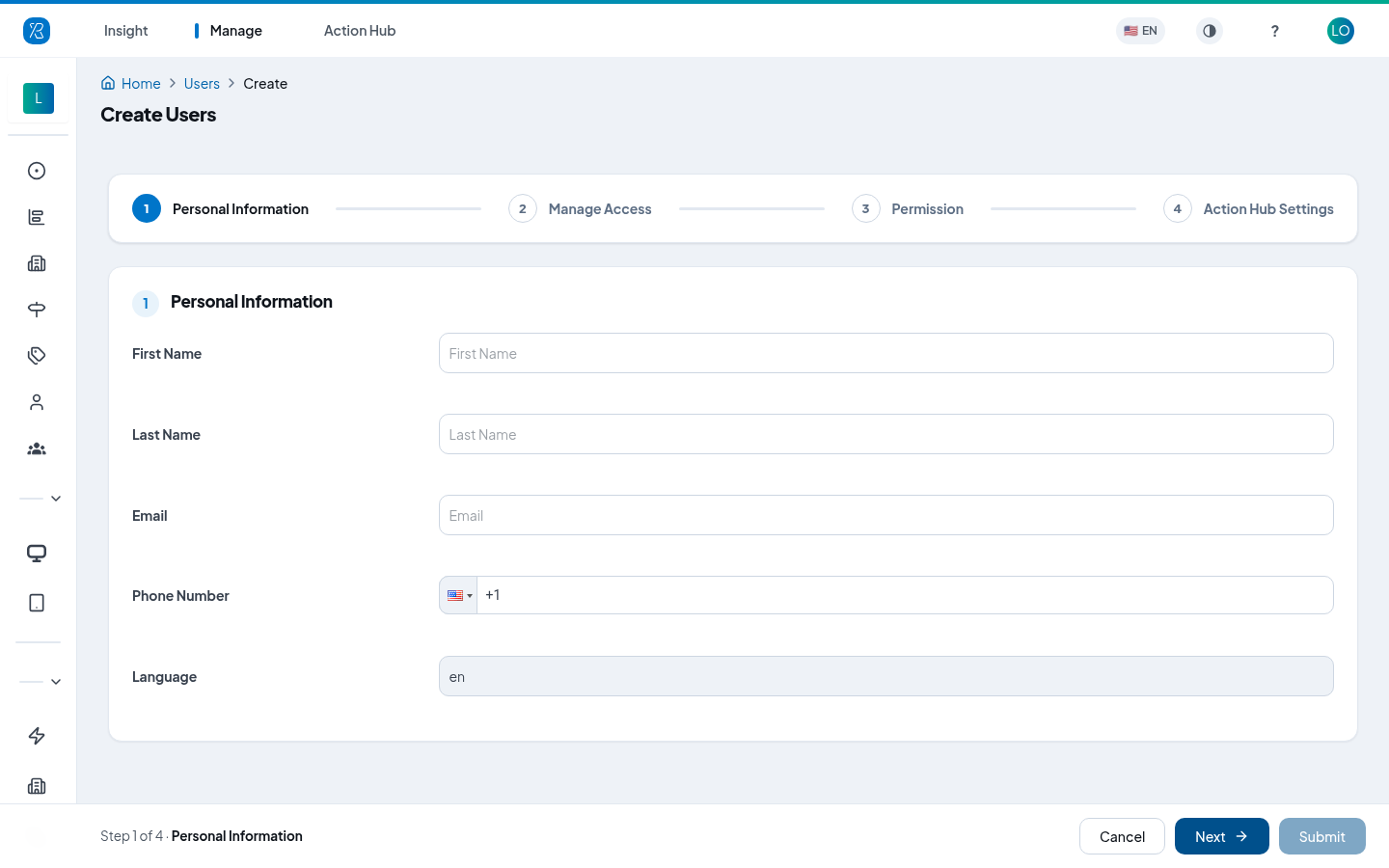
- Fill in Personal Information. First name, last name, a valid email and a valid phone number are all required. The person signs in with this email.
- Click Next.
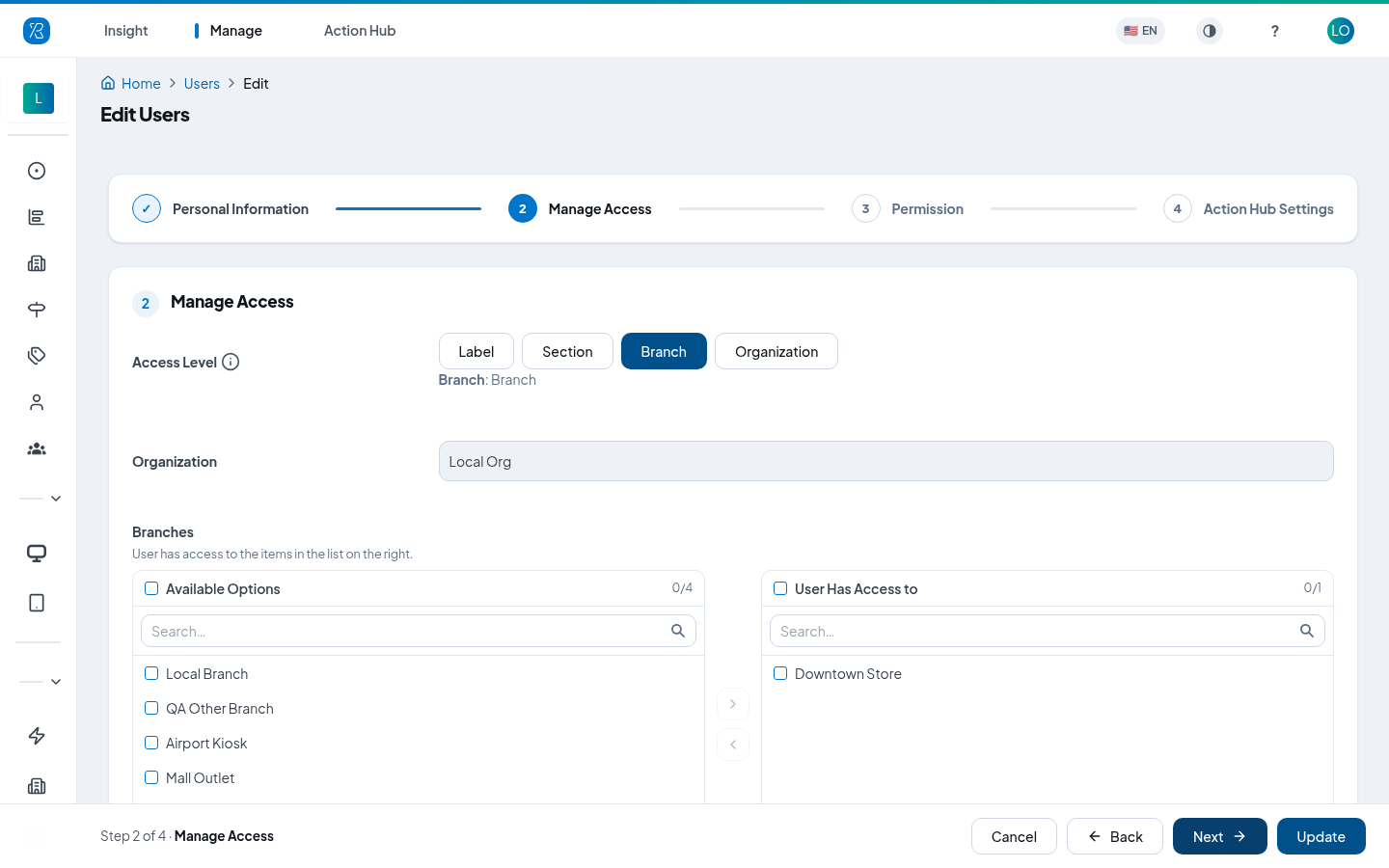
- On Manage Access, pick an Access Level. This decides how much of your data the person can see. See the list below.
- If you picked Branch, Section or Label, move the branches, sections or labels the person should see from Available Options into User Has Access to. Tick a row, then click the arrow. Use the search box for long lists.
- Click Next.
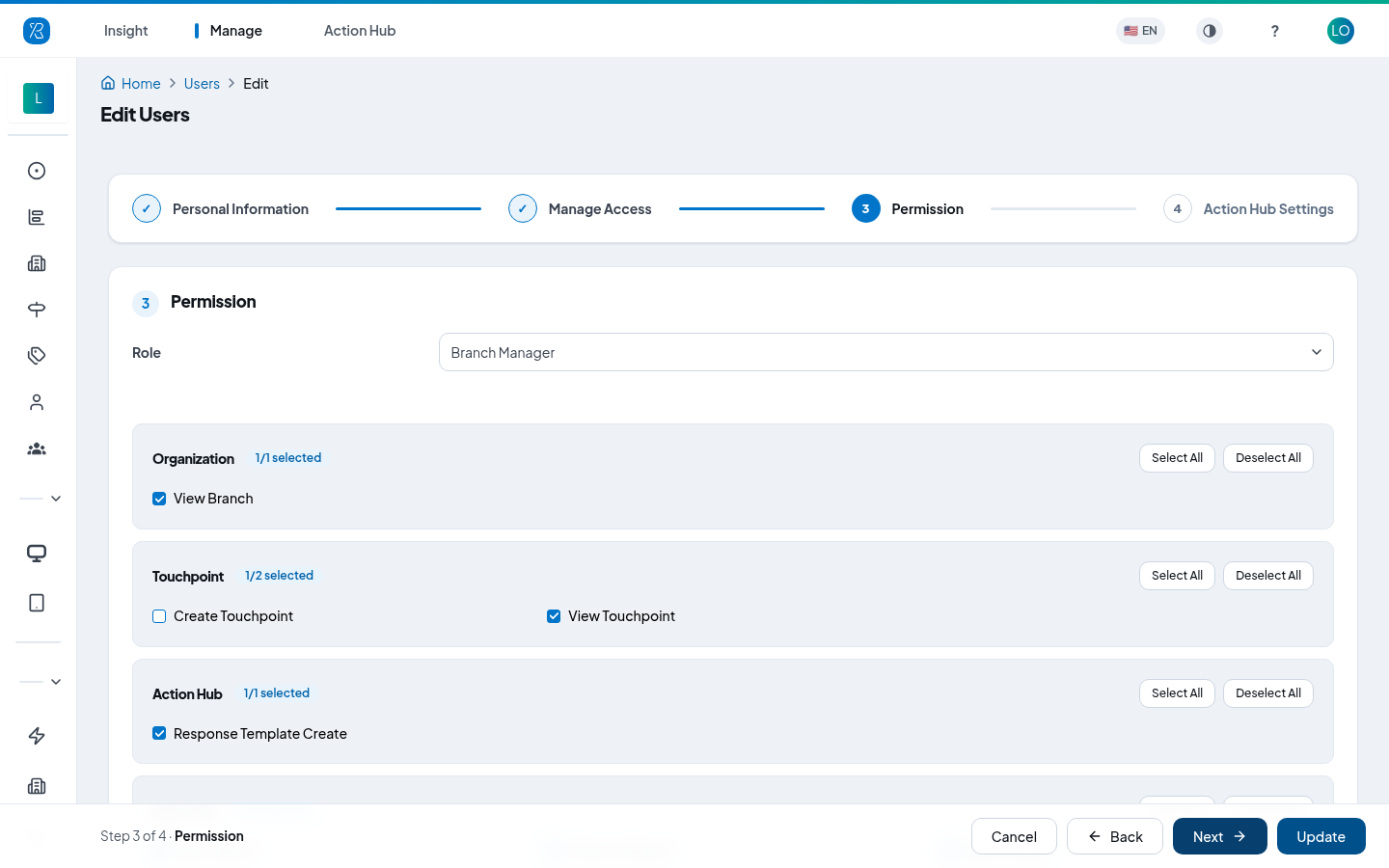
- On Permission, pick a Role. The permission checkboxes fill in automatically with that role's defaults.
- Tick or untick individual permissions if you need to. Each group has Select All and Deselect All.
- Click Next.
- On Action Hub Settings, choose whether the person can work on customer conversations. See Action Hub access below.
- Click Submit.
There is no password field. The person is invited by email and sets their own password. Until they sign in, their Last Login shows "Never logged in".
Access levels
Access level controls which feedback the person sees. Pick the narrowest one that still lets them do their job.
- Organization — sees the whole organization and every branch.
- Branch — sees only the branches you pick.
- Section — sees only the branch sections you pick, for example Downtown/Cashier.
- Label — sees only feedback carrying the labels you pick.
Two wider levels exist for accounts that span several organizations — Multiple Organizations and All — but you only see them if your own access is that wide.
You can only grant an access level that is the same as yours or narrower. An organization-level admin cannot create an "All" user.
Limit a user to certain branches
Choose Branch, then move the branches into User Has Access to. The person's reports, exports and Action Hub only ever show those branches. Your branches are set up on the Branch Management screen.
Limit a user to certain labels
Choose Label, then move the labels into User Has Access to. The person only sees feedback that carries one of those labels. This is useful when a team owns a topic rather than a location — for example a product team that should only read feedback labelled Delivery.
Set your labels up first on the Label Management screen.
Roles and permissions
A Role is a ready-made bundle of permissions. Picking one ticks its permissions for you; you can then adjust them for this one person.
These are the roles on a standard account, widest first:
| Role | Needs at least | Typically used for |
|---|---|---|
| SuperAdmin | All | Press'nXPress staff. |
| AccountManagerEdit | Multiple Organizations | Someone looking after several organizations who also makes changes. |
| AccountManagerView | Multiple Organizations | Someone reading across several organizations. |
| Admin | Organization | The person who runs the account: users, branches, touchpoints, labels, settings. |
| BranchManager | Branch | A store or site manager. |
| Executive | Branch | A leader who reads reports but does not set things up. |
| CustomerService | Section | Someone answering customers about one part of a site. |
| DataAnalyst | Label | Someone digging through reports and exports. |
| Agent | Label | A front-line employee seeing their own feedback. |
The Needs at least column is the narrowest access level the role can be given. A role only appears in the dropdown if the access level you picked in step 4 is that wide or wider — so Admin is not offered to a branch-level user.
The ticked checkboxes under the dropdown are the exact truth for a role. Pick a role and read them before you submit. Your account may have extra roles, or roles with different permissions from the defaults.
Access level also caps the permissions on offer. Branch, Section and Label users can be given reporting and conversation permissions; management permissions such as Create User, Create Branch or Workflow only appear at Organization level or above.
Permissions are grouped by area — Reporting, Journey Map and Survey among them — and each group shows how many of its permissions are ticked.
Action Hub access
Action Hub is the one place to see the history of feedback and conversation with a customer. The last step of the form decides a person's part in it.
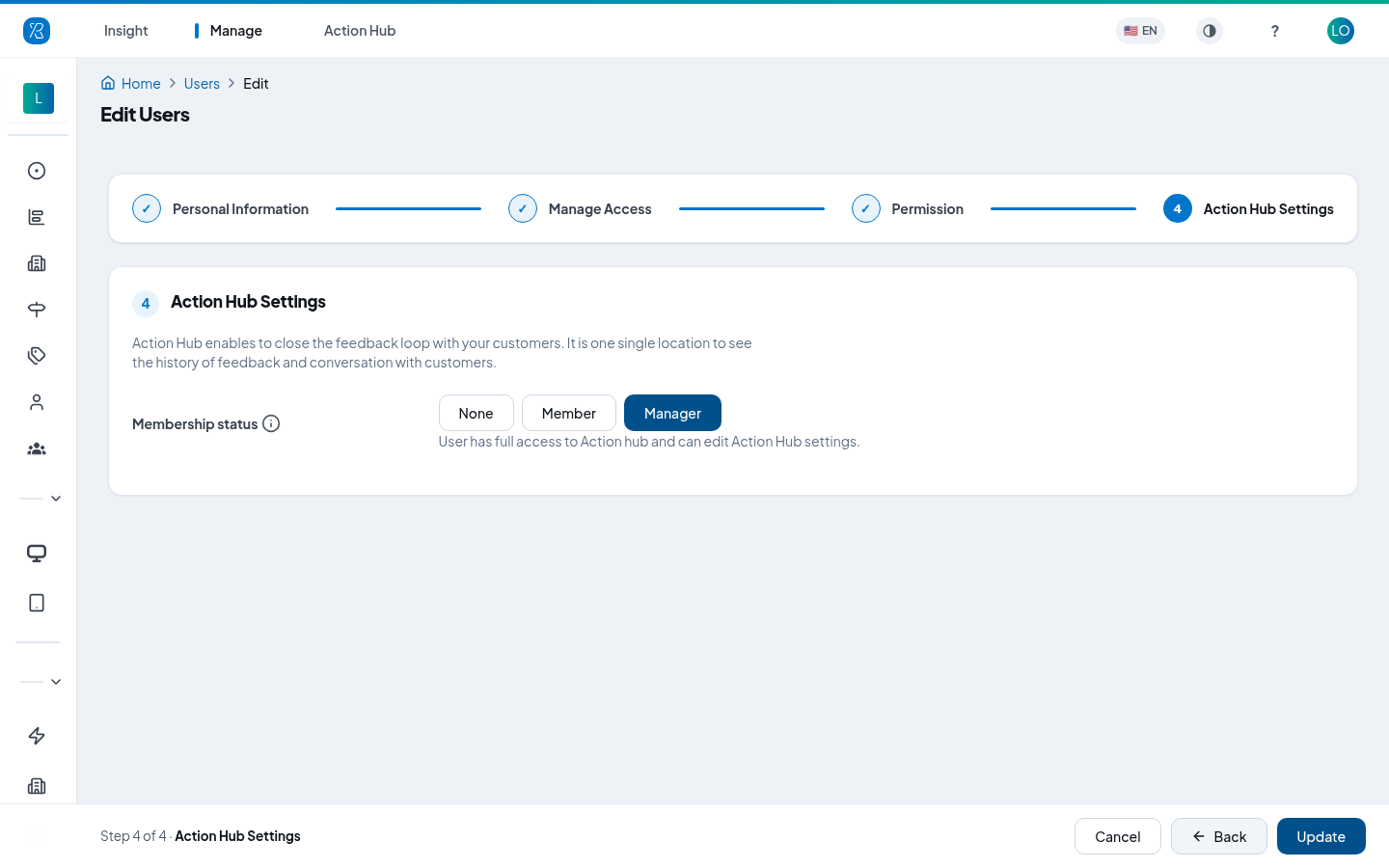
- None — no access to Action Hub.
- Member — can use Action Hub but cannot change its settings.
- Manager — full access, including Action Hub settings.
Edit a user
- Go to Manage > Users and find the person.
- Click the pencil icon under Actions.
- Move through the same four steps and change what you need. Email and phone number cannot be changed here.
- Click Update. You do not have to visit every step first.
You cannot edit your own row from this screen.
Copy a user
Click the copy icon under Actions to start a new user with the same access level, role and permissions already filled in. You only type the new person's name and email. This is the quickest way to onboard a second person into an existing team.
Deactivate a user
Deactivating blocks sign-in but keeps the person's history.
- Go to Manage > Users and find the person.
- Click the Deactivate icon under Actions — the square with a cross in it.
- A message asks Are you sure to Deactivate this user? Confirm it.
To bring someone back, set the Status filter to Inactive or All, find the person and click Activate.
[NOTE] You cannot deactivate your own account.