Touchpoint Report
A touchpoint is one place where you collect feedback — a tablet at the exit, a QR code on a receipt, an SMS after a visit. Touchpoint Report is the full story of a single one of them: every question it has ever asked, when it asked it, and what people answered.
Use it when you want to know how one kiosk or one survey link is doing, or what the question on it used to be before someone changed it.
Open the report
There are two ways in.
- From the Insight top menu, choose Touchpoint Report in the left list.
- From Manage → Touchpoints, open the actions on a touchpoint row and click Touchpoint Report. This opens the report for that touchpoint straight away. See Touchpoint Management.
Pick a touchpoint
If you came in from the menu, the page asks you to choose one first.
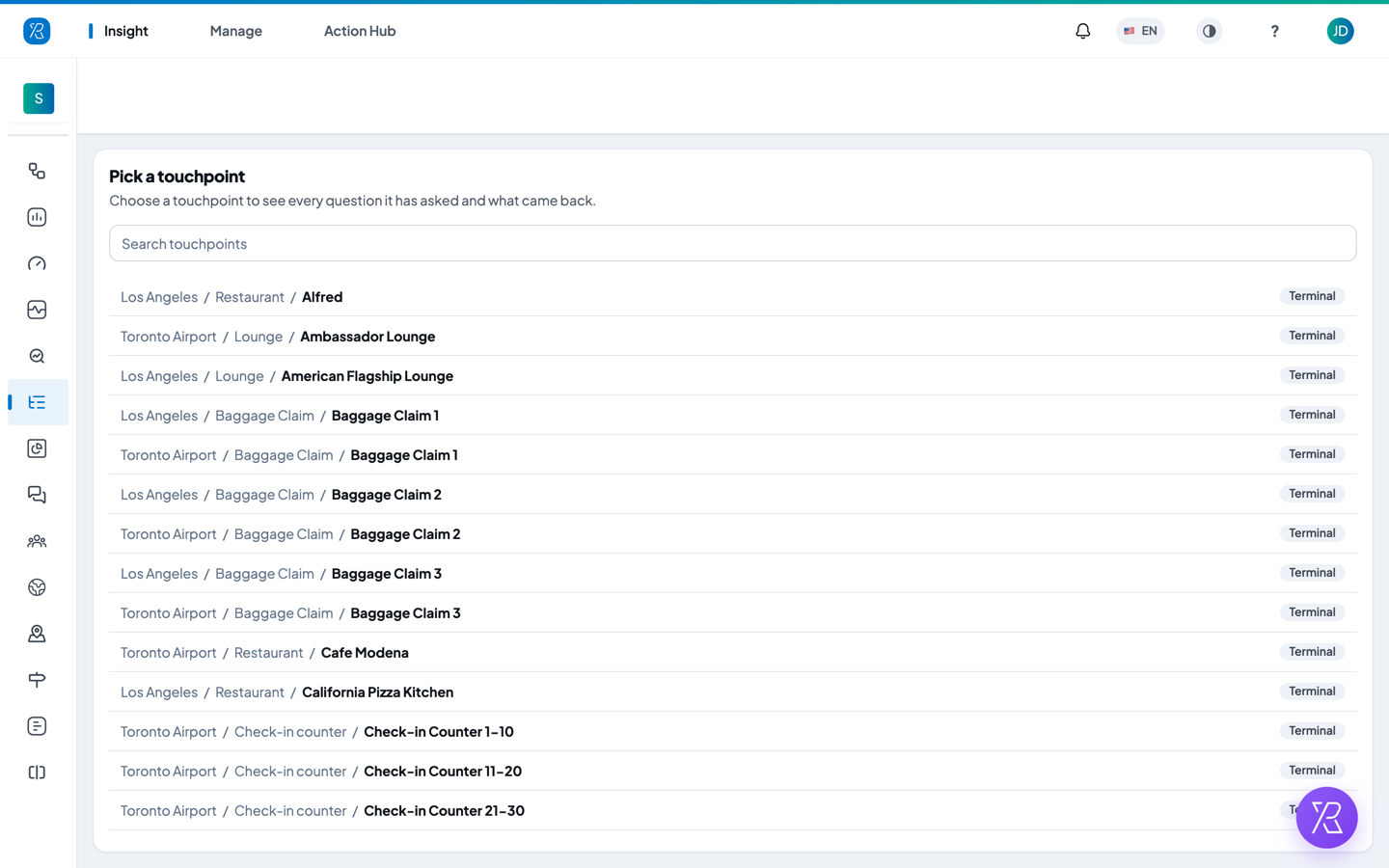
- Type in Search touchpoints to narrow the list.
- Read each row as Branch / Section / Touchpoint name.
- Check the grey tag on the right — it tells you the collector type (Terminal, Tablet, QR, SMS, Email, IVR, Widget or Signature).
- Click the row you want.
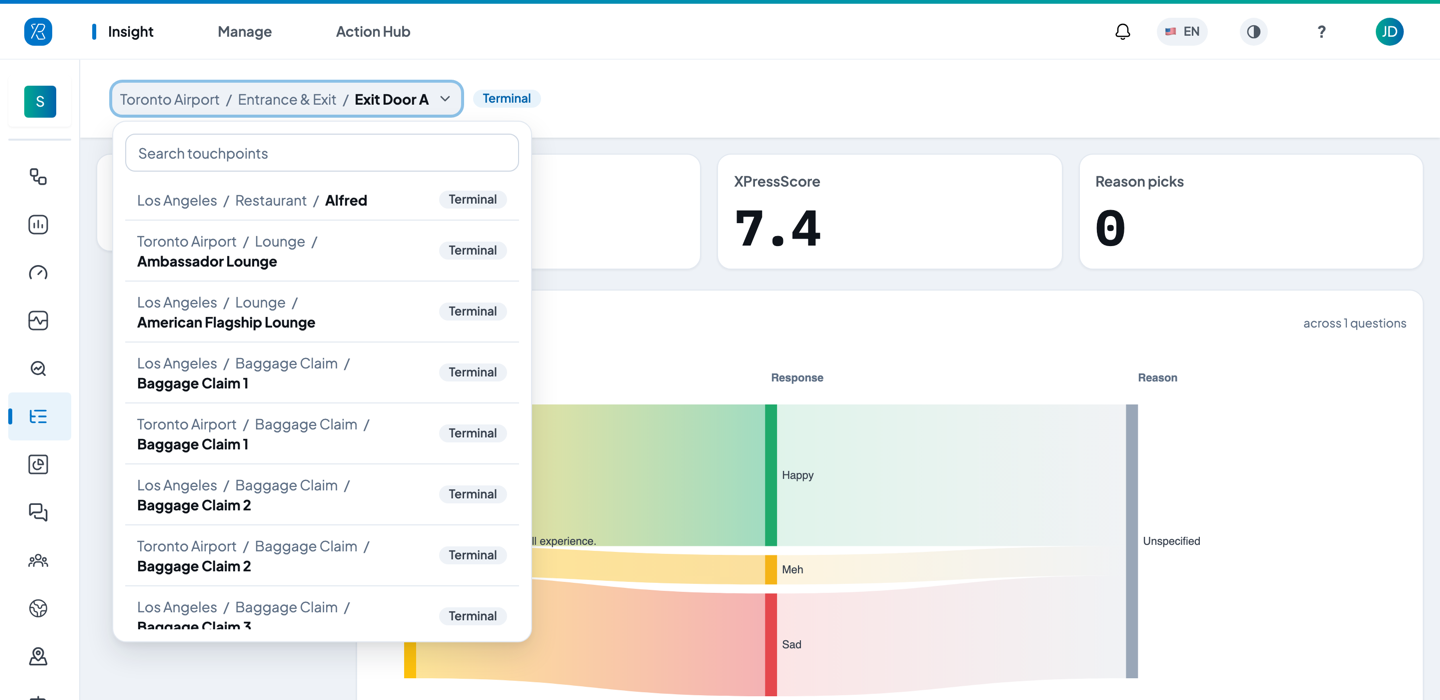
To move to a different touchpoint later, click the name in the breadcrumb at the top of the report. The same searchable list drops down.
The top of the report
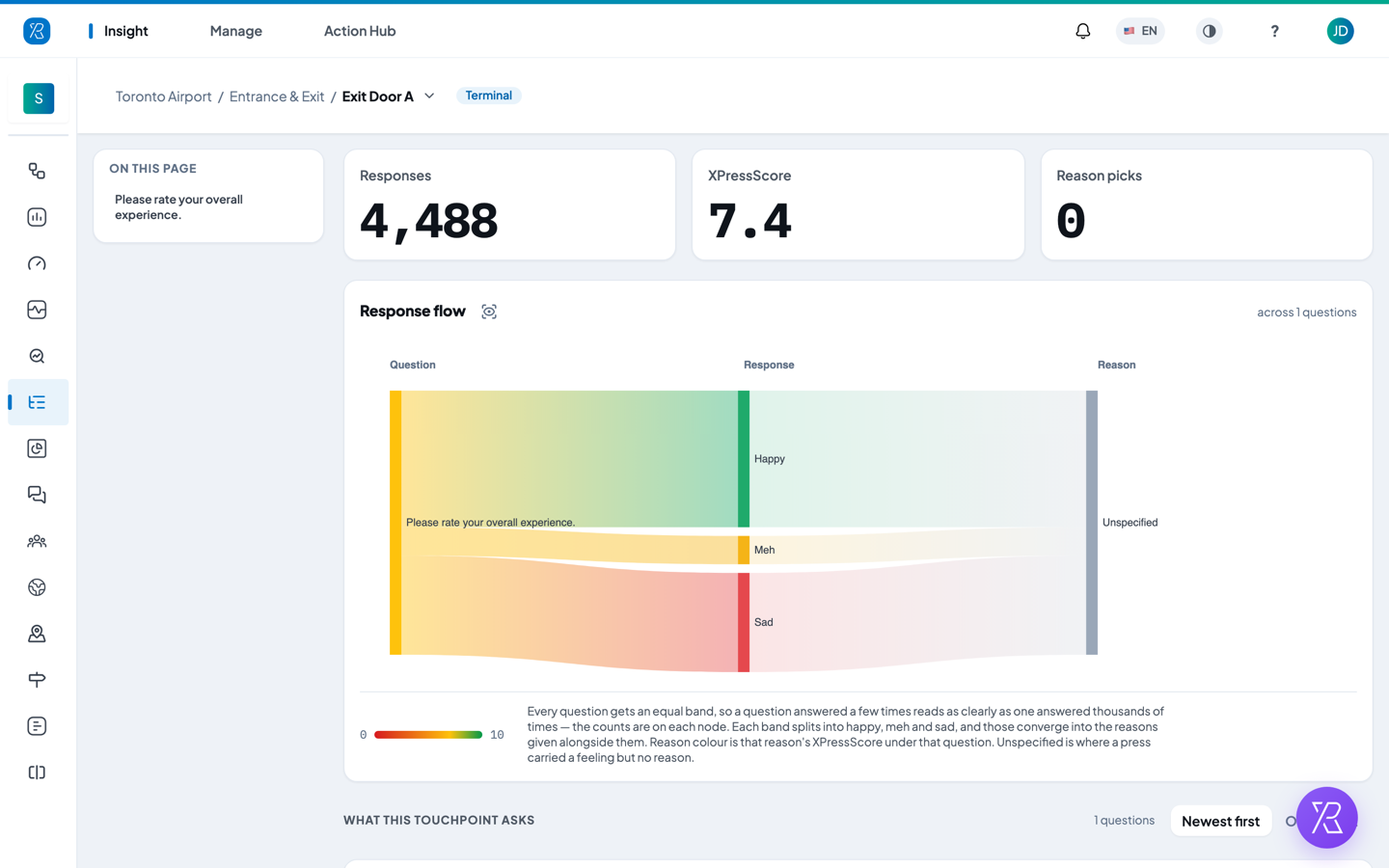
- The breadcrumb names the branch, the section and the touchpoint, with its collector type beside it.
- On this page lists every question this touchpoint has asked. Click one to jump to its card.
- Responses is how many answers the touchpoint has collected.
- XPressScore is the PXP score out of 10 for those answers.
- Reason picks is how many times someone chose a reason after answering. If the touchpoint does not ask for a reason, this stays 0 — as it does in the screenshot above.
These three numbers cover the whole life of the touchpoint. There is no date picker on this page — it is a history report, so it always shows everything.
Response flow
The Response flow diagram traces answers from left to right: Question → Response → Reason. Every question gets a band of the same height, so a question answered a handful of times is just as readable as one answered thousands of times. Each band splits into happy, meh and sad, then those run into the reasons people gave. Unspecified is where someone gave a feeling but no reason — so on a touchpoint that never asks for a reason, the whole last column is Unspecified.
What this touchpoint asks
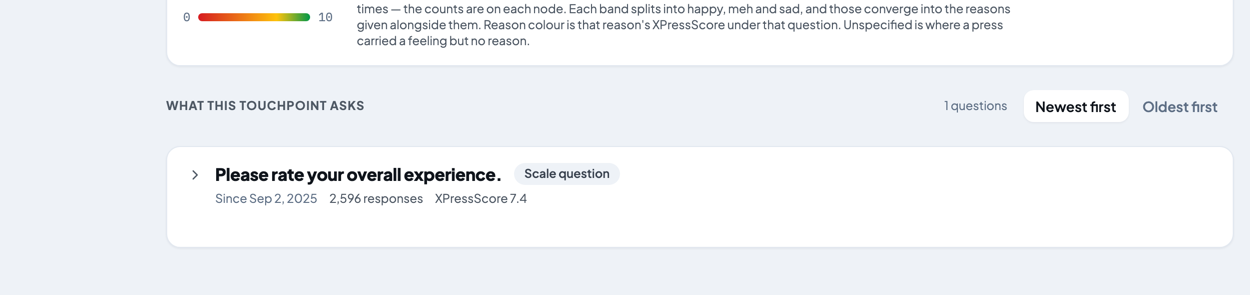
Below the flow is one card per question. Each card header shows:
- The question wording, and a tag for its type — Scale question, Poll, ABC positive or ABC negative.
- The dates it was asked. Since Sep 2, 2025 means it is the question running now; a pair of dates means it was replaced.
- How many responses it collected and its XPressScore.
Use Newest first / Oldest first on the right to flip the order. Every card starts closed — click a header to open it.
A card only counts the answers from the stretch it was being asked, so the cards can add up to less than the Responses number at the top of the page. Anything answered before the touchpoint started keeping a question history is in the headline but not in a card.
Inside a question card
An open card shows, in order:
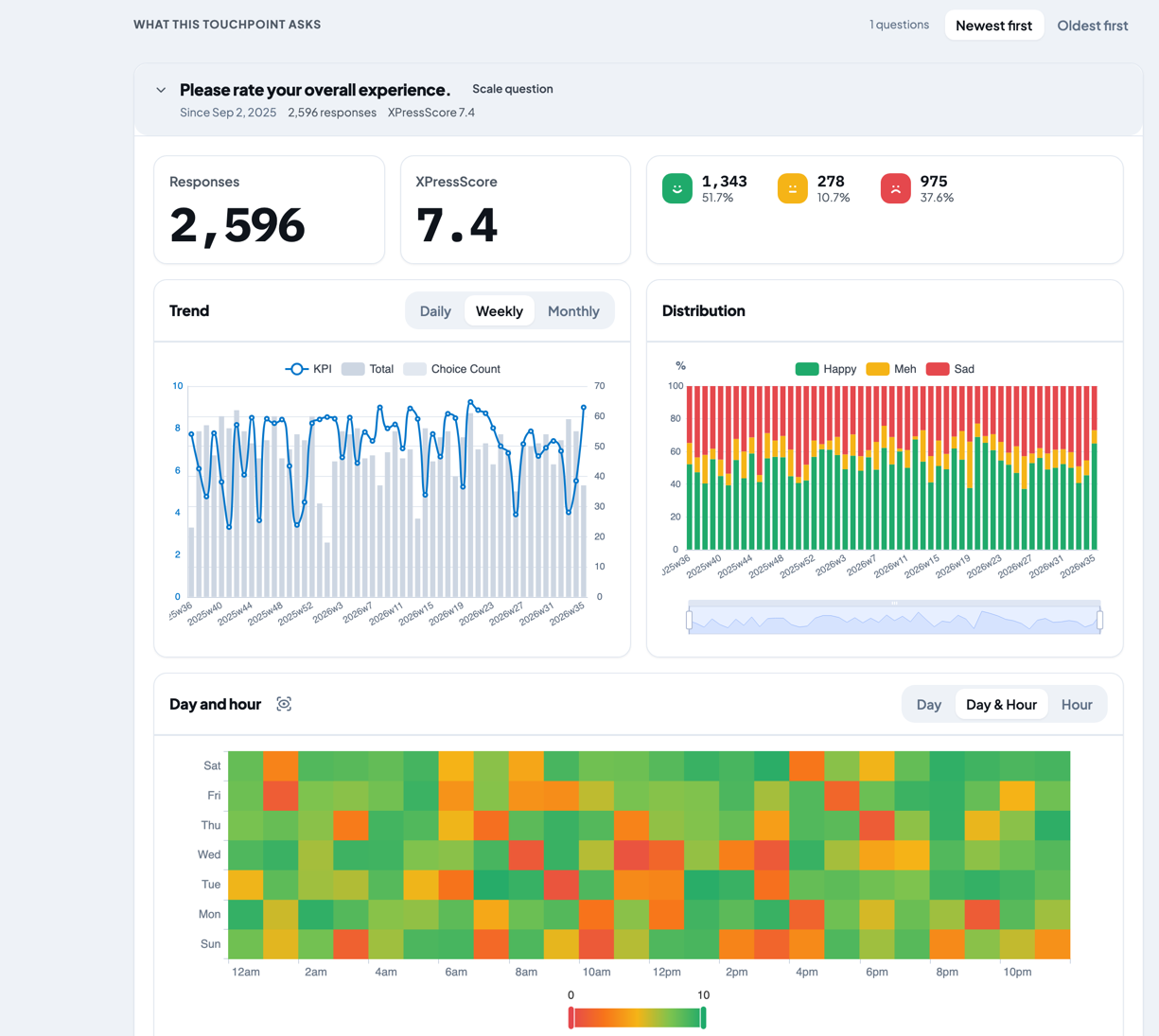
- Responses, XPressScore, and the happy / meh / sad split with counts and percentages.
- Trend — the score line and the number of responses over time. Switch between Daily, Weekly and Monthly.
- Distribution — the same periods as bars, showing what share was happy, meh and sad.
- Reason ranking — the reasons people picked, most picked first, with the count and the share. This card only appears if the question collected reasons; it is left out rather than shown empty. A poll question shows Answer distribution here instead, because its answers are the options.
- Day and hour — when the answers came in. Switch between Day, Day & Hour and Hour.
- Latest comments — the five newest written or recorded comments, each with the reason it was filed under and the date. Poll questions collect no comments, so this card is left out.
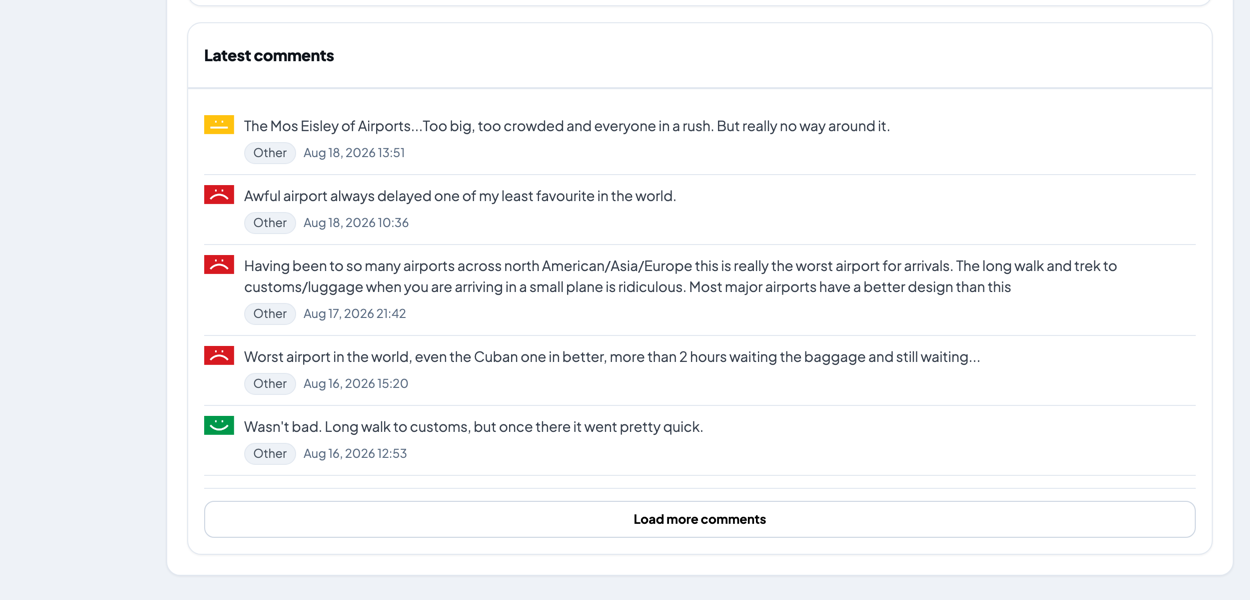
If there are more than five, Load more comments opens a Comments window with the whole list for that question. Hover a comment to read it in full.
Everything in an open card is bounded to the stretch that question was being asked, so two cards on the same touchpoint never count the same answer twice.
Notes
- The report looks the same for every collector type — a tablet, an IVR call and an SMS link all get the same cards. What changes is the questions each one asked.
- If a touchpoint has never been answered, the page says so instead of drawing empty charts.
- Touchpoint Report needs the Advance Report permission. If you cannot see it in the Insight menu, ask your administrator.