Geo Map
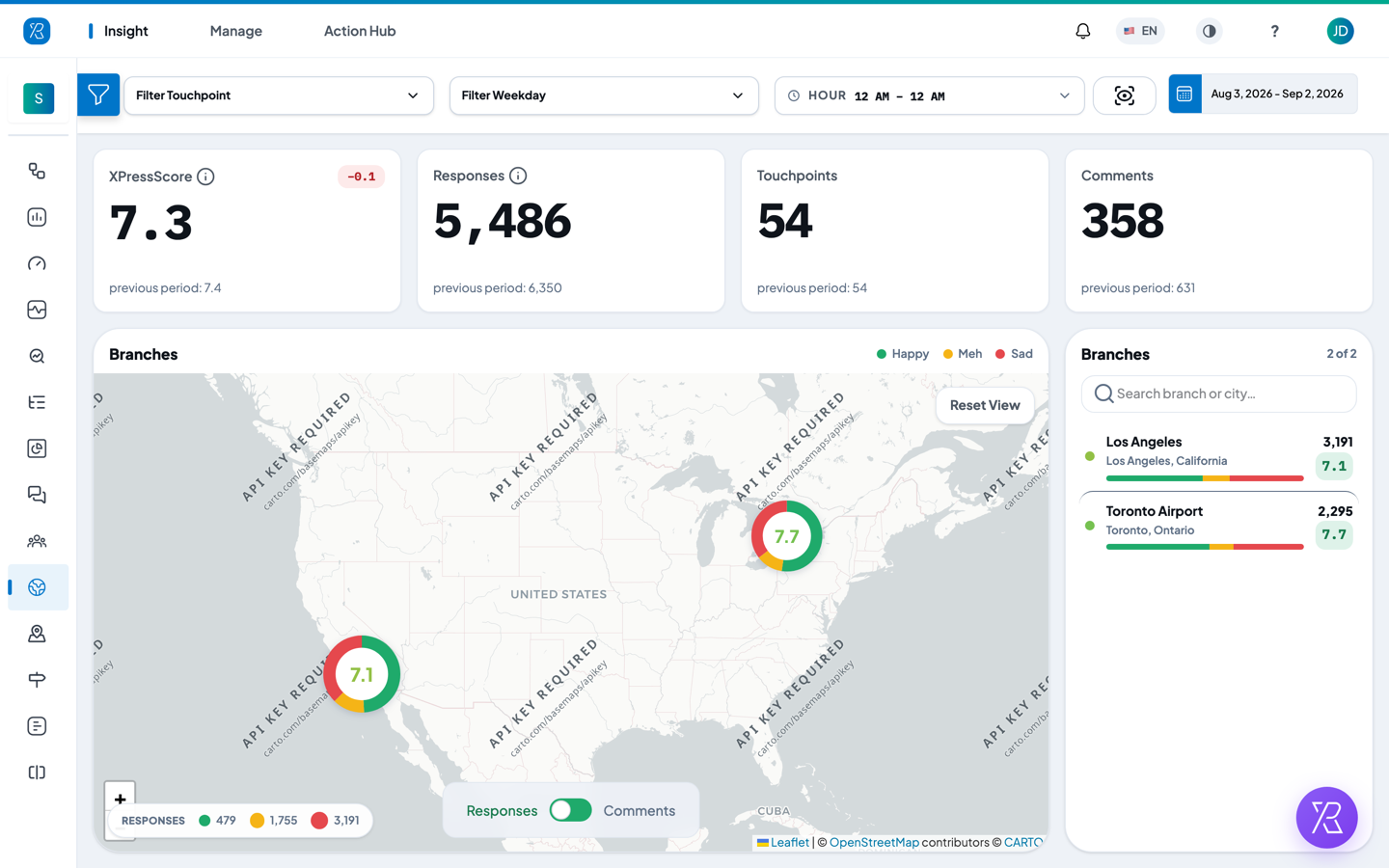
Geo Map plots your branches on a map of the world. Each branch sits at its own address as a coloured ring with its score in the middle, so you can see at a glance which locations are doing well and which are not.
Use it to answer one question fast: which of my locations has a problem?
Open it from Insight → Geo Map.
Before you start
Geo Map is an add-on. If Press'nXPress has not switched it on for your organization, the menu item is not there at all — you will not see Geo Map under Insight, and going to the page directly says you are not authorized. Contact Press'nXPress support to have it turned on.
Each branch is pinned using the location stored against it in Branch Management. If a branch is in the wrong place on the map, fix its address there.
Read the rings
Every branch that collected feedback in the period you chose gets one ring. A branch that collected nothing is not drawn.
- The number in the middle is that branch's score.
- The ring around it is split into the shares of Happy, Meh and Sad answers that branch got — green, yellow and red. A mostly-green ring is a happy branch.
- The size of the ring is how much feedback came in. The bigger the ring, the more responses. The key in the bottom-left corner shows the response counts those three sizes stand for.
The legend at the top right of the map panel reminds you which colour is which.
The branch list
The panel on the right lists the same branches, with each one's city, its response count, its score and a bar showing the same Happy / Meh / Sad split. The count at the top right of the panel — for example 2 of 2 — tells you how many branches are currently showing out of the total.
- Type in Search branch or city to narrow the list down to one place.
- Click Reset View on the map to clear the search and zoom back out to every branch.
Responses or Comments
The switch at the bottom of the map flips between two views of the same branches.
- Responses is the default. Rings are split by the score people pressed — the smiley, the rating, the choice — in green, yellow and red.
- Comments switches to the mood of the written comments left at that branch, worked out automatically from the wording. This is called sentiment. The ring splits into Positive, Neutral and Negative shares instead, in blue, grey and red, and the number in the middle becomes the comment count rather than a score.
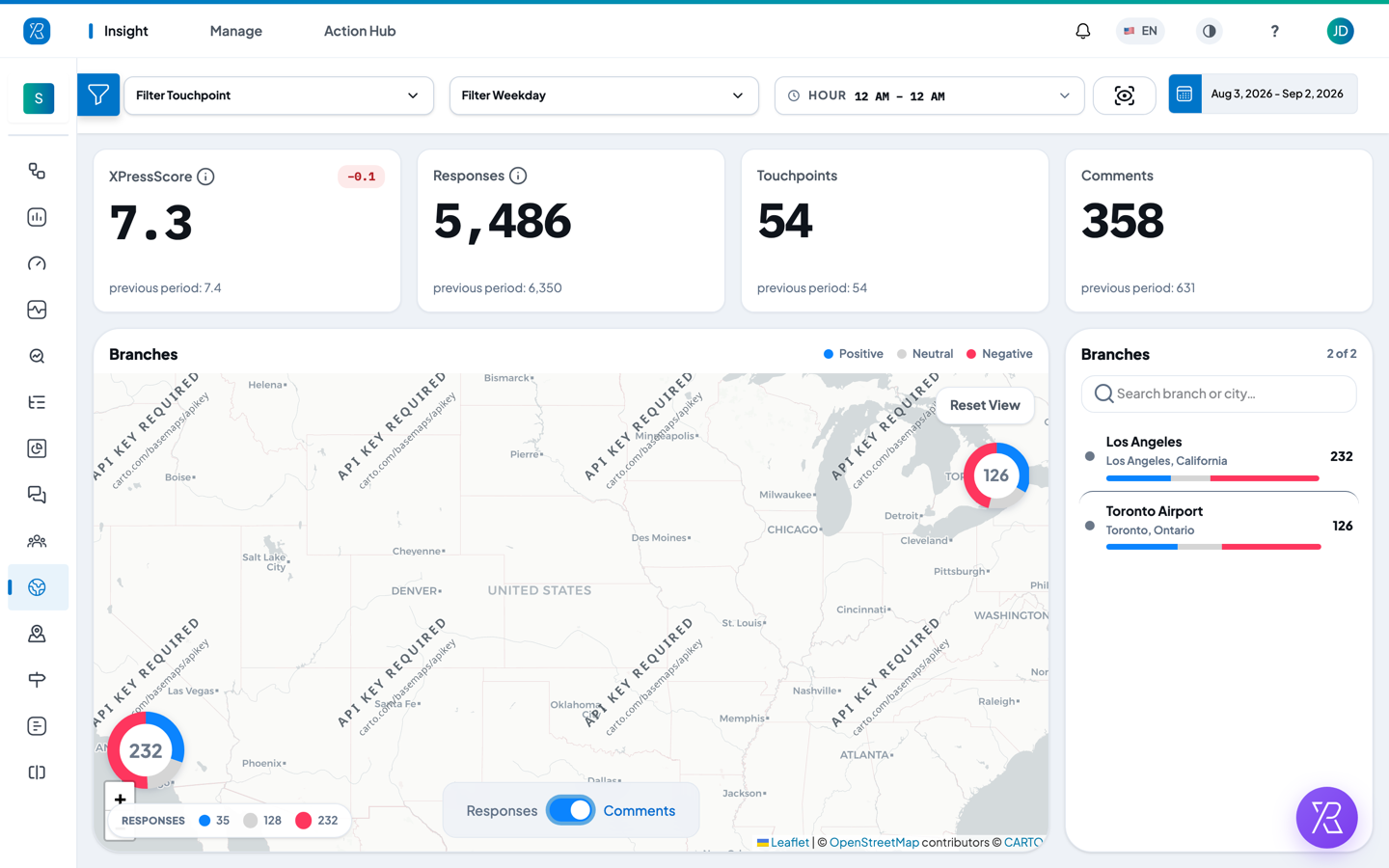
The colours are deliberately different from the Responses view. A branch can score fine on button presses and still collect unhappy comments, and flipping the switch is the quickest way to spot that.
The numbers above the map
Four tiles sit above the map, for the dates and filters you chose. Each also shows the same figure for the period before, so you can see whether things moved.
- XPressScore — the overall score across all your branches.
- Responses — how many pieces of feedback came in.
- Touchpoints — how many touchpoints returned data.
- Comments — how many written comments came in.
The first tile keeps the XPressScore label, but the number follows the KPI you pick in the filter panel: Score (XPressScore, the weighted Press'nXPress score), Customer Satisfaction (CSAT, the share of happy customers), or Promoter Index (PI), the 0–10 version of NPS. The scores in the rings follow that choice too.
Choose the dates
Click the date button at the top right, then either type a start and end date and click Submit, or use a shortcut: Today, This Week, This Month, This Quarter, This Year, Yesterday, Last Week, Last Month, Last Quarter, Last Year.
Next to the dates you can also narrow the map by:
- Filter Touchpoint — count only some of your touchpoints.
- Filter Weekday — only Mondays, only weekends, and so on.
- Hour — only a slice of the day, such as the lunch rush.
Narrow it down further
The Filters panel on the left cuts the same data by KPI, Branches, Sections, Collector Types, Questions, Question Categories, Question Sub-Categories, Whys, Labels and Label Categories. Labels appear only if the Label add-on is on for you — see Label Management.
Click Expand All to open every group at once. Once you have set at least one filter, a Clear All link appears next to it to reset them. Use the arrow at the top of the panel to fold it away and give the map the full width.
Save the view as an image
The scan icon between the Hour filter and the date button downloads the whole view — the tiles and the map — as a PNG you can drop into a slide or an email.
Related
To look inside one building instead of across your locations, use Facility Map, which puts your touchpoints on a floor plan.