Agent Insight
An agent here is a person on your team whose service gets rated — the receptionist, the person at the counter, the driver, the call handler. It is not an AI agent or a chatbot.
Agent Insight answers one question: how is each staff member doing?
It takes the feedback that was tied to a specific person and turns it into a score, a ranking, and the comments customers actually wrote about them.
Open it from the Insight menu, then Agent Insight.
If Agent Insight is missing from the menu, your organization does not have it switched on yet. Ask your Press'nXPress contact.
You only see agents here if they were set up first, and if the touchpoint records who served the customer. See Agent Management for that.
The three tabs
The report has three tabs across the top: Summary, Word Cloud and Detail. All three use the same filters and the same date range, so switching tabs never loses your place.
Summary
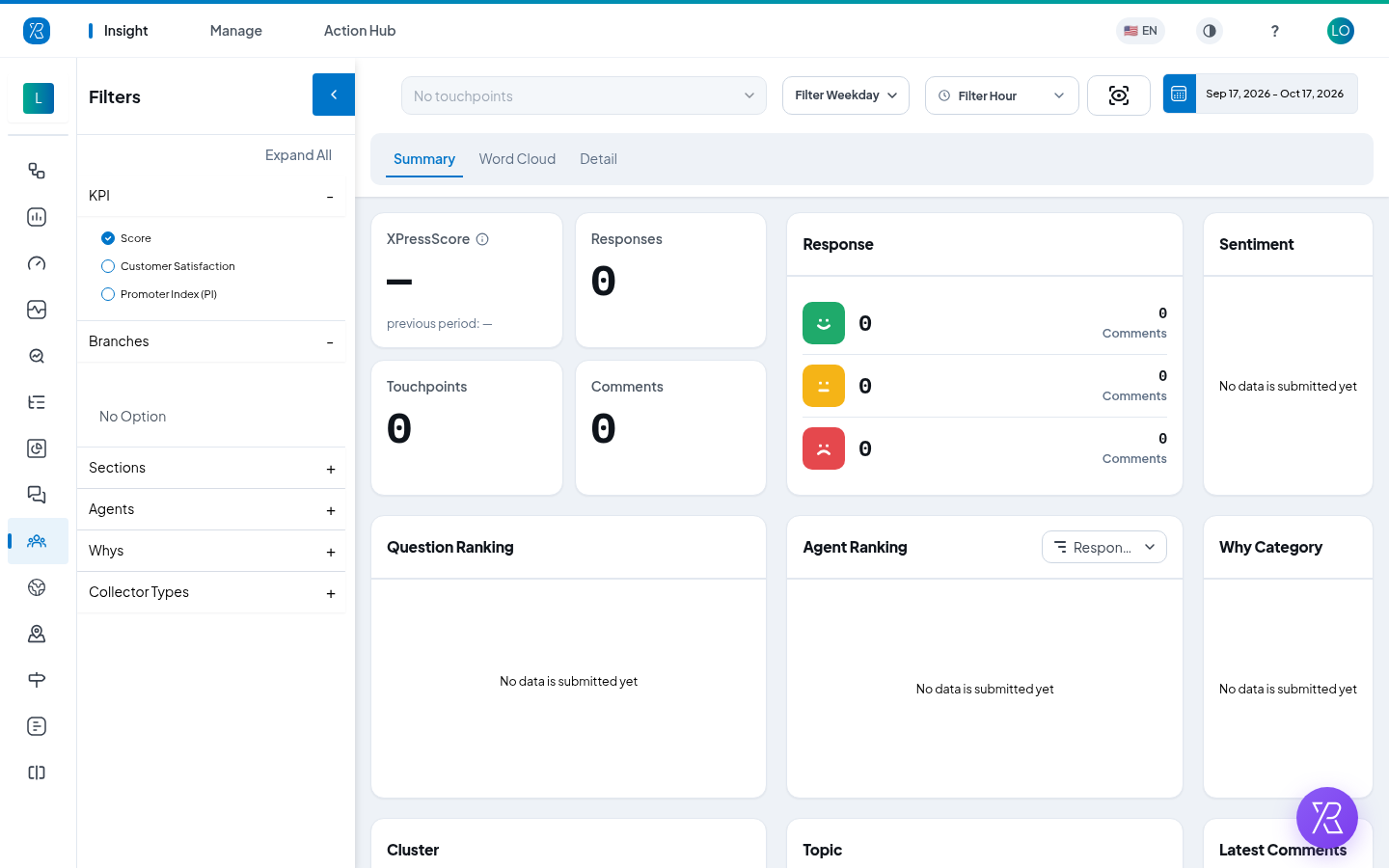
The overview. From top to bottom:
- XPressScore — your overall score for the period, with the previous period underneath so you can see if it went up or down. The tile changes name if you pick a different KPI in the filters.
- Responses, Touchpoints, Comments — how many ratings came in, how many touchpoints they came from, and how many people also typed something.
- Response — the split between happy, neutral and unhappy faces, with a link to the comments behind each one.
- Sentiment — the overall mood of the written comments.
- Question Ranking — which questions scored best and worst.
- Agent Ranking — your staff, ordered best to worst. Use the dropdown in its corner to order by Response (who got the most ratings) or by Score.
- Why Category, Cluster, Topic — the reasons and themes behind the feedback.
- Latest Comments — the most recent written comments.
- Day of Week and Hour Heatmap — when feedback comes in. Switch between Day, Day & Hour and Hour.
- Distribution and Comment Sentiment Trend — how scores and mood moved over the period.
If a card says No data is submitted yet, no feedback matched your filters. Widen the date range or clear a filter.
Detail
The tables behind the summary, plus every comment.
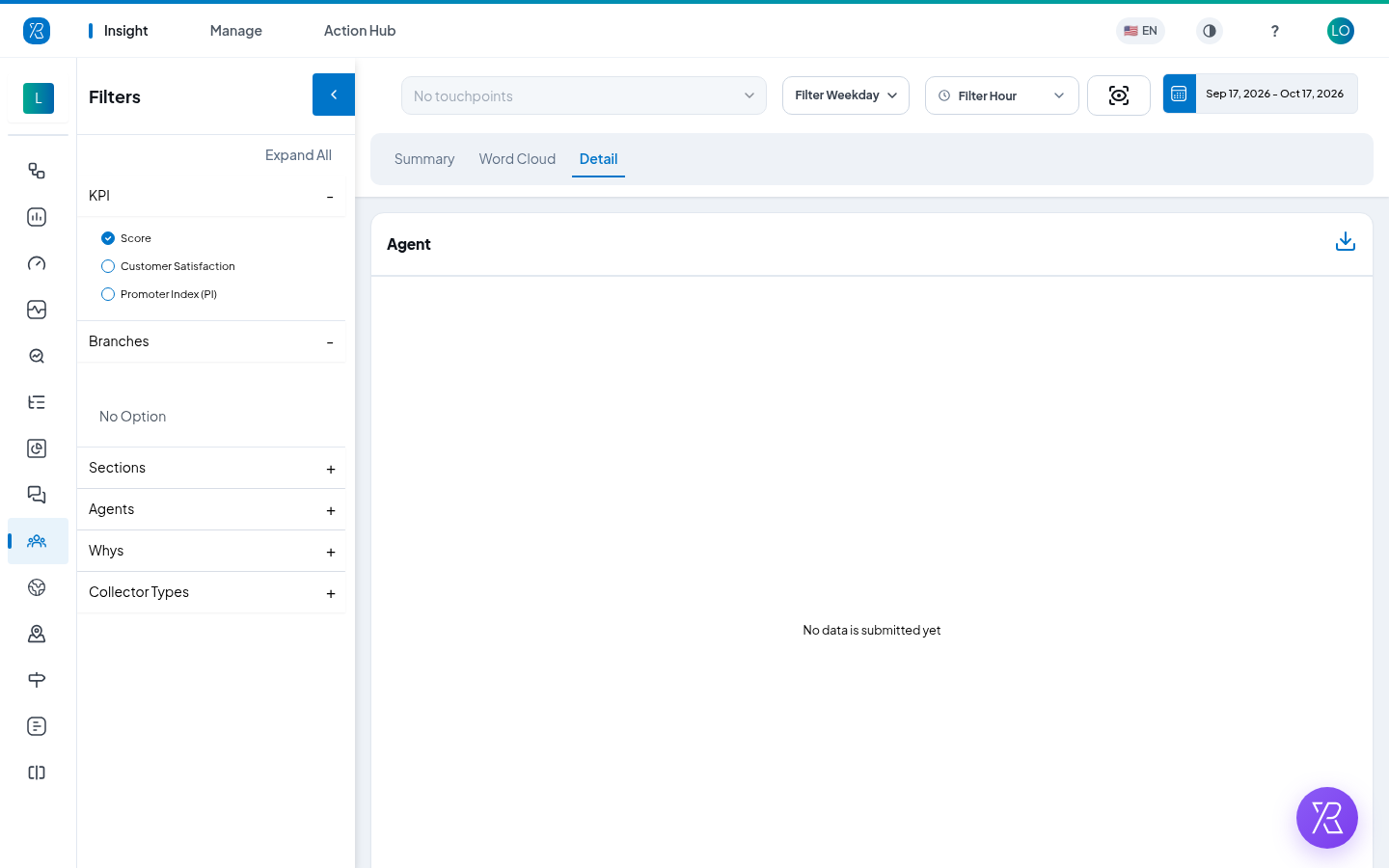
- Agent, Topic and Cluster tables each list a name, a Count and a Sentiment figure. Click More to open the full list.
- Use the download icon on a table to save it as a CSV.
- The comment list on the right shows every comment one by one. Sort it with the dropdown above it: Newest, Oldest, Emotion Magnitude, Best Sentiment Score or Worst Sentiment Score. Scroll to load more.
Word Cloud
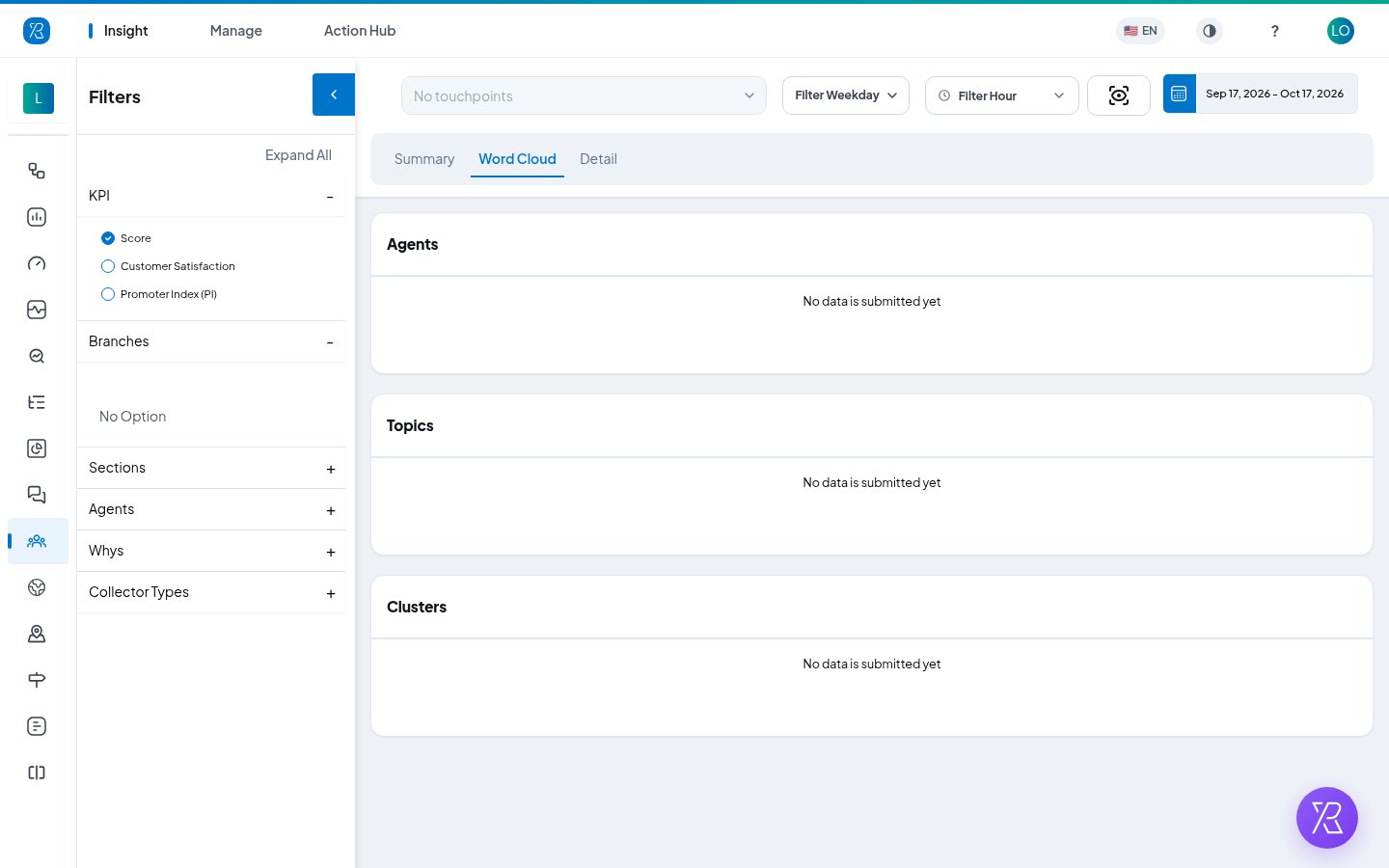
The same three groups — Agents, Topics, Clusters — drawn as word clouds. Bigger words were mentioned more often. Good for a quick glance before a team meeting.
Comparing your agents
- Go to the Summary tab.
- Set the date range you want to judge people on.
- Look at Agent Ranking. Best performers are at the top.
- Set the dropdown to Response first, to see who is handling the most customers. A very low count means their score is based on too little feedback to be fair.
- Set it back to Score to see the actual ranking.
- To dig into one person, open the Agents group in the left filter panel and tick just that person. Every card on the page now shows only their feedback.
- Open the Detail tab to read what customers wrote about them.
Date range
The button at the top right sets the period. Click it and either pick a ready-made range — Today, This Week, This Month, This Quarter, This Year, Yesterday, Last Week, Last Month, Last Quarter, Last Year — or type a start and end date under Select Date and click Submit.
The XPressScore tile compares your chosen period against the one before it, so a monthly range compares against last month.
Filters
The panel on the left narrows the whole report. Click a group name to open it, or Expand All to open them all.
- KPI — the score to use: Score (XPressScore), Customer Satisfaction or Promoter Index (PI).
- Branches — which locations to include.
- Sections — which part of a branch, such as Exit or Cashier.
- Agents — which staff members. This is how you look at one person on their own.
- Whys — the reasons customers picked after rating.
- Collector Types — how the feedback arrived, such as kiosk, SMS or email.
- Labels and Label Categories appear too, if your organization uses them.
Three more controls sit in the bar along the top:
- Filter Touchpoint — limit the report to certain touchpoints.
- Filter Weekday — only include chosen days of the week.
- Hour — only include feedback left between two times of day.
Use Clear All in the filter panel to reset everything back.
Saving a copy
The square Take Snapshot icon next to the date button downloads the report you are looking at as an image file, ready to drop into a slide or an email.