Advance Report
Advance Report is the build-your-own report. Instead of a fixed dashboard, you pick what to compare and over what period, and the page draws it three ways at once.
Open it from the Insight top menu.
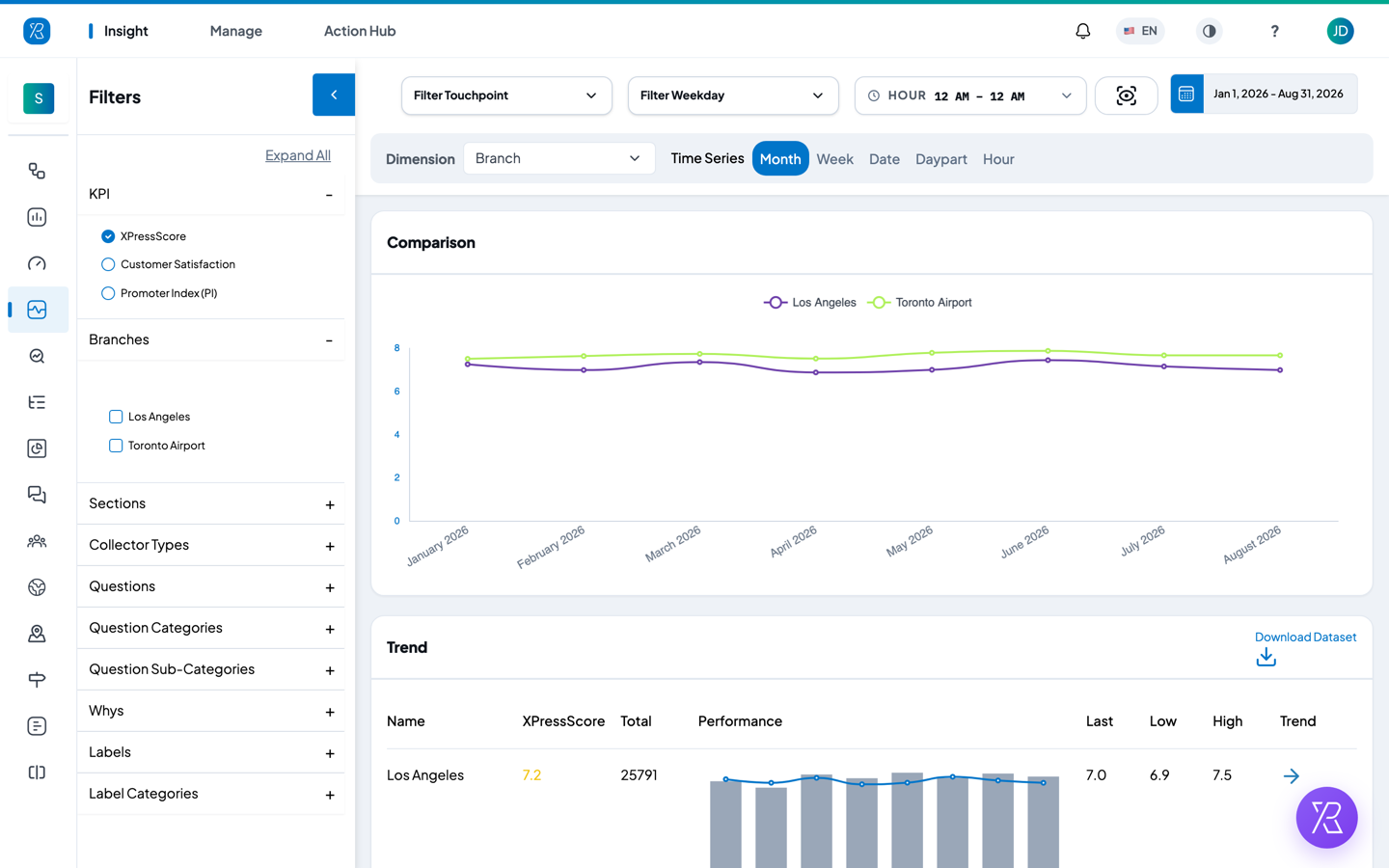
The four choices that build your report
Everything on this page comes from four settings. Change any one and the charts redraw straight away.
1. Score (KPI). In the left Filters panel, under KPI, pick one:
- XPressScore — PXP's own 0–10 score. It counts happy, so-so and unhappy answers, and gives extra weight to unhappy ones.
- Customer Satisfaction — the share of happy customers.
- Promoter Index (PI) — how likely people are to recommend you, on a 0–10 scale.
2. Dimension — what each row or line stands for. Click the Dimension dropdown above the report and choose one of: Branch, Section, Touchpoint, Question, Why, Agent, Label, Label Category, Collector Type or Choice.
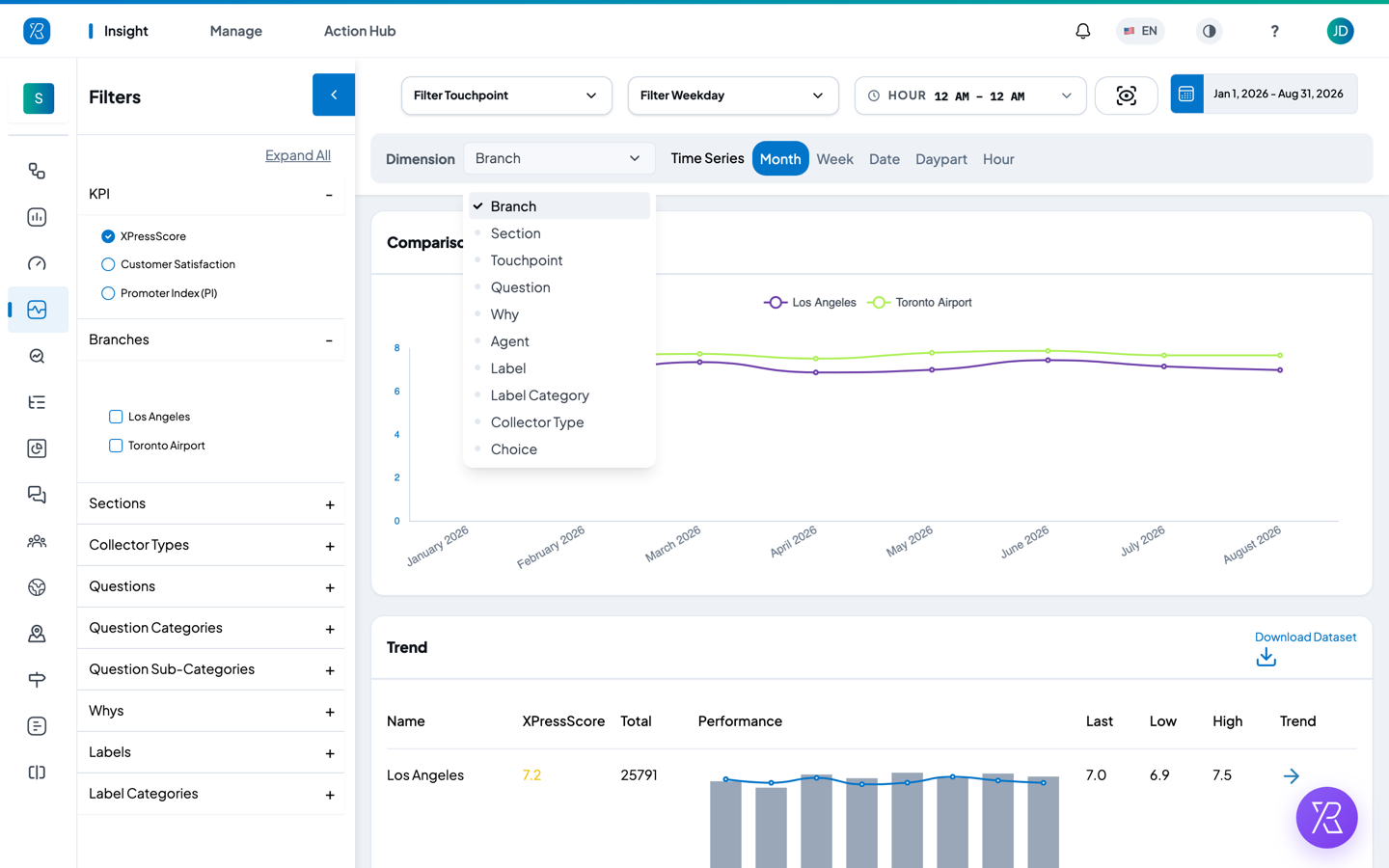
A dimension only has something to show if you use that feature. Pick Why and the report is empty unless your touchpoints ask customers for a reason; pick Agent and it is empty unless your touchpoints name a staff member.
3. Time Series — how time is sliced along the bottom. Click Month, Week, Date, Daypart (morning, afternoon, evening) or Hour.
4. What is counted. Narrow the responses before they are scored:
- The date range button, top right, sets the period. It opens on the last 30 days.
- Filter Touchpoint, Filter Weekday and Hour sit in the bar above the report.
- The left Filters panel adds Branches, Sections, Collector Types, Questions, Question Categories, Question Sub-Categories, Whys, Labels and Label Categories. Click a heading to open it, then tick what you want. Use Expand All to open every heading. Once something is ticked a Clear All link appears, which resets the panel. The blue arrow at the top of the panel folds it away and gives the charts the full width.
Your choices stay in the page address, so you can bookmark a report or paste the link to a colleague.
The three views you get
The same numbers are drawn three ways, stacked down the page.
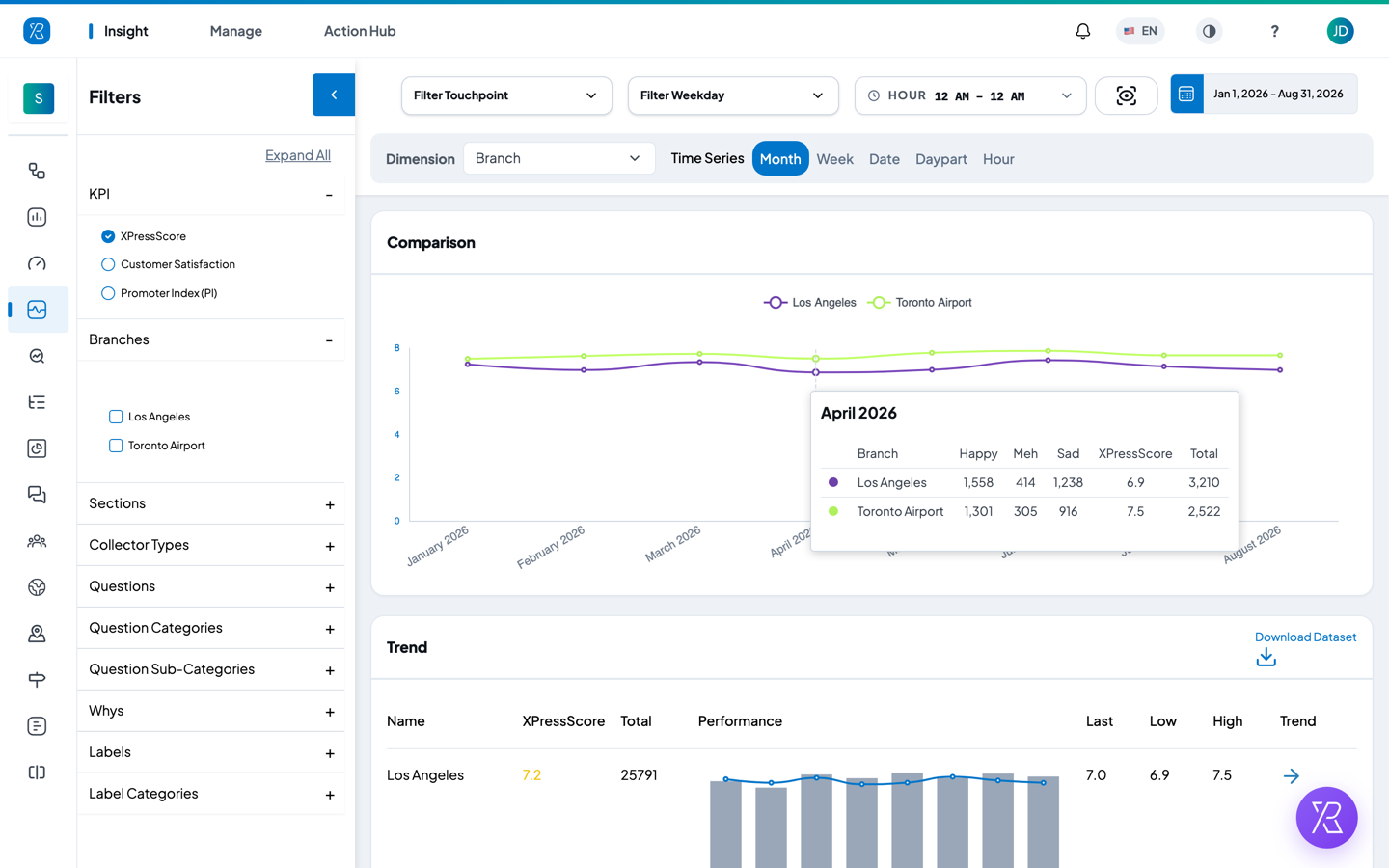
Comparison
A line per dimension member across time. Hover anywhere on the chart and a small table appears for that month, week or day, with one row per line: Happy, Meh, Sad, the score, and the Total number of responses. This is the quickest way to see the counts behind a score.
If there are more lines than fit above the chart, the legend pages — use the small arrows next to the page number to see the rest.
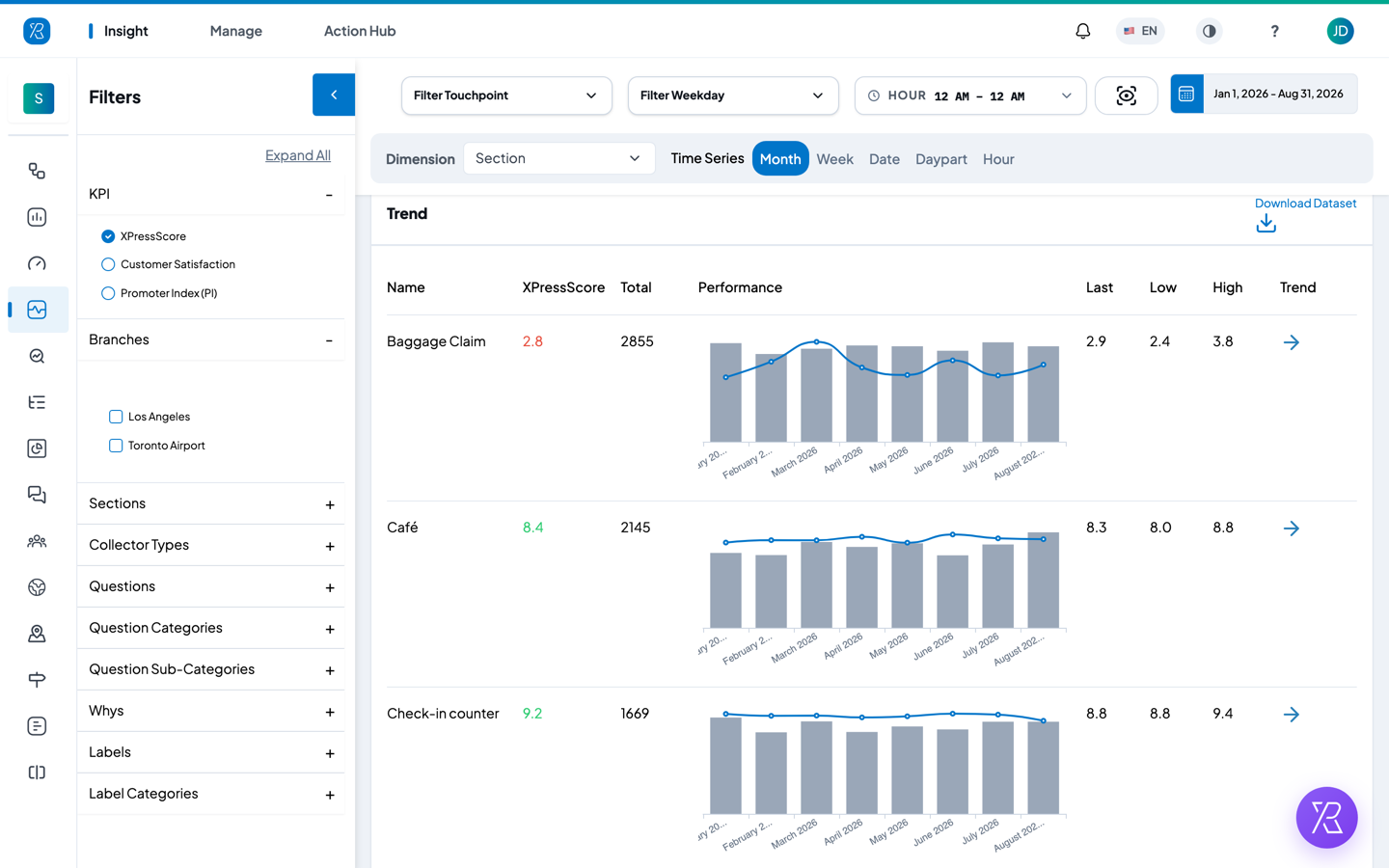
Trend
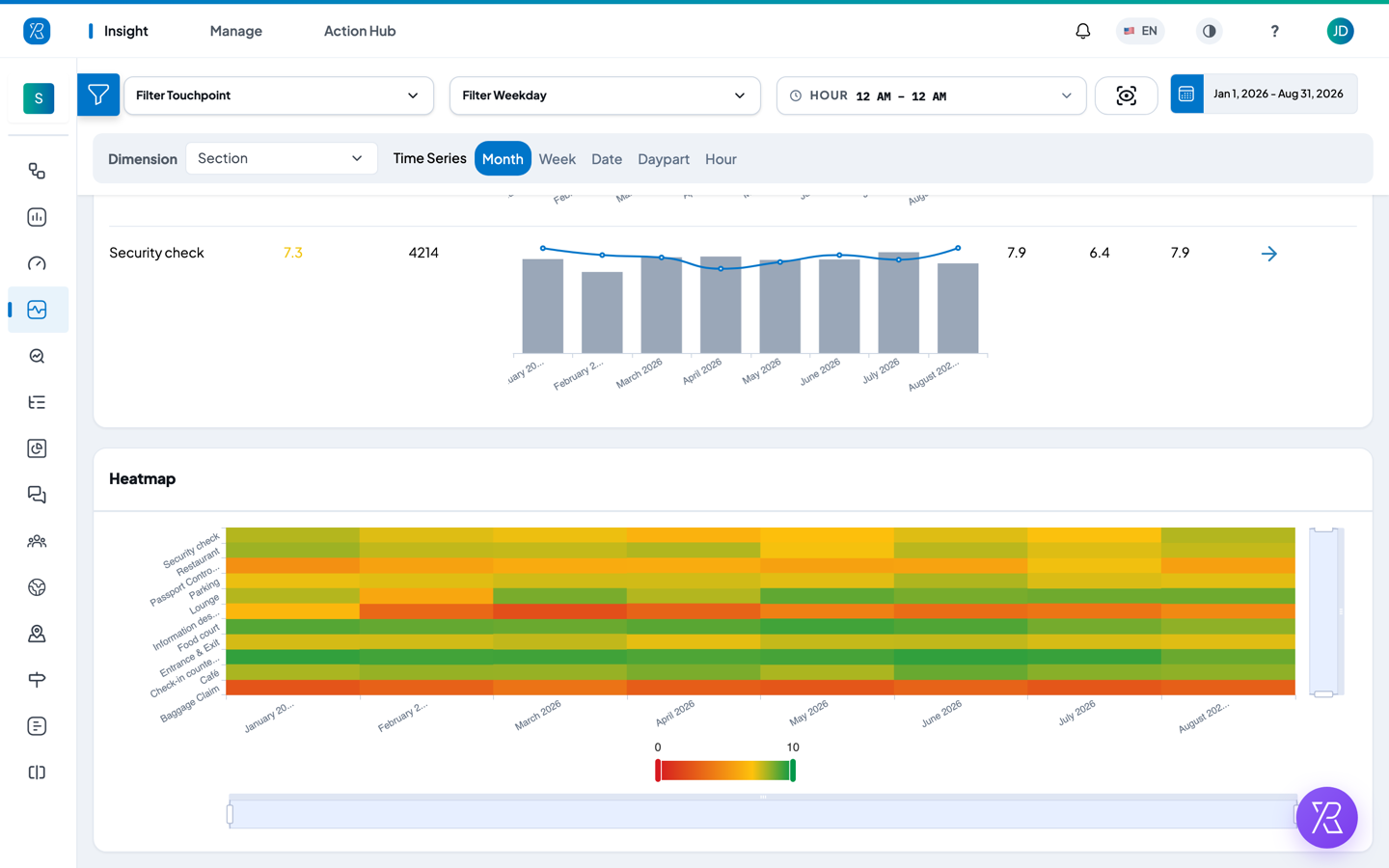
One row per dimension member: the score, the total number of responses, a small performance chart, and the Last, Low and High score for the period.
- The score is coloured: green from 8 up, amber from 5 to 8, red below 5.
- The arrow in the Trend column points up in green when the score is rising over the period, down in red when it is falling, and straight across in blue when it is flat.
Heatmap
A grid of dimension member against time. Red is a low score, green is a high one; the colour bar under the grid shows the scale. This is the view to use when you have a lot of members — every section or every touchpoint at once — because a bad patch shows up as a red band.
Saving what you see
- Download Dataset, at the top right of the Trend card, saves a CSV. It has one row per dimension member per time slice, with the happy, so-so, unhappy and total counts and the score. This is the way to get exact response numbers.
- Take Snapshot — the button just left of the date range — downloads the filter bar and all three charts as one PNG image.
Worked example: which branch has the most unhappy responses
- Click the date range button at the top right and pick the period you care about.
- Click the Dimension dropdown and choose Branch.
- Click Month in the Time Series row.
- In the left Filters panel, under KPI, select XPressScore.
- On the Comparison chart, hover the month you want. The table lists every branch with its Sad count. The largest Sad number is your answer.
- Scroll to the Trend card to see whether that branch is getting better or worse: read its score, then the Trend arrow beside it.
- Click Download Dataset on the Trend card if you need the unhappy count for every month in one spreadsheet.
To find out where in that branch the unhappy responses come from, tick only that branch under Branches in the left panel, then change Dimension to Section — or to Touchpoint for more detail. The Heatmap now shows a row per section, and the red rows are the places to look at first.
If the page is empty
- No responses were collected for the filters you set. Widen the date range or clear some filters.
- The dimension you picked is not in use — see the note under Dimension above.
- Advance Report is a paid add-on and needs permission on your user. If you cannot see it in the Insight menu, ask your administrator.