XPress Dash
XPressDash breaks all of your feedback down, one slice at a time. It shows the same score by month, by week, by date, by branch, by touchpoint, by question and more, so you can find exactly where and when service drops.
Open it from Insight → XPressDash.
How this differs from XPressView
XPressView is the quick summary you can build yourself — you add, remove and rearrange the widgets you care about. XPressDash is a fixed, complete breakdown: you cannot change the widgets, but every dimension is already there.
Use XPressView for a daily glance. Use XPressDash when you need to dig. See XPress View.
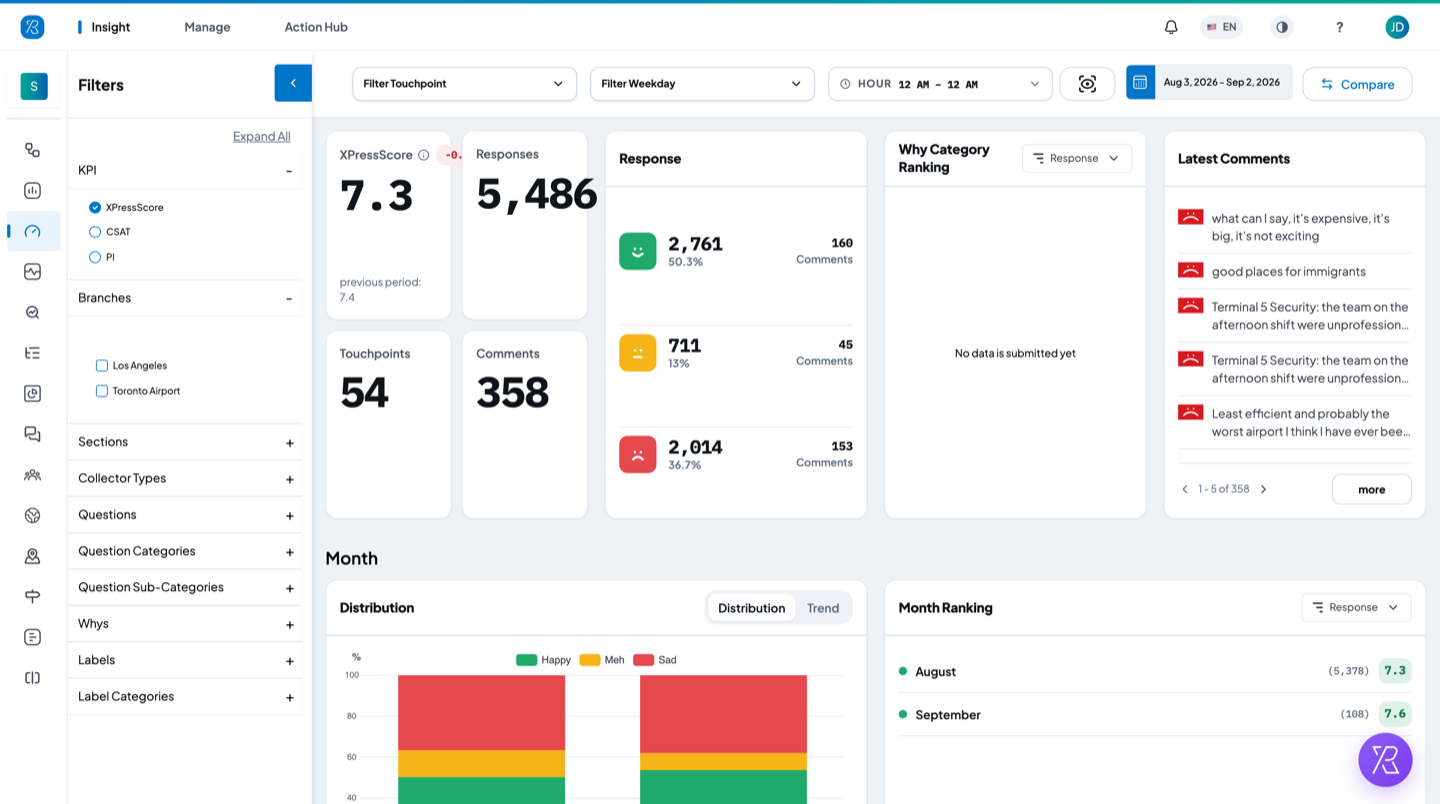
The summary row
The top row answers "how are we doing right now?"
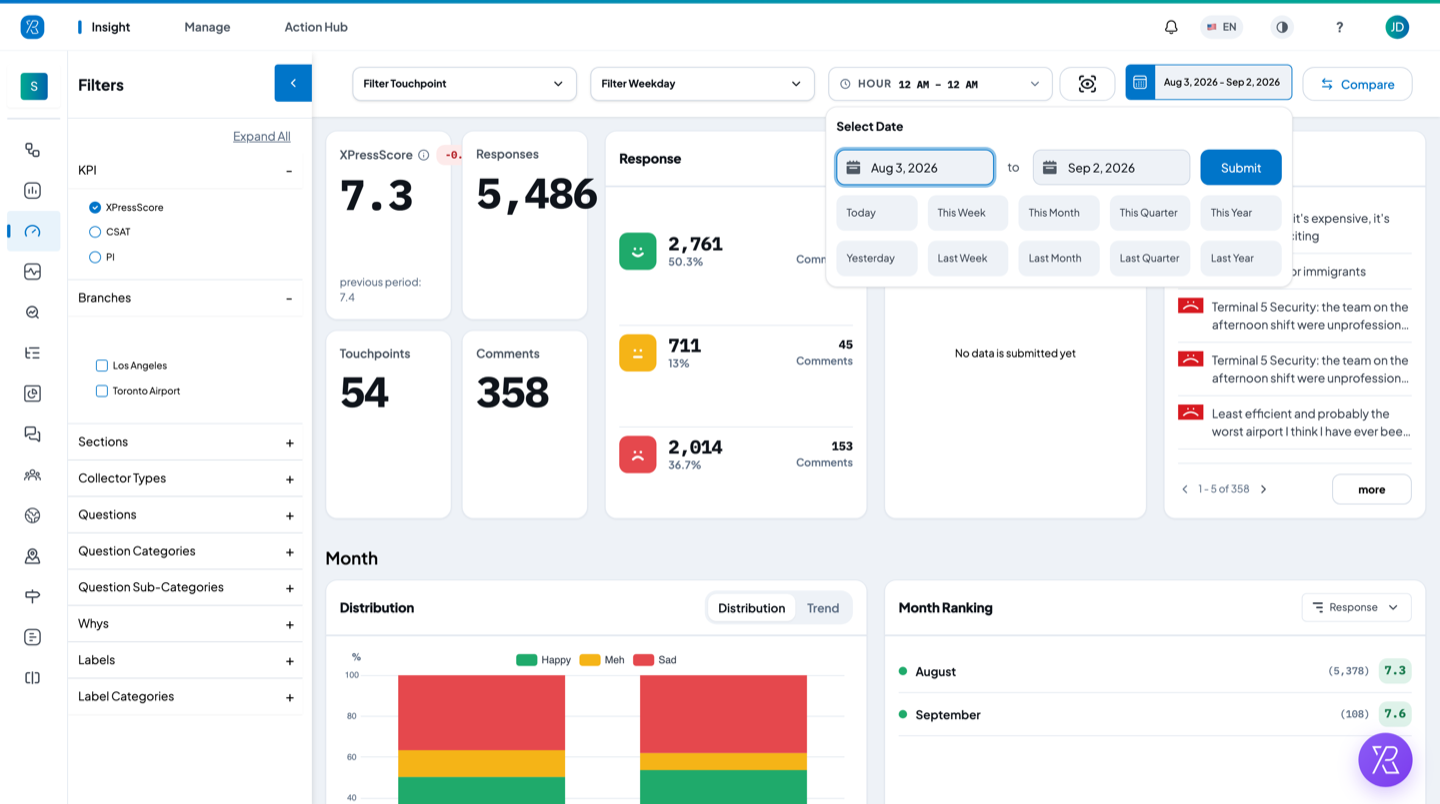
- XPressScore, Responses, Touchpoints, Comments — the headline numbers for the dates you picked. XPressScore also shows the score for the previous period and how much it moved, so you can see if you improved.
- Response — how many people pressed Happy, Meh or Sad, as a count and a percentage, plus how many of them left a written comment.
- Why Category Ranking — the reasons people picked, counting only the feedback that also came with a written comment. The dot beside each reason shows whether those comments were positive or negative. This card is empty if your touchpoints do not ask a reason question.
- Latest Comments — the newest written comments, each with the face the customer pressed. Click more for the full list.
The breakdown sections
Below the summary the page repeats the same pair of cards for each dimension:
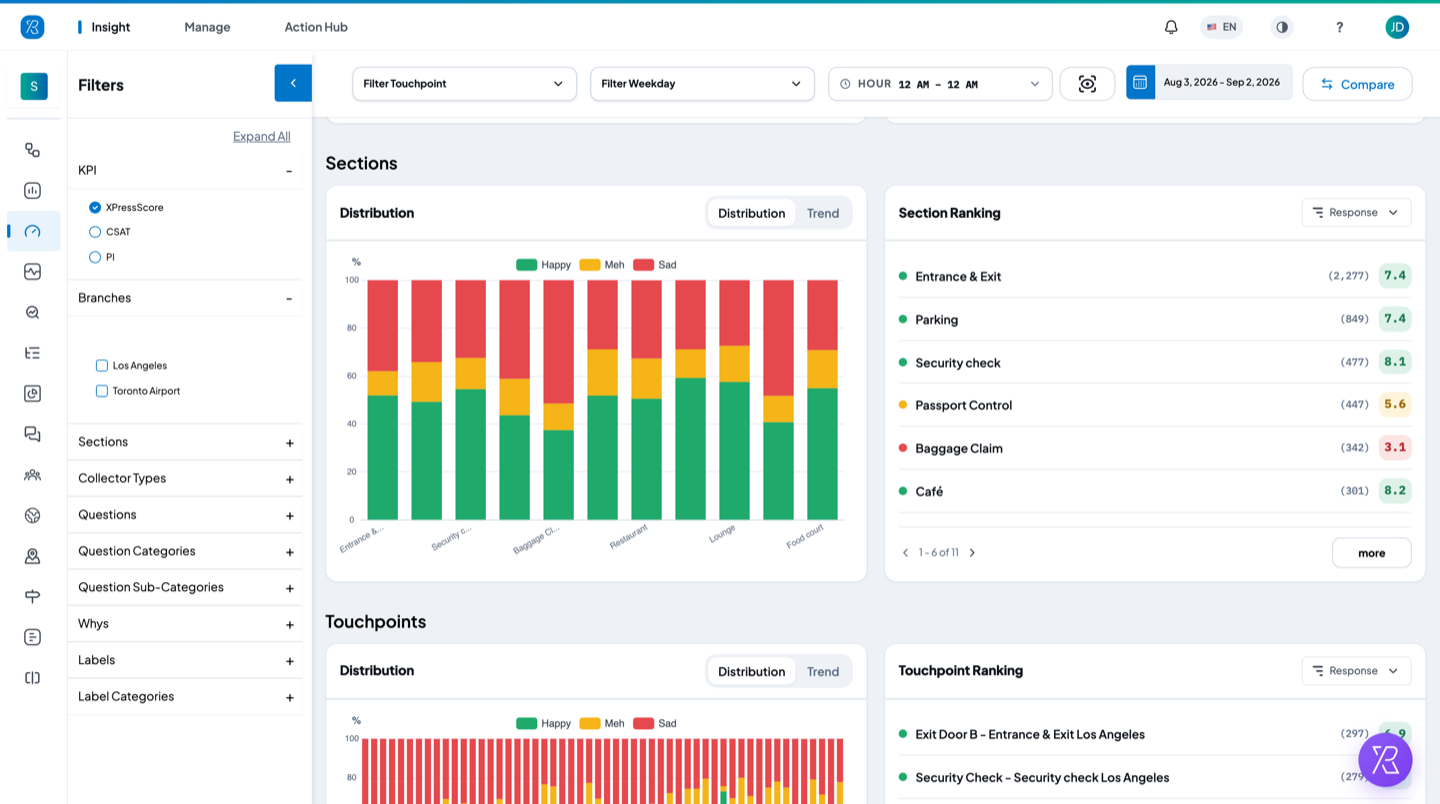
- A chart on the left with two tabs — Distribution shows the Happy / Meh / Sad split for each item.
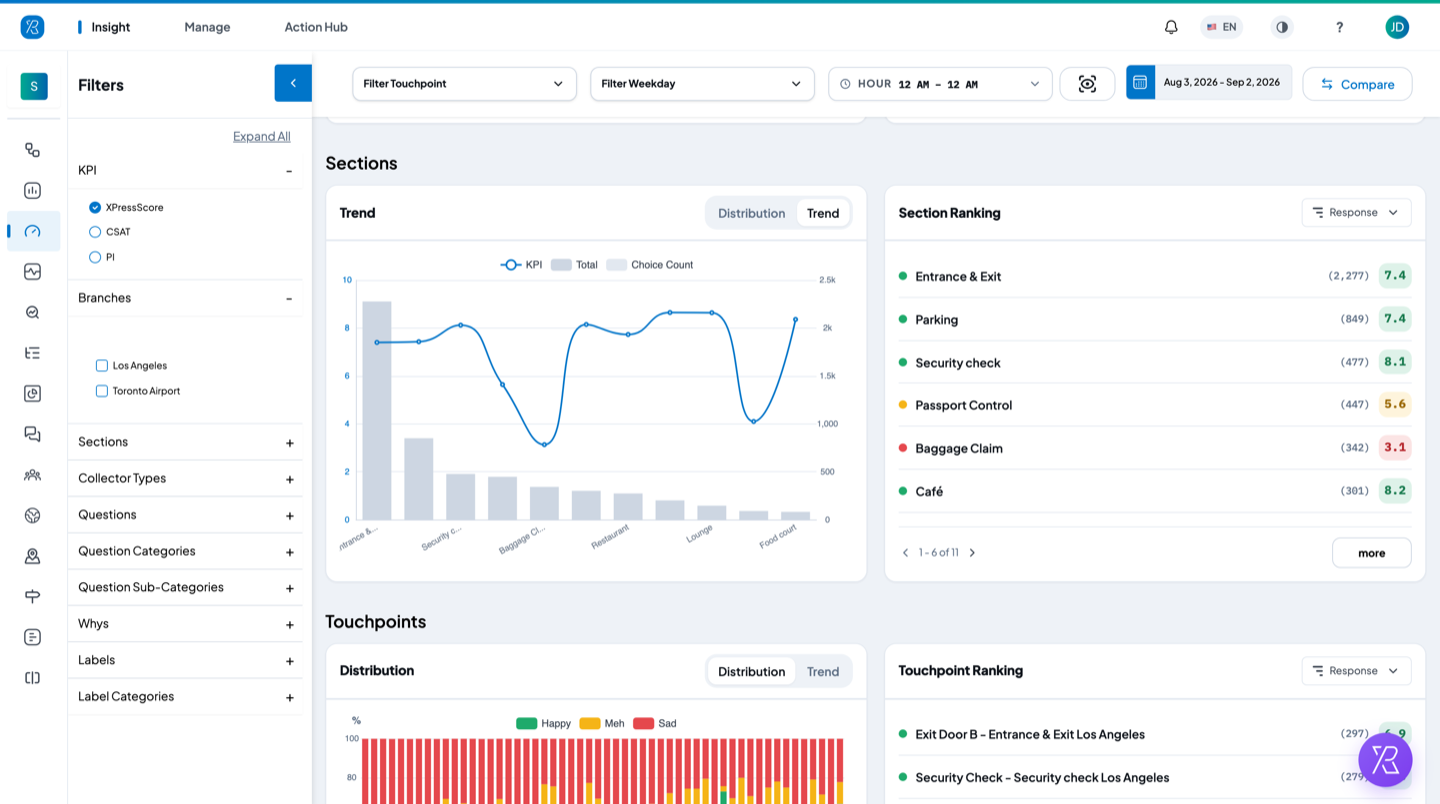
- A Ranking card on the right listing each item with its response count and score, best to worst. The dropdown sorts the list by Response or by Score. Use the arrows or more to see the rest.
Switch the chart to the Trend tab to see the score as a line over the response counts, so you can tell a bad score apart from a score based on only a handful of responses.
The sections are: Month, Week, Date, Branches, Sections, Touchpoints, Collector Type, Questions, Whys, Hour, Weekday and Daypart. If your account has label management, Label and Label Category are added at the end — see Label Management.
A section shows "No data is submitted yet" when nothing matches your filters — for example the Whys section stays empty until your touchpoints ask a reason question, and the label sections stay empty until labels have been applied to feedback.
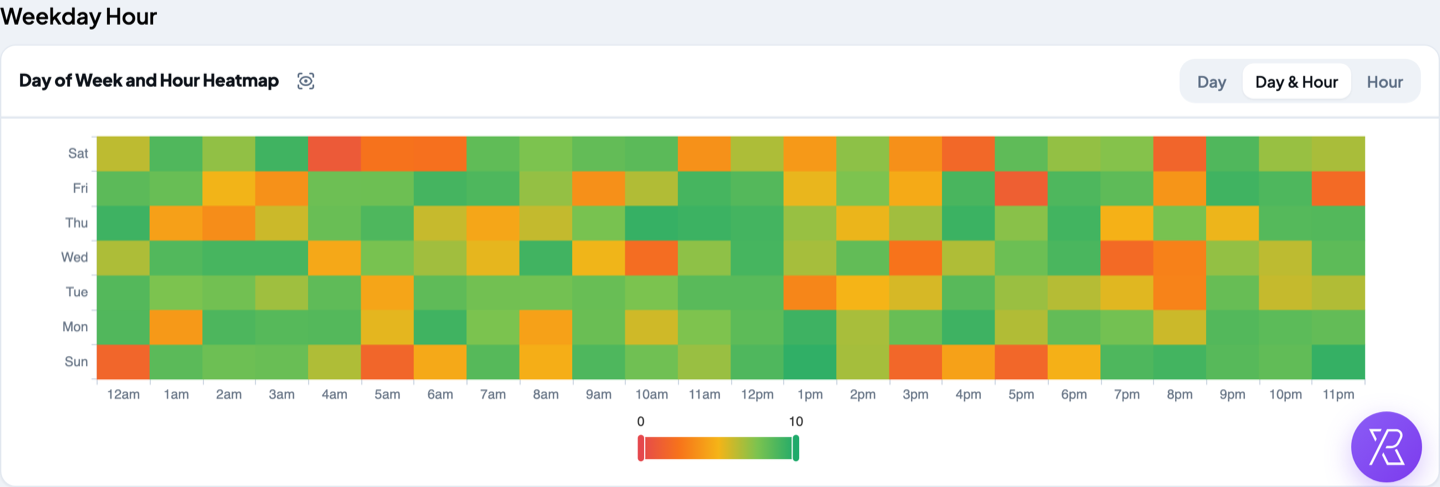
Weekday Hour heatmap
The last card, Day of Week and Hour Heatmap, shows the score for every hour of every weekday. Red is low, green is high, so busy problem hours stand out at a glance. Switch between Day, Day & Hour and Hour with the buttons on the right.
Choose the dates
The date button at the top right sets the period for the whole page.
- Click the date button.
- Pick a shortcut — Today, This Week, This Month, This Quarter, This Year, Yesterday, Last Week, Last Month, Last Quarter or Last Year.
- Or type a start and end date, then click Submit.
Filter what you see
Top of the page
- Filter Touchpoint — limit the report to one or more touchpoints.
- Filter Weekday — keep only certain days of the week.
- HOUR — keep only a range of hours in the day.
Left panel
Open a group with the + sign, or click Expand All to open them all. Every choice applies to the whole page straight away.
- KPI — the score used everywhere on the page: XPressScore, CSAT or PI. Only one at a time.
- Branches, Sections, Collector Types, Questions, Question Categories, Question Sub-Categories, Whys, Labels, Label Categories.
Once you pick something, the panel header counts your filters and a Clear All link appears at the top. Each group also gets its own Clear link. Collapse the panel with the blue arrow next to Filters to give the charts more room.
Other things on this screen
- The camera icon next to the date button downloads the whole dashboard as an image file. Some cards, like the heatmap, have their own small camera icon to download just that card.
- Compare opens Period Comparison, where you put two date ranges side by side.