Period Comparison
Period Comparison answers one question: was this stretch of time better or worse than another one?
You pick two date ranges — Period A and Period B — and the report shows the same numbers for both, side by side, with the change between them.
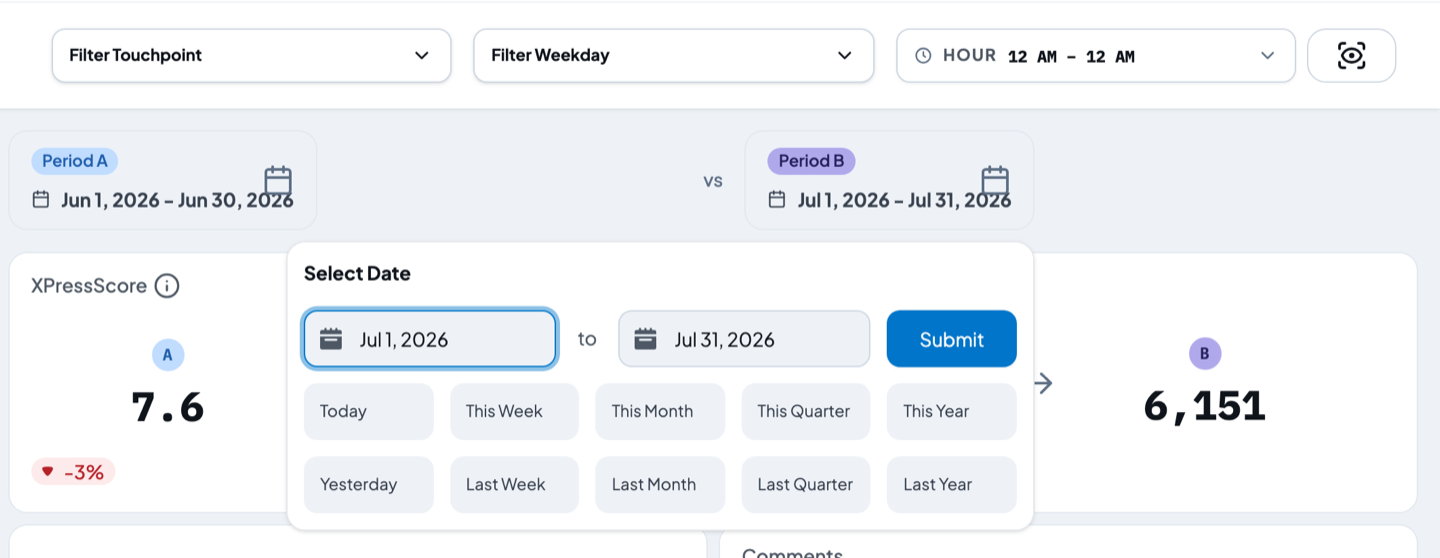
Set the two periods
The two date buttons sit at the top of the report, with vs between them.
When you open the page they are already filled in:
- Period A is the date range you last used elsewhere in Insight.
- Period B is filled in automatically. It is the same-length stretch of time immediately before Period A. If A is a month, B is the month before it. If A is a custom 30-day range, B is the 30 days before that.
You can change either one by hand. Period B is not locked to Period A — once you change it, it stays where you put it.
To change a period:
- Click the Period A or Period B button.
- Pick a shortcut — Today, Yesterday, This Week, Last Week, This Month, Last Month, This Quarter, Last Quarter, This Year or Last Year. The report reloads straight away.
- Or type a start date and an end date in the two boxes and click Submit.
What gets compared
Four cards across the top, each showing the A number, an arrow, the B number, and the change:
- Score — your chosen score for the period. Pick which one under KPI in the left panel: XPressScore, CSAT or PI (Promoter Index). The card title changes to match.
- Responses — how many pieces of feedback came in.
- Touchpoints — how many touchpoints actually produced a score.
- Comments — how many people left written feedback.
Below them, two tables — Branch Ranking and Touchpoint Ranking — repeat the exercise
row by row, so you can see which branch or touchpoint moved and which stayed put. Under each name,
A: 3,214 · B: 3,365 tells you how many responses each period had.
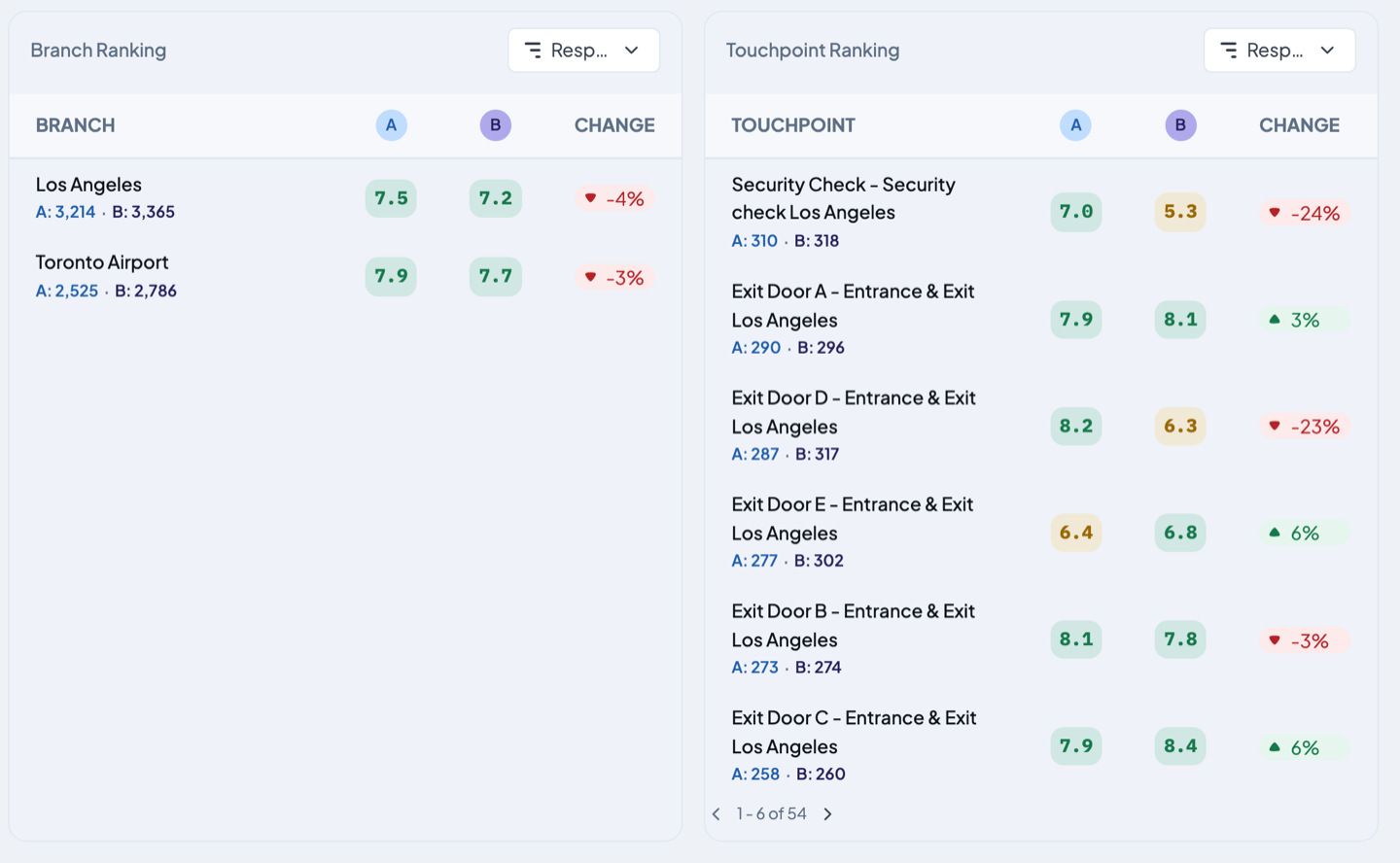
Use the sort box at the top right of each table to order by Response or Score — both sort on the Period A number. Tables show six rows at a time; use the arrows underneath to page through the rest.
How to read the change
The percentage always describes Period B measured against Period A — the same direction the arrow points.
- Green, arrow up — the Period B number is higher than the Period A number.
- Red, arrow down — the Period B number is lower than the Period A number.
- No badge at all on a summary card, or a dash (—) in a ranking table — nothing to compare. Either the two numbers are identical, or one of the two periods had no score for that row.
Green does not automatically mean "good news". It only means B is the bigger number. Because Period B defaults to the earlier range, the colours on a freshly opened report read backwards in time — a green badge there means the older period scored higher, which is a drop.
You can see this on a report you have just opened. Period A covers the last 30 days and Period B the 30 days before that. If the Score card reads A 7.3 → B 7.4 with a green +1%, the score did not go up: the older stretch scored 7.4 and the recent one 7.3, so it slipped.
Put the older range in Period A and the newer range in Period B. Then the arrow runs forward in time, green means "we improved", and red means "we slipped".
Narrow it down
Everything you filter applies to both periods, so the comparison stays fair.
- Left panel — KPI, Branches, Sections, Collector Types, Questions, Question Categories, Question Sub-Categories and Whys.
- Top bar — Filter Touchpoint, Filter Weekday, and an Hour range for time of day.
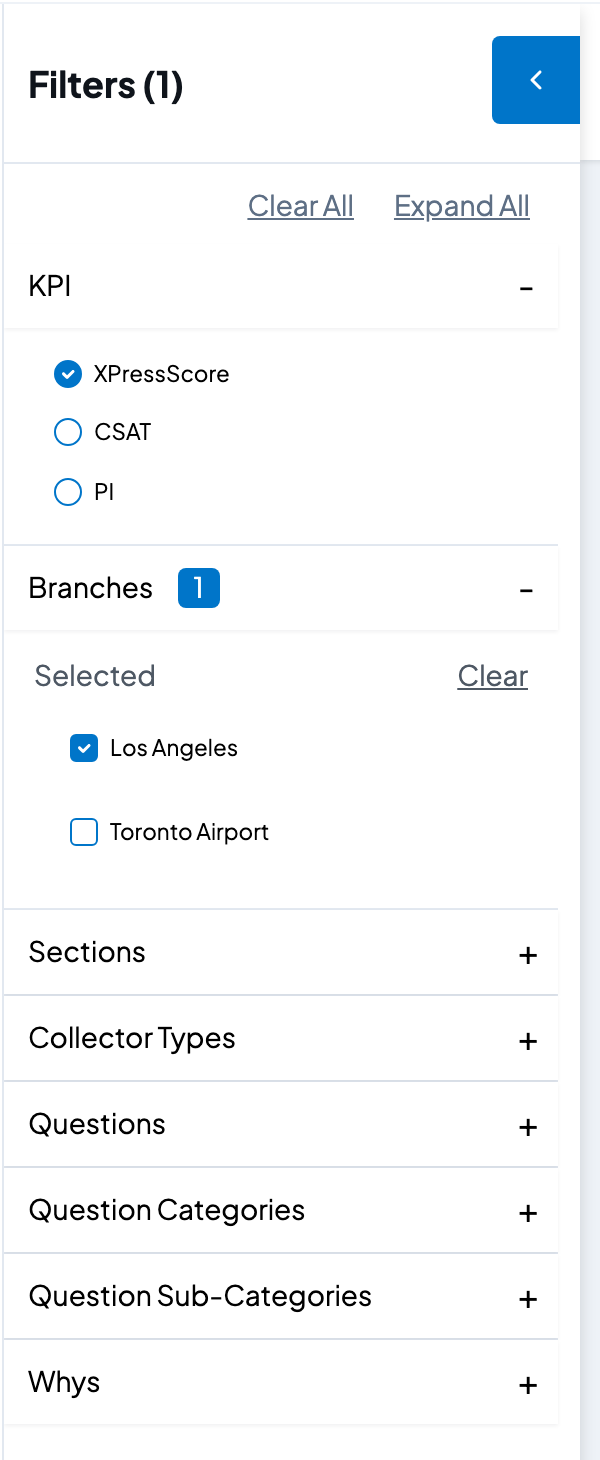
Once you have ticked something, the heading changes to Filters (1) and a Clear All link appears at the top — click it to drop every filter and start again. Each group you have used also gets a count badge and its own Clear link. The camera button at the top right of the report saves a picture of it to your computer.
Filters do not touch the two dates. Clearing them leaves Period A and Period B where they are.
Example: one month against the month before
Say you want to know whether July was better or worse than June.
- Click Period A and type
Jun 1, 2026toJun 30, 2026. Click Submit. June is the older month, so it goes in A. - Click Period B and type
Jul 1, 2026toJul 31, 2026. Click Submit. - In the left panel, leave KPI on XPressScore.
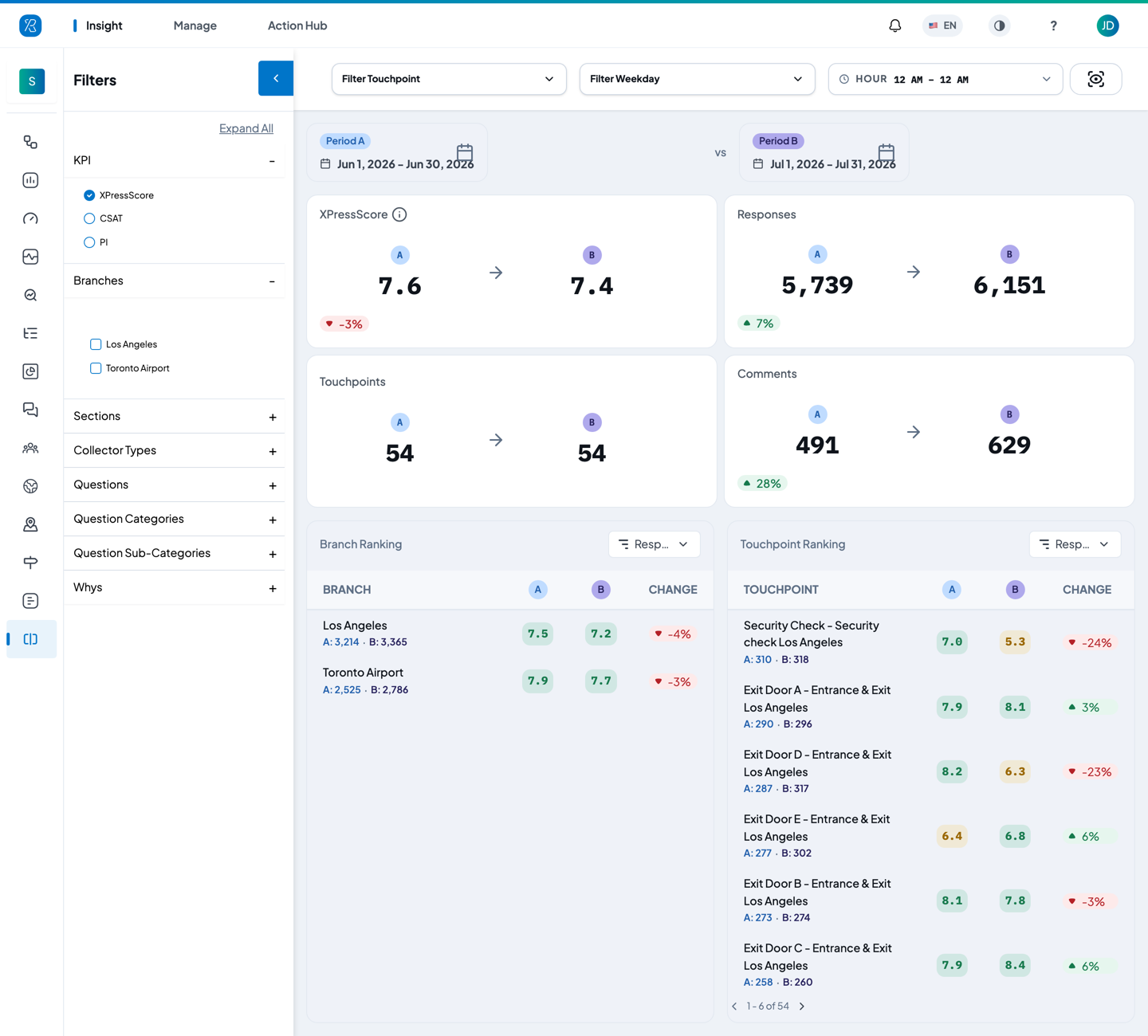
That is the report in the picture at the top of this page. The Score card reads A 7.6 → B 7.4 with a red -3%. The Responses card reads A 5,739 → B 6,151 with a green +7%.
Read it like this: more people answered in July, but the score slipped a little. That is not a thin-sample fluke — July had more responses, not fewer. So scroll down to Touchpoint Ranking to see where the slip came from. Here Security Check fell from 7.0 to 5.3 (-24%) and Exit Door D from 8.2 to 6.3 (-23%), while the other exit doors barely moved. Two touchpoints carried nearly the whole decline — that is where to look first.
If responses had instead dropped from 5,739 to 400, treat any score move with caution. A big swing on a handful of responses often says more about who happened to answer than about the experience.
Related
- XPress Dashboard — the full detail view for a single period.
- Dimension Analysis — compare two ways of slicing feedback instead of two dates.
- PXP Glossary — what XPressScore, CSAT and Promoter Index mean.