Dimension Analysis
A dimension is simply a way of slicing your feedback. Your branches are one dimension. The sections inside a branch are another. So are your touchpoints, your questions, your agents and your labels.
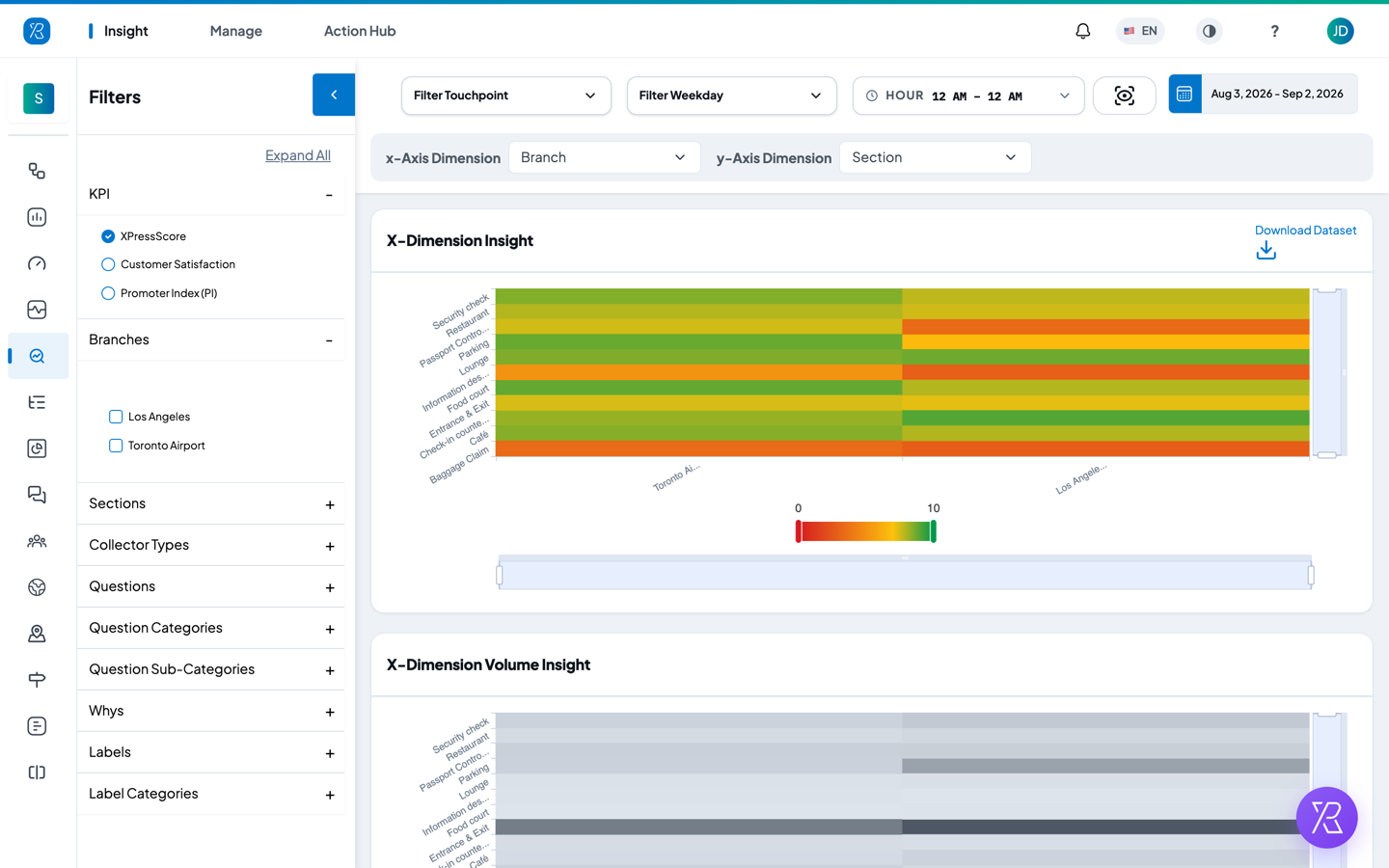
Dimension Analysis puts two of those slices against each other in one colour-coded grid. Put Branch across the bottom and Section down the side, and you get one coloured cell for every branch-and-section pair — so you can see at a glance that Baggage Claim is weak at both airports, while Passport Control is fine in Toronto and poor in Los Angeles.
Open it from the Insight menu.
Pick your two dimensions
Two dropdowns sit above the charts.
- Click x-Axis Dimension and choose what you want along the bottom of the grid.
- Click y-Axis Dimension and choose what you want down the side.
The charts reload on their own. You do not need to click anything else.
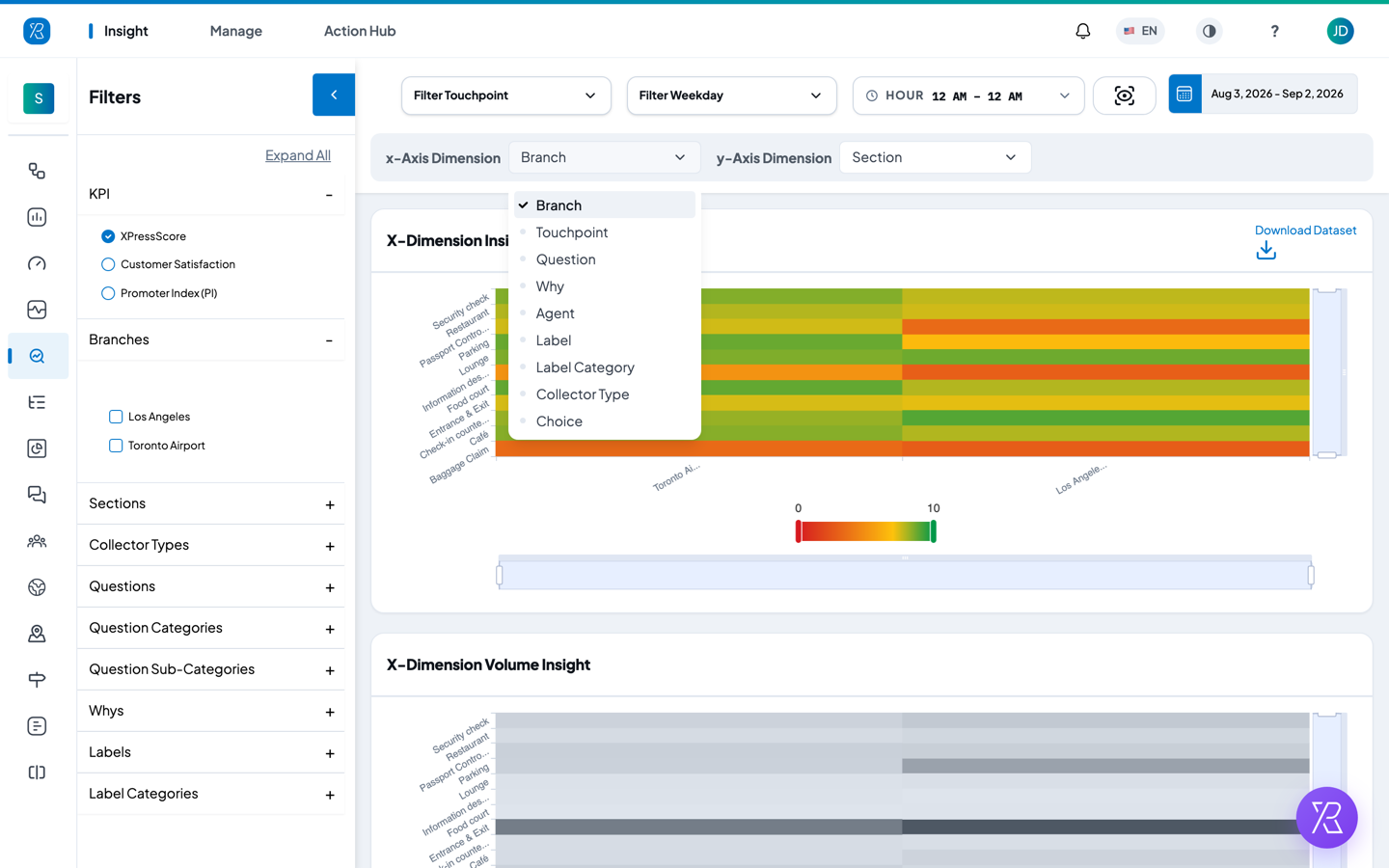
You can choose from:
| Dimension | What it slices by |
|---|---|
| Branch | Your locations |
| Section | The area inside a branch, such as Baggage Claim or Café |
| Touchpoint | The individual feedback point, such as a kiosk at Exit Door A |
| Question | The question that was asked |
| Why | The reason a customer picked when asked to explain their rating |
| Agent | The staff member the feedback was about |
| Label | A single label applied to responses |
| Label Category | The group a label belongs to |
| Collector Type | How the feedback was collected — terminal, tablet, QR, email, SMS, and so on |
| Choice | The option a customer picked on a multiple-choice question |
The dimension already used on the other axis is hidden from the list, so you cannot pick the same one twice. A dimension you have never set up shows as an empty grid — for example, Why stays empty unless you have turned reasons on at your touchpoints.
Some pairs are empty by design. A touchpoint belongs to exactly one branch, so Branch against Touchpoint gives you one coloured cell per row and blanks everywhere else. Use Section when you want to compare the same part of the visit across branches.
Read the grid
There are two charts, and they always use the same two dimensions.
X-Dimension Insight is the score grid. Each cell is one pair — one branch and one section, for example. The colour bar under the chart shows the scale: red is a low score, green is a high one. Look for the red cells — that is where to start.
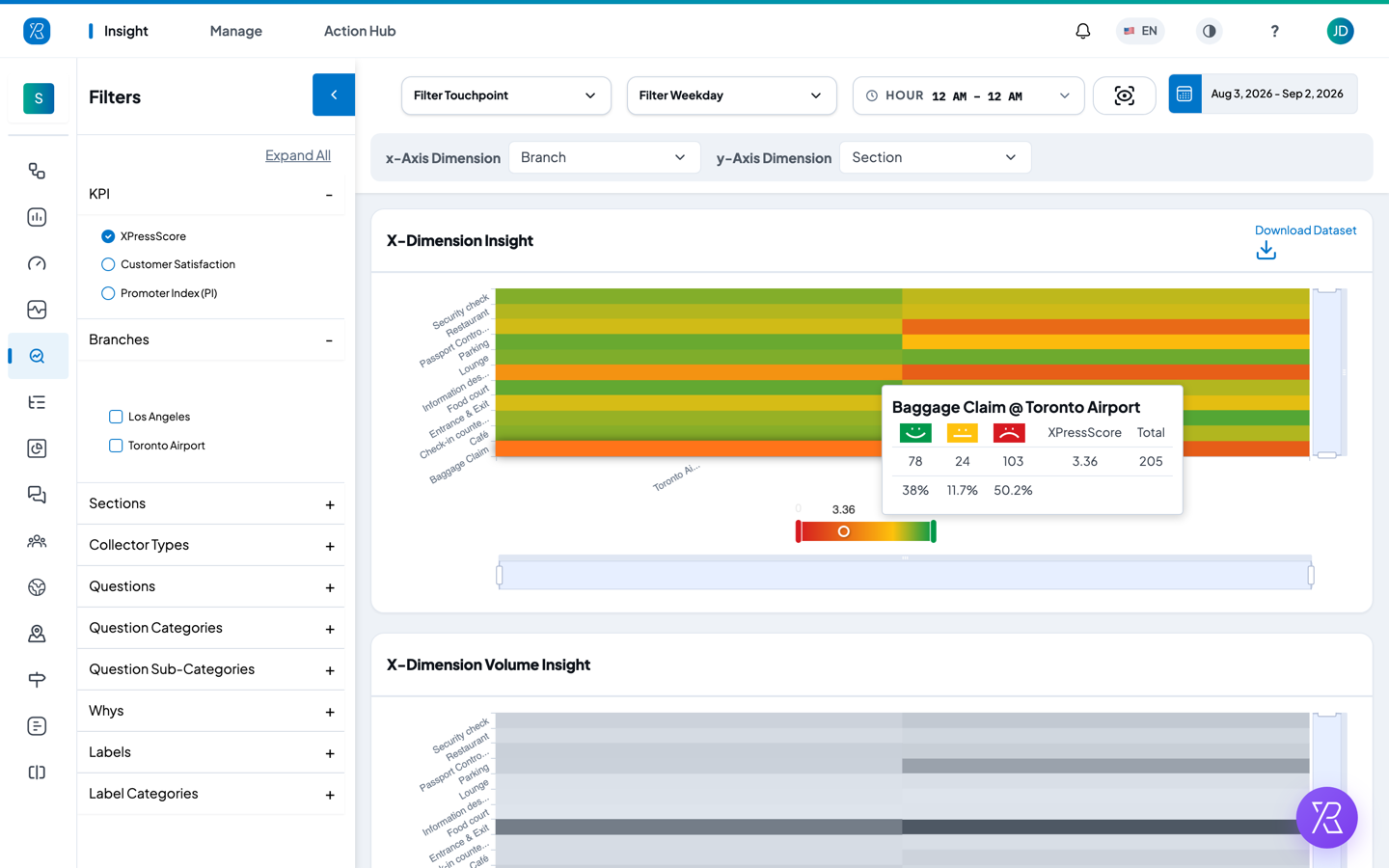
Hover a cell for the exact figures: how many people were happy, neutral (Meh) and unhappy, the percentage split, the score, and the total number of responses behind it.
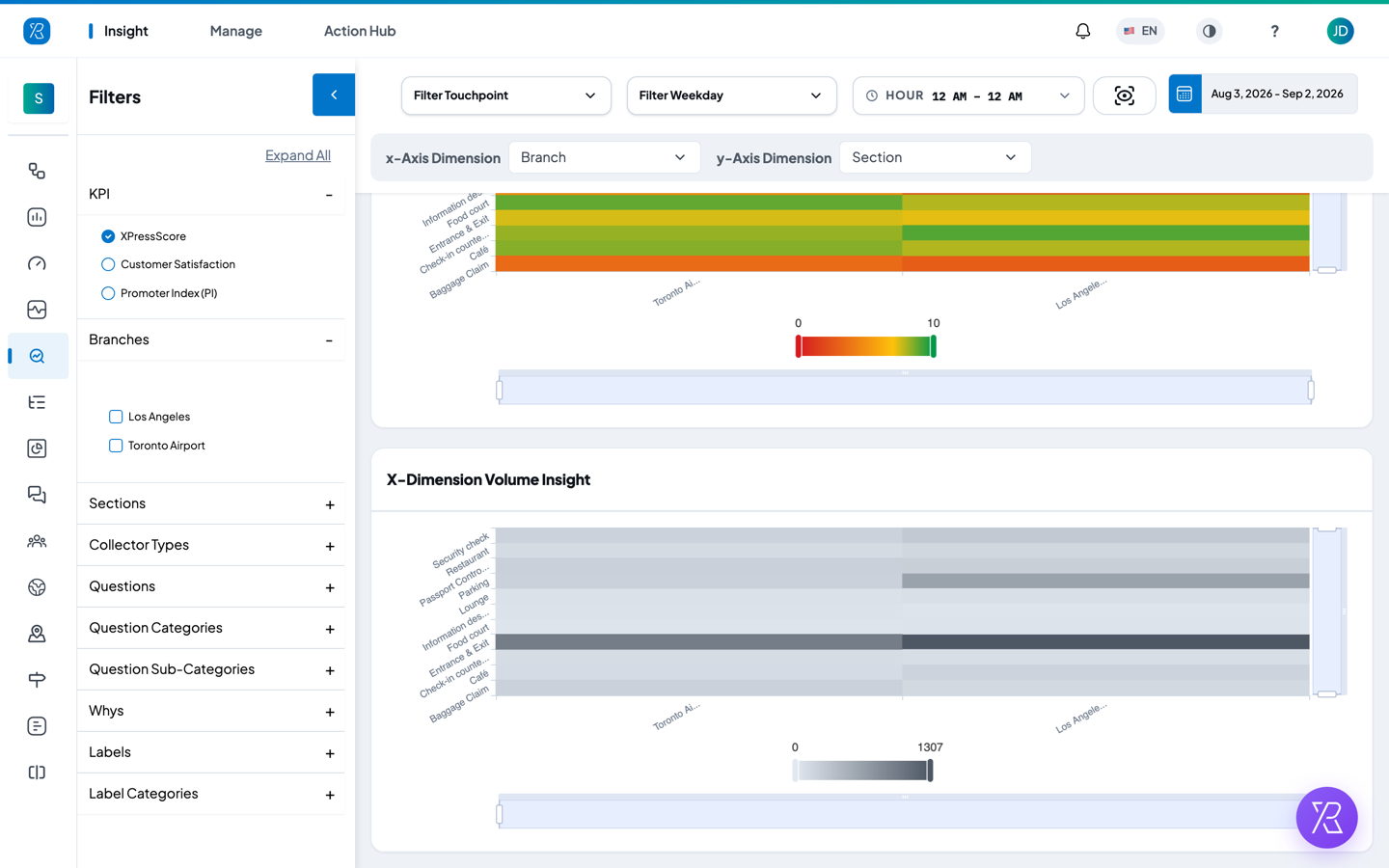
X-Dimension Volume Insight is the same grid, but coloured by how many responses each cell holds. Its scale runs from zero up to the busiest cell in the grid. Dark means a lot of responses, light means few. Always check this one before you act. A red cell built on thirty responses is not the same problem as a red cell built on three hundred.
The controls
KPI (left panel, top). Choose which score fills the grid:
- XPressScore — PXP's own score out of 10, which counts happy, neutral and unhappy answers and weights the unhappy ones more heavily.
- Customer Satisfaction — the share of customers who were happy.
- Promoter Index (PI) — how likely customers are to recommend you, on a 0 to 10 scale.
Filters (left panel). Narrow the data before it is grouped: Branches, Sections, Collector Types, Questions, Question Categories, Question Sub-Categories, Whys, Labels and Label Categories. Click a heading to open it and tick what you want. Expand All opens every group at once. A Clear link appears once you have picked something, and resets your choices.
Filter Touchpoint, Filter Weekday and Hour (top row). Limit the results to certain touchpoints, certain days of the week, or a time window inside the day.
Date range (top right). Set the period the report covers.
Download Dataset (top right of the score grid). Saves the grid as a CSV file with the Happy, Meh, Sad and Total counts plus the score for every pair.
Screenshot (the small icon next to the date range). Saves the whole report as an image.
Your filter choices carry over to other Insight reports, and the page address updates as you change them — so you can copy the link and send someone the exact view you are looking at.
A worked example
Question: "Our score dropped. Is it one branch, or is it one part of the visit everywhere?"
- Set the date range to the period you want to look at.
- Set x-Axis Dimension to Branch.
- Set y-Axis Dimension to Section.
- Look at the score grid.
Read it three ways:
- A red row means that section is weak at every branch — a process problem. In the grid above, Baggage Claim scores 3.4 in Toronto and 2.8 in Los Angeles. Same section, same trouble, both airports.
- A single red cell means one section at one branch. Passport Control scores 7.6 in Toronto but 3.4 in Los Angeles. That one is a Los Angeles problem, not a passport-control problem.
- A red column means that whole branch is weak across the board — a location problem.
Then check the volume grid. Information desk also looks red, but it holds only about 90 responses across both airports, while Baggage Claim holds over 340. Fix Baggage Claim first.