XPressView
XPressView is the one-page summary of your feedback. Open it to see how you scored, how many people responded, and where the good and bad results are coming from.
Find it under Insight → XPressView.
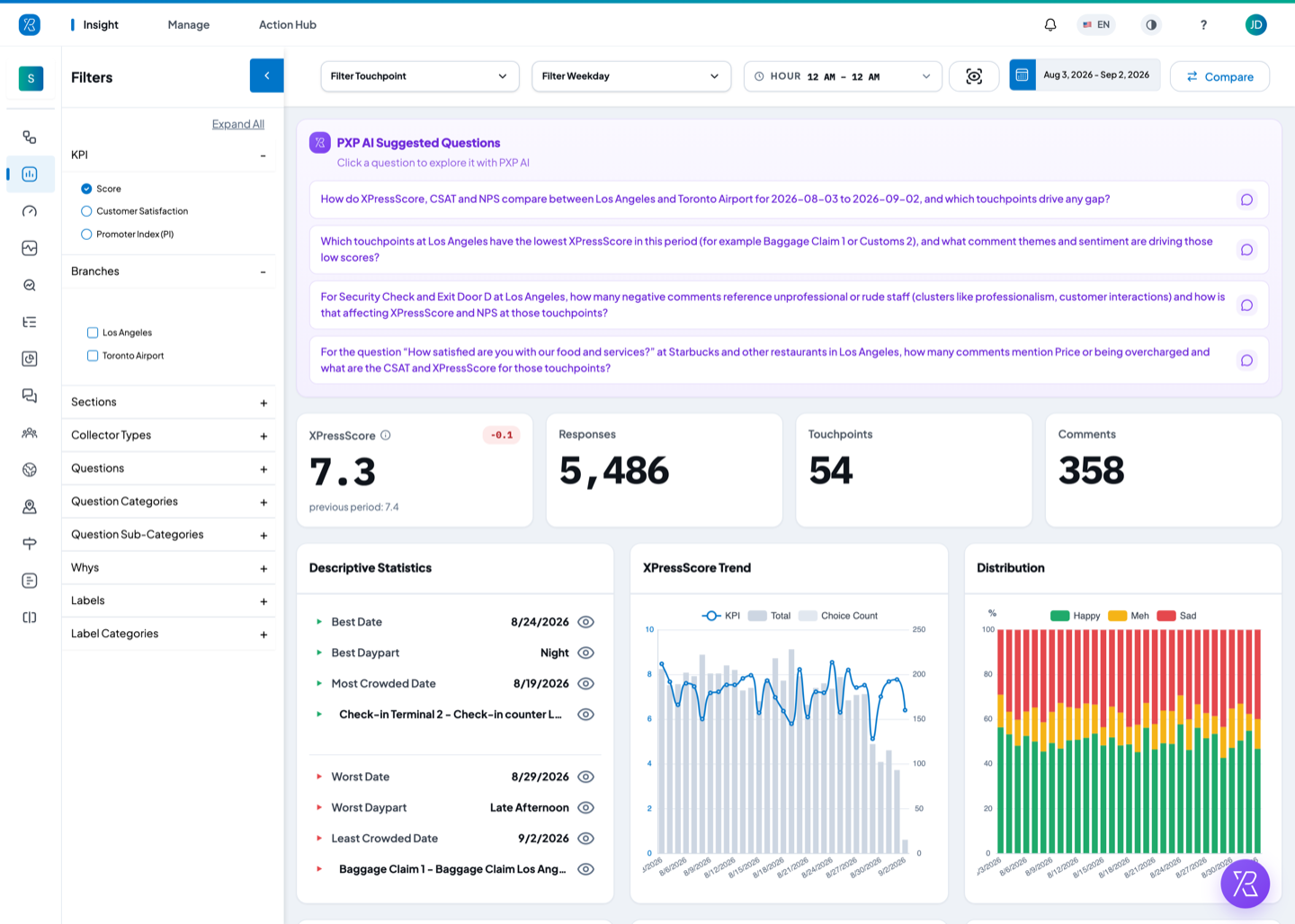
Everything on the page reacts to the same filters. Change the date or tick a branch, and every card reloads.
Set the date range
Click the date button at the top right. The top row of presets covers the period you are in — Today, This Week, This Month, This Quarter, This Year. The row underneath covers the one before it — Yesterday, Last Week, Last Month, Last Quarter, Last Year. To choose your own dates, set the two date boxes and click Submit.
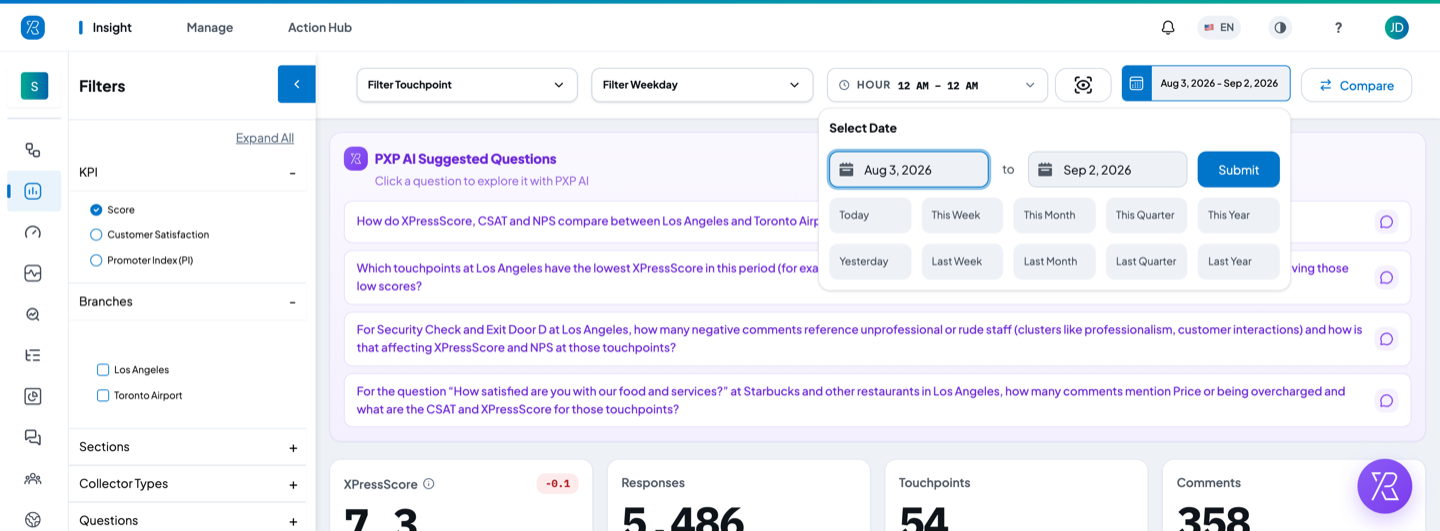
Next to the date button, Compare opens the Period Comparison report, which puts two date ranges side by side.
The Take Snapshot button (the eye-in-brackets icon left of the date) saves the whole dashboard as a PNG image on your computer. Some cards, such as the heatmap, have the same button in their own header so you can save just that card.
Narrow the results with filters
The Filters panel on the left narrows every card at once.
- Click a group to open it: KPI, Branches, Sections, Collector Types, Questions, Question Categories, Question Sub-Categories, Whys, Labels, Label Categories.
- Tick what you want to keep. The page reloads straight away.
- Click Clear All at the top of the panel to remove every choice and go back to everything.
Once you tick something, the panel header shows how many filters are on, and the group you used gets its own Clear link so you can undo just that one.
Expand All opens every group at once. The blue arrow at the top of the panel collapses the panel so the cards get the full width.
KPI is the one filter that changes the number itself, not the data behind it:
- Score — XPressScore, PXP's weighted score built from the happy, meh and sad answers.
- Customer Satisfaction — the share of happy answers, on a 0–10 scale.
- Promoter Index (PI) — the share of happy answers minus the share of sad ones, on a 0–10 scale. This is PXP's version of NPS.
Above the cards there are three more filters: Filter Touchpoint, Filter Weekday, and Hour, which limits results to a time window in the day.
What each card tells you
The cards each answer one question.
| Card | What it answers |
|---|---|
| XPressScore / Responses / Touchpoints / Comments | How did we score, how many people answered, from how many touchpoints, and how many wrote something. The badge beside the score is the change since the previous period, and that period's score is printed underneath. |
| Descriptive Statistics | Which date, part of the day and touchpoint were best and worst, and which were busiest and quietest. |
| XPressScore Trend | Is the score going up or down across the period. The line is the score for each day; the grey bars behind it are how many responses came in that day. |
| Distribution | What share of each day's responses were Happy, Meh and Sad. |
| Response | How many Happy, Meh and Sad responses in total, what share of everything each one is, and how many of each came with a comment. |
| Branch Ranking | Which locations score best and worst. |
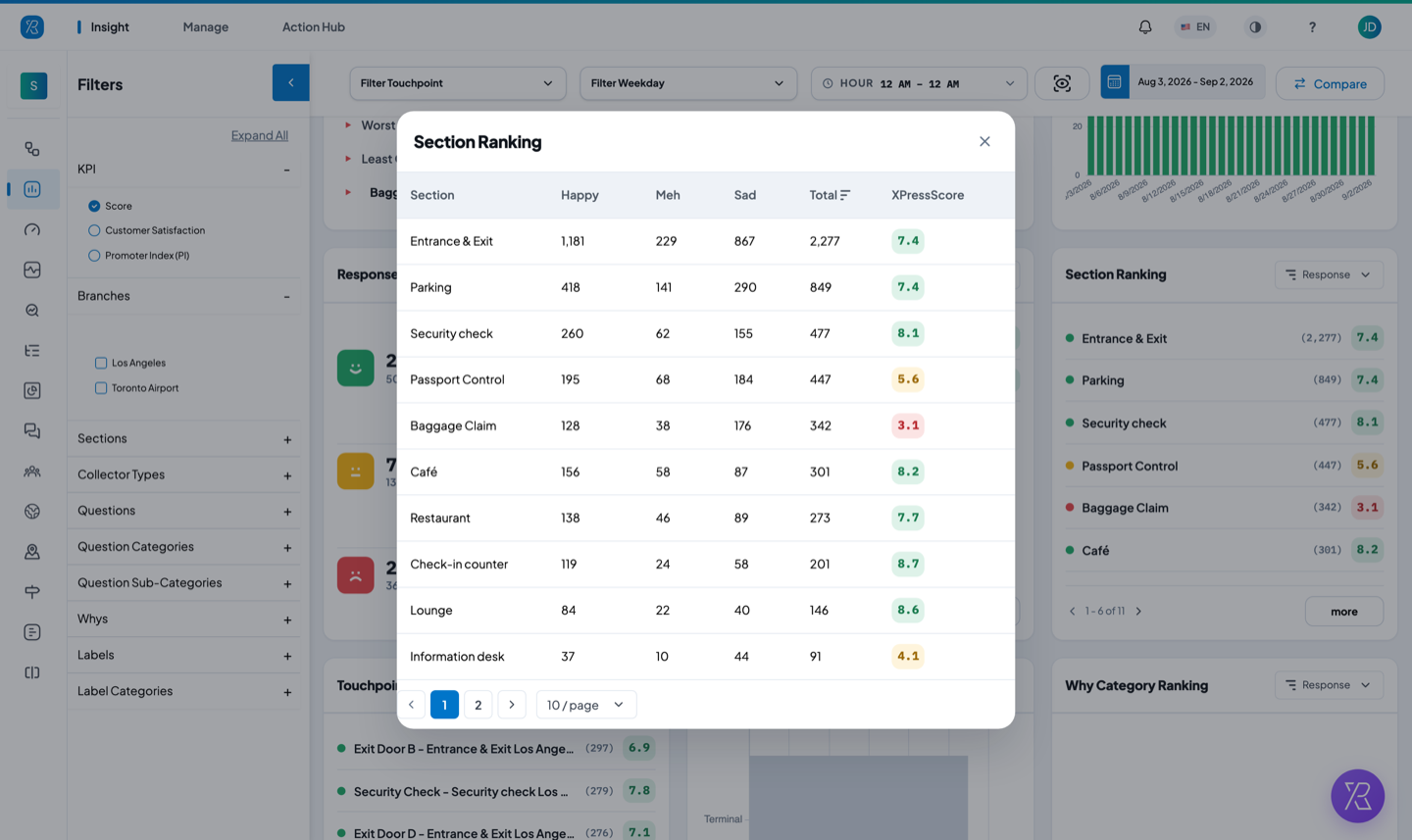
| Section Ranking | Which areas inside your branches score best and worst. |
| Touchpoint Ranking | Which individual feedback points score best and worst. |
| Collector Type | Which kinds of feedback collector the responses arrived through, such as terminal, tablet or QR code. |
| Why Category Ranking | Which groups of reasons customers picked most often, and the score attached to each. Empty unless your questions ask for a reason. |
| Top Reasons | For each reason, how many of the people who picked it were happy, meh or sad. Empty unless your questions ask for a reason. |
| Question Category Ranking | Which groups of questions score best and worst. |
| Question Ranking | Your highest and lowest scoring questions, marked HIGH and LOW. |
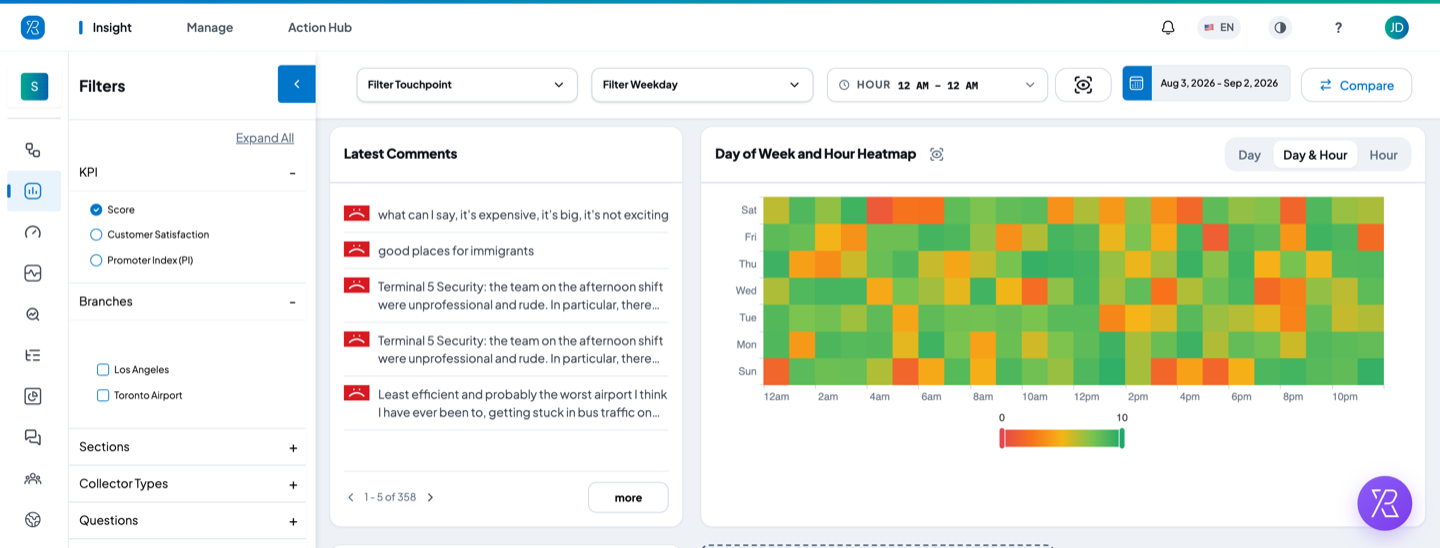
| Latest Comments | What people actually wrote, newest first. |
| Day of Week and Hour Heatmap | Which days and hours score well or badly. Switch between Day, Day & Hour and Hour. |
| Poll Results | How people voted in your polls. Empty until a poll collects answers. |
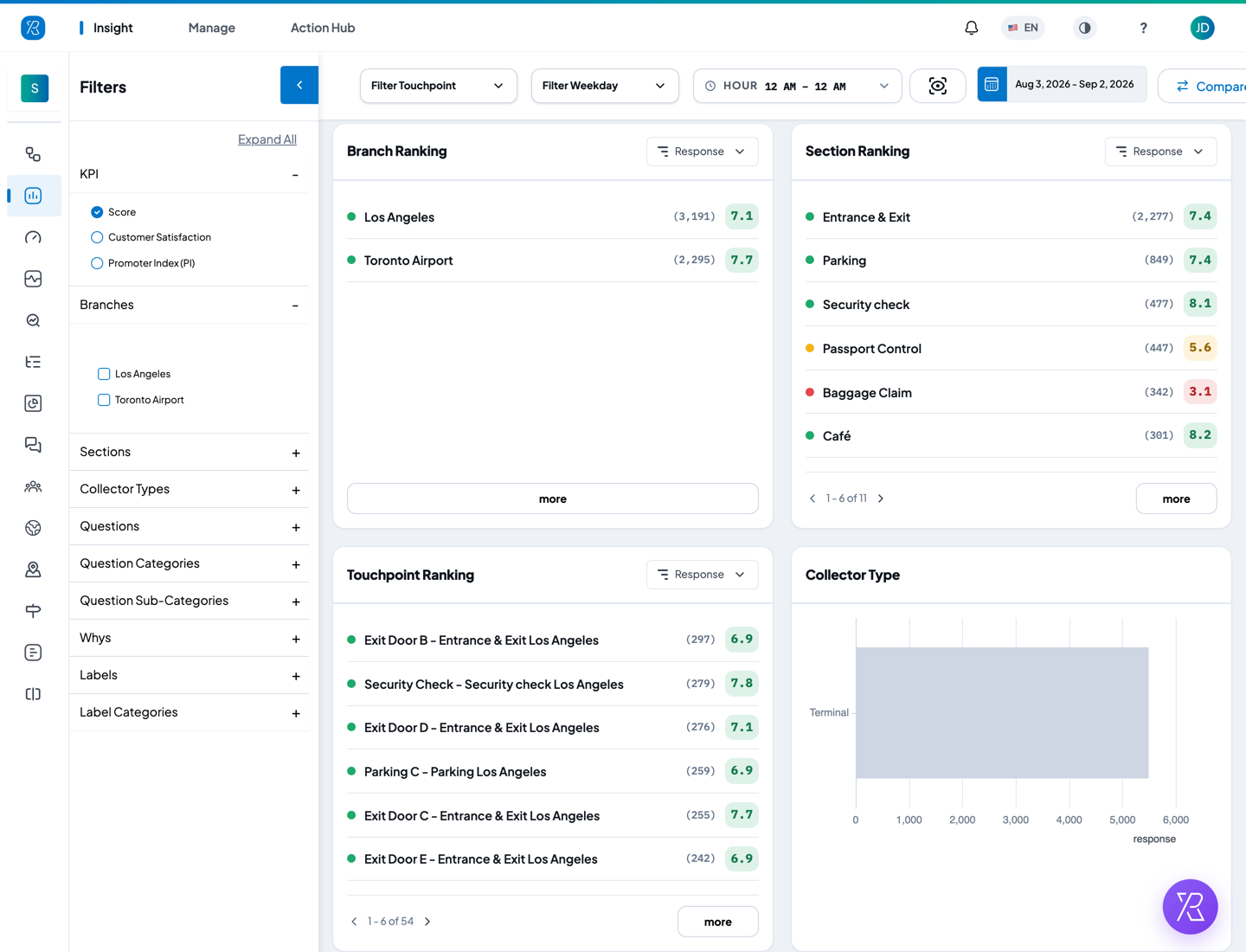
On the ranking cards, the small dropdown in the header re-sorts the list by Response or by Score. The number in brackets is how many responses that row got; the coloured box is its score. The arrows at the bottom left page through longer lists.
A card that has nothing to show reads No data is submitted yet. That is normal for a card whose dimension you have not set up — for example the reason cards when your questions do not ask customers why.
Open the full list with More
A card only shows the top few rows. Click more at the bottom of the card to open the full table, with the happy, meh and sad counts, the total, and the score for every row. Click a column heading to sort by it, and use the page numbers at the bottom to walk through the rest. The 10 / page box makes the table show more rows at a time.
In Descriptive Statistics, the eye icon on a row does the same thing for that one result.
Change which cards you see
- Hover over a card. A small x appears at its top left corner. Click it and confirm to remove the card.
- Once a card is missing, a + tile appears after the last card. Click it, then pick the card you want back.
- Click Reset in the dashed box at the end of the page to put the standard layout back.
Your layout is saved to your own account. It does not change what anyone else sees.
PXP AI Suggested Questions
The purple strip at the top lists questions built from your current filters and date range. Click one to open it in PXP AI and get the answer without building a report yourself.
Related pages
- Reporting & Analytics Overview
- Text Analytics — dig into the comments
- Label Management — set up the labels you filter by
- PXP Glossary — what XPressScore, NPS and CSAT mean