Facility Map
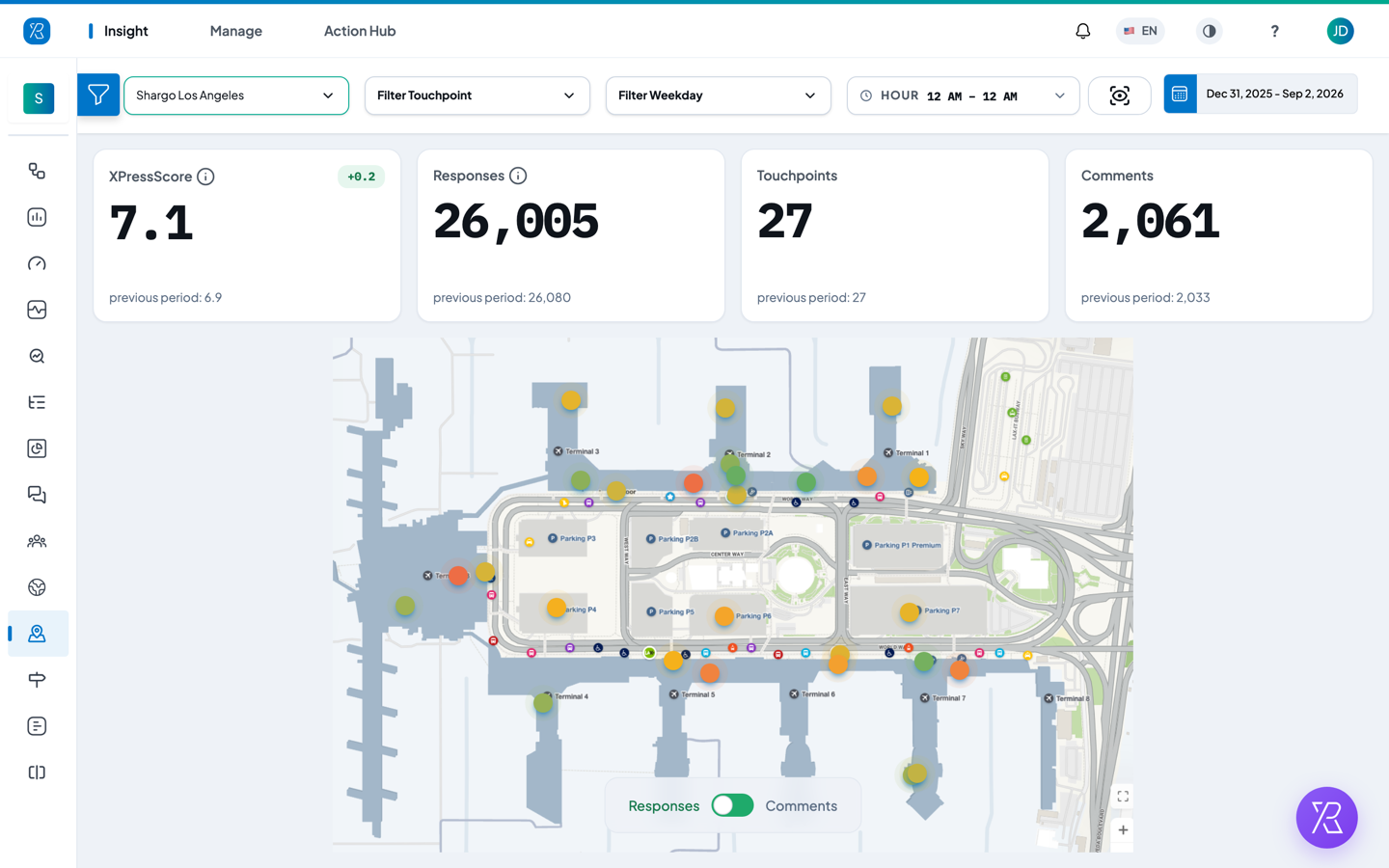
Facility Map puts your touchpoints on a picture of your building — a floor plan, a terminal drawing, a store layout. Each touchpoint (the place where you collect feedback, such as a kiosk by the exit) shows up as a coloured dot where it physically sits. Green means people are happy there. Red means they are not.
Use it to answer one question fast: which part of this building has a problem?
Open it from Insight → Facility Map.
Before you start
Two things have to be in place.
- The Facility Map add-on must be switched on for your organization. If it is off, the menu item is hidden and the page says you are not authorized.
- Your floor plan must be loaded by Press'nXPress. This is not self-serve. There is no upload button anywhere in the dashboard. Send your floor-plan image to Press'nXPress support together with a list of which touchpoint sits where, and the support team sets the map up for you.
Until that happens the page just says There is not any facility map. If you need a map changed — a new layout, a moved kiosk, a new touchpoint added — contact Press'nXPress support the same way.
Pick a map
The first drop-down in the top bar lists every map your organization has. Pick one and the picture, the pins and the numbers all reload for it. There is a search box at the top of the list, which helps when you have a lot of maps.
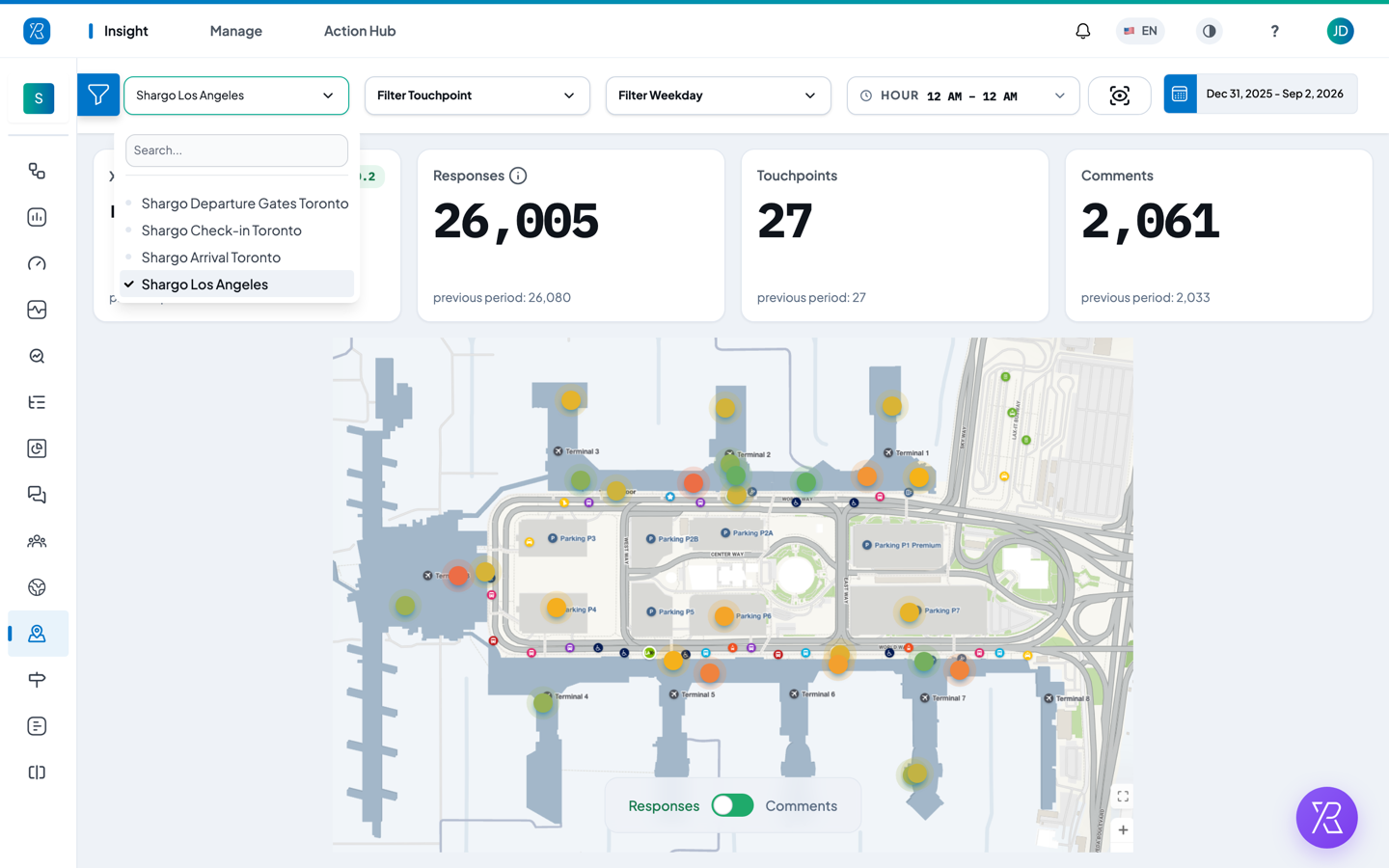
If you have several maps — one per floor, or one per site — this is how you switch between them. Two things to know:
- Changing the map clears the filters you had set. Your date range and your score type stay.
- The Filter Touchpoint list only offers touchpoints that are actually on the map you picked.
Read the colours
Every touchpoint on the map is a dot. The colour is that one touchpoint's score, over the dates you chose. It is a smooth scale, not three buckets:
| Dot colour | What it means |
|---|---|
| Green | Feedback here is positive. The stronger the green, the better the score. |
| Yellow / olive | Feedback here is middling. |
| Orange to red | Feedback here is negative. The stronger the red, the worse the score. |
| Grey | Feedback came in here, but there is no score to show for it. |
A touchpoint that collected nothing at all in the period you chose gets no dot — it disappears from the map rather than turning grey.
Hover a pin for the numbers
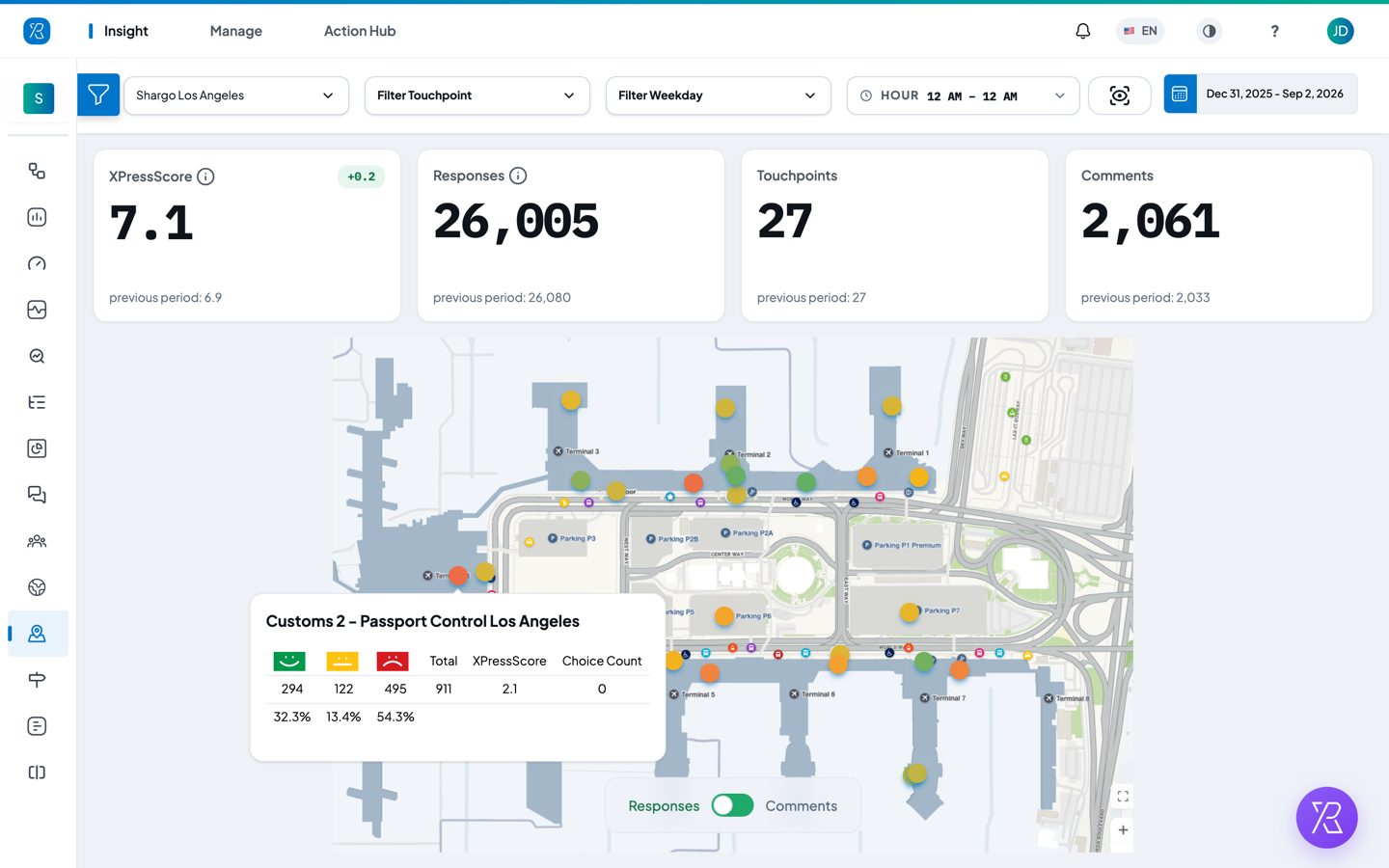
Rest your mouse on a dot and a small panel opens with that touchpoint's name and its counts: how many Happy, Meh and Sad answers it got, the total, the score, and the share each answer took.
Responses or Comments
At the bottom of the map there is a switch with Responses on one side and Comments on the other.
- Responses colours each dot by the score people pressed — the smiley, the rating, the choice. This uses the familiar green / yellow / red.
- Comments colours each dot by the mood of the written comments left there, worked out automatically from the wording. This is called sentiment, and it deliberately uses a different set of colours: blue for positive comments, grey for neutral, pink-red for negative. Where the comments are mixed, the dot sits close to grey.
The two colour languages are different on purpose. A touchpoint can score fine on button presses and still collect unhappy comments, and swapping the switch is the quickest way to spot that.
The numbers above the map
Four tiles sit above the picture, for the map and dates you chose. Each one also shows the same figure for the period before, so you can see whether things moved.
- XPressScore — the overall score for this map.
- Responses — how many pieces of feedback came in.
- Touchpoints — how many touchpoints on this map returned data.
- Comments — how many written comments came in.
The first tile keeps the XPressScore label, but the number follows the KPI you pick in the filter panel: Score (XPressScore, the weighted Press'nXPress score), Customer Satisfaction (CSAT, the share of happy customers), or Promoter Index (PI), the 0–10 version of NPS. The pin colours follow that choice too.
Choose the dates
Click the date button at the top right, then either type a start and end date and click Submit, or use a shortcut: Today, This Week, This Month, This Quarter, This Year, Yesterday, Last Week, Last Month, Last Quarter, Last Year.
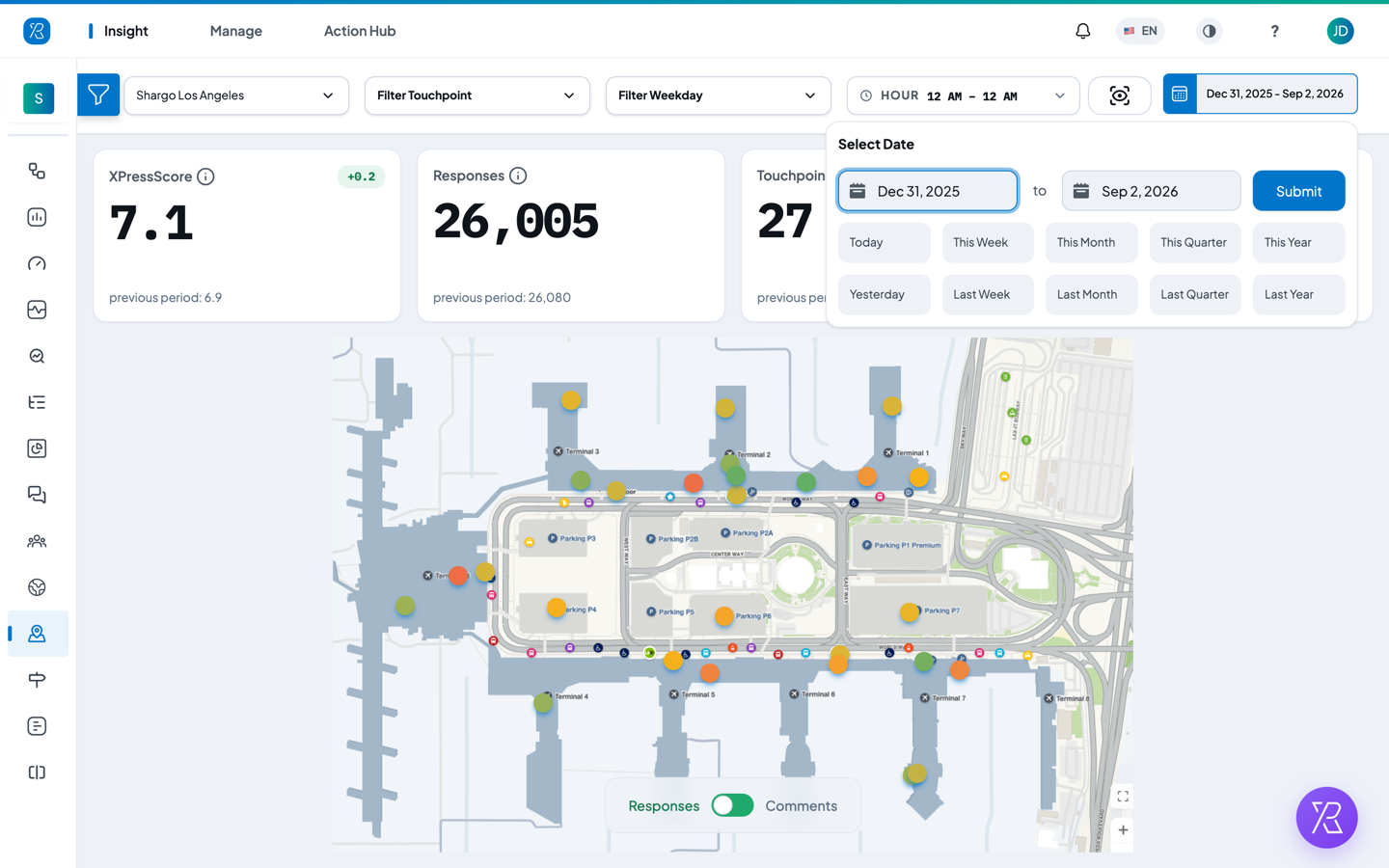
Next to the dates you can also narrow the map by:
- Filter Touchpoint — show only some of the touchpoints on this map.
- Filter Weekday — only Mondays, only weekends, and so on.
- Hour — only a slice of the day, such as the lunch rush.
Narrow it down further
The Filters panel on the left cuts the same data by KPI, Branches, Sections, Collector Types, Questions, Question Categories, Question Sub-Categories, Whys, Labels and Label Categories. Labels appear only if the Label add-on is on for you — see Label Management.
Click Expand All to open every group at once. Once you have set at least one filter, a Clear All link appears next to it to reset them. Use the arrow at the top of the panel to fold it away and give the map the full width.
Save the view as an image
The scan icon between the Hour filter and the date button downloads the whole view — the tiles and the map — as a PNG you can drop into a slide or an email.
Related
To compare whole locations instead of areas inside one building, use Geo Map, which plots your branches on a map of the world.