Survey Report
What this report is for
Pick one survey. This page shows the results of every question in it, added up across everyone who answered in the period you choose.
It answers questions like "how did people rate the check-in?", "which option did most people pick?" and "what did they write in the comment box?".
It does not show you one person's answer sheet. For that, go to Manage → Survey, find the survey in the list, and click its Responses count.
To build or change the questions themselves, see Survey Management.
Open the report and pick a survey
- Click Insight in the top bar, then Survey in the left menu.
- Click the dropdown at the top left. It holds every survey in your organization — type in its search box if the list is long.
- Click the survey you want. The page reloads with that survey's results.
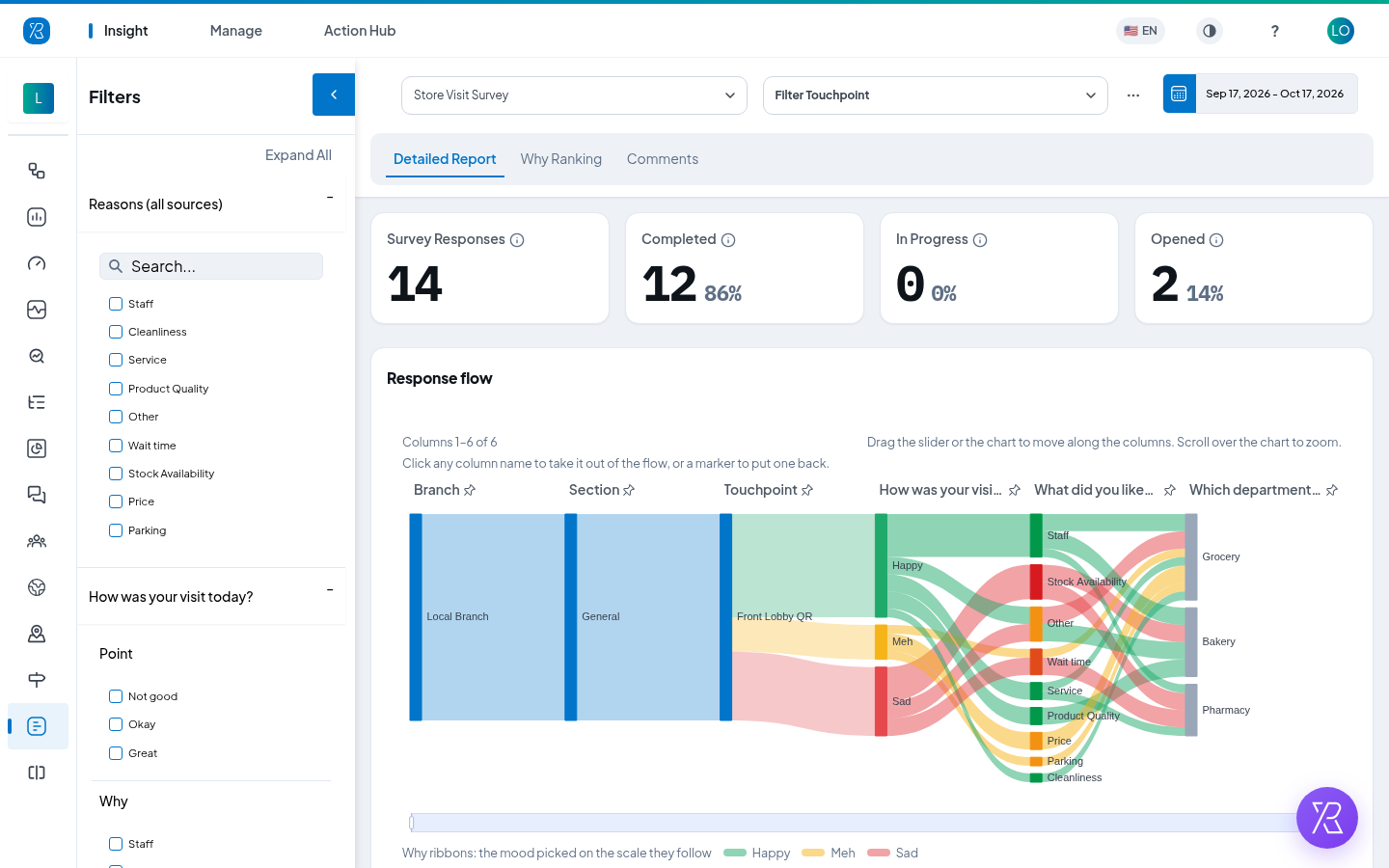
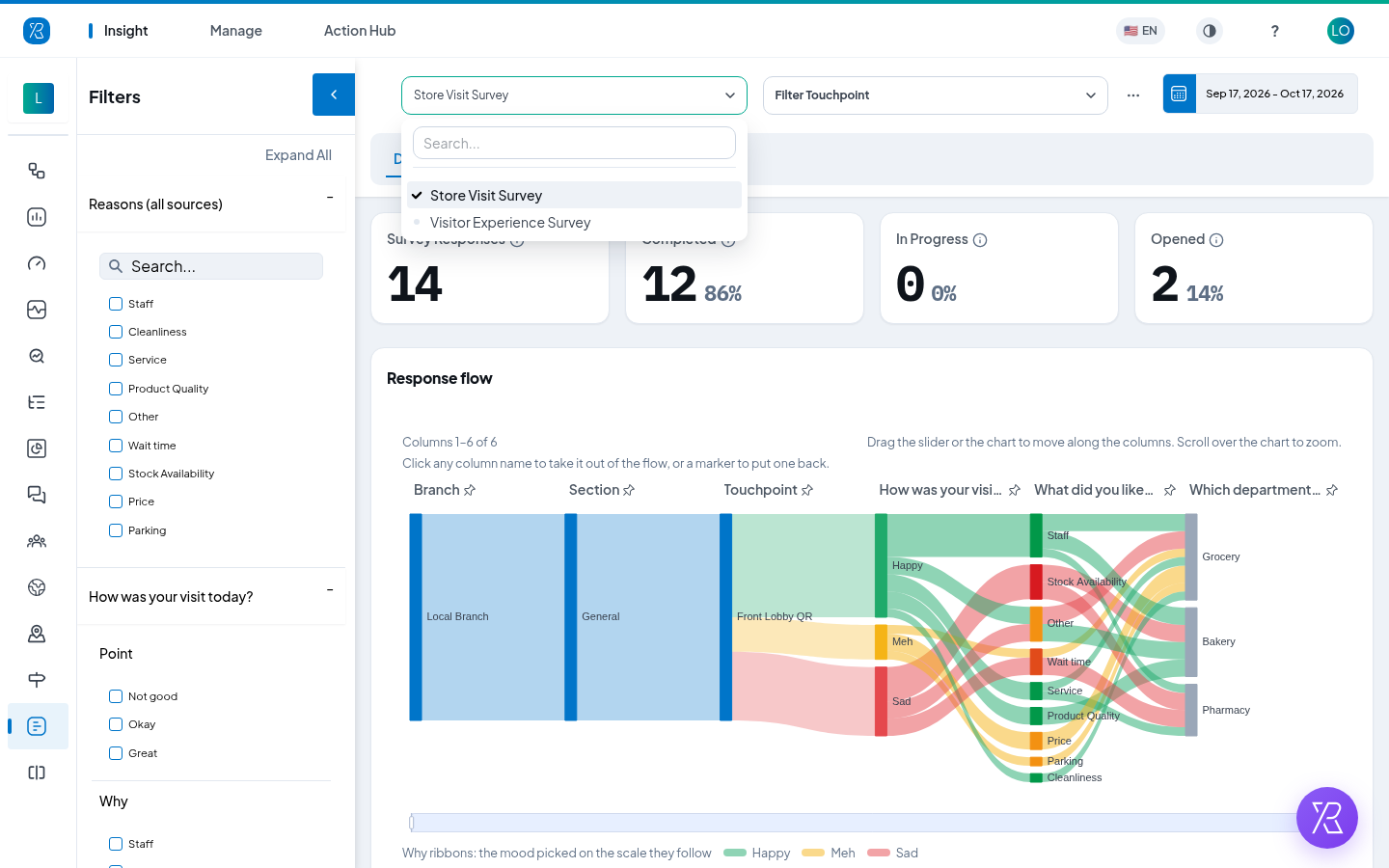
Filter Touchpoint, beside the dropdown, narrows the report to the places the survey was answered — one kiosk, one branch entrance, one QR code. A touchpoint is a single point of contact where feedback is collected.
The date button on the far right sets the period, and opens on the last 30 days. It will not let you go outside the window in which this survey actually collected answers, and names that window as First answer and Last answer. If the page says No data available for this time range, the survey collected nothing then — widen the range.
The four counts at the top
| Tile | What it counts |
|---|---|
| Survey Responses | Every survey sent or opened. This is the total the other three add up to. |
| Completed | The person submitted the whole survey. |
| In Progress | The person started answering but never submitted. |
| Opened | The person looked at the survey and answered nothing. |
Each shows its share of the total beside it, so Completed doubles as your completion rate and Opened as your drop-off. Hover the small i beside any title for the same definition.
These tiles count people, by the status of their survey. The charts below count answers: every answer that was saved, whether or not the person went on to submit. Someone who answers the first rating and then leaves is counted under In Progress here, and their rating still counts in that question's chart.
Response flow
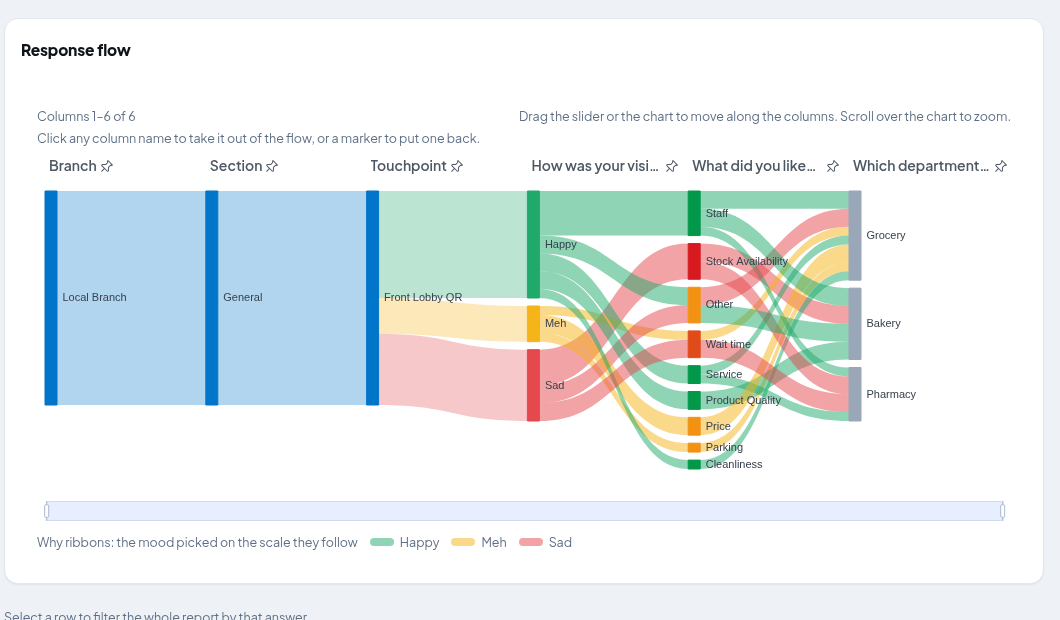
The Response flow chart follows respondents from left to right: their branch, section and touchpoint, then their answer to each question, in survey order. The wider a band, the more people took that path. Follow-up Why questions sit in the same column as each other (for example What did you like? · What could we do better?), and their ribbons are coloured by the mood picked on the scale they follow: green for happy, yellow for meh, red for sad.
- Drag the slider under the chart, or the chart itself, to move along the columns. Scroll over the chart to zoom.
- Click a column name to take that column out of the flow, or its marker to put it back.
- Click a row in the chart to filter the whole report to the people who gave that answer.
How each question is shown
Below the flow, every question gets its own card, in survey order. Click Collapse on a card to fold it, or use Shrink All in the … menu at the top to fold all of them at once. Question types do not look the same:
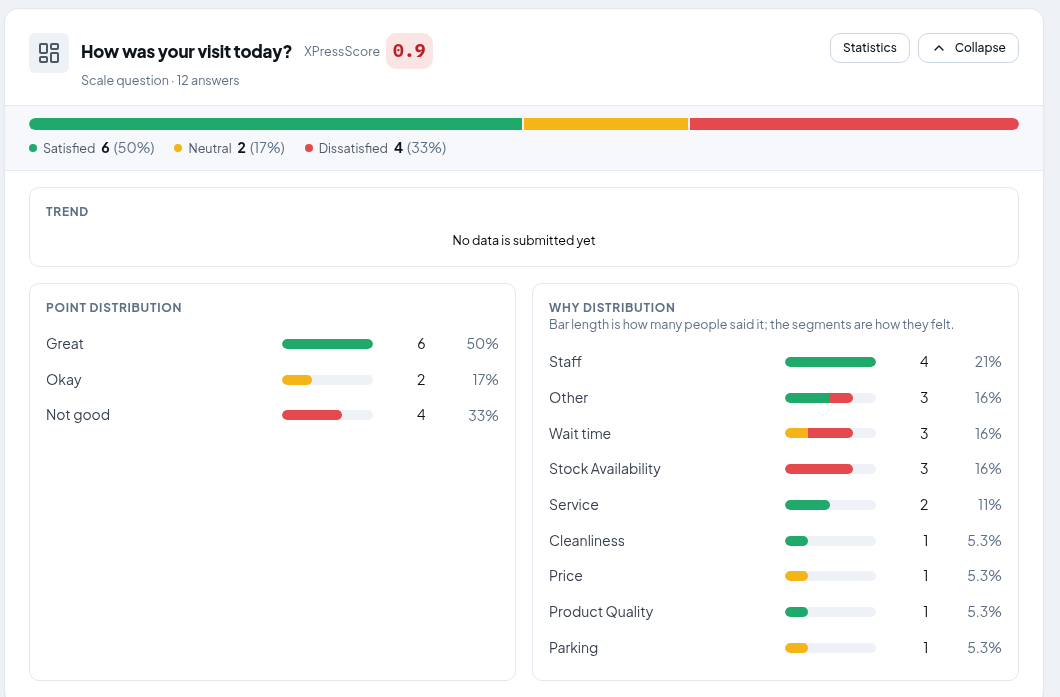
Scale questions show the question's XPressScore next to the title, the number of answers, and a bar split into Satisfied, Neutral and Dissatisfied with the count and share of each. Under it:
- Trend: how the answers moved over the period.
- Point Distribution: how many people chose each point on the scale.
- Why Distribution: the whys picked on the follow-up Why questions of this scale, all moods together. Each bar is how many people said it; its coloured segments show how they felt.
Statistics opens a table with the mean, median, mode and the count per point.
Follow-up Why questions and follow-up comments are reported under their scale, grouped by mood, rather than as separate questions. See Survey for how to set up a follow-up.
Categorical questions show a bar per choice, with how many picked it and its share. The download button on the card saves the counts on their own. An Independent Why question is charted the same way, with green or red bars depending on whether it asks what people liked or what could be better.
Open comment and voice questions have nothing to chart, so the card is the comments themselves, newest first, a page at a time, each with its date. A voice answer shows its transcript and a play button. Green and red chips under a comment are reasons PXP AI read out of the words.
If your survey asks for a name or an email, a Respondents section is added at the bottom, collapsed until you open it.
Clicking a bar filters the whole report down to the people who gave that answer. Click it again to undo.
Why Ranking
The second tab pools every reason people gave (picked on a follow-up Why question, picked on an independent Why question, or read out of a written comment by PXP AI) and ranks them.
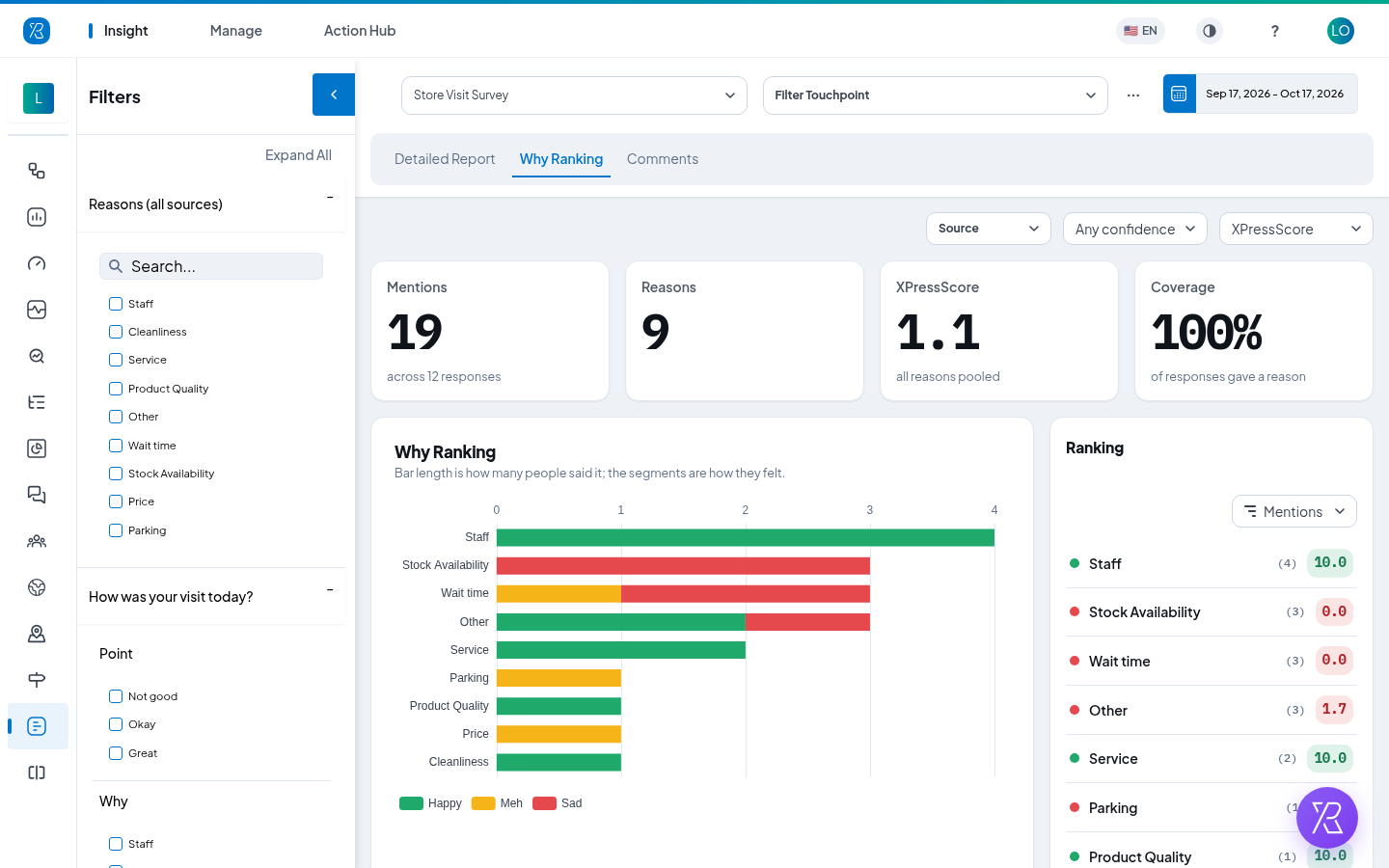
- Mentions is how many times reasons were given, across how many responses.
- Reasons is how many different reasons came up.
- Coverage is the share of responses that gave any reason at all.
- The bars are sorted by mentions; the coloured segments show how the people who said it felt.
- XPressScore is the score for all reasons pooled. XPressScore is the PXP score that counts happy, neutral and unhappy answers, weighted so unhappy answers count for more.
The Ranking card on the right repeats the list with each reason's mention count and its own score, and its dropdown re-sorts the list.
The Source dropdown keeps only reasons from one place:
- Scale question: whys picked on a follow-up Why question, counted under the scale they follow.
- Why question: whys picked on an independent Why question.
- PXP AI-detected: reasons the AI read out of comments.
The Where the reasons came from card at the bottom shows how many mentions came from each. Any confidence drops low-confidence AI matches.
Comments
The third tab is every written and spoken comment in the survey in one list.
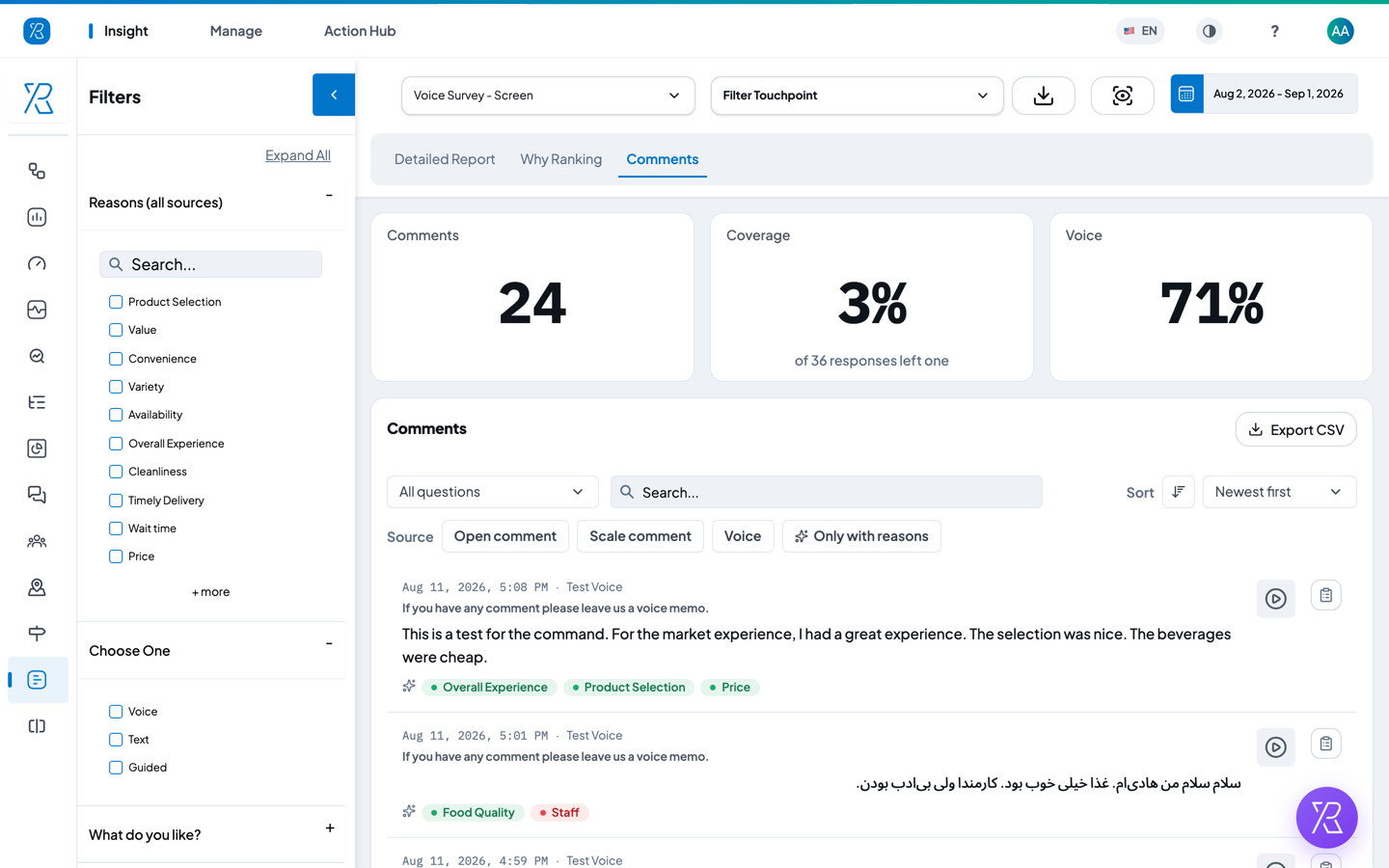
Filter it by question, by source (Open comment, Scale comment for a follow-up comment on a rating, Voice), or to Only with reasons. Search the text, sort newest, oldest or most reasons, and Export CSV to take the list away.
Recordings with no transcript are labelled Voice only — they have no text, so a search will never find them.
Filters and download
The panel on the left narrows the whole report at once. Reasons (all sources) keeps only responses that gave a chosen reason, however they gave it. Below it there is one section per question, so you can keep, say, only the people who answered Dissatisfied. Under a scale question you can also filter by its follow-up whys.
Download in the … menu at the top saves the responses behind the report as a CSV — one row per response, one column per question, plus the response id, date, status, touchpoint, branch and language. It is greyed out when there is nothing to export. Take Snapshot in the same menu saves the page as an image.