Dashboard (Response Flow)
Response Flow is the first screen you see when you open Insight. It answers one question: for the feedback you got in this period, where did it come from and why did people rate the way they did?
Everything on the page follows the same path — branch, then section, then touchpoint, then question, then the reason people picked.
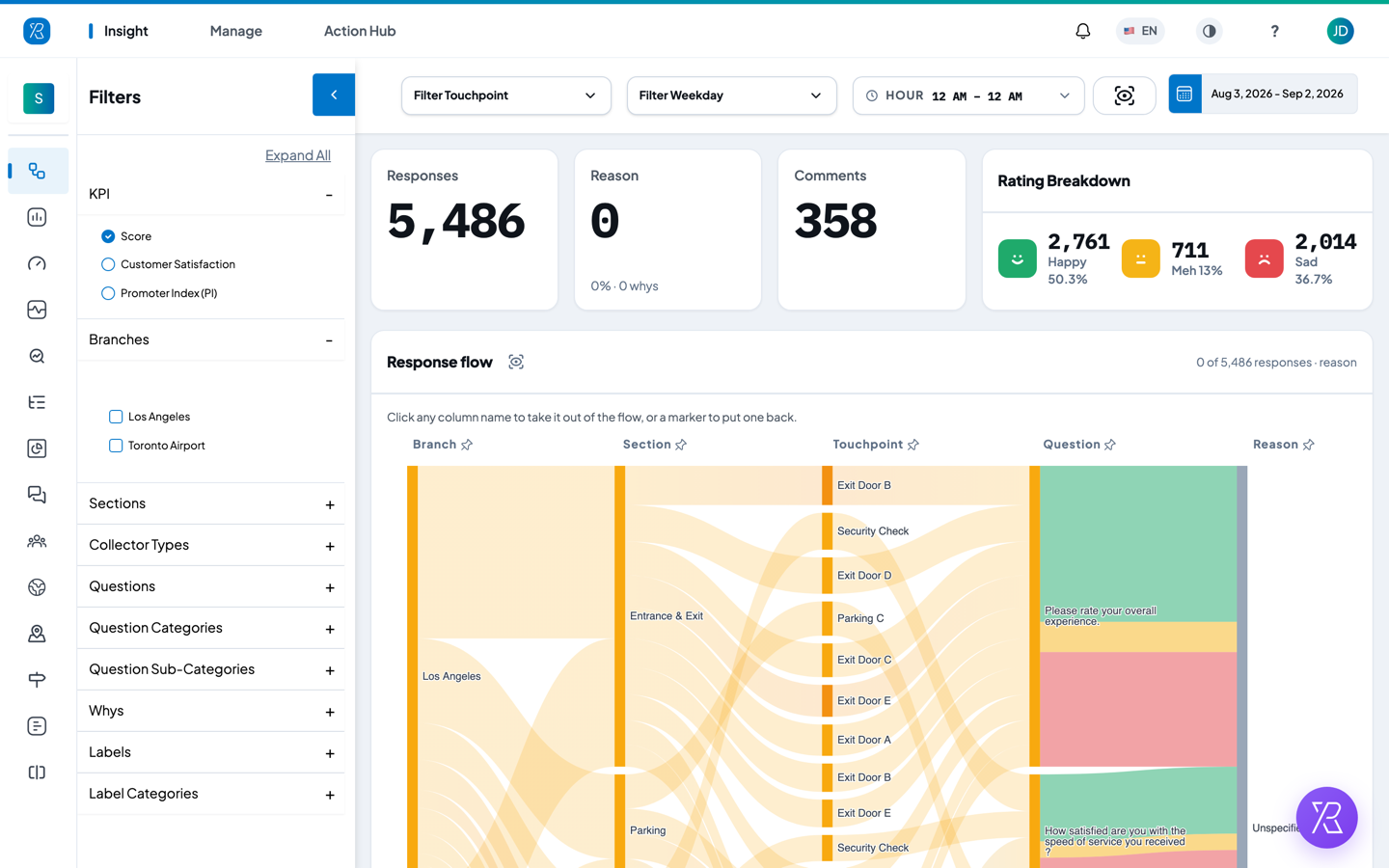
The four cards at the top
| Card | What it tells you |
|---|---|
| Responses | How many pieces of feedback you got in this date range. |
| Reason | How many of those people also picked a reason. Underneath: what share that is, and how many different reasons were picked. |
| Comments | How many people typed a comment. You can read them at the bottom of the page. |
| Rating Breakdown | How the ratings split into Happy, Meh and Sad, with a count and a percentage for each. |
Every card obeys the filters and the date range. Change a filter and all four numbers change with it.
How to read the flow
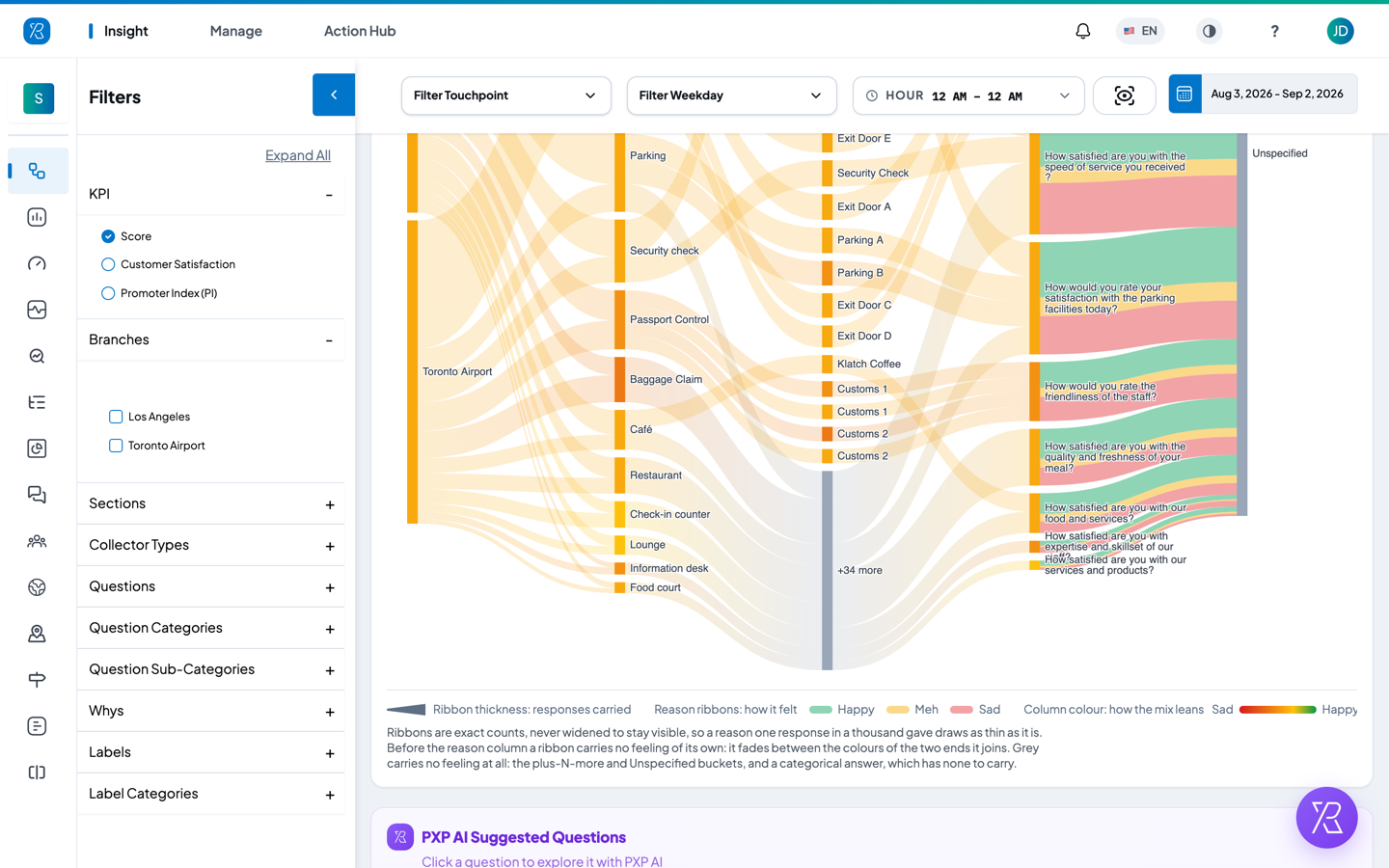
The big picture below the cards is a flow diagram. It is easier than it looks. There are only two things to look at.
- How thick a ribbon is = how many people. A fat ribbon is a lot of responses. A thin one is a few. The widths are exact, so a reason only one person gave really does draw as a hairline.
- What colour it is = how happy they were — but only on the ribbons that run into the Reason column. Green leans happy, yellow is Meh, red leans sad. Earlier in the flow a ribbon has no feeling of its own, so it just fades between the colours of the two blocks it joins. Grey means no feeling at all: the +N more and Unspecified blocks, and poll answers.
- The coloured bar for each block shows how that block's mix leans, on the same Sad-to-Happy scale you see in the legend under the diagram.
Read it left to right. Each column is one step, and the ribbons between two columns show how many responses went from one to the other.
| Column | What it is |
|---|---|
| Branch | The location the feedback came from. |
| Section | The area inside that branch, such as Security check or Baggage Claim. |
| Touchpoint | The kiosk, tablet or link people used. |
| Question | The question they answered. |
| Reason | The reason they picked afterwards, such as Wait time or Cleanliness. |
Two labels are worth knowing:
- Unspecified — people rated, but did not pick a reason.
- +N more — when a column has more than 20 items, the small ones are added together into one entry so the picture stays readable. Nothing is thrown away. Neither of these two blocks can be clicked, because each one stands for many things rather than one.
When the Reason column is empty
A touchpoint only feeds the Reason column if you have switched its follow-up reasons on. If none of your touchpoints ask "why?", every response lands in one grey Unspecified block, and the Reason card at the top reads 0. That is the case in the example above.
To turn reasons on, edit the touchpoint and set a satisfied and dissatisfied reason list — see Branch & Touchpoint. Until then, take the Reason column out of the flow so the diagram stops at Question.
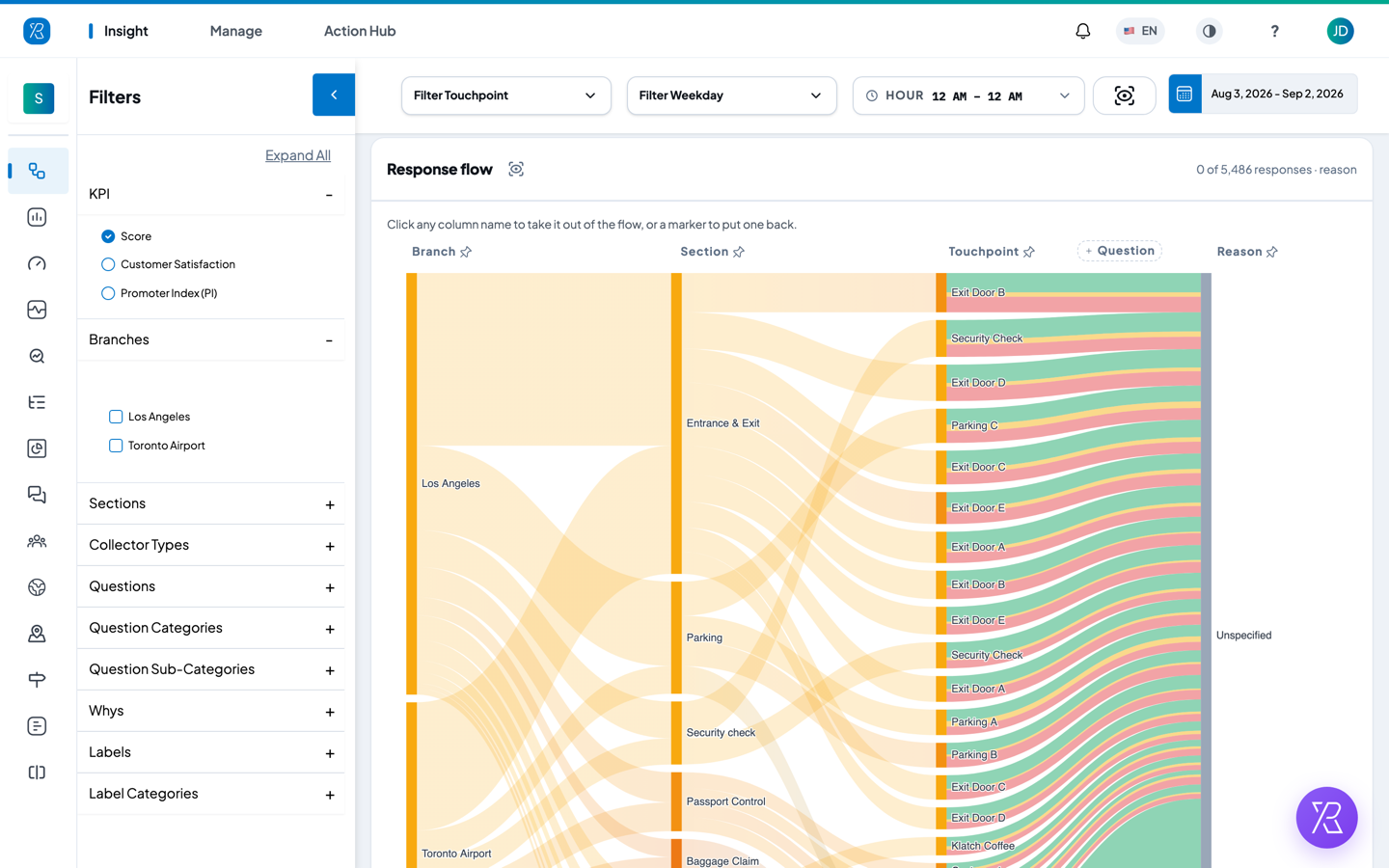
Add or remove a column
You do not have to look at all five steps at once.
- Click a column name to take that column out of the flow.
- The columns either side then join up directly.
- Click the small marker left in its place to put the column back.
The flow always needs at least two columns, so the last two cannot be removed.
This is the most useful thing on the page. Take Question out, for example, and Touchpoint runs straight into Reason — so you can finally see the happy, meh and sad split of every single touchpoint side by side, and trace a reason back to the place it came from.
If you ask poll-style questions, a Choice column appears at the end for the options people picked. Those ribbons run straight past the Reason column, because a poll answer has no reason attached. They are drawn grey — a pick carries no feeling. Filtering by a reason or a label hides that column, because poll answers carry neither.
Click the diagram to filter
- Click a block in any column to filter the whole page down to it. Click it again to release it.
- Click a ribbon to filter by both ends at once.
The cards, the charts and the comments all update.
Filters and dates
The Filters panel on the left narrows what the page counts.
- Under KPI, pick the score you want to see: Score (XPressScore, PXP's own weighted score), Customer Satisfaction (the share of happy customers) or Promoter Index (PI) (how likely people are to recommend you, on a 0 to 10 scale).
- Open any other group — Branches, Sections, Collector Types, Questions, Question Categories, Question Sub-Categories, Whys, Labels, Label Categories — and tick what you want.
- Click Expand All to open every group at once.
- Use the arrow button at the top of the panel to collapse it and give the diagram more room.
Along the top of the page you can also:
- Filter Touchpoint — limit the page to one or more touchpoints.
- Filter Weekday — keep only certain days of the week.
- HOUR — set a start and end hour, for example only opening hours.
- Date range — pick the period, shown on the far right.
- Take Snapshot (the eye-in-a-frame icon) — download the report, or a single card, as an image.
What is below the flow
Scroll down for more on the same filtered set.
- PXP AI Suggested Questions — ready-made questions written from your current view, naming your own branches and touchpoints. Click one to explore it with PXP AI.
- XPressScore Trend — the score over time, with response counts as bars behind it.
- Heatmap — when feedback arrives and how it scored, by Day, Day & Hour or Hour.
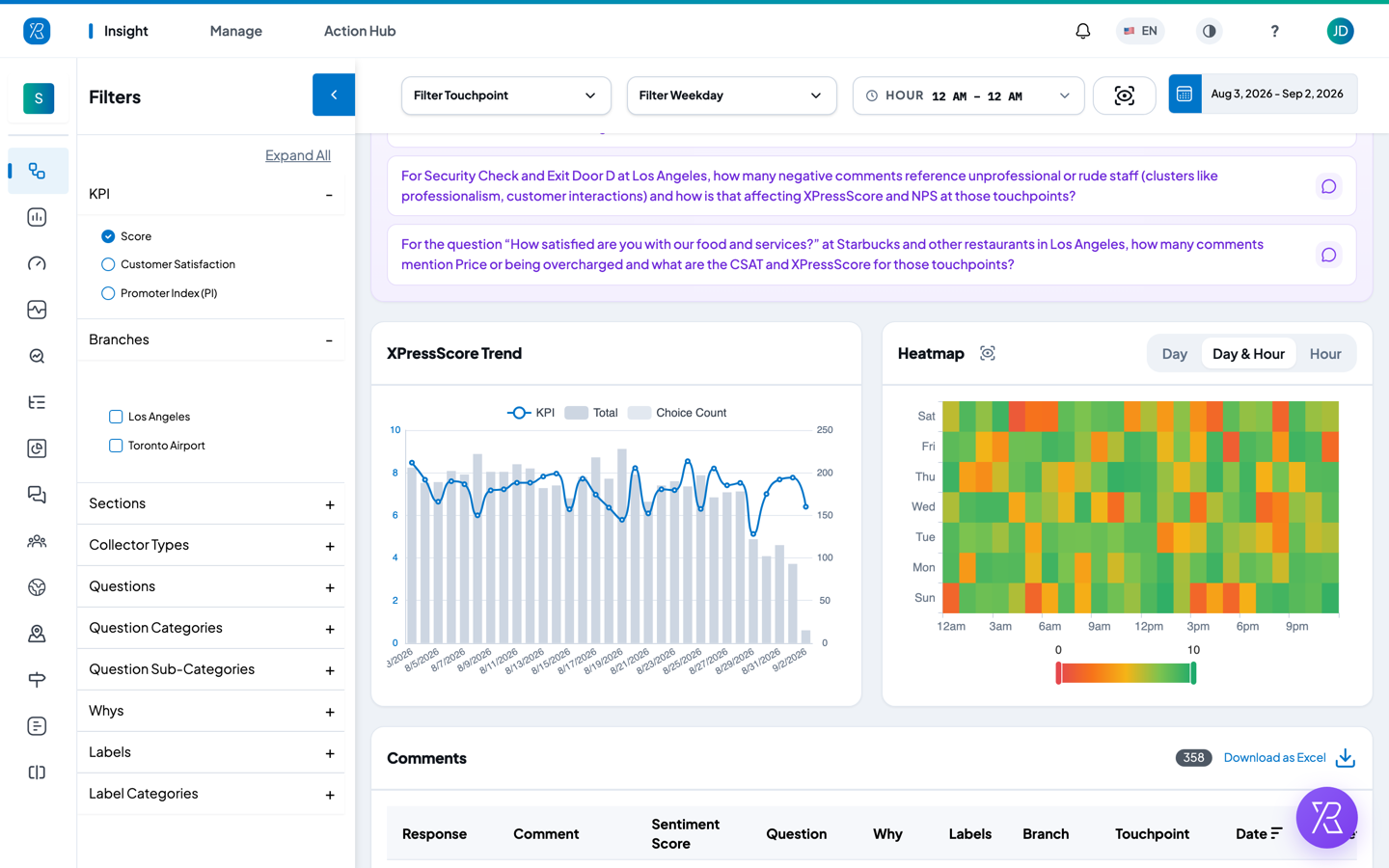
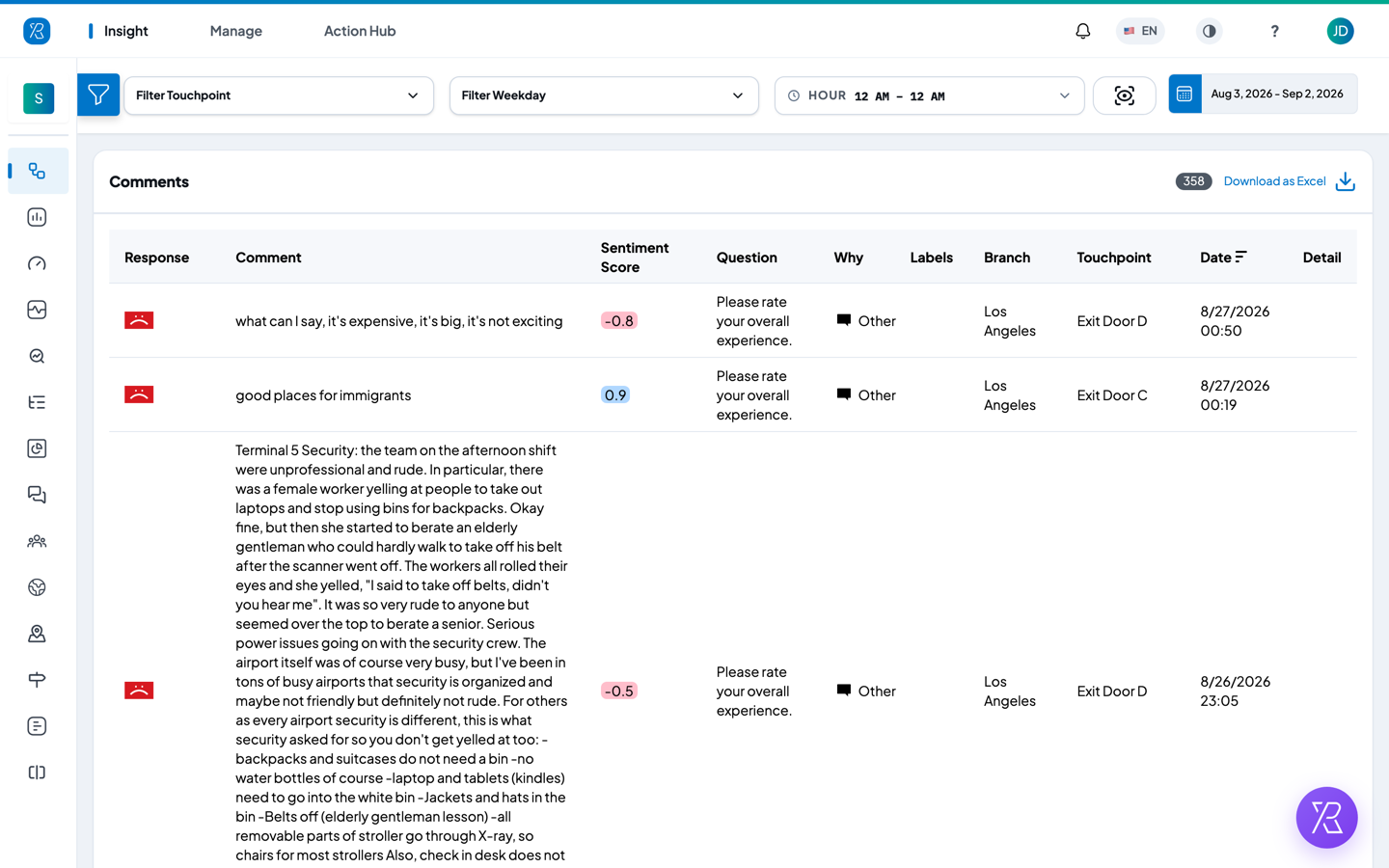
At the very bottom, Comments lists every comment people left. Each row shows the face they pressed, the comment itself, a sentiment score, the question, the reason, any labels, the branch, the touchpoint and the date. Sort by clicking a column heading, page through with the controls at the bottom, or click Download as Excel to export the lot.
Find the other reports
Response Flow is one of several Insight reports. The rest are on the icon menu down the left edge of the screen — trends, touchpoint and survey reports, text analytics and more.
See Reporting & Analytics Overview for what each one does.