Poll Report
What a poll is
A poll in Press'nXPress is a multiple-choice question. Instead of rating something, the person taps one option from a list you wrote — for example "What can be improved at work?" with the options Communication, Work-life Balance, Pay. Each option is called a choice.
That makes a poll different from the other two things it is easily confused with:
| What the person does | What you get back | |
|---|---|---|
| Rating question | Taps a smiley, or gives a 0–10 score | A score (XPressScore, CSAT, NPS) |
| Poll (multiple choice) | Picks one option from a list | A count of how many picked each option |
| Survey | Fills in a whole form of several questions | A per-question report — see Survey Report |
Because nobody rated anything, a poll has no score. There is no XPressScore, no CSAT and no NPS on this page. The only number is how many times each option was picked. That is what every card on the Poll Report counts.
Polls are set up in Manage as questions of type Categorical, then attached to a touchpoint like any other question.
Reading the report
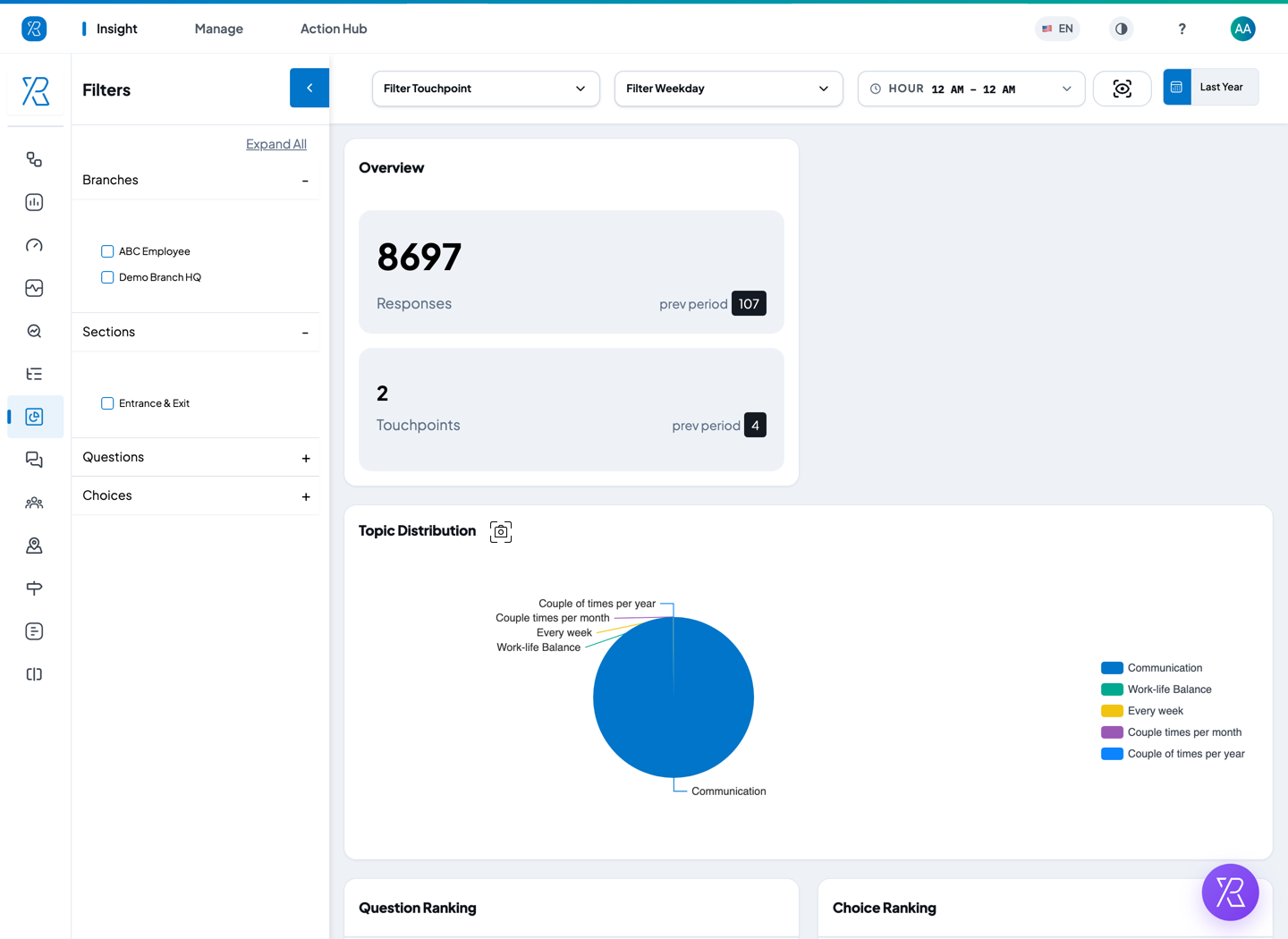
Overview gives you the two headline numbers:
- Responses — the total number of options picked in the period you chose.
- Touchpoints — how many touchpoints collected at least one poll answer.
The small prev period badge next to each is the same number for the period immediately before, so you can see whether you are getting more answers or fewer.
Topic Distribution is a pie of every choice, sized by how often it was picked. Hover a slice for the count and its share. The small camera icon next to the title downloads just this chart as an image.
Ranking cards
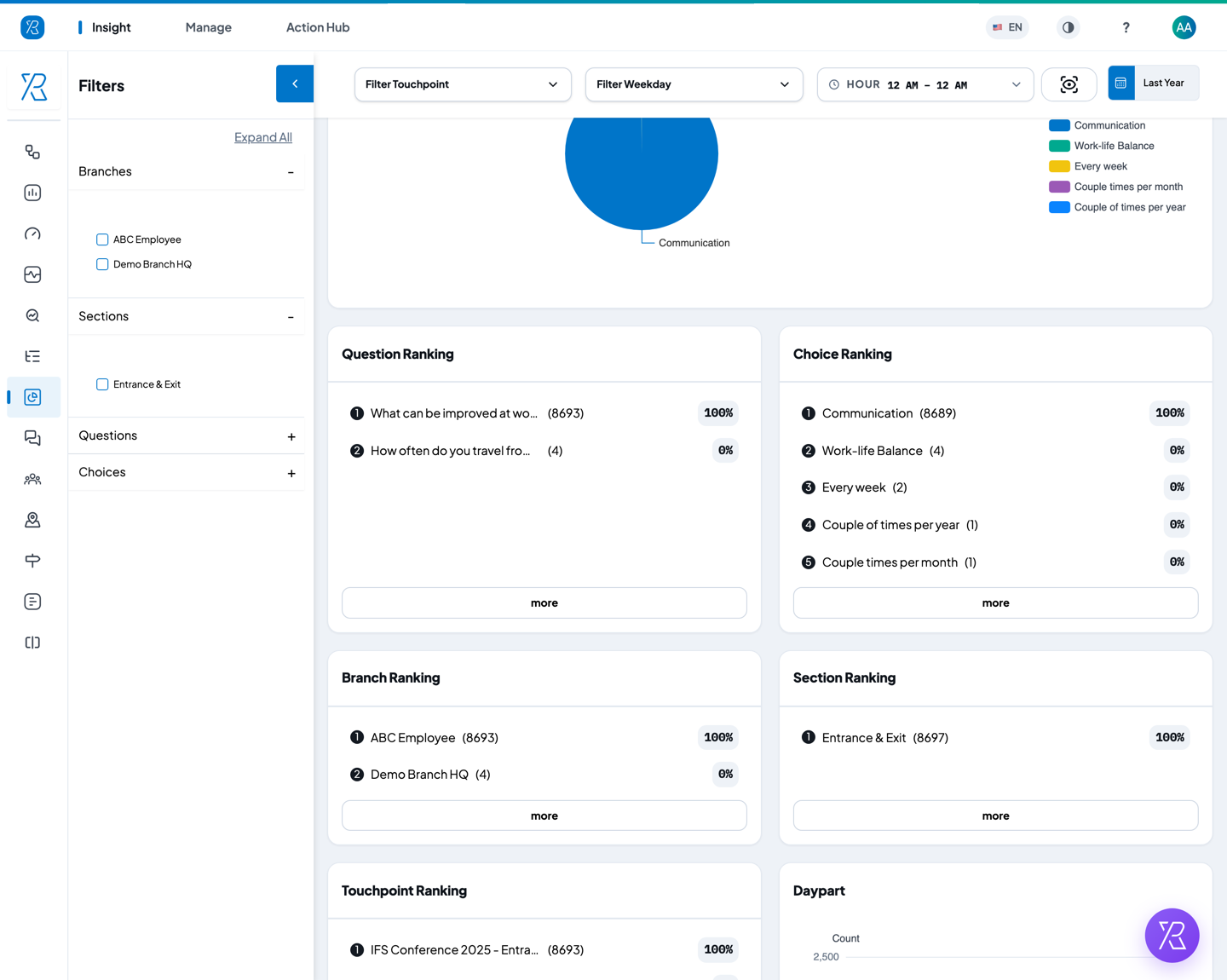
Five cards rank things from most-picked to least-picked: Question, Choice, Branch, Section and Touchpoint. They all read the same way:
- The circled number is the rank.
- The number in brackets is how many answers.
- The grey badge is that row's share of the card's total.
Click more at the bottom of a card to open the full list in a table.
When it happened
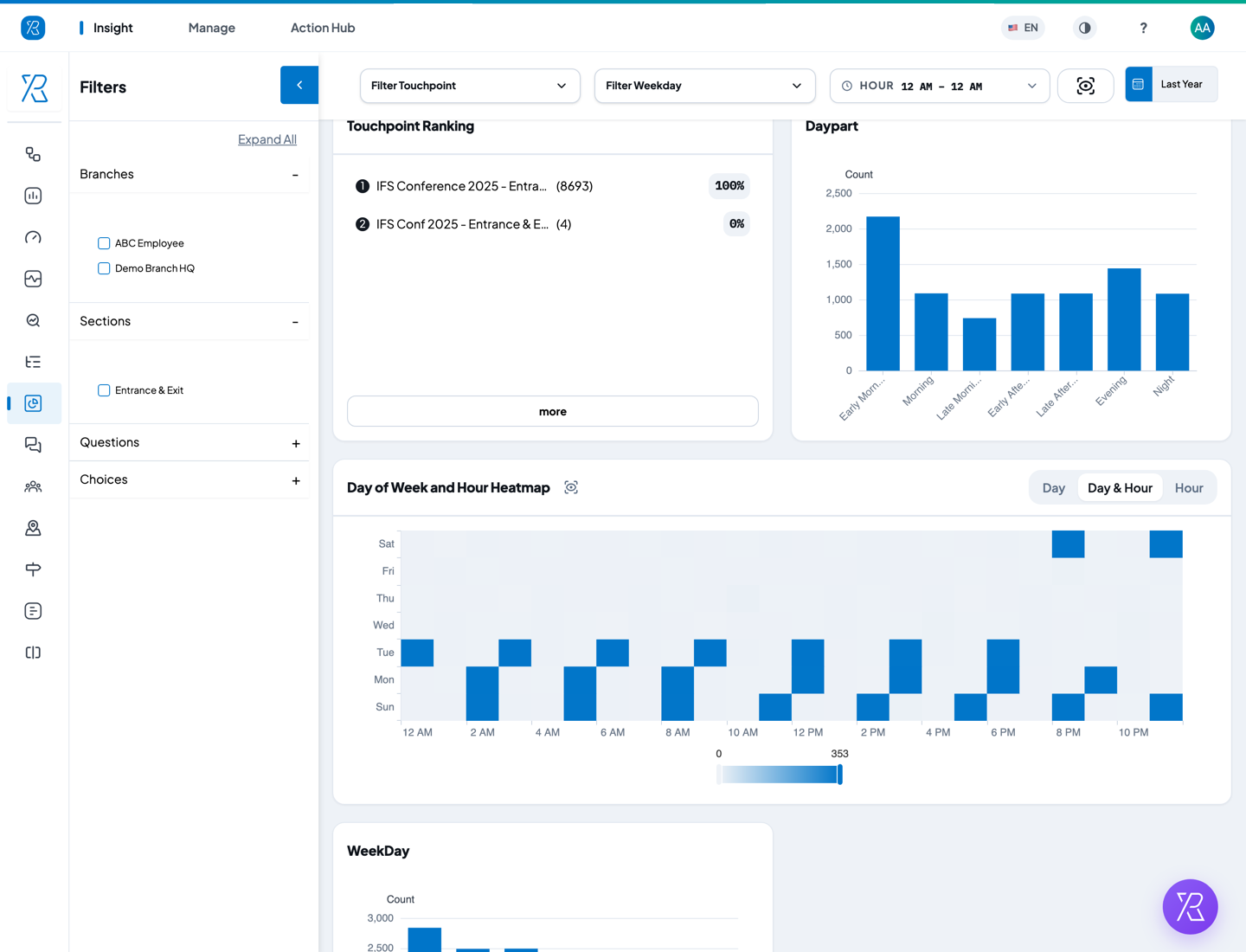
- Daypart — answers grouped into parts of the day, from Early Morning to Night.
- Day of Week and Hour Heatmap — the darker the square, the more answers came in at that hour on that day. Use the Day, Day & Hour and Hour buttons in the corner to switch between a weekday view, the full grid, and an hour-of-day view. This card has its own download icon too.
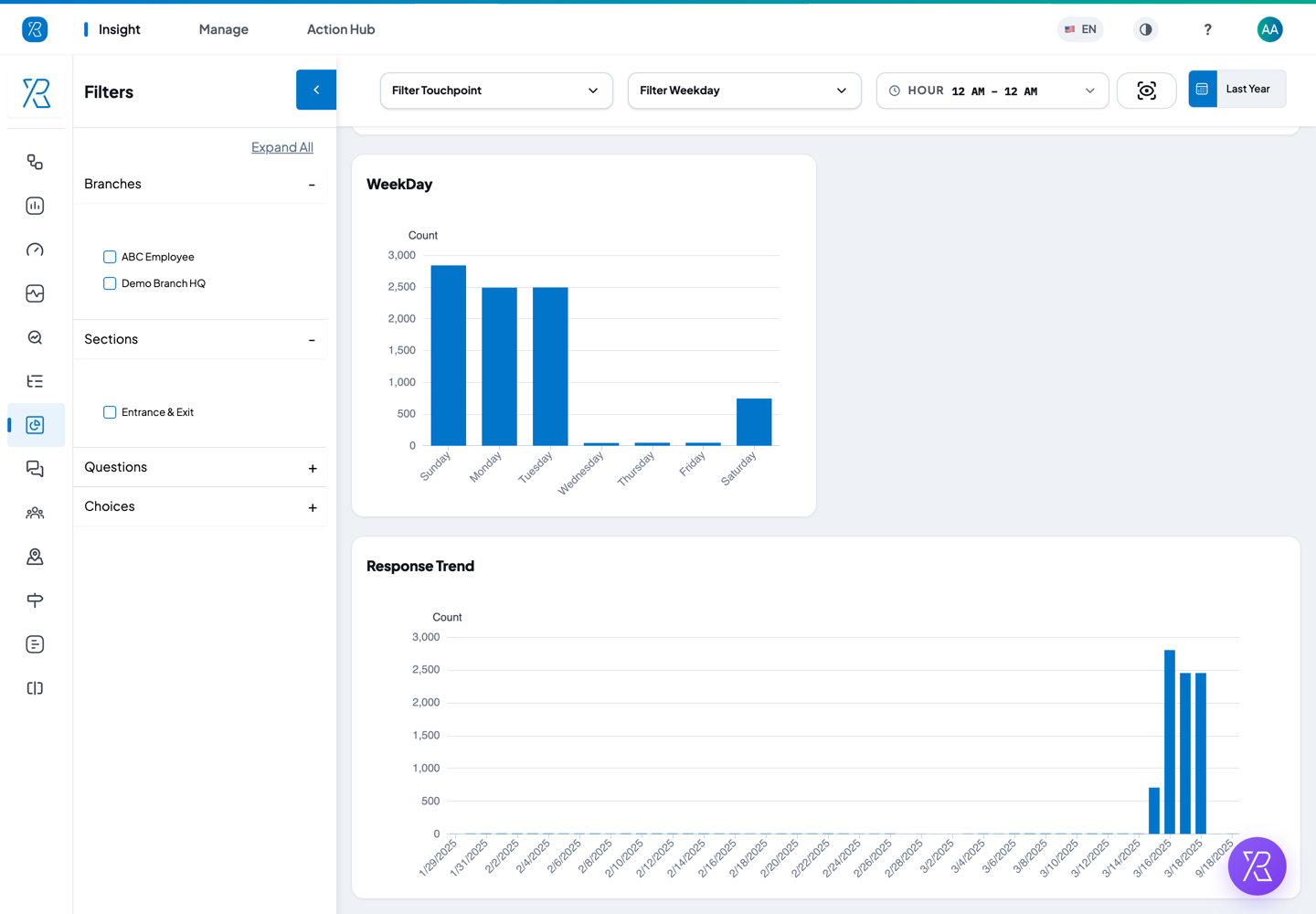
- WeekDay — total answers per day of the week.
- Response Trend — one bar per calendar date, so you can spot the days a poll actually ran.
Narrowing the report
Everything on the page reacts to the filters. Nothing is saved until you change it back.
- Click the date button at the top right to pick the period — Today, This Week, Last Month, Last Year, or your own start and end dates.
- Use Filter Touchpoint, Filter Weekday and Hour along the top for quick cuts.
- Open the Filters panel on the left to narrow by Branches, Sections, Questions and Choices. Click a heading to expand it, or Expand All to open them all, then tick what you want.
- Click the arrow at the top of the Filters panel to collapse it and give the charts more room.
Filtering by Choices is the useful one that is easy to miss: tick a single option, and every other card then shows only the people who picked it — which branches, which hours, which days.
To save the whole report as a picture, click the Take Snapshot button next to the date button. It downloads the page as a single PNG.
The report opens on the last 30 days. If your poll ran earlier, widen the date range before you conclude there is no data.