Download feedback responses
Response Export gives you your raw feedback data as a spreadsheet: one row per response, with the rating, the date, the touchpoint, the comment and the respondent's contact details.
Use it when you want to work on the numbers yourself — in Excel, Google Sheets, or your own reporting tool.
Find it under Manage → Response Export. If you do not see it, ask your administrator for the response export permission.
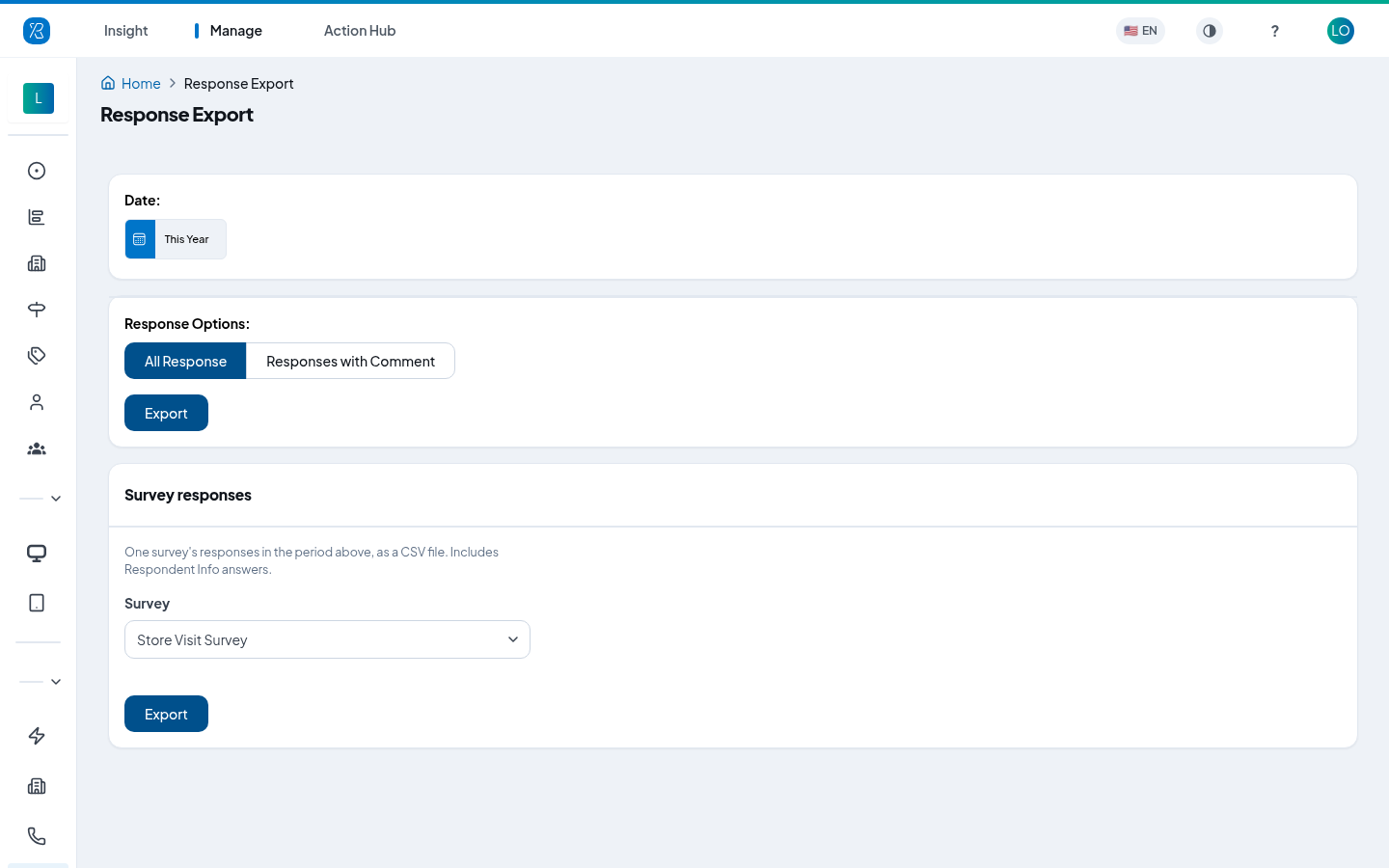
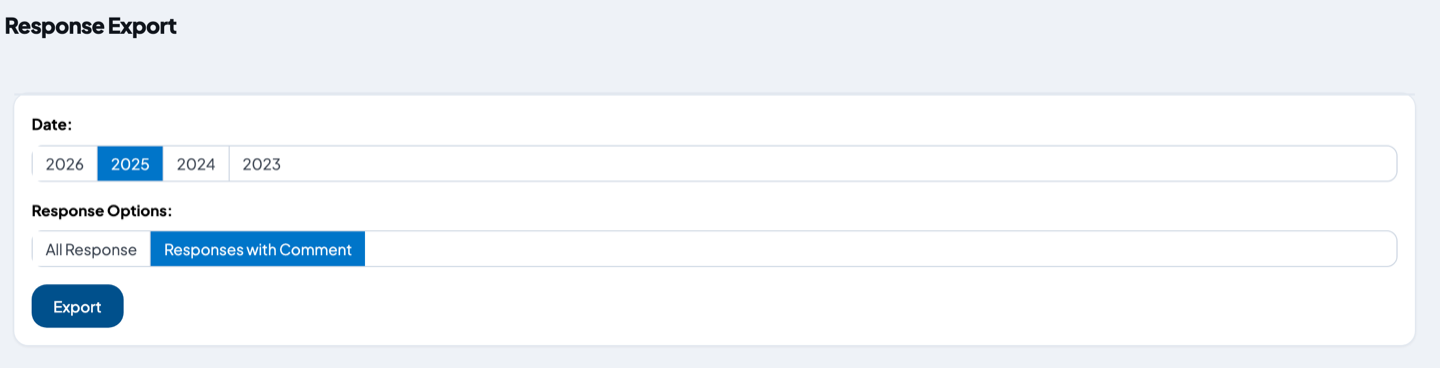
Export your responses
- Under Date, click the year you want. You can pick the current year or any of the three years before it. The export always covers that whole calendar year, and it covers every touchpoint that is switched on in your organization.
- Under Response Options, click All Response or Responses with Comment.
- All Response — every response where the customer gave a rating.
- Responses with Comment — only responses where the customer also picked a reason for their rating.
- Click Export.
The button shows a spinner while the file is being built. A whole busy year can take a minute or two — leave the tab open and wait. Nothing is emailed to you: the file downloads straight to your browser when it is ready.
What you get
An Excel file (.xlsx) named after your two choices, for example All Response - 2025.xlsx. It has one sheet, Digital Response Transactions, with a filter row already turned on.
The columns are:
| Column | What it holds |
|---|---|
| Button | The rating the customer gave: Happy, Meh or Sad. |
| Vote Date | When the customer answered. |
| Creation Date | When the response record was created — for an email or SMS invite, when it went out. The year you picked filters on this date. |
| Touchpoint Name | Which touchpoint (feedback point) the response came from. |
| Why Name | The reason the customer picked after rating. |
| Respondent Identifier, Name, Email, Phone, Company | Who answered, when you know it. Blank for anonymous kiosk feedback. |
| Comment | What the customer typed or said. |
| Comment Date | When the comment was left. |
| Question Title | The question the customer answered. |
| Agent Name, Agent Email | The staff member the response was tied to, if any. |
| Context | Any extra reference your system sent along with the response, such as an order number. |
| Status | For email invitations, the last thing that happened to the mail — sent, opened, bounced. A dash if there was no email. |
If your invitations carry extra respondent fields of your own, each one is added as its own column named Respondent <your field name>.
Poll answers are not included. Poll questions have a list of options instead of a rating, so they have their own report — see Poll Report.
Other ways to get data out
- A report table you are looking at. On Advance Report, set your filters, dimension and time series, then click Download Dataset under a table or heatmap. You get a CSV of exactly that table, named after the dimension and date range.
- Just the comments. On Text Analytics, open the Comments tab, filter it, then click Download as Excel above the table. You get a CSV named
comments-<date range>.csv.
If you have any question contact support@pxp.ai