Organization Settings
Organization Settings is where you change the things that apply to your whole organization at once — the logo on your reports and surveys, how your score is calculated, and a few connection settings such as the API key and webhooks.
Open it from Manage > Settings > Organization. The organization you are editing is named under the page title.
You need admin access to open this page. Each organization has its own settings, so check the name under the page title before you change anything.
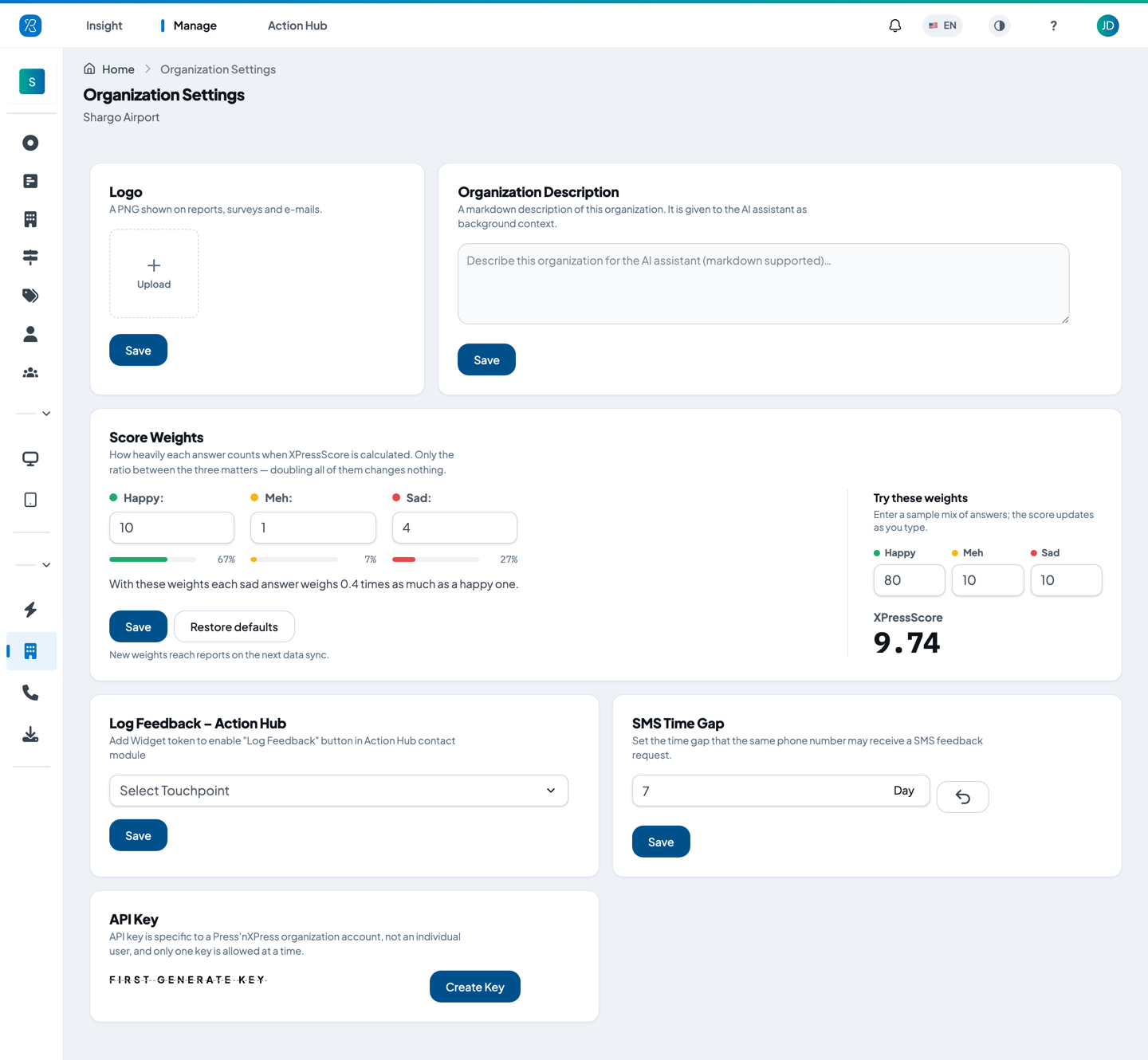
Every card on this page has its own Save button. Saving one card does not save the others.
Some cards only appear if your organization has the matching add-on and you have permission to use it, so you may see fewer cards than shown above.
Logo
Your logo appears on reports, surveys and e-mails sent to your customers.
- Click the logo box.
- Choose a PNG file. Only PNG is accepted.
- Click Save.
Organization Description
A short description of your organization, written in plain text or Markdown. It is passed to the AI assistant as background information, so it can answer questions about your business with the right context — what you sell, who your customers are, how many locations you run.
- Type your description in the box.
- Click Save.
It is optional — leaving it empty just means the assistant has less context to work with.
Score Weights
This is the highest-impact setting on the page. Read this section before you change anything here.
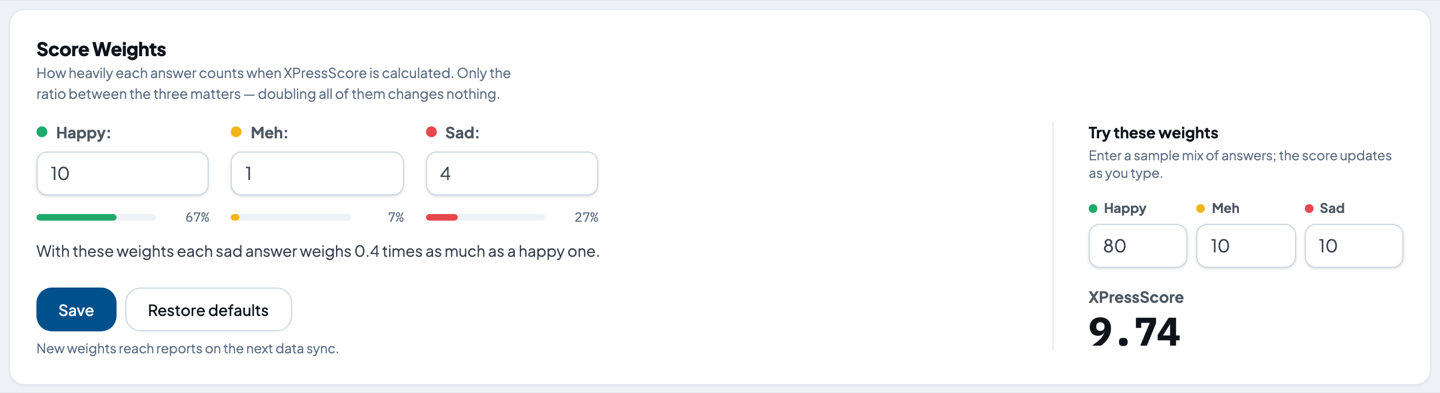
What it does
Every feedback answer your customers give lands in one of three buckets: Happy, Meh or Sad. Your XPressScore — the 0 to 10 score you see on nearly every report — is worked out from how many answers fell into each bucket.
The three numbers on this card say how much each bucket counts:
- Happy pushes the score up.
- Meh and Sad pull it down. A bigger number pulls harder.
The default is Happy 5, Meh 2, Sad 8. With those numbers a sad answer weighs 1.6 times as much as a happy one, which is why one unhappy customer moves your score more than one happy customer does.
Your organization may already have different numbers. The card in the picture above is set to 10 / 1 / 4, so on that organization a sad answer weighs only 0.4 times as much as a happy one.
Only the ratio between the three matters. Doubling all three (10 / 4 / 16) gives exactly the same score. The bars under each box show each number as a share of the total, and the sentence below them tells you the current sad-to-happy ratio in plain words.
XPressScore, NPS and CSAT are explained in the PXP Glossary.
What changes if you edit it
Changing these weights changes the XPressScore shown on every report — every branch, every touchpoint, every date range. It also changes past periods, not just feedback collected from today, because the score is recalculated from your stored answers each time a report is opened. A branch that scored 8.3 last quarter may show a different number afterwards.
It does not change NPS or CSAT — those two ignore these weights — and it does not change the answers themselves. Only how they are added up.
So agree the change with whoever reads your reports before you save it, or their numbers will move without explanation.
Try before you save
The Try these weights panel on the right lets you test the effect safely.
- Change the sample number of Happy, Meh and Sad answers. It starts at 80 / 10 / 10 — replace it with a mix that looks like a typical month for you.
- The XPressScore below updates as you type, using the numbers currently in the boxes on the left.
- If you have edited the weights but not saved them, a line underneath tells you what your saved weights score the same sample, so you can compare the two.
Nothing is stored until you click Save.
Changing the weights
- Type a new number for Happy, Meh or Sad. Happy must be at least 1, Meh and Sad can be 0 or more, all three are whole numbers up to 100.
- Check the preview on the right.
- Click Save.
Restore defaults puts 5 / 2 / 8 back in the boxes. You still have to click Save to keep it.
New weights reach your reports on the next data sync, so the numbers will not move the instant you save.
Log Feedback — Action Hub
This lets your team record feedback a customer gave in person or over the phone. Once it is set up, a Log Feedback button appears in the contact module of the Action Hub.
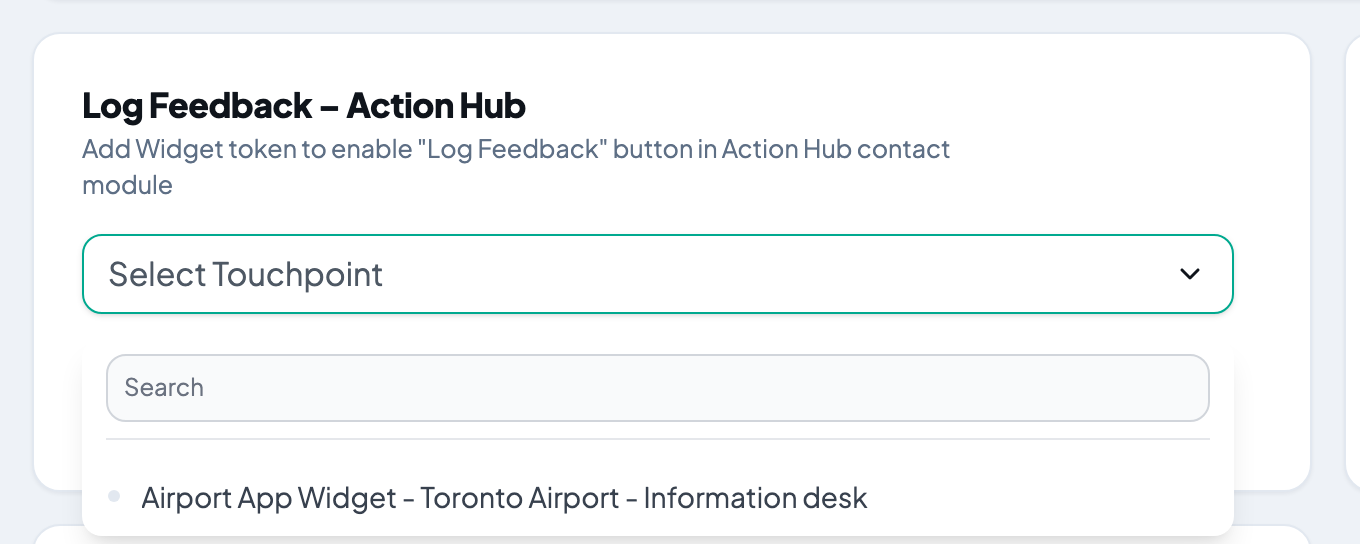
The dropdown lists the enabled website widget touchpoints in your organization. The answers your team logs are recorded against the touchpoint you pick here, so choose one you are happy to see those responses under.
- Open the dropdown. Type in the search box if the list is long.
- Click the widget touchpoint you want.
- Click Save.
If the list is empty, create a website widget touchpoint first — see Website Feedback Collector. There is more detail on the button itself in Enable Add Feedback Button.
This card only appears if your organization has the Action Hub contact add-on and you are allowed to view touchpoints.
SMS Time Gap
How long PXP waits before it will send another SMS feedback request to the same phone number. It stops a regular customer being asked after every single visit.
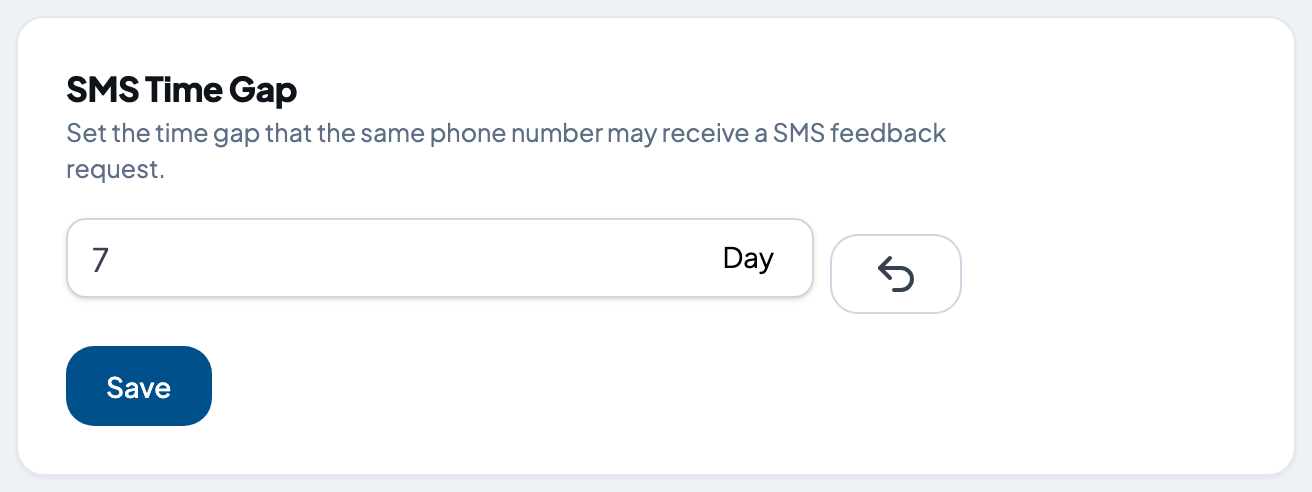
- Type a number of days. Anything from 1 to 90 is allowed.
- Click Save.
The arrow button next to the field sets it back to the default of 7 days.
This card only appears if your organization has both the SMS add-on and the Action Hub contact add-on. See SMS Feedback Collector for how SMS requests are sent.
API Key
The API key lets your own systems talk to PXP — for example, asking PXP to send a feedback e-mail after an order is delivered. Every API call is checked against this key.
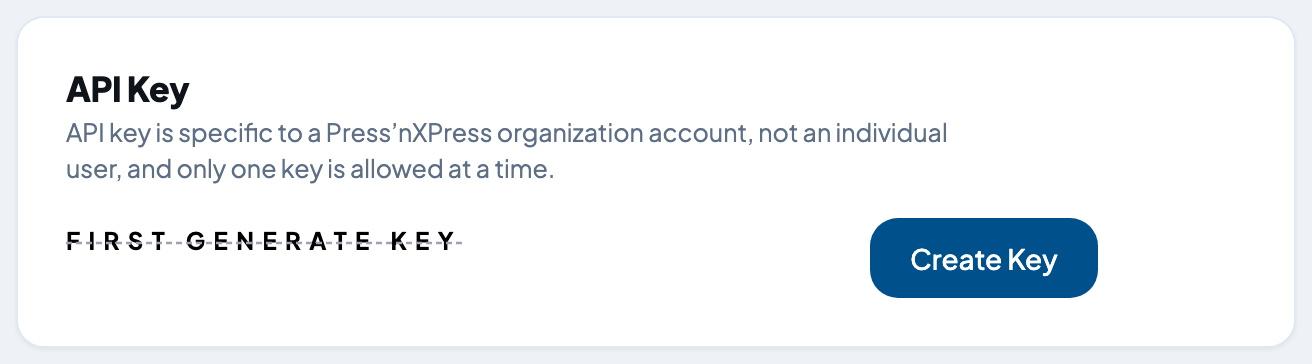
The key belongs to the organization, not to you personally, and there is only one at a time. It works on the touchpoints inside this organization and its branches.
If no key exists yet: the card shows a crossed-out FIRST GENERATE KEY placeholder instead of a key.
- Click Create Key.
- The key is created right away, still covered up.
- Click Show to read it, or Copy to put it on your clipboard.
If a key already exists: the Create Key button is gone, because an organization only ever has one key.
- Click Show to reveal it, or Hide to cover it again.
- Click Copy to put it on your clipboard.
Keep the key safe
Anyone holding the key can act on your organization through the API. Store it somewhere private and never paste it into a public page or a shared document. You cannot replace the key yourself from this page, so if you think it has leaked, contact support@pxp.ai immediately and they will issue a new one.
For what you can do with the key, see Integration API.
Webhooks
Webhooks send each new response and survey answer to a system you own, such as your CRM, as it arrives. Each webhook is an https URL that receives one signed request per event.
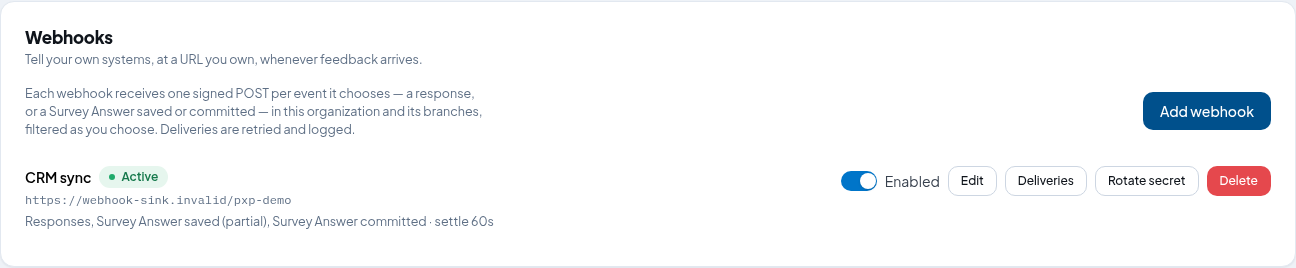
From this card you can add a webhook, choose its events and filters, send a test, read the log of deliveries, rotate its secret, and turn it on or off.
This card only appears if your account has the ManageWebhooks permission. For how to set up a webhook, and for what the receiving system needs to know, see Webhooks.