Phone Numbers
Manage → Settings → Phone Numbers holds the phone numbers your organization sends SMS surveys from. When a customer gets a feedback text from you, one of these numbers is the sender. Their replies come back to the same number.
You get a number here first, then pick it when you build a two-way SMS touchpoint. A touchpoint is a single moment you ask for feedback, such as after a delivery or a service visit.
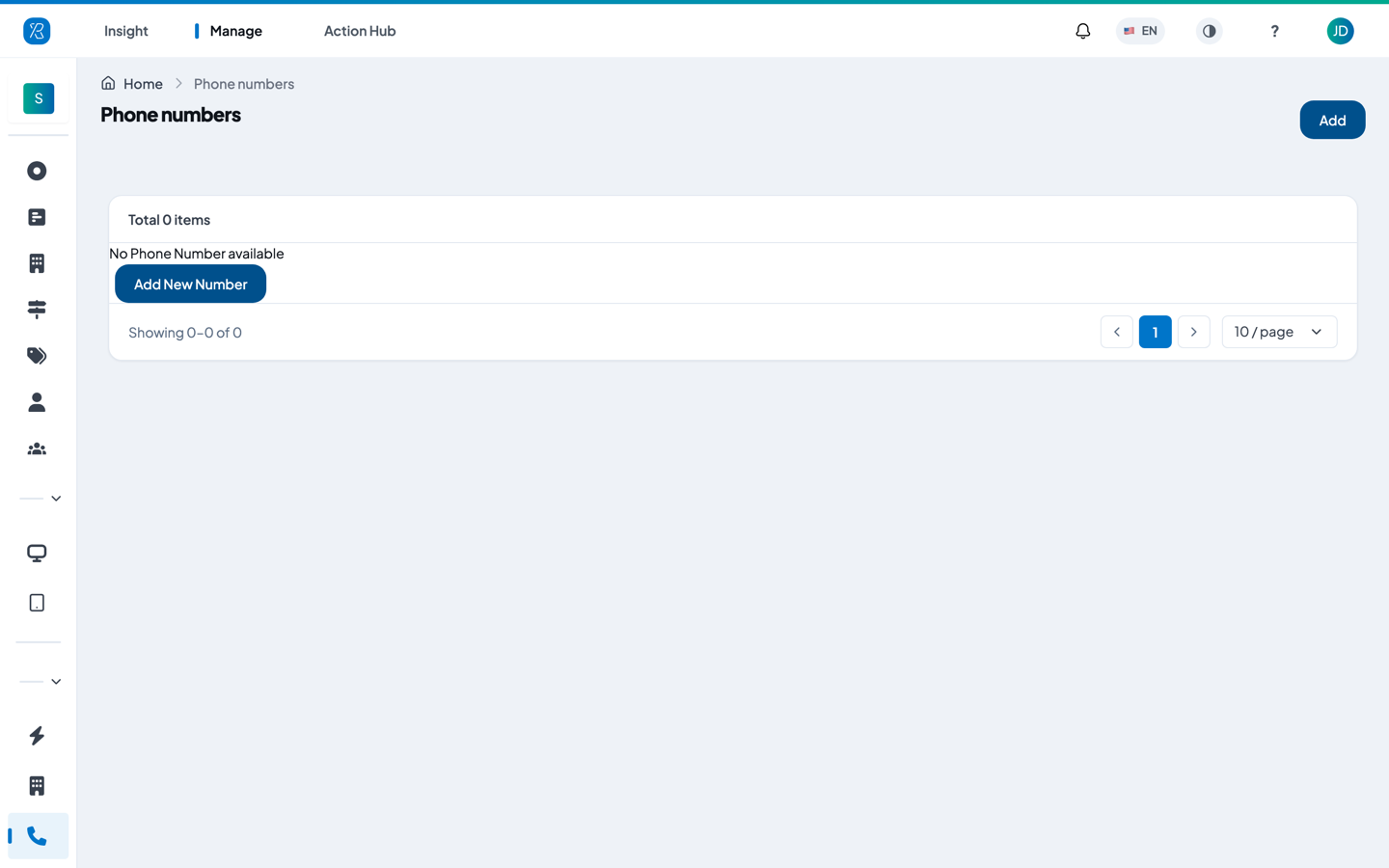
A new organization has none yet, so the card reads No Phone Number available. Click either Add New Number in the middle of the card or Add at the top right — both open the same window.
Reading the list
Once you have numbers, each row shows:
| Column | What it means |
|---|---|
| Country | The flag of the country the number belongs to. |
| Phone | The number itself, in full international format. |
| Status | Available (green) means the number is free to use. Assigned to touchpoint (red) means an SMS touchpoint is already sending from it. |
| Actions | A trash icon to give the number back. |
The counter at the top of the card shows how many numbers you have. The list holds 10 rows per page — use the page selector at the bottom right if you have more.
Get a new number
You do this yourself — you do not need to email anyone.
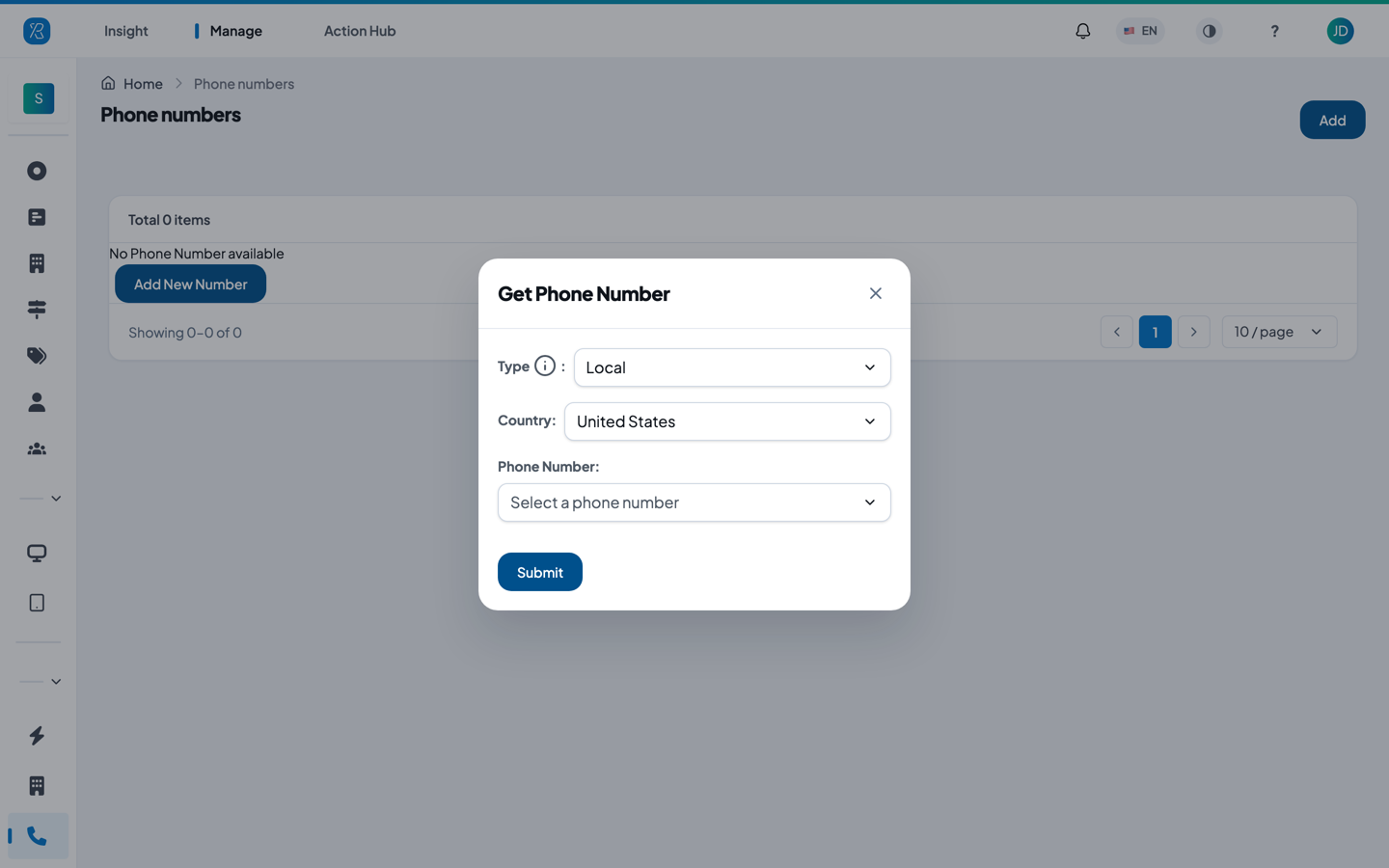
- Click Add at the top right. The Get Phone Number window opens.
- Choose a Type. Local is an ordinary area-code number. Toll Free is an 800-style number. Hover the small i next to the label for PXP's advice on choosing.
- Choose a Country. Only United States and Canada are offered.
- Open Phone Number and pick one from the list. The list shows numbers that are free right now, and it reloads whenever you change the type or the country. Type in the Search box to look for a particular area code.
- Click Submit. The new number appears in the list with the status Available.
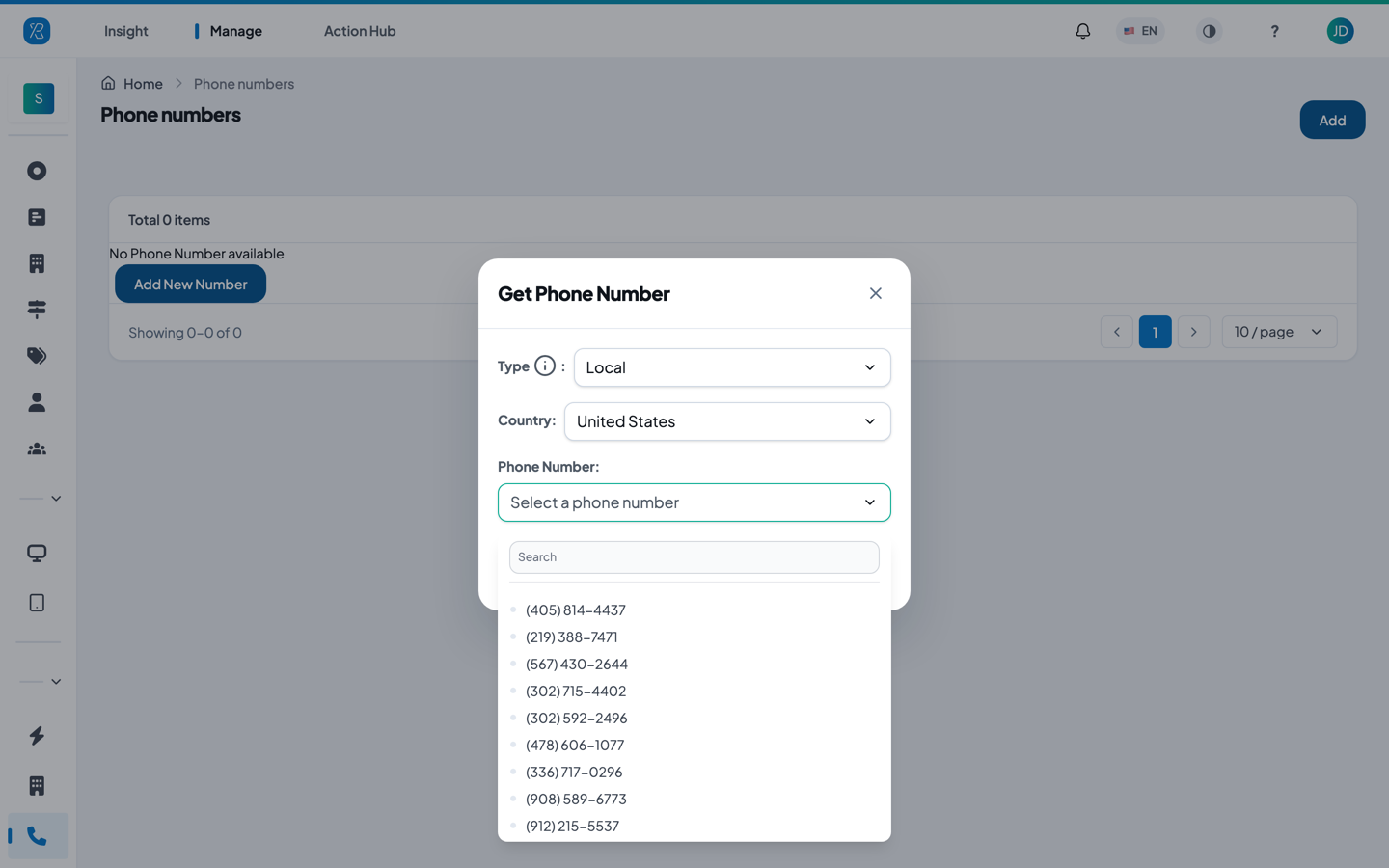
The picker shows numbers the friendly way — (405) 814-4437. The list on the main screen shows the same number in international form — +14058144437. They are the same number.
Pick the number's country to match your customers. Sending from a number in the same country as the people you text keeps the cost down and makes it much more likely their reply reaches you. If you text people in both Canada and the US, get one number for each.
Link a number to an SMS touchpoint
You do not link the number on this screen. You choose it while setting up the touchpoint.
Only SMS touchpoints where the customer replies by text use a number from here. An SMS touchpoint that texts a link instead does not need one, which is why you can build and switch on an SMS touchpoint before you own a single number. You make that choice on the touchpoint's Select Question step, under How customers respond: Two Way means they answer by texting back, By Link means they answer by tapping a link.
For a Two Way touchpoint:
- Go to Manage → Touchpoint and create or edit an SMS touchpoint set to Two Way.
- Open the Two Way Config step.
- Under Phone numbers, pick one of your numbers. You can add more than one — click the dashed + Add phone number box to add another slot.
- Save the touchpoint.
At least one number is required, so a Two Way touchpoint will not save without one. Numbers that already belong to another touchpoint are greyed out and cannot be picked twice. Back on the Phone numbers screen, the number you just used now reads Assigned to touchpoint.
How many numbers do you need? Add one number for every 100 texts you expect to send in a day. If you send around 260 feedback requests a day, assign three numbers to the touchpoint. This keeps messages delivering reliably.
For the full walkthrough of building the survey itself, see SMS Feedback Collector.
Give a number back
- Find the row.
- Click the trash icon in the Actions column.
- Confirm.
The trash icon is disabled while the number is Assigned to touchpoint. Remove the number from the touchpoint first, then delete it here. It is also disabled if your account is limited to certain branches rather than the whole organization.
If you cannot see this screen
Phone Numbers only appears when SMS is switched on for your organization and your user role is allowed to get numbers. If the menu item is missing, contact your PXP account manager or write to support@pressnxpress.com.
What about IVR?
IVR — the automated voice survey a customer hears at the end of a phone call — is set up on its own screen and does not use the numbers listed here. See IVR Feedback Collector.