Tablets
A tablet is an Android tablet running the Press'nXPress app. You stand it on a counter or mount it on a wall, and it shows your question to customers all day, like a kiosk.
The Tablets screen is the list of every tablet your organization has registered. Use it to add a new device, to see which touchpoint each device is running, and to check that a device still has charge.
To open it: click Manage at the top, then Tablets under Hardware in the left menu.
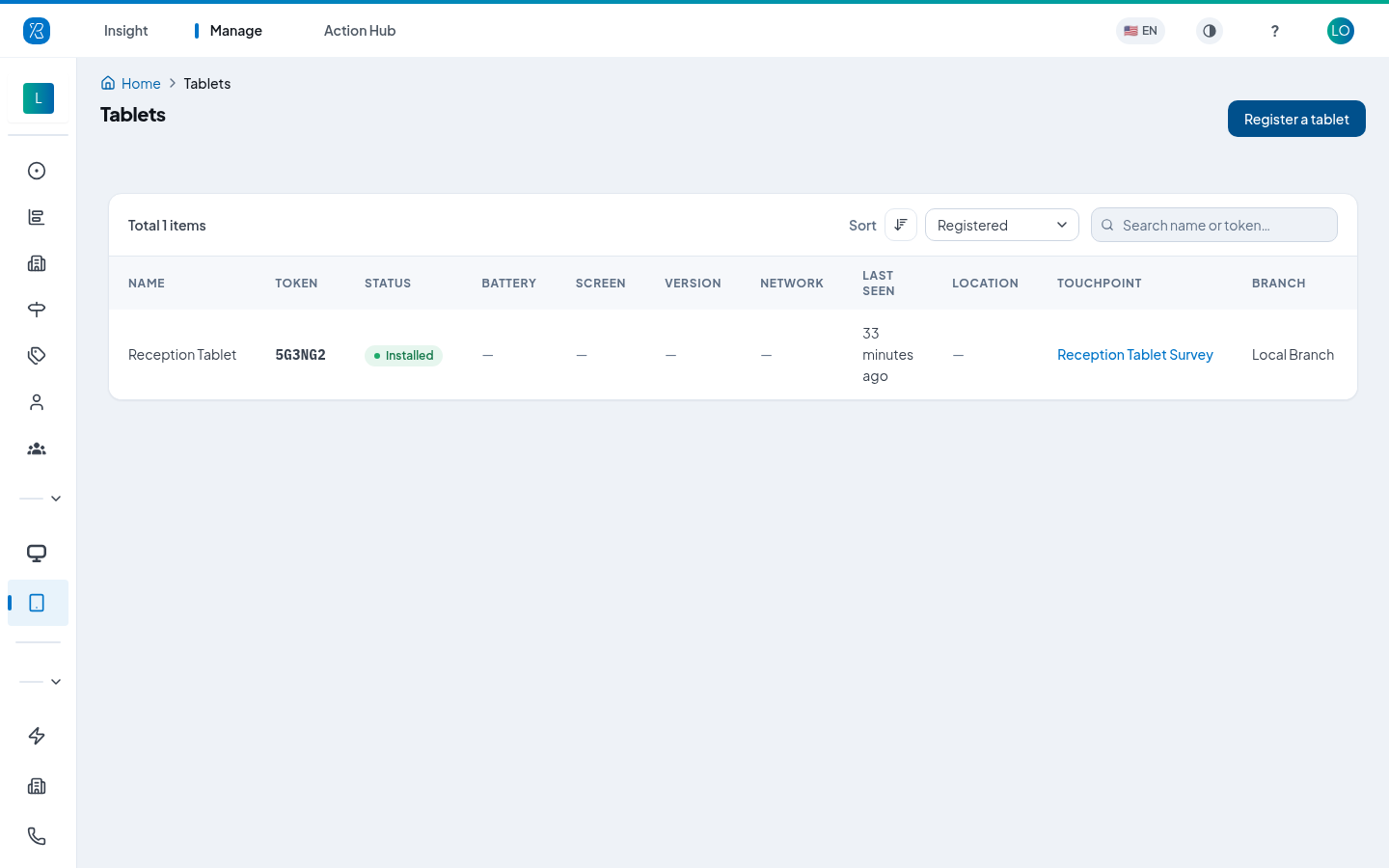
Until you register your first device the screen says No tablets registered yet, with a Register a tablet button in the middle. Once you have devices, each one gets a row in a table. Use Sort to order the list, for example by when each tablet was registered.
What each column tells you
| Column | What it means |
|---|---|
| Name | The name you gave the device when you registered it, for example "Front desk iPad". |
| Token | The six-character code the device shows on its own screen. It is how the app and your account recognise each other. |
| Status | Installed means the tablet is running a touchpoint. Ready to install means it is registered but not doing anything yet. |
| Battery | The charge left, plus a small mark for whether it is plugged in. A lightning bolt means charging, an unplugged icon means it is running on battery. |
| Screen | Active, or Standby while the touchpoint's standby schedule has the screen dark. |
| Version | The software version the tablet reports. |
| Network | How the tablet is connected: Wi-Fi, Mobile data, Ethernet or Other. |
| Last seen | How long ago the device last reported in, for example "9 hours ago". |
| Location | A map pin. Click it to open the last place the device reported from in Google Maps. |
| Touchpoint | The touchpoint this tablet is running. Click the name to open it. |
| Branch | The location that touchpoint sits in. |
| Registered | How long ago you added the device here. |
A dash (—) means the device has not reported that yet. A brand new tablet, or one that has never been switched on since you registered it, shows a dash for battery, screen, version, network, last seen and location.
The count at the top left ("Total 0 items", "Total 4 items") is how many tablets you have.
There is no "online" light on this screen. Status tells you whether a device has been given a touchpoint, not whether it is switched on right now — for that, read Last seen.
A tablet is meant to stay plugged in. If the battery column says a device is not charging, someone has unplugged it — even at 78% it will be dark by the evening.
Find a tablet
Type in the Search name or token… box at the top right. It matches the name you gave the device and the six-character token, so you can read the code off a tablet's screen and find its row.
The count above the table follows what you are looking at, so it tells you how many tablets matched.
Register a tablet
You do this once per device, when the tablet is new.
- Switch the tablet on and open the Press'nXPress app. It shows a pairing screen with a six-character token and a QR code.
- In the dashboard, open Manage → Tablets and click Register a tablet at the top right.
- Type the six characters into Device token. The letters are stored in capitals, so you do not need to hold shift.
- Type a Friendly name — something you will recognise later, like "Reception – ground floor".
- Click Register a tablet.
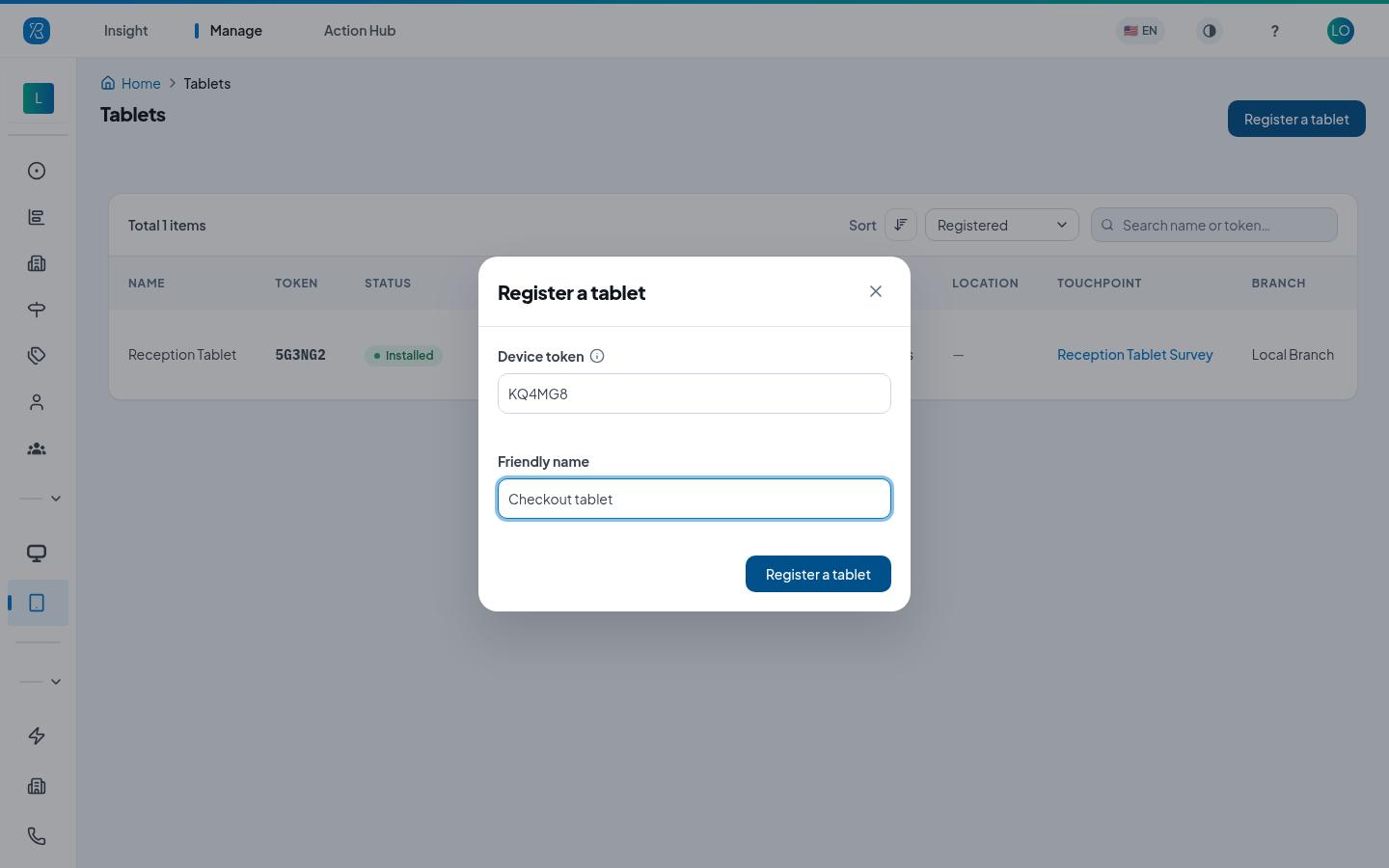
Both fields are required. If the code is rejected, check it against the tablet screen — it is easy to confuse similar-looking characters.
The device now appears in the list with the status Ready to install.
Point your phone camera at the QR code on the tablet's pairing screen. It opens this same screen with the token already filled in, so all you have to do is type a name and click Register a tablet.
Put a tablet to work
Registering a device does not yet collect any feedback. A tablet only starts asking a question once it is attached to a touchpoint — a touchpoint is one place you collect feedback, such as the checkout of one store.
- Go to Manage → Touchpoints and open the tablet touchpoint you want, or create a new one.
- Go to the Collector Settings step: step 6 for an In-Moment touchpoint, step 3 for a survey.
- In the Device card, pick your tablet from the Tablet list. Each option shows the device's token, and shows the touchpoint it already runs if it is in use elsewhere.
- Click Update Touchpoint.
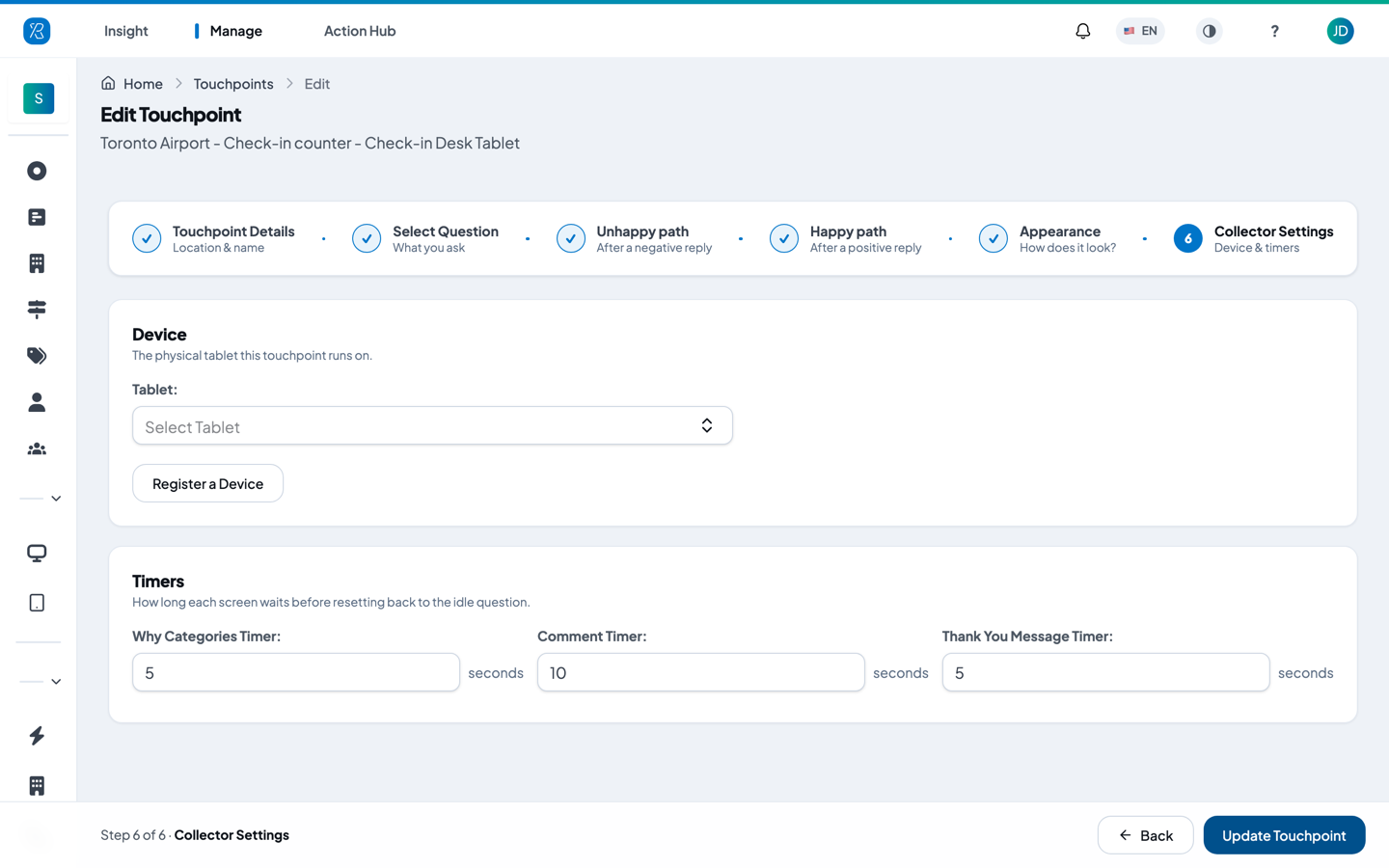
On a touchpoint that runs a survey, the same step has the Device card and a Standby schedule; its timers are on step 2. See below.
The tablet's status on the Tablets list changes to Installed, and the Touchpoint and Branch columns fill in.
If you have not registered anything yet the Tablet field just says Select Tablet with nothing to pick. You can register a device from here without leaving the page — click Register a Device in the same card. It opens the same window as the Tablets screen.
The Tablet field cannot be emptied again. Once a touchpoint has a device you can swap it for another one, but you cannot leave it blank.
For the rest of the touchpoint setup — the question, the follow-up screens and the look of the tablet screen — see Tablet Feedback Touchpoint. To change several kiosk touchpoints at once, see Bulk update multiple touchpoints.
A tablet running a survey
A tablet touchpoint can run a full survey instead of one In-Moment question: choose Survey as the Message type on step 2. The tablet then shows the survey, with its own branching, follow-up questions and thank-you, and resets itself after each person.
On step 2 you also set:
- Status strip: a live band along the bottom of the survey's first screen, shown again each time the tablet resets to the start.
- Timers: one per kind of screen (Statement, Scale question, Why question, Categorical question, Open comment, Voice, Respondent info), each from 3 to 60 seconds. The first screen never times out while untouched; once someone starts, every screen counts down.
The look of the survey on the tablet comes from the survey's own Settings, including the progress bar and tap to advance. For the full walk-through see Tablet Feedback Touchpoint.
Take a tablet out of service
Deleting a tablet removes it from your organization. The device goes back to its pairing screen with a new token, so it can be registered again later — by you or by someone else.
- Find the tablet in the list.
- Click the bin icon in the Actions column.
- A small box asks "Delete this tablet? The device returns to its pairing screen with a new token, and this row disappears." Click OK to confirm, or Cancel to back out.
An Installed tablet has no bin icon, on purpose — deleting it would silently stop a live touchpoint from collecting feedback. Free the device from its touchpoint first:
- Open the touchpoint from the Touchpoint column.
- Go to the Collector Settings step and choose a different device in the Tablet field.
- Click Update Touchpoint.
- Come back to Tablets — the row now says Ready to install and the bin icon is there.
If you only want to move a device to another spot, you do not need to delete it. Just pick it on the other touchpoint — see Assign a kiosk to another touchpoint.
If you cannot see this screen
Tablets only appears if your organization has the tablet option enabled and your account has permission to manage touchpoints. Ask your Press'nXPress administrator if the menu item is missing.